
1. הקדמה
The Poly Studio Table Microphone is designed to enhance audio capture in conference environments, specifically for Poly Studio X50, X52, V52, X70, X72, and V72 video systems. It features superior 3-way audio pickup, automatically leveling voices and suppressing background noise and echo for clear, natural conversations. Its robust design includes an easily accessible mute button with an indicator light and offers a pick-up range of 2.5 meters (8.2 feet).
This manual provides instructions for setting up, operating, and maintaining your Poly Studio Table Microphone.
2. וואָס איז אין דער קעסטל
באַשטעטיקן אַז אַלע קאָמפּאָנענטן זענען פאַראַן אין דער פּאַקאַדזשינג:
- Poly Studio Table Microphone (Model 875M6AA)
- רדזש -11 קאַבלע
- ינסטאַללאַטיאָן גייד (דעם דאָקומענט)
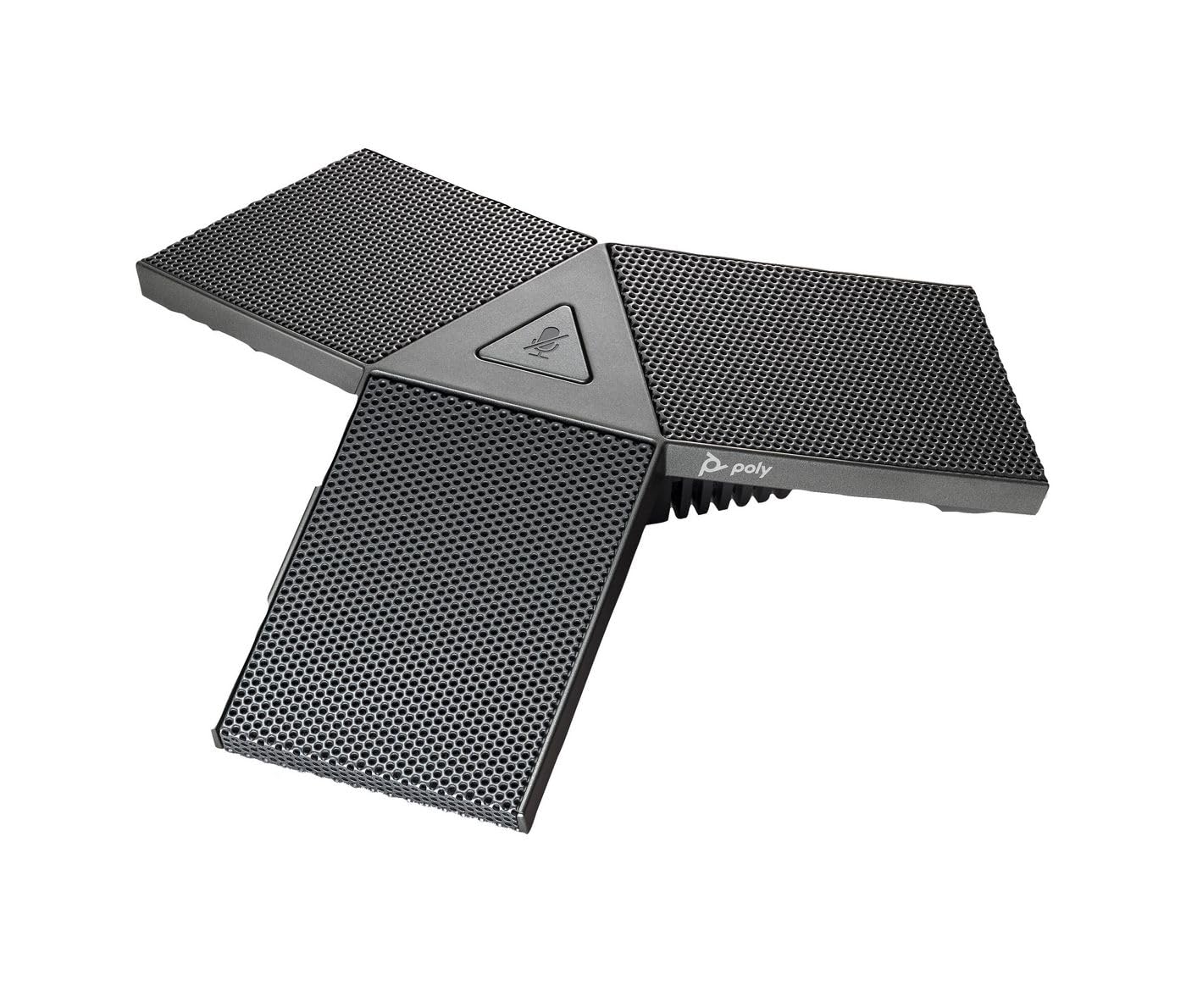
Image 1: Poly Studio Table Microphone with its RJ-11 connection cable.
3. סעטאַפּ
The Poly Studio Table Microphone is designed for simplified setup. Follow these steps to connect the microphone to your Poly Studio video system:
- אָרט: Position the Poly Studio Table Microphone on a flat surface in your conference room. Ensure it is centrally located to maximize its 2.5-meter (8.2 feet) audio pickup range.
- קשר: Locate the RJ-11 port on the underside of the microphone and on your Poly Studio video system (X50, X52, V52, X70, X72, or V72).
- Cable Insertion: Connect one end of the provided RJ-11 cable into the microphone's RJ-11 port.
- סיסטעם קשר: Connect the other end of the RJ-11 cable into the corresponding RJ-11 port on your Poly Studio video system.
- מאַכט אויף: Ensure your Poly Studio video system is powered on. The microphone will automatically be detected and configured.
קיין נאָך דרייווערס אדער ווייכווארג זענען טיפּיש נישט נויטיק פֿאַר גרונטלעכע פֿונקציאָנאַליטעט.
4. אַפּערייטינג ינסטרוקטיאָנס
The Poly Studio Table Microphone is designed for intuitive operation, integrating seamlessly with your Poly Studio video system.
4.1 Audio Pickup
- The microphone features three (3) directional microphones for 360-degree audio coverage, ensuring voices are captured from all directions within its 2.5-meter (8.2 feet) range.
- Advanced audio technology automatically levels voices and suppresses background noise and echo, providing clear audio for remote participants.
4.2 שטום פֿונקציע
- A convenient mute button is located on the microphone for quick control.
- Press the mute button to toggle the microphone's audio input on or off.
- An indicator light on the microphone will illuminate or change color to clearly show the mute status. Refer to your Poly Studio video system's documentation for specific indicator light behaviors.
5. וישאַלט
To ensure optimal performance and longevity of your Poly Studio Table Microphone, follow these maintenance guidelines:
- רייניקונג: The microphone features integrated Microban® protection to help keep surfaces cleaner and fresher for longer. For general cleaning, gently wipe the exterior surfaces with a soft, dry, or slightly damp שטאָף. פֿאַרמײַדט ניצן שאַרפֿע כעמיקאַלן, אַברייסיוו רייניגער, אָדער סאָלווענטן.
- סטאָרידזש: When not in use for extended periods, store the microphone in a clean, dry environment away from extreme temperatures and direct sunlight.
- קאַבלע זאָרגן: Avoid bending or crimping the RJ-11 cable excessively. Ensure it is not placed where it can be tripped over or damaged.
6. טראָובלעשאָאָטינג
If you encounter issues with your Poly Studio Table Microphone, refer to the following common troubleshooting steps:
- קיין אַודיאָ:
- Ensure the RJ-11 cable is securely connected to both the microphone and the Poly Studio video system.
- Verify that the microphone is not muted (check the indicator light).
- Check the audio settings on your Poly Studio video system to ensure the external microphone is selected and volume levels are appropriate.
- Restart the Poly Studio video system.
- Poor Audio Quality (Echo, Noise):
- Ensure the microphone is placed on a stable surface and not too close to speakers or other noise sources.
- Confirm that the room acoustics are suitable for conferencing.
- Verify that the microphone's surface is clean.
- Mute Button Not Responding:
- פאַרזיכערן אַז דער מיקראָפאָן איז רעכט קאָננעקטעד און פּאַוערד.
- Restart the Poly Studio video system.
If problems persist, consult the comprehensive user manual for your specific Poly Studio video system or contact Poly technical support.
7. ספּעסאַפאַקיישאַנז
| שטריך | דעטאַל |
|---|---|
| סאָרט | POLY |
| מאָדעל נאָמען | סטודיאָ |
| מאָדעל נומער | 875M6AA |
| קאַנעקטיוויטי טעכנאָלאָגיע | USB (via RJ-11 connection to Poly Studio system) |
| קאַנעקטער טיפּ | רדזש-11 |
| פּאָליאַר מוסטער | Unidirectional (3-way audio pickup for 360-degree coverage) |
| מיקראָפאָן פאָרם פאַקטאָר | טיש בארג |
| ספּעציעלע שטריך | Mute button with indicator light, Microban® protection |
| קאַמפּאַטאַבאַל דעוויסעס | Poly Studio X50, X52, V52, X70, X72, V72 video systems |
| קלייַבן-אַרויף קייט | 2.5 מעטער (8.2 פֿיס) |
| אָפטקייַט ענטפער | 20 הערץ - 20 קילאָהערץ |
| סיגנאַל-צו-נויז ראַטיאָ | 78 דב |
| פּונקט וואָג | 0.2 פונט (בעערעך 90 גראַמז) |
| נומער דימענשאַנז (L X W X H) | 1.1 x 4.9 x 5.6 אינטשעס (אומגעפער 2.8 x 12.4 x 14.2 ס״מ) |
| קאָליר | גונמעטאַל |
| פאַבריקאַנט | HP ינק. |
8. וואָראַנטי און שטיצן
וואָראַנטי אינפֿאָרמאַציע: The warranty description for this product is not explicitly available in the provided details. Please refer to the official Poly (HP Inc.) webוועבזייטל אדער אייער קויפן דאקומענטאציע פאר ספעציפישע גאראנטיע טערמינען און באדינגונגען.
טעכניש שטיצן: For further assistance, technical support, or service inquiries, please contact Poly (HP Inc.) customer support through their official website or the contact information provided with your Poly Studio video system.
You can often find support resources, FAQs, and updated documentation on the פּאָלי webפּלאַץ.