
1. הקדמה
This manual provides essential instructions for setting up, operating, maintaining, and troubleshooting your VIBOX VI-63 PC Gamer. Please read this guide thoroughly before using your new computer to ensure optimal performance and longevity.
2. זיכערקייַט אינפֿאָרמאַציע
- זיכער מאַכן אַז דער פּיסי איז געשטעלט אויף אַ סטאַבילער, גלאַטער ייבערפלאַך מיט גענוג ווענטילאַציע.
- בלאָקירט נישט קיין ווענטילאַציע עפענונגען אויף דעם פּיסי קעסטל.
- האַלט דעם קאָמפּיוטער אַוועק פון דירעקטער זון, היץ־קוואַלן און פליסיקייטן.
- Use only the power adapter supplied with your PC.
- טרענט אפ דעם שטראָם קאַבל איידער איר רייניגט אדער דורכפירט יעדע אויפהאלטונג.
- Avoid opening the PC case unless instructed by VIBOX support, as this may void your warranty.
3. פּעקל אינהאַלט
באַשטעטיקט אַז אַלע זאכן וואָס זענען אויסגערעכנט אונטן זענען אַרייַנגערעכנט אין אייער פּעקל:
- VIBOX VI-63 PC Gamer Tower
- 22-אינטש מאָניטאָר
- רגב גיימינג קיבאָרד
- רגב גיימינג מויז
- Black Mouse Pad
- גיימינג העאַדסעט מיט מיקראָפאָן
- Wireless WiFi Network Adapter (600 Mbps)
- מאַכט קאַבלע (ס)
- Display Cable (HDMI or VGA, depending on monitor)
- דאָקומענטאַציע (דיזער מאַנואַל)
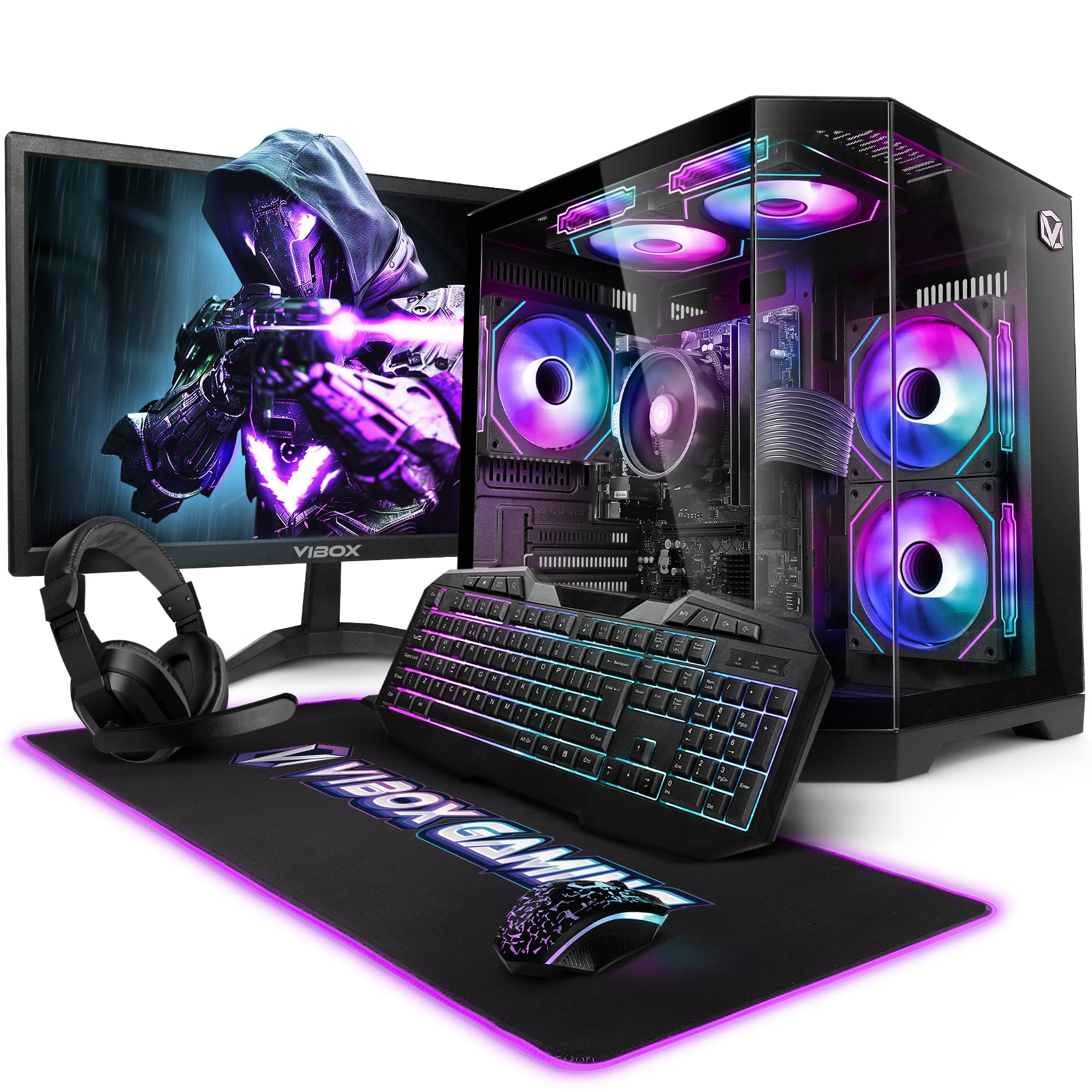
Image 3.1: VIBOX VI-63 PC Gamer Tower with internal RGB lighting.
4. סעטאַפּ אינסטרוקציעס
4.1. אַנפּאַקינג און פּלייסמאַנט
- פֿאָרזיכטיק אַרויסנעמען אַלע קאָמפּאָנענטן פֿון זייער פּאַקאַדזשינג.
- Place the PC tower on a flat, stable surface. Ensure there is sufficient space around the tower for proper airflow.
- Place the monitor on a stable surface at a comfortable viewינג הייך.
4.2. קאַנעקטינג פּעריפעראַלס
- מאָניטאָר: Connect one end of the display cable (HDMI or VGA) to the corresponding port on the back of the PC and the other end to the monitor.
- קלאַוויאַטור און מויז: Connect the USB cables of the keyboard and mouse to any available USB ports on the PC.
- העאַדסעט: Connect the headset to the audio jacks (headphone and microphone) on the front or rear of the PC.
- WiFi אַדאַפּטער: Insert the wireless WiFi network adapter into an available USB port.
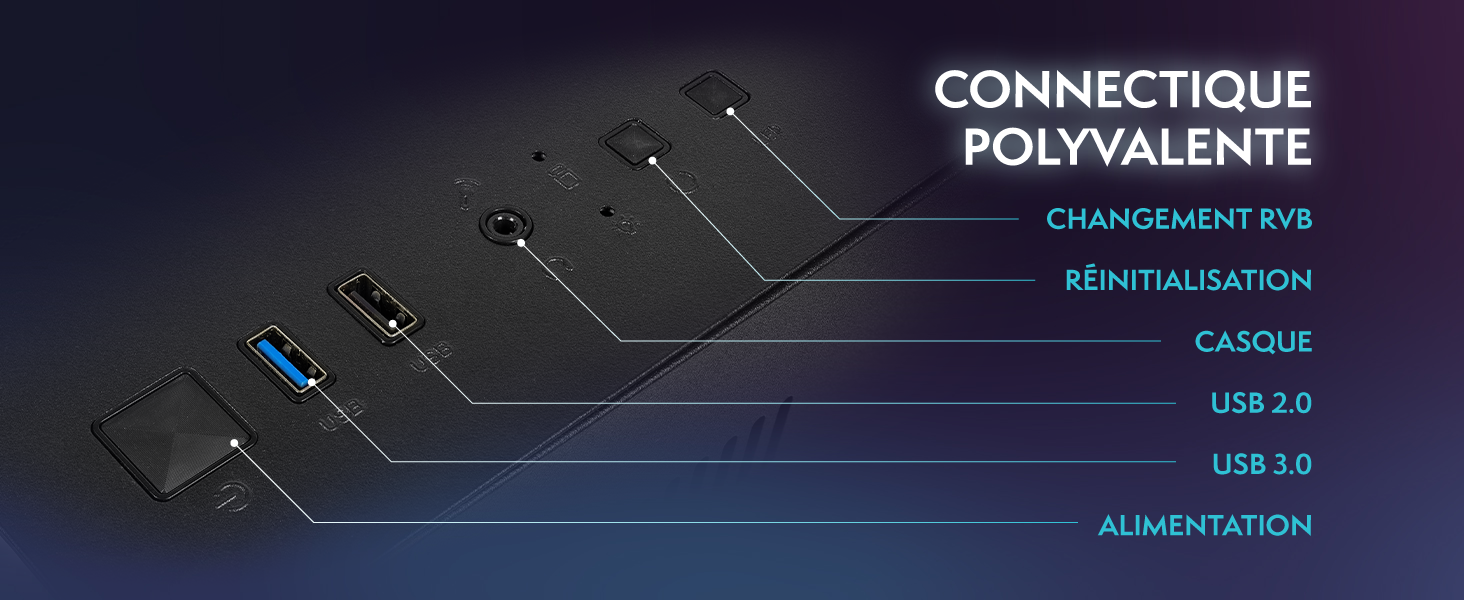
Image 4.1: Front panel connections including USB 2.0, USB 3.0, headset jack, reset button, and RGB change button.
4.3. מאַכט קאַנעקשאַן
- Connect the power cable to the power supply unit (PSU) at the back of the PC.
- Connect the other end of the power cable to a wall outlet.
- Connect the monitor's power cable to a wall outlet.
4.4. Initial Boot and Windows 11 Setup
- Press the power button on the front of the PC tower.
- קער אויף די מאָניטאָר.
- Follow the on-screen instructions to complete the Windows 11 Home setup. This typically involves selecting your region, language, creating a user account, and connecting to a Wi-Fi network.
5. אַפּערייטינג ינסטרוקטיאָנס
5.1. יקערדיק אָפּעראַציע
- מאַכט אויף / אַוועק: Press the power button to turn on the PC. To shut down, click the Start button in Windows, then Power > Shut down.
- ריסטאַרט: פֿון די אָנהייב מעניו, אויסקלײַבן מאַכט > ריסטאַרט.
- שלאָפן מאָדע: פֿון די אָנהייב מעניו, אויסקלײַבן מאַכט > שלאָף.
5.2. Windows 11 Features
Your VIBOX VI-63 PC Gamer comes with Windows 11 Home pre-installed, offering features designed to enhance your computing and gaming experience:
- דירעקטסטאָרעדזש: Enables faster loading times for compatible games.
- AutoHDR: Automatically enhances visuals for a wider range of games.
- Xbox Game Pass Integration: Seamless access to a library of games (subscription may be required).
- Optimized CPU Performance: Windows 11 is designed to optimize CPU usage for gaming and multitasking.
5.3. גיימינג פאָרשטעלונג
The VIBOX VI-63 is equipped with an AMD Ryzen 3 3200GE processor and integrated Radeon Vega 8 graphics, providing solid performance for everyday computing and gaming at 720p to 1080p resolutions.

בילד 5.1: איבערview of internal components including CPU, GPU, RAM, and storage.
5.4. RGB לייטינג קאָנטראָל
Your PC features RGB lighting. Use the dedicated RGB change button on the front panel (refer to Image 4.1) to cycle through different lighting modes and colors.
6. וישאַלט
6.1. Cleaning the PC
- עקסטעריע: ניצן אַ ווייך, דamp cloth to wipe down the exterior of the PC case and monitor. Avoid abrasive cleaners.
- שטויב: Periodically use compressed air to clear dust from the ventilation openings and fan grilles. Ensure the PC is powered off and unplugged before doing so.
- פּעריפעראַלס: Clean your keyboard and mouse regularly to prevent dust and debris buildup.
6.2. ווייכווארג דערהייַנטיקונגען
- Regularly check for and install Windows updates to ensure system stability and security. Go to Settings > Windows Update.
- Keep your graphics drivers updated for optimal gaming performance. You can usually download the latest drivers from the AMD webפּלאַץ.
6.3. System Care
- Avoid installing unnecessary software to keep your system lean and fast.
- Run regular antivirus scans to protect against malware. Windows Defender is pre-installed.
- Ensure proper airflow around the PC to prevent overheating. The inverted airflow design helps with cooling.
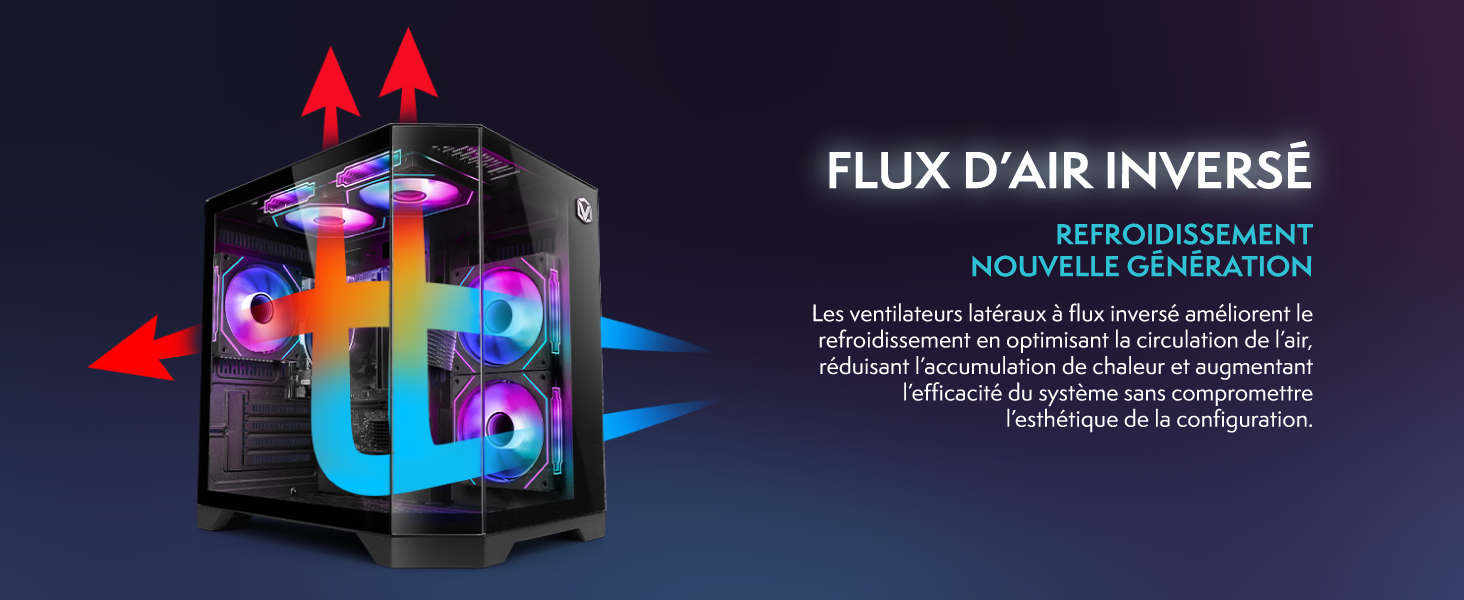
Image 6.1: Inverted airflow design for efficient cooling.
7. טראָובלעשאָאָטינג
- קיין מאַכט: Check all power cable connections. Ensure the wall outlet is functional.
- קיין ווייַז: Ensure the monitor is powered on and the display cable is securely connected to both the PC and the monitor. Try a different display cable or port if available.
- קיין אינטערנעט פֿאַרבינדונג: Verify the WiFi adapter is properly installed. Check your router and internet service. In Windows, go to Settings > Network & internet to troubleshoot.
- PC Freezes/Crashes: Restart the PC. Ensure all drivers are updated. Check for overheating (ensure good airflow).
- פּעריפעראַלס אַרבעטן נישט: Try connecting the keyboard, mouse, or headset to different USB/audio ports. Ensure drivers are installed if required.
8. ספּעסאַפאַקיישאַנז
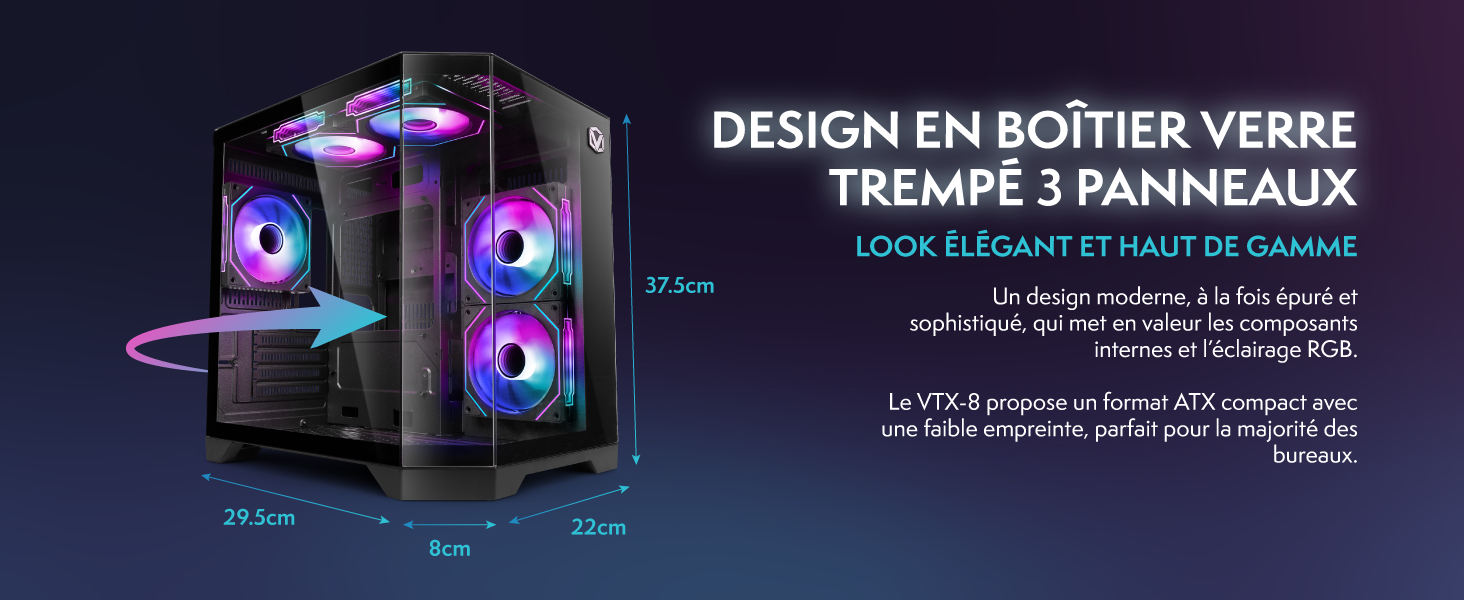
Image 8.1: VIBOX VI-63 PC Gamer case dimensions.
| שטריך | באַשרייַבונג |
|---|---|
| סאָרט | VIBOX |
| מאָדעל נאָמען | Vibox VI-63 Gaming PC |
| אָפּערייטינג סיסטעם | Windows 11 היים |
| קפּו מאָדעל | AMD Ryzen 3 3200G |
| קפּו ספּיד | 3.6 GHz (4 GHz טורבאָ) |
| קפּו קאָרעס | 4 |
| גראַפיקס קאָופּראַסעסער | Radeon Vega 8 (Integrated) |
| Graphics RAM | 2 GB (Shared) |
| RAM Installed | 16 גיגאבייט דדר4 |
| RAM Speed | 2666 מהז |
| סטאָרידזש קאַפּאַסיטי | 1 טב ססד |
| האַרט דרייוו טעכנאָלאָגיע | ססד |
| מאָניטאָר גרייס | 22 אינטשעס |
| מאַקסימום דיספּליי רעזאָלוציע | 1920x1080 פּיקסעלס |
| וידאו רעזולטאַט צובינד | הדמי, ווגאַ |
| קאַנעקטיוויטי טעכנאָלאָגיע | AMD Radeon Vega 8, Ethernet, HDMI, USB, Wi-Fi |
| דימענסיעס (L X W X H) | 32.6 X 19.5 X 42 סענטימעטער |
| קאָליר | VTX-1 Black |
9. וואָראַנטי און שטיצן
9.1. וואָראַנטי אינפֿאָרמאַציע
Your VIBOX VI-63 PC Gamer comes with a 2 יאָר וואָראַנטי on spare parts. This warranty covers manufacturing defects and component failures under normal use. Please retain your proof of purchase for warranty claims.
9.2. קונה שטיצן
For technical assistance, troubleshooting, or warranty inquiries, please contact VIBOX customer support. Refer to the contact information provided with your purchase documentation or visit the official VIBOX webפּלאַץ פֿאַר שטיצן דעטאַילס.
אָנליין רעסורסן: For additional support and FAQs, please visit the VIBOX official webפּלאַץ.