
1. הקדמה
This manual provides detailed instructions for the setup, operation, maintenance, and troubleshooting of your Xprinter XP-233B Thermal Barcode Printer. The XP-233B is designed for efficient thermal printing of barcodes and labels, utilizing heat-sensitive paper without the need for ink or ribbons.
2. זיכערקייַט אינסטרוקציעס
- Ensure the printer is connected to a power source with the correct voltage ווי ספּעציפֿירט אויף די מאַכט אַדאַפּטער.
- שטעלט נישט אויס דעם דרוקער צו וואַסער אָדער צו פיל הומידיטי.
- פֿאַרמײַדט צו שטעלן דעם דרוקער אין דירעקטער זון אָדער לעבן היץ־קוואַלן.
- Keep the printer away from dust and debris to prevent damage to internal components.
- Do not attempt to disassemble or repair the printer yourself. Contact qualified service personnel for assistance.
- Use only recommended thermal label rolls to ensure optimal print quality and printer longevity.
3. פּעקל אינהאַלט
באַשטעטיקן אַז אַלע זאכן זענען פאַראַן אין פּעקל:
- Xprinter XP-233B Thermal Barcode Printer
- מאַכט אַדאַפּטער
- וסב קאַבלע
- שנעלע אָנהייב גייד (אויב אַרייַנגערעכנט)
- Driver CD (if included, drivers can also be downloaded online)
4. פּראָדוקט איבערview
Familiarize yourself with the main components of the XP-233B printer.

פיגורע 4.1: פראָנט-זייַט view of the Xprinter XP-233B, showing the power switch, control panel, and label output slot.

פיגורע 4.2: דערציען view of the Xprinter XP-233B, highlighting the USB, Ethernet, and power input ports.
קאָנטראָל פּאַנעל פאַנגקשאַנז:
- FEED קנעפּל: Press to feed a blank label. Hold to perform a self-test print.
- PAUSE קנעפּל: פּויזירט אָדער ווידער הייבט אָן דרוקן.
- CANCEL קנעפּל: מבטל די איצטיקע דרוק-ארבעט.
- LED ינדיקאַטאָרס: Display printer status (e.g., Power, Error, Paper Out). Refer to troubleshooting for specific light patterns.
5. סעטאַפּ
5.1 קאַנעקטינג די פּרינטער
- Connect the power adapter to the printer's power input port and then plug it into a wall outlet.
- Connect the USB cable from the printer to your computer. For Ethernet connectivity, connect an Ethernet cable from the printer to your network router or switch.
- צינדט אָן דעם דרוקער מיטן מאַכט-קנעפּל וואָס געפינט זיך אויף דער זייט.
5.2 לאָדן עטיקעטן
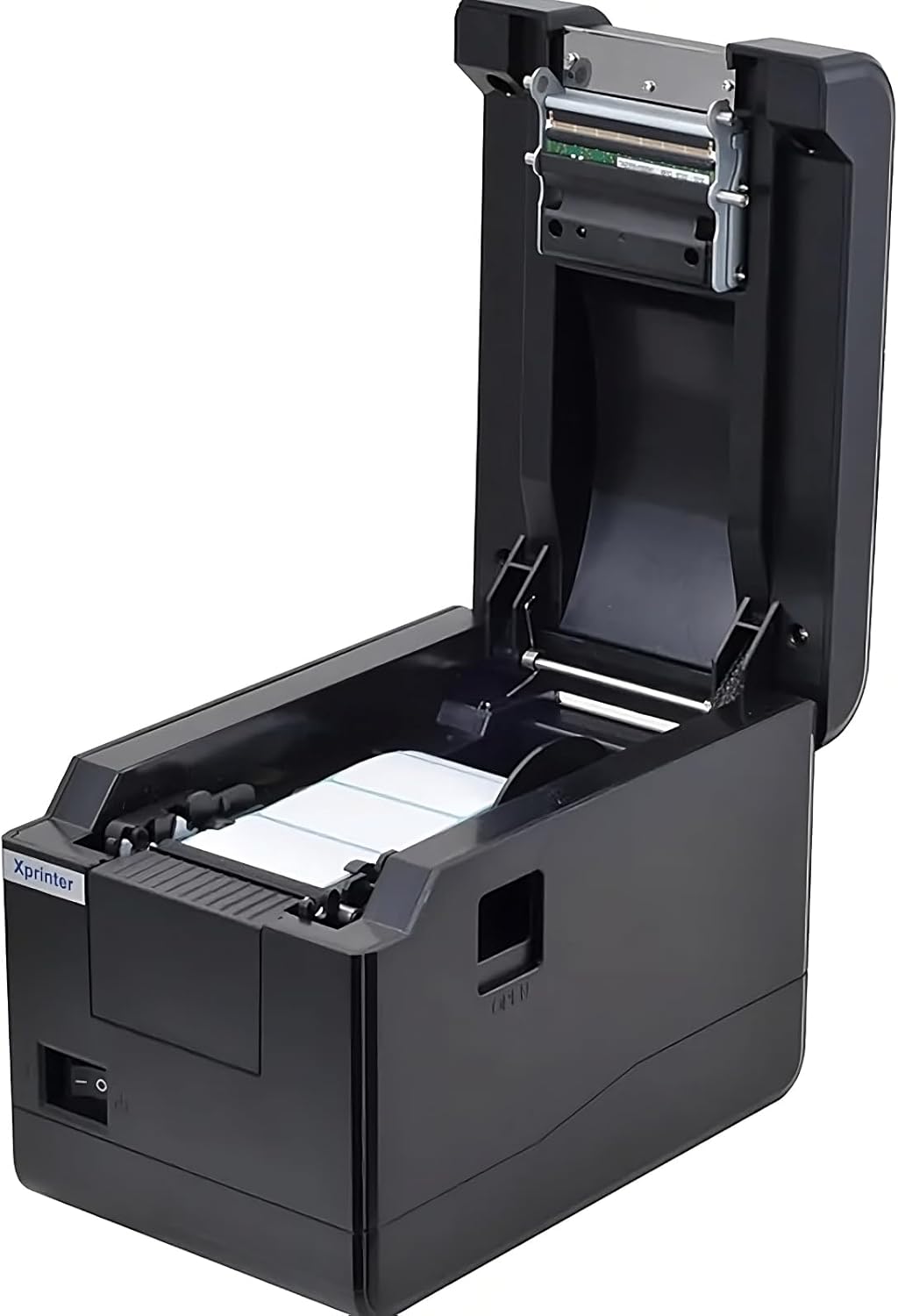
פיגורע 5.1: Top-down view of the Xprinter XP-233B with the cover open, illustrating the label loading area.
- Press the 'OPEN' button on the side of the printer to open the top cover.
- Place the thermal label roll into the label compartment, ensuring the labels feed from the bottom of the roll and the printable side faces upwards.
- Adjust the movable label guides to fit the width of your label roll snugly, without pinching the labels.
- Pull a few labels past the print head and out through the front slot.
- מאַכט פעסט צו דעם אויבערשטן דעקל ביז עס קליקט אַרײַן אין פּלאַץ.
- The printer will automatically calibrate and feed a few labels to detect the label gap.
5.3 דרייווער ינסטאַלירונג
Install the printer drivers on your computer. Drivers can typically be found on the included CD or downloaded from the official Xprinter webזייטל. גיי נאך די אינסטרוקציעס אויפן עקראַן פאר אינסטאַלאַציע.
6. אפערירן דעם דרוקער
6.1 יקערדיק פּרינטינג
Once the printer is set up and drivers are installed, you can print labels from your application (e.g., label design software, shipping software). Ensure the correct printer model (Xprinter XP-233B) is selected in your application's print settings.
6.2 זעלבסט-טעסט דרוק
To perform a self-test print:
- Ensure the printer is powered on and labels are loaded.
- דריקן און האַלטן די פיטער button for approximately 3-5 seconds until the printer starts printing.
- The self-test print will display printer information and a test pattern, confirming basic functionality.
7. וישאַלט
7.1 רייניקן דעם דרוק קאָפּ
Regular cleaning of the print head ensures optimal print quality and extends the printer's lifespan. Clean the print head when print quality degrades or after every few rolls of labels.
- אויסלעשן דעם דרוקער און אפנעמען דעם עלעקטרישן שנור.
- עפענען די שפּיץ דעקן.
- Gently wipe the print head surface with a cotton swab lightly dampened with isopropyl alcohol (70% or higher).
- Allow the print head to dry completely (approximately 2-3 minutes) before closing the cover and turning on the printer.
7.2 רייניקונג פון די אויסערליכע זייט
ווישט אָפּ די אויסערלעכע זייט פון דעם דרוקער מיט אַ ווייכן, טרוקענעם שטאָף.amp שטאָף. דו זאלסט נישט נוצן האַרב קעמיקאַלז אָדער אַברייסיוו קלינערז.
8. טראָובלעשאָאָטינג
| פּראָבלעם | מעגלעך סיבה | לייזונג |
|---|---|---|
| דרוקער גייט נישט אן | Power cord loose; power outlet faulty; power adapter damaged. | Check power connections; try a different outlet; replace power adapter if necessary. |
| No labels feeding | Labels incorrectly loaded; paper out; label guides too tight. | Reload labels correctly; replace label roll; adjust label guides. |
| Poor print quality (faded, lines) | Print head dirty; low-quality labels; print head damaged. | Clean print head (refer to Section 7.1); use recommended thermal labels; contact support if print head is damaged. |
| Printer not responding to print commands | Incorrect driver installed; USB/Ethernet cable loose; printer paused. | Reinstall drivers; check cable connections; press פּויזע קנעפּל צו נעמענ זיכ ווידער. |
| Labels skipping or misaligning | Incorrect label sensor calibration; label guides not set correctly. | Perform a self-test print to recalibrate; adjust label guides. |
9. ספּעסאַפאַקיישאַנז
| שטריך | באַשרייַבונג |
|---|---|
| מאָדעל נאָמען | Xprinter - Thermal barcode printer |
| נומער מאָדעל נומער | XP-233B |
| דרוקער טעכנאָלאָגיע | טערמאַל |
| קאַנעקטיוויטי טעכנאָלאָגיע | עטהערנעט, וסב |
| דרוקער רעזולטאַט | מאָנאָטשראָמע |
| דרוק מידיאַ | לאַבעלס |
| Maximum Sheet Capacity | 100 (typical for roll capacity, actual sheet capacity depends on label size) |
| פּראָדוקט דימענשאַנז (ד רענטגענ וו רענטגענ ה) | 26.8 X 18 X 17.2 סענטימעטער |
| פּונקט וואָג | 1.2 קג |
| קאָליר | שוואַרץ |
10. וואָראַנטי אינפֿאָרמאַציע
Xprinter products typically come with a limited manufacturer's warranty. Please refer to the warranty card included with your product or visit the official Xprinter website for specific warranty terms and conditions, including coverage duration and service procedures. Keep your purchase receipt as proof of purchase for warranty claims.
11. קונה שטיצן
For technical assistance, driver downloads, or further inquiries regarding your Xprinter XP-233B, please visit the official Xprinter support website or contact their customer service department. Contact information can usually be found on the Xprinter webוועבזייטל אדער אין דער דאקומענטאציע וואס איז צוגעשטעלט געווארן מיט אייער דרוקער.