
1. הקדמה
This manual provides essential information for setting up, operating, and maintaining your Samsung Galaxy Tab S9 FE. Please read this manual carefully to ensure proper use and to maximize the device's capabilities.
The Samsung Galaxy Tab S9 FE is a 10.9-inch Android tablet featuring a powerful Exynos processor, long-lasting battery, and an included S Pen. It is designed for versatility, supporting multitasking, creative tasks, and entertainment. The tablet also boasts an IP68 rating for water and dust resistance, enhancing its durability.
2. פּעקל אינהאַלט
באַשטעטיקט אַז אייער פּראָדוקט פּאַקעט כּולל די פאלגענדע זאכן:
- Samsung Galaxy Tab S9 FE
- S פּען
- וסב- C דאַטאַ קאַבלע
- עדזשעקטיאָן שפּילקע

3. מיטל אויסלייג
מאַכט זיך באַקאַנט מיט די גשמיות קאָמפּאָנענטן פון אייער טאַבלעט.


4. ערשט סעטאַפּ
4.1 פּאַוערינג אויף / אַוועק
To power on your tablet, press and hold the Power button located on the side until the Samsung logo appears. To power off, press and hold the Power button, then select 'Power off' from the options.
4.2 עס פּען פּערינג
The S Pen included with your tablet is designed to pair automatically when attached magnetically to the designated area on the back of the tablet. Ensure the S Pen is properly seated for charging and connection.
5. יקערדיק אָפּעראַציע
5.1 טאָוטשסקרין נאַוויגאַציע
Navigate your tablet using standard touch gestures: tap to select, swipe to scroll, pinch to zoom, and long-press for additional options.
5.2 מולטיטאַסקינג
The Galaxy Tab S9 FE supports split-screen multitasking, allowing you to run up to three apps simultaneously. To activate, open an app, then swipe from the side to reveal the Edge panel, or use the Recent Apps button to select another app for split-screen view.

6. S Pen Usage
The included S Pen offers precise control and enhanced functionality for your tablet.
6.1 Note-Taking and Drawing
Use the S Pen to write notes by hand, draw, or mark up documents with a responsive design that simulates writing on paper.
6.2 קרייזן צו זוכן מיט גוגל
Quickly search for anything on your screen by simply circling it with the S Pen. This feature allows for instant information retrieval without switching applications.

7. קאַנעקטיוויטי
7.1 Wi-Fi and 4G Connectivity
The tablet supports Wi-Fi 6 (802.11ax) for fast wireless internet access. For models with cellular capability, 4G connectivity is available for internet access on the go.
7.2 File Sharing (Quick Share)
Utilize Quick Share for easy file transfers between Galaxy devices and even to non-Galaxy devices via shared links. This simplifies sharing photos, videos, and documents.
8. קאַמעראַ פֿעיִקייטן
The Galaxy Tab S9 FE is equipped with an 8MP rear-facing camera and a front camera designed for video calls.
8.1 Video Chat Optimization
The front camera automatically adjusts to keep you in focus during video calls, making it suitable for virtual meetings and online collaboration.
9. באַטערי מאַנאַגעמענט
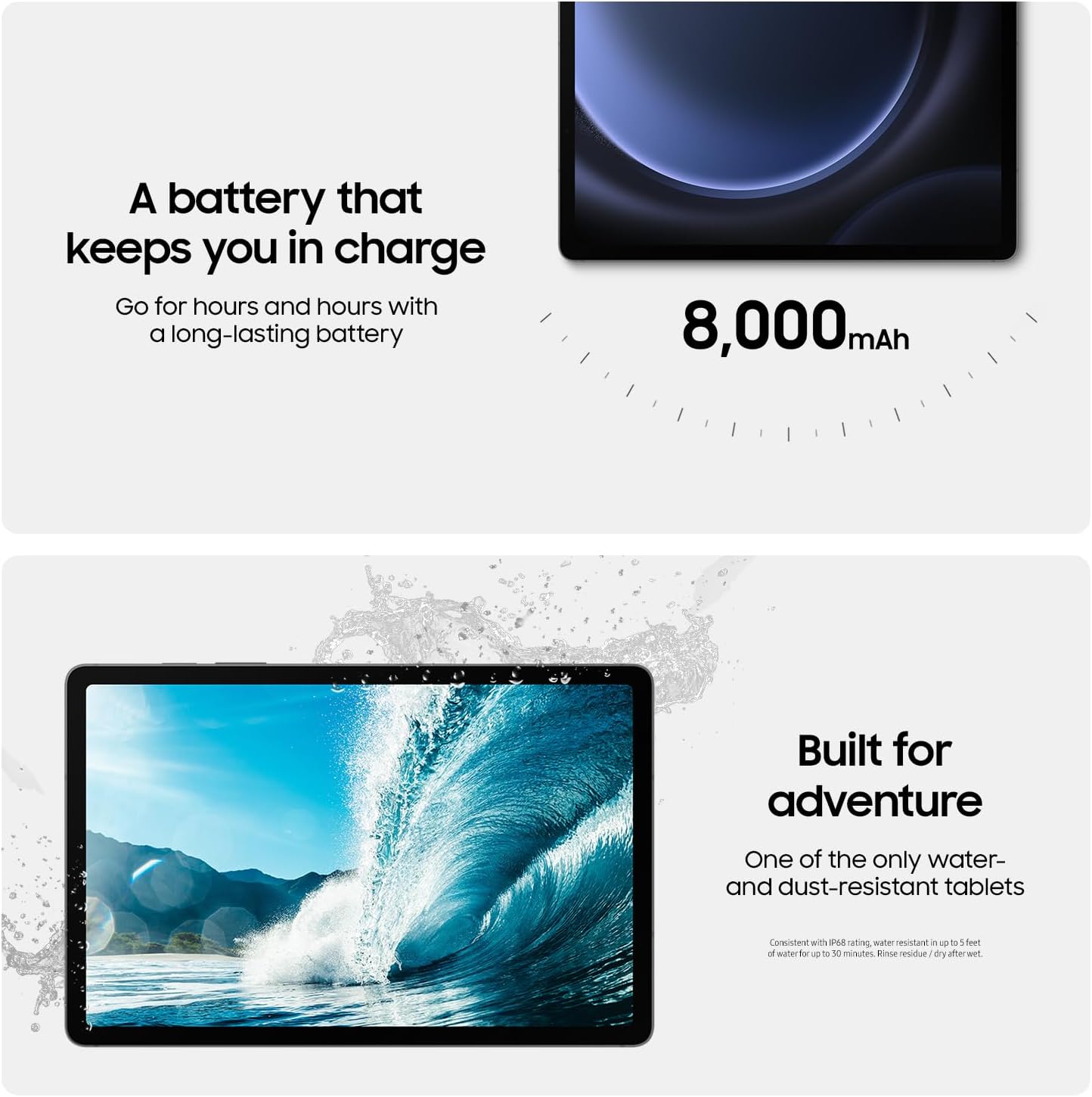
The tablet features an 8,000mAh battery designed for extended use.
9.1 באַטעריע לעבן און טשאַרדזשינג
Expect up to 18 hours of battery life for typical usage. The device supports Super Fast Charging with a 45W wall charger (sold separately), allowing for a full charge in less than 90 minutes. Use only Samsung-approved chargers and USB-C cables to prevent damage.

10. געווער
10.1 וואַסער און שטויב קעגנשטעל
The Galaxy Tab S9 FE has an IP68 rating, making it water-resistant in up to 5 feet of water for up to 30 minutes, and dust-resistant. After exposure to water, rinse any residue and dry the device thoroughly.

11. סטאָרידזש
The tablet comes with 256GB of internal storage. If additional space is needed, you can expand storage by up to 1TB using a microSD card (sold separately).
12. ספּעסאַפאַקיישאַנז
| שטריך | באַשרייַבונג |
|---|---|
| סאָרט | סאַמסונג |
| מאָדעל נאָמען | טאַב ס9 פע |
| מאָדעל נומער | SM-X510 |
| זכּרון סטאָרידזש קאַפּאַסיטי | 256 גיגאבייט |
| ראַם זכּרון אינסטאַלירט | 8 גיגאבייט |
| פאַרשטעלן גרייס | 10.9 אינטשעס |
| ווייַז האַכלאָטע מאַקסימום | 2304 X 1440 (WUXGA+) |
| אָפּערייטינג סיסטעם | אַנדרויד |
| פּראַסעסער סאָרט | Samsung Exynos Chipset |
| Rear Facing Camera Photo Sensor Resolution | 8 מפּ |
| באַטאַרייע קאַפּאַציטעט | 8000 מיליamp שעהן |
| ווירעלעסס טעכנאָלאָגיע | 4G, Wi-Fi 6 (802.11ax) |
| פּונקט וואָג | 1.15 פונט |
| Item Dimensions L x W x Thickness | 9.98"ל x 6.51"ברייט x 0.26"דיג |
13. וואָראַנטי און שטיצן
13.1 פאַבריקאַנט'ס גאַראַנטיע
The Samsung Galaxy Tab S9 FE comes with a 1-Year Limited Manufacturer's Warranty. Please refer to the warranty card included in your package for full terms and conditions.
13.2 קונה שטיצן
For further assistance, troubleshooting, or to access additional resources, please visit the official סאַמסונג קראָם אויף אַמאַזאָן or the Samsung support webפּלאַץ.