
1. הקדמה
Thank you for choosing the FTes RFKits V70 Wireless Video Intercom System. This system provides enhanced home security and convenience, allowing you to see, hear, and speak to visitors at your door, and even remotely unlock it via a smartphone application. This manual will guide you through the installation, operation, and maintenance of your new intercom system.
וויכטיגע נאטיץ וועגן קאנעקטיוויטי: While the system offers wireless control via the Tuya app (connecting the indoor monitor to your home WiFi network), the connection between the outdoor camera unit and the indoor monitor unit is ווייערד. This wired connection ensures stable power and video transmission for reliable performance.
2. פּראָדוקט איבערview
2.1 שליסל פֿעיִקייטן
- 7-אינטש TFT LCD פאַרשטעלן: High-resolution display for clear visitor viewing.
- 1080P Outdoor Camera: Provides sharp video quality with a 120-degree wide viewינג ווינקל.
- Tuya App Remote Control: Manage your intercom system from anywhere using your smartphone (2.4GHz WiFi required).
- צוויי-וועג ינטערקאָם: קאָמוניקירן מיט געסט ביי דיין טיר.
- רימאָוט ופשליסן: Grant access to visitors remotely via the indoor monitor or Tuya app.
- באַוועגונג דעטעקשאַן: Automatically detects movement and can trigger recording.
- Automatic Recording & Snapshot: Captures video or images when a visitor presses the doorbell, stored on a TF card (not included).
- ינפרערעד נאַכט זעאונג: Automatic IR LED activation for clear images in low-light conditions.
- Waterproof Outdoor Unit: Designed for outdoor use with a rain cover.
- צי ניט שטערן מאָדע: Silence doorbell notifications when needed.
2.2 פּעקל אינהאַלט
- אינעווייניק מאָניטאָר אַפּאַראַט
- Outdoor Camera Unit
- מאַכט אַדאַפּטער פֿאַר אינעווייניק מאָניטאָר
- Mounting Screws and Brackets
- וויירינג קאַבלעס
- באַניצער מאַנואַל
3. זיכערקייַט אינפֿאָרמאַציע
- לייענען אַלע ינסטראַקשאַנז קערפאַלי איידער ייַנמאָנטירונג און נוצן.
- זיכער מאַכן אַז די מאַכט צושטעל איז דיסקאַנעקטיד איידער איר דורכפירן קיין וויירינג אָדער ינסטאַלירונג.
- שטעלט נישט אויס דעם אינעווייניקסטן מאָניטאָר צו פייכטקייט אָדער עקסטרעמע טעמפּעראַטורן.
- נאָר נוצן די צוגעשטעלט מאַכט אַדאַפּטער.
- Keep the outdoor camera lens clean for optimal image quality.
- באַראַטן זיך מיט אַ קוואַליפֿיצירטן עלעקטריקער אויב איר זענט נישט זיכער וועגן קיין וויירינג פּראָצעדורן.
4. סעטאַפּ און ייַנמאָנטירונג
4.1 קאָמפּאָנענט לעגיטימאַציע

This image displays the indoor monitor and outdoor camera units with their respective dimensions. Key features are highlighted with icons, including 7-inch TFT LCD screen, 1080P resolution, intercom function, monitoring, unlock capability, 120-degree view angle, IR LEDs for night vision, day & night mode, waterproof design, and do not disturb mode.

דאָס דעטאַלירטע view of the outdoor camera unit highlights its components: a rain cover for protection, a microphone, the camera lens, white light for full-color night vision, a photoresistance sensor, call buttons, and a customizable nameplate area for room numbers.

This image provides a detailed look at the indoor monitor. The front panel shows touch buttons for unlock, left select, monitor/confirm, right select, and answer/return. The rear panel indicates the TF card slot, speaker, wiring port, DC15V 1.2A power interface, and adjustment controls for color, light brightness, and intercom volume.
4.2 Mounting the Outdoor Camera
- Choose a suitable location near your door, approximately 1.5-1.6 meters (5-5.3 feet) from the ground, ensuring a clear view פון באזוכער.
- Mount the rain cover first using screws.
- Insert the outdoor camera unit into the rain cover.
- If applicable, customize the nameplate with your room number or name.
4.3 מאָנטירן דעם אינעווייניקסטן מאָניטאָר
- Select a convenient indoor location, such as a wall in your living room or hallway.
- זיכער די מאַונטינג קלאַמער צו די וואַנט ניצן סקרוז.
- Connect the necessary wires to the indoor monitor (refer to section 4.4).
- Attach the indoor monitor to the mounting bracket.
4.4 וויירינג דיאַגראַמע
The outdoor camera and indoor monitor are connected via a wired connection. Ensure proper wiring for stable operation.
- Connect the video and power cables from the outdoor unit to the corresponding ports on the indoor monitor.
- If connecting to an electronic lock, ensure the lock wires are properly connected to the indoor monitor's unlock output.
- Connect the DC15V 1.2A power adapter to the indoor monitor.
4.5 Tuya App Installation and Pairing

This image illustrates the Tuya mobile application interface. It shows how to install the Tuya app on Android and Apple devices and demonstrates the remote unlock function, allowing users to answer the door and unlock it from their smartphone, even when away from home.
- Download the 'Tuya Smart' app from the App Store (iOS) or Google Play Store (Android).
- רעגיסטרירט זיך אדער לאגט זיך איין אין אייער טויאַ אקאונט.
- Ensure your indoor monitor is powered on and connected to your 2.4GHz WiFi network.
- In the Tuya app, tap '+' to add a new device. Follow the on-screen instructions to pair your indoor monitor with the app.
4.6 טף קאַרד ינסטאַללאַטיאָן
To enable automatic video recording and snapshots, insert a TF card (not included) into the designated slot on the indoor monitor. Ensure the card is inserted correctly.
5. אַפּערייטינג ינסטרוקטיאָנס
5.1 באַקומען רופן
- ווען אַ באַזוכער דריקט דעם רוף קנעפּל אויף דער דרויסנדיקער אַפּאַראַט, וועט דער אינעווייניקסטער מאָניטאָר קלינגען און ווייַזן דאָס בילד פֿונעם באַזוכער.
- Simultaneously, you will receive a notification on your smartphone via the Tuya app.
- To answer from the indoor monitor, press the 'Answer' button.
- To answer from the Tuya app, tap the notification and accept the call.
5.2 צוויי-וועג קאָמוניקאַציע
After answering a call, you can speak with the visitor through the built-in microphone and speaker on both the indoor monitor and the outdoor unit. The Tuya app also supports two-way audio.
5.3 Door Unlocking
If an electronic lock is connected, you can unlock the door:
- From the indoor monitor: Press the 'Unlock' button.
- From the Tuya app: Tap the 'Unlock' icon during a call or monitoring session.
5.4 Monitoring Live View
איר קענען view the live feed from the outdoor camera at any time:
- From the indoor monitor: Press the 'Monitor' button.
- From the Tuya app: Open the app and select your intercom device to view די לעבן קאָרמען.
5.5 מאָמענטבילד און ווידעאָ רעקאָרדינג
With a TF card installed:
- אָטאַמאַטיק רעקאָרדינג: When a visitor presses the doorbell, the system automatically records a short video.
- Manual Snapshot/Recording: בעת א לייוו view or call, you can manually capture snapshots or start video recording via the indoor monitor or Tuya app.
- רעקאָרדעד fileס קענען זיין שייַעךviewed on the indoor monitor or through the Tuya app.
5.6 אַדזשאַסטינג סעטטינגס
The indoor monitor allows you to adjust various settings:
- רינגטאָנע: Select from available ringtones.
- באַנד: Adjust the ringtone and intercom volume.
- Brightness/Color: Adjust the display settings of the screen.
- צי ניט שטערן: Activate this mode to silence the indoor monitor's ringtone.
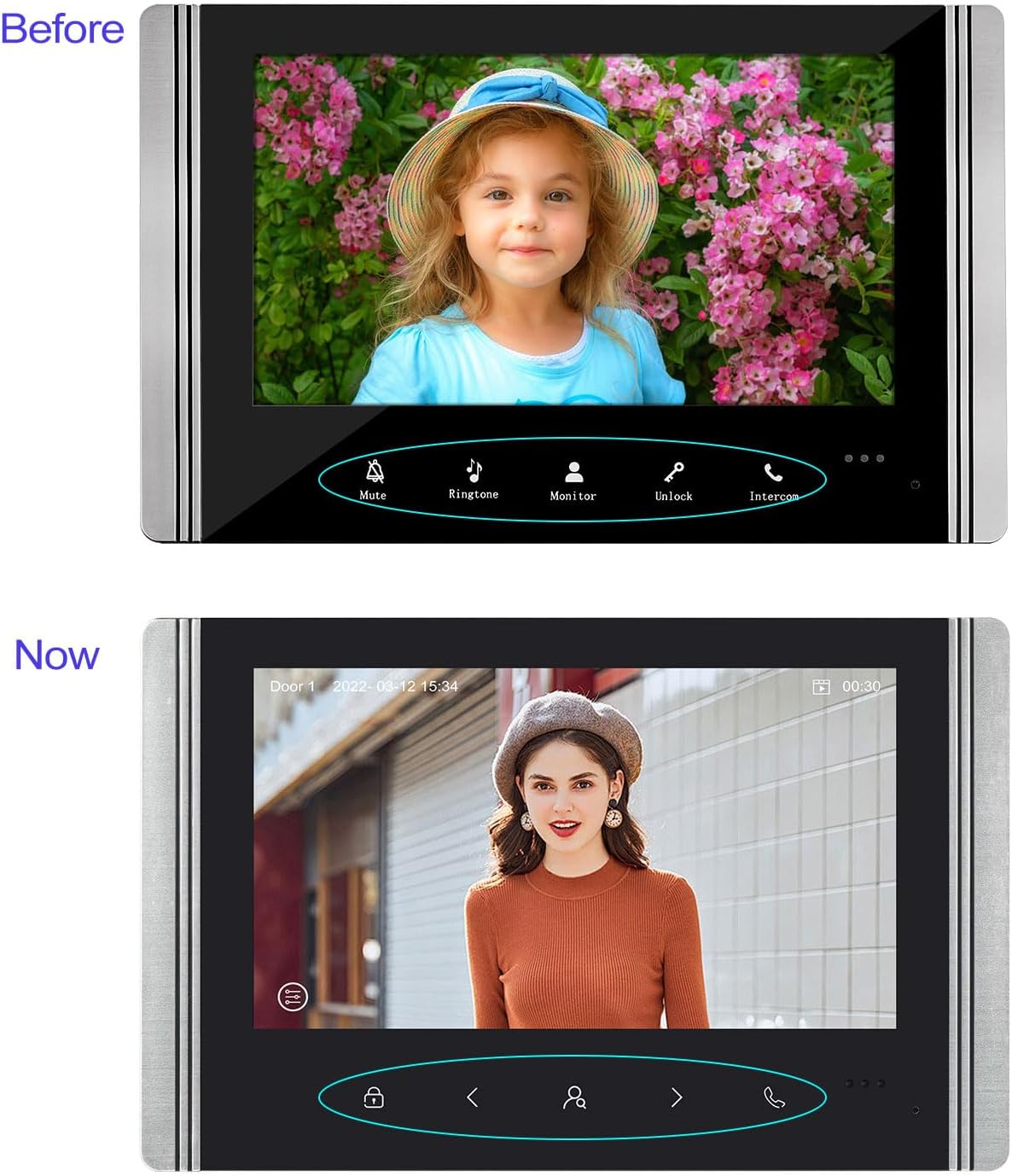
This image compares the 'Before' and 'Now' versions of the indoor monitor's user interface. The 'Before' interface shows buttons for Mute, Ringtone, Monitor, Unlock, and Intercom. The 'Now' interface features a redesigned button layout with icons for unlock, navigation, and call, along with a date and time display.
6. וישאַלט
- רייניקונג: Use a soft, dry cloth to clean the indoor monitor and outdoor camera. Avoid abrasive cleaners or solvents.
- דרויסנדיק אַפּאַראַט: Regularly check the outdoor unit for any obstructions to the camera or microphone. Ensure the rain cover is securely in place.
- וויירינג: Periodically inspect all wired connections for any signs of wear or damage.
- Firmware דערהייַנטיקונגען: Check the Tuya app or manufacturer's webזייטל פֿאַר אַלע בנימצא פירמווער דערהייַנטיקונגען צו ענשור אָפּטימאַל פאָרשטעלונג און זיכערהייט.
7. טראָובלעשאָאָטינג
| פּראָבלעם | מעגלעך סיבה | לייזונג |
|---|---|---|
| קיין בילד אויף אינעווייניק מאָניטאָר | Loose wiring connection; Power issue; Camera malfunction | Check all wired connections between outdoor and indoor units. Ensure power adapter is correctly plugged in. Contact support if issue persists. |
| קיין געזונט בעשאַס ינטערקאַם | Volume too low; Microphone/speaker obstruction; Wiring issue | Adjust volume settings on the indoor monitor. Check for obstructions on outdoor unit's microphone/speaker. Verify audio wiring. |
| Cannot connect to Tuya app | Incorrect WiFi password; 5GHz WiFi network; Indoor monitor not in pairing mode; App issues | Ensure you are using a 2.4GHz WiFi network. Double-check WiFi password. Restart indoor monitor and try pairing again. Reinstall Tuya app if necessary. |
| טיר אויפשליסן ארבעט נישט | Electronic lock not connected; Wiring issue; Lock malfunction | Verify the electronic lock is properly connected to the indoor monitor. Check wiring for the unlock function. Test the electronic lock independently. |
| שלעכטע נאכט זעאונג | IR LEDs obstructed; Lens dirty | Clean the outdoor camera lens. Ensure no objects are blocking the IR LEDs. |
8. ספּעסאַפאַקיישאַנז
| שטריך | דעטאַל |
|---|---|
| סאָרט | FTes RFKits |
| מאָדעל נומער | V70 |
| אינעווייניק מאָניטאָר פאַרשטעלן | 7-inch TFT LCD (New versions: 1024 x 600 pixels) |
| דרויסנדיקע קאַמעראַ רעזאָלוציע | 1080P (New versions: 2.0 Megapixels) |
| אַפּאַראַט Viewינג אַנגלע | 120 דיגריז |
| נאַכט זעאונג | Infrared LED with light sensor |
| Connectivity (Monitor to App) | 2.4 גהי וויפי |
| Connectivity (Monitor to Camera) | ווייערד |
| סטאָרידזש | TF קאַרד (ניט אַרייַנגערעכנט) |
| קאַמפּאַטאַבאַל דעוויסעס | Smartphone (via Tuya App) |
| מאַכט צושטעלן | DC15V 1.2A (for indoor monitor) |
| פּונקט וואָג | 1.2 קילאָגראַמס |
| פּראָדוקט דימענשאַנז | 20 X 11 X 37 סענטימעטער |
| באַטעריז פארלאנגט | ניין |
באַמערקונג: As of July 10, 2025, new versions of the indoor unit may feature a redesigned button and a resolution of 1024 x 600 pixels. Outdoor units in new versions may feature 2.0-megapixel cameras. Other functions remain unchanged.
9. וואָראַנטי און שטיצן
For warranty information and technical support, please refer to the product packaging or contact your retailer. You may also visit the official FTes RFKits website for further assistance and updated information.