
1. פּראָדוקט איבערview
The CUPEISI Android 15 Tablet YQ10S MAX is a versatile 10-inch device designed for both productivity and entertainment. Running on the latest Android 15.0 system with Google GMS certification, it offers a smooth and secure user experience. This 2-in-1 tablet comes equipped with a powerful quad-core processor, ample memory, and a high-definition IPS screen, making it ideal for various tasks from gaming and multimedia consumption to work and study.

Figure 1.1: CUPEISI Android 15 Tablet with included accessories.
שליסל פֿעיִקייטן:
- אַפּערייטינג סיסטעם: Android 15.0 with Google GMS certification for enhanced security and performance.
- זכּרון און סטאָרידזש: 18GB RAM (6GB + 12GB expansion) and 128GB ROM, expandable up to 2TB via microSD card (not included).
- פּראַסעסער: New generation ultra-high performance and low power consumption 2.0GHz Quad-core CPU.
- ווייַז: 10.1-inch IPS HD screen with 1280x800 resolution, featuring a sensitive touchscreen and a comfortable "reading mode".
- קאַמעראַס: 8MP rear camera and 2MP front camera for capturing moments and video calls.
- קאַנעקטיוויטי: Supports 2.4G/5G Wi-Fi 6.0 and Bluetooth 5.0 for stable and fast wireless connections.
- באַטערי: 6000mAh battery providing up to 10 hours of usage on a single charge.
- 2-אין-1 פאַנגקשאַנאַליטי: Transforms into a laptop-style device with the included Bluetooth keyboard, wireless mouse, and stylus.
2. וואָס איז אין דער קעסטל
ביטע קאָנטראָלירט דעם אינהאַלט פֿון אייער פּעקל צו זיכער מאַכן אַז אַלע זאַכן זענען דאָרט:
- CUPEISI Android 15 Tablet (YQ10S MAX)
- ווירעלעסס קיבאָרד
- בלועטאָאָטה מאַוס
- Foldable Protective Cover
- סטילוס
- טיפּ-C קאַבלע

פיגור 2.1: אלע קאמפאנענטן אריינגערעכנט אין פעקל.
3. סעטאַפּ גייד
3.1 ערשט טשאַרדזשינג
- Connect the provided Type-C cable to the tablet's charging port.
- פֿאַרבינדט דעם אַנדערן עק פֿונעם קאַבל צו אַ קאָמפּאַטיבלע USB מאַכט אַדאַפּטער (נישט אַרייַנגערעכנט) און שטעקט עס אַרײַן אין אַ מאַכט ווענטיל.
- לאָזט דעם טאַבלעט זיך גאָר אויפלאָדן איידער איר ניצט עס צום ערשטן מאָל. דער באַטעריע אינדיקאַטאָר אויפן עקראַן וועט ווײַזן דעם אויפלאָדן סטאַטוס.
3.2 פּאַוערינג אויף / אַוועק
- צו מאַכט אויף: Press and hold the Power button on the side of the tablet until the screen lights up.
- צו מאַכט אַוועק: Press and hold the Power button until a power-off menu appears. Select "Power off" to shut down the device.
- צו ריסטאַרט: פֿון דעם אויסשליסן מעניו, אויסקלײַבן "ריסטאַרט".
3.3 פֿאַרבינדן אַקסעסאָריעס
The tablet comes with a Bluetooth keyboard, wireless mouse, and stylus for enhanced usability.

Figure 3.1: Tablet used with various accessories.
Connecting the Bluetooth Keyboard:
- Turn on the keyboard using its power switch.
- Press the "Connect" button on the keyboard to enter pairing mode (indicator light will blink).
- אויף אייער טאַבלעט, גייט צו סעטטינגס > קאָננעקטעד דעוויסעס > בלועטאָאָטה.
- Ensure Bluetooth is enabled. The tablet will search for available devices.
- Select the keyboard from the list (e.g., "Bluetooth Keyboard") and follow any on-screen prompts to complete pairing.
Connecting the Wireless Mouse:
- Insert the necessary batteries into the wireless mouse (refer to mouse instructions for battery type and insertion).
- Locate the USB receiver for the mouse, usually found in a compartment on the mouse itself.
- Plug the USB receiver into the tablet's USB-C port using an appropriate adapter if necessary (adapter not included).
- The tablet should automatically detect and connect to the mouse.
ניצן די סטילוס:
The stylus does not require pairing. Simply use it to navigate the touchscreen, draw, or write as you would with your finger.
4. אַפּערייטינג ינסטרוקטיאָנס
4.1 יקערדיק נאַוויגאַציע
- ריר: צאַפּן אויף אַן איקאָן צו עפֿענען אַן אַפּ אָדער אויסקלײַבן אַן אייטעם.
- לאַקכענען: Drag your finger across the screen to scroll through pages or content.
- קניפּ-צו-זומען: לייגט צוויי פינגער אויפן עקראַן און פֿאַרשפּרייט זיי באַזונדער צו פֿאַרגרעסערן, אָדער צוקניפּט זיי צוזאַמען צו פֿאַרגרעסערן.
- היים פאַרשטעלן: Tap the Home button (usually a circle or house icon) to return to the main screen.
- צוריק: Tap the Back button (usually a triangle or arrow icon) to return to the previous screen.
- לעצטע אַפּפּס: דריקט דעם "לעצטע אַפּפּס" קנעפּל (געוויינטלעך אַ קוואַדראַטיש בילדל) צו view און באַשטימען צווישן לעצטנס גענוצטע אַפּליקאַציעס.
4.2 Wi-Fi קאָנעקטיוויטי
The tablet supports both 2.4GHz and 5GHz Wi-Fi 6 for fast and stable internet access.

Figure 4.1: Tablet showing Wi-Fi connection capabilities.
- גיין צו סעטטינגס > נעץ און אינטערנעט > ווי-פי.
- Toggle the Wi-Fi switch to the "On" position.
- אויסקלייבן אייער געוואונטשענע Wi-Fi נעץ פון דער ליסטע פון פאַראַנען נעטוואָרקס.
- If prompted, enter the network password and tap "Connect".
4.3 מולטימעדיאַ ווידערשפּיל
Enjoy high-definition multimedia content with Widevine L1 support, ensuring a premium viewing experience for streaming services like Netflix and YouTube.
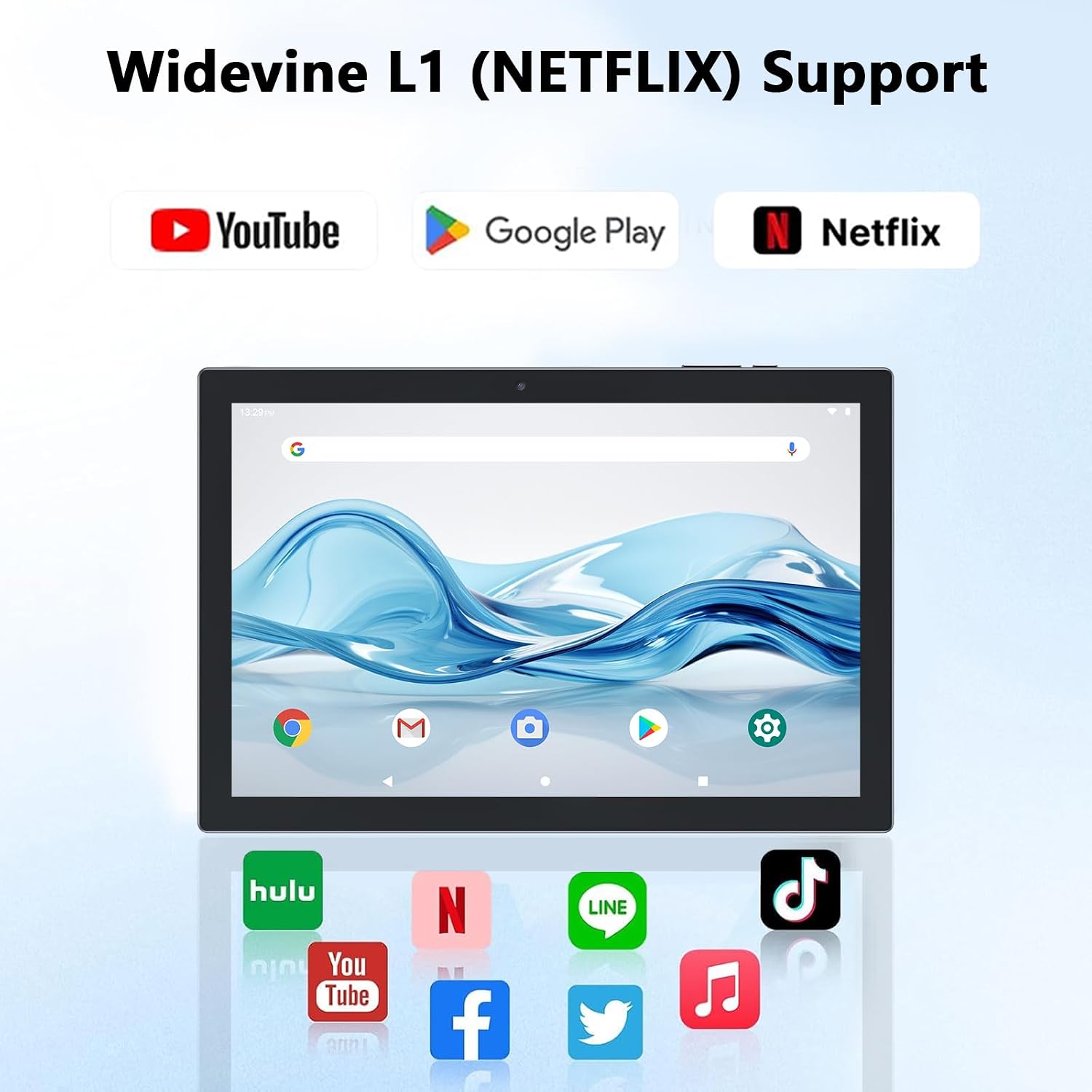
Figure 4.2: Widevine L1 support for popular streaming platforms.
The tablet's IPS HD screen provides vibrant colors and advanced visual effects. Utilize the pre-installed media players or download your preferred streaming apps from the Google Play Store.
ווידעא 4.1: אן איבערview of the YQ10SMAX Android 15 tablet's features and performance, demonstrating its capabilities for daily use and entertainment.
4.4 ניצן קאַמעראַס
די טאַבלעט פֿאַרמאָגט אַ 8MP הינטערשטע קאַמעראַ און אַ 2MP פֿראָנט קאַמעראַ.

Figure 4.3: Dual cameras for photos and video calls.
- עפֿנט די "קאַמעראַ" אַפּליקאַציע פֿון דער היים־עקראַן אָדער אַפּ־שוך.
- צאַפּן אויף די קאַמעראַ ייקאַן צו באַשטימען צווישן פראָנט און הינטערשטע קאַמעראַס.
- צאַפּן דעם שאַטער קנעפּל צו נעמען אַ פאָטאָ אָדער אָנהייבן/אָפּשטעלן ווידעאָ רעקאָרדינג.
4.5 סטאָרידזש און יקספּאַנשאַן
The tablet comes with 128GB of internal storage and supports up to 2TB expansion via a microSD card.

Figure 4.4: Mass storage and easy expansion options.
- To insert a microSD card, locate the card slot on the side of the tablet and gently push the card in until it clicks.
- To manage storage, go to סעטטינגס > סטאָרידזש.
5. וישאַלט
5.1 רייניקן דיין טאַבלעט
- ניצט אַ ווייכן, לינט-פֿרייע שטאָף צו רייניקן דעם עקראַן און קערפּער פֿון דער טאַבלעט.
- פֿאַר שווערע פֿלעקן, אַ ביסל דampווישט דעם שטאָף מיט וואַסער אָדער אַ פאַרשטעלן-זיכער רייניקונג לייזונג.
- פֿאַרמײַדן ניצן שטרענגע כעמיקאַלן, אַברייסיוו מאַטעריאַלן, אָדער איבערגעטריבענע פֿײַכטקייט.
5.2 באַטערי קער
The tablet is equipped with a 6000mAh battery for long-lasting performance.

Figure 5.1: Large-capacity battery with long-lasting battery life.
- לאָדט אויף דעם טאַבלעט רעגולער, אָבער לאָזט עס נישט איינגעשטאָפּט פֿאַר לענגערע צייטן נאָכדעם וואָס עס איז פֿולשטענדיק אויפֿגעלאָדן.
- Use only the provided Type-C cable for charging.
- Avoid exposing the tablet to extreme temperatures, as this can affect battery life.
5.3 ווייכווארג דערהייַנטיקונגען
Periodically check for system updates to ensure optimal performance and security.
- גיין צו סעטטינגס > סיסטעם > סיסטעם דערהייַנטיקן.
- פֿאָלגט די אינסטרוקציעס אויף דעם עקראַן צו דאַונלאָודן און ינסטאַלירן אַלע בנימצא דערהייַנטיקונגען.
6. טראָובלעשאָאָטינג
If you encounter any issues with your tablet, please refer to the following common problems and solutions:
| פּראָבלעם | מעגלעך סיבה | לייזונג |
|---|---|---|
| טאַבלעט וועט נישט זיך אָנצינדן | נידעריגע באַטאַרייע; סיסטעם קראַך | לאָדט אויף די טאַבלעט פֿאַר לפּחות 30 מינוט. דריק און האַלט די פּאַוער קנעפּל פֿאַר 10-15 סעקונדעס צו צווינגען ריסטאַרט. |
| ווי-פי קשר ישוז | Incorrect password; Router issue; Out of range | באַשטעטיקט דעם Wi-Fi פּאַראָל. ריסטאַרט אייער ראַוטער. גייט נענטער צום Wi-Fi ראַוטער. |
| פּאַמעלעך פאָרשטעלונג | צו פיל אַפּפּס לויפן; ווייניק סטאָרידזש; אַלטמאָדישע ווייכווארג | Close unnecessary apps. Clear cache/uninstall unused apps. Check for system updates. |
| אַקסעסאָריעס פֿאַרבינדן זיך נישט | Bluetooth off; Incorrect pairing; Low battery in accessory | Ensure Bluetooth is on. Re-pair the accessory. Check accessory batteries. |
| סקרין ריספּאַנד נישט | צייטווייליגע ווייכווארג גליטש | Force restart the tablet by holding the Power button. |
7. ספּעסאַפאַקיישאַנז
| שטריך | דעטאַל |
|---|---|
| סאָרט | CUPEISI |
| מאָדעל נאָמען | YQ10S MAX |
| אָפּערייטינג סיסטעם | אַנדרויד 15 |
| פאַרשטעלן גרייס | 10.1 אינטשעס |
| פאַרשטעלן האַכלאָטע | 1280 x 800 pixels (IPS HD) |
| פּראַסעסער | 2.0 גיגאהערץ קוואד-קאָר |
| באַראַן | 18GB (6GB + 12GB expansion) |
| אינערלעכער סטאָרידזש | 128 גיגאבייט |
| יקספּאַנדאַבאַל סטאָרידזש | Up to 2TB (microSD card not included) |
| דערציען אַפּאַראַט | 8 מפּ |
| פראָנט אַפּאַראַט | 2 מפּ |
| ווירעלעסס טיפּ | 802.11ax (Wi-Fi 6), 2.4G/5G Dual-band |
| בלועטאָאָטה | בלועטאָאָטה 5.0 |
| באַטאַרייע קאַפּאַציטעט | 6000 מאַה ליטהיום פּאָלימער |
| דורכשניטלעך באַטאַרייע לעבן | אַרויף צו 10 שעה |
| פּונקט וואָג | 2.75 פונט (אומגעפער 1.25 ק"ג) |
| פּראָדוקט דימענשאַנז | 9.45 x 5.91 x 0.39 אינטשעס (אומגעפער 24 x 15 x 1 ס״מ) |
8. וואָראַנטי און שטיצן
CUPEISI products are manufactured to the highest quality standards. This product is covered by a standard manufacturer's warranty against defects in materials and workmanship from the date of purchase. Please retain your proof of purchase for warranty claims.
For technical support, warranty inquiries, or any questions regarding your CUPEISI Android 15 Tablet, please contact our customer service team through the retailer's platform or visit the official CUPEISI webפּלאַץ פֿאַר קאָנטאַקט אינפֿאָרמאַציע.
Please note that the warranty does not cover damage caused by misuse, accidents, unauthorized repairs, or normal wear and tear.