
1. הקדמה
Thank you for choosing the Mcbazel Foldable Bluetooth Keyboard. This ultra-thin, portable wireless keyboard with a numeric keypad is designed for seamless compatibility with Mac, iOS, Android, and Windows devices. Its compact and lightweight design makes it ideal for travel, business trips, and everyday use. This manual will guide you through the setup, operation, and maintenance of your new keyboard.

Image 1.1: The Mcbazel Foldable Bluetooth Keyboard shown in both its compact, folded state and fully extended for use. This illustrates its portability and full keyboard layout.
2. שליסל פֿעיִקייטן
- סטאַבילע בלועטוט 5.0 פֿאַרבינדונג: Supports up to 3 devices simultaneously with a stable connection and quick response within 10 meters.
- Precise Typing Experience: Standard keyboard-like design with quiet keys for accurate and comfortable typing.
- Innovative Touchpad: Features a redesigned touchpad with press function, mimicking a laptop's touchpad for mouse-free control. Compatible with iOS for drag-and-drop functionality (double-tap and hold).
- קריקאָנלאָדלעך באַטערי: Built-in low-power consumption battery with 2-3 hours charging time and approximately 560 hours standby time. Features a convenient Type-C charging input.
- סאָליד און פּאָרטאַטיוו פּלאַן: Folds to approximately 15 x 9.7 x 1.3 cm, making it easy to carry anywhere.

Image 2.1: Visual representation of the keyboard's wide compatibility, supporting Android, Windows, and iOS systems. It highlights the QWERTY layout and notes that the touchpad is not compatible with iOS versions below 13.
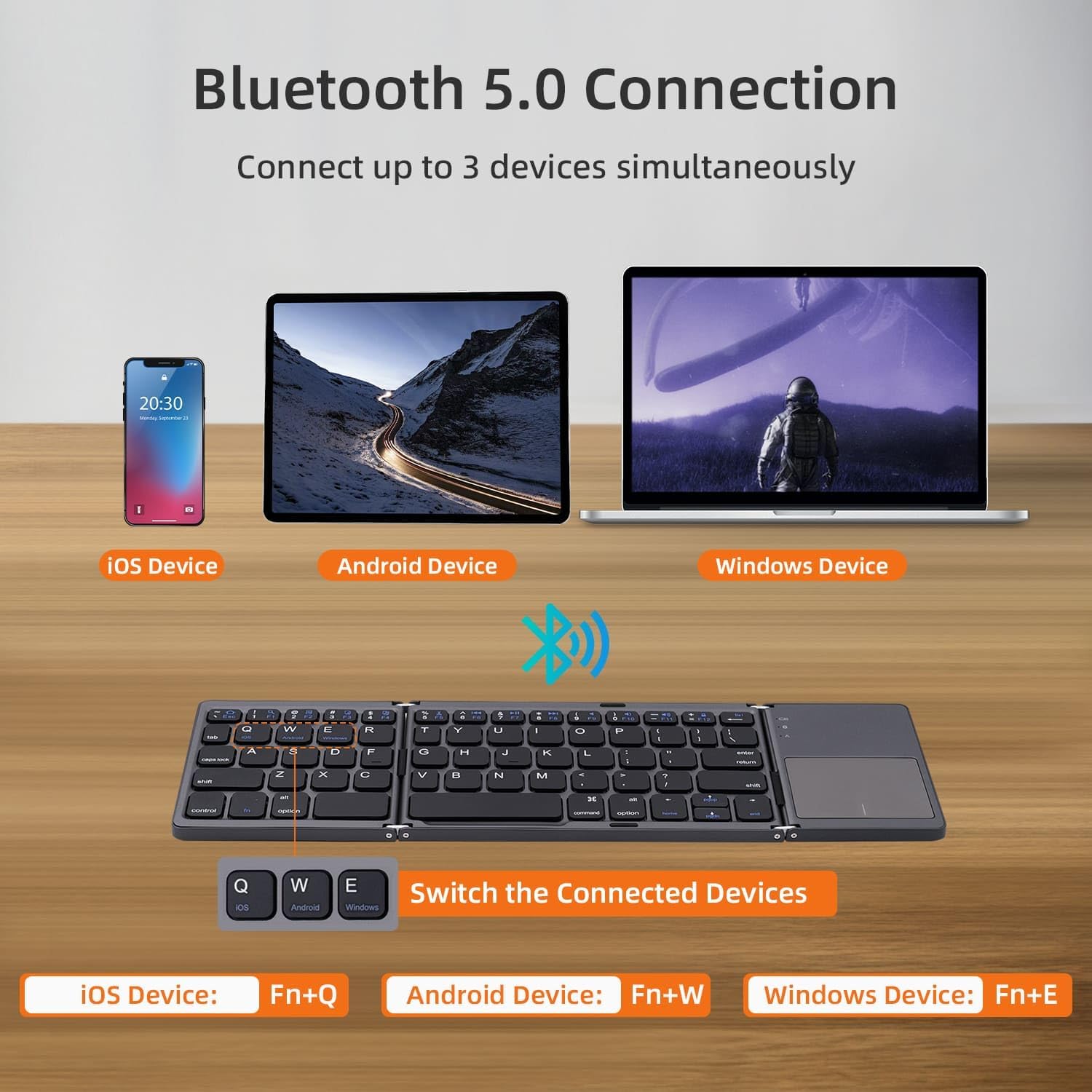
Image 2.2: Diagram illustrating the Bluetooth 5.0 connection, showing the ability to connect up to 3 devices simultaneously (iOS, Android, Windows) and how to switch between them using Fn+Q/W/E.
3. סעטאַפּ
3.1 פּאַרץ איבערview

בילד 3.1: דעטאַלירט view of the keyboard's components, including the Charging Indicator Light, Bluetooth Indicator Light, Caps Lock Light, Touchpad, Left Button, Right Button, Power Switch, Bluetooth Connect button, and Type-C Charging Interface.
3.2 אויפלאָדן די קלאַוויאַטור
Before first use, fully charge the keyboard. Connect the provided Type-C USB cable to the keyboard's charging port and the other end to a USB power source (e.g., computer, wall adapter). The charging indicator light will illuminate during charging and turn off when fully charged. A full charge takes approximately 2-3 hours.

Image 3.2: Illustration of the keyboard's built-in rechargeable battery, highlighting the convenient Type-C charging port and providing battery specifications: 140 mAh capacity, 2-3 hours charging time, 48 hours working time, and 560 hours standby time.
3.3 בלועטאָאָטה פּערינג
- זייט זיכער אַז די קלאַוויאַטור איז אויפגעלאָדן.
- Turn on the keyboard by sliding the Power Switch to the 'ON' position.
- Press the 'Bluetooth Connect' button (usually located near the power switch) to put the keyboard into pairing mode. The Bluetooth indicator light will flash.
- אויף אייער דעווייס (סמאַרטפאָן, טאַבלעט, לאַפּטאָפּ), גייט צו בלועטוט סעטטינגס און זוכט פֿאַר פאַראַן דעווייסעס.
- Select 'Mcbazel Keyboard' or a similar name from the list of found devices.
- If prompted, enter the pairing code displayed on your device using the keyboard and press Enter.
- Once connected, the Bluetooth indicator light will stop flashing and remain solid or turn off, depending on the model. The keyboard will automatically connect to the last paired device upon power-on.
באַמערקונג: For desktop and laptop computers without built-in Bluetooth, a third-party Bluetooth adapter (not included) is required.
3.4 וועקסלען צווישן סיסטעמען
The keyboard supports iOS, Android, and Windows systems. To switch between operating systems for optimal key mapping:
- פֿאַר יאָס: דרוק Fn + Q
- פֿאַר אַנדרויד: דרוק פן + וו
- פֿאַר Windows: דרוק Fn + E
4. אַפּערייטינג ינסטרוקטיאָנס
4.1 General Typing
Simply unfold the keyboard to its full size. The standard QWERTY layout allows for comfortable and efficient typing. The quiet keys minimize noise, allowing you to focus on your work.
4.2 ניצן דעם טאָוטשפּאַד
The integrated touchpad functions similarly to a laptop touchpad, allowing you to control your device without a separate mouse. It supports standard gestures.

Image 4.1: Close-up of the high-sensitive touchpad, indicating the areas for left and right mouse button clicks, enabling easy and efficient device control without a mouse.
- קליקינג: Tap the touchpad surface or use the dedicated left/right buttons.
- שלעפּן Files (iOS compatible): Double-tap and hold on a file, then drag your finger to move it.
וויכטיק באַמערקונג: The touchpad function is not compatible with iOS systems below iOS 13. Ensure your iOS device is updated to iOS 13 or higher for touchpad functionality.
4.3 מאַכט שפּאָרן מאָדע
To conserve power, the keyboard will enter sleep mode if left unused for 10 minutes. To wake it up, simply press any key.
5. וישאַלט
- Keep the keyboard clean by wiping it with a soft, dry cloth. Avoid using harsh chemicals or abrasive materials.
- Do not expose the keyboard to extreme temperatures, direct sunlight, or excessive moisture.
- Store the keyboard in its folded state when not in use to protect the keys and touchpad.
- Charge the keyboard regularly to maintain battery health, even if not used frequently.
6. טראָובלעשאָאָטינג
- קלאַוויאַטור פֿאַרבינדט זיך נישט:
- זייט זיכער אז די קלאַוויאַטור איז אויפגעלאָדן און אנגעצונדן.
- מאַכן זיכער אַז בלועטאָאָטה איז ענייבאַלד אויף דיין מיטל.
- פּרוּווט אָפּצופּאַרן און ווידער צופּאַרן די קלאַוויאַטור מיט אייער דעווייס.
- זייט זיכער אז איר זענט אין דער 10-מעטער בלוטוט ראַנגע.
- Touchpad not working (iOS):
- Verify your iOS device is running iOS 13 or higher.
- Check if the touchpad is activated in your iOS settings: Go to "Settings" > "Accessibility" > "Touch" > "AssistiveTouch" > "On".
- Keyboard enters sleep mode too quickly:
- This is a power-saving feature. Press any key to wake the keyboard. This behavior is normal.
- Keyboard layout issues (e.g., @ symbol):
- This wireless keyboard has a traditional English layout. Ensure your device's input language settings match the keyboard's layout (e.g., US English) to avoid conflicts with other regional layouts.
7. ספּעסאַפאַקיישאַנז
| שטריך | באַשרייַבונג |
|---|---|
| סאָרט | מקבאזל |
| מאָדעל | B033 פּלוס |
| קאַנעקטיוויטי טעכנאָלאָגיע | בלועטאָאָטה 5.0 |
| קאַמפּאַטאַבאַל דעוויסעס | סמאַרטפאָון, טאַבלעט, לאַפּטאָפּ, דעסקטאָפּ |
| אַפּערייטינג סיסטעמס | יאָס, אַנדרויד, ווינדאָוז |
| ספּעציעלע פֿעיִקייטן | Ergonomic, Foldable, Rechargeable, Touchpad |
| מאַכט מקור | באַטאַרייע פּאַוערד (בויט אין) |
| באַטאַרייע קאַפּאַציטעט | 140 מאַה |
| טשאַרדזשינג צייט | 2-3 שעה |
| סטאַנדביי צייט | בעערעך. 560 שעה |
| אַרבעט צייט | בעערעך. 48 שעה |
| טשאַרדזשינג צובינד | טיפּ-C וסב |
| פאָולדיד דימענשאַנז | אומגעפער 15.2 x 9.8 x 1.3 ס״מ (5.9 x 3.8 x 0.5 אינטשעס) |
| אַנפאָולדאַד דימענשאַנז | בעערעך 20 רענטגענ 10.5 רענטגענ 1.7 סענטימעטער |
| וואָג | 260 ג |
| מאַטעריאַל טיפּ | פּלאַסטיק |
| קלאַוויאַטור שפּראַך | ענגליש |

Image 7.1: The keyboard in its folded state, showing its compact dimensions of 15.2 cm (5.9 in) length, 9.8 cm (3.8 in) width, and 1.3 cm (0.5 in) height, emphasizing its portability.
8. וואָראַנטי און שטיצן
For warranty information or technical support, please refer to the product packaging or contact Mcbazel customer service directly. Keep your purchase receipt for warranty claims.