
הקדמה
א דאנק פארן קויפןasing the ELECOM Wireless Mouse EX-G Bluetooth Silent S-size 5-button Multi-pairing, model M-XGS30BBSKBK. This ergonomic mouse is designed to provide a comfortable and strain-free experience, developed in collaboration with orthopedic surgeons. It features silent clicks, multi-pairing capabilities, and an antimicrobial surface for enhanced hygiene. This manual will guide you through the setup, operation, and maintenance of your new mouse.

Image: The ELECOM EX-G Bluetooth Silent Mouse, model M-XGS30BBSKBK.
שליסל פֿעיִקייטן
- ערגאָנאָמיק פּלאַן: Co-developed with orthopedic surgeons, the EX-G series mouse is shaped to fit the natural curve of your hand, minimizing strain on wrist and finger muscles. This design has been certified by the AskDoctors evaluation service, with 99% of 100 doctors recommending it.
- Silent Click Switches: Equipped with Panasonic silent switches for left and right clicks, as well as the scroll wheel, allowing for quiet operation in any environment, such as during web conferences or in shared workspaces.
- Multi-pairing Functionality: Connects to up to two Bluetooth-compatible devices simultaneously. Easily switch between paired devices with a dedicated button.
- Antimicrobial Surface: The mouse body and printed parts are treated with an antimicrobial coating to inhibit bacterial growth, keeping the mouse clean.
- 5-קנעפל דיזיין: Includes left click, right click, scroll wheel, and two side buttons (forward/back) for enhanced navigation and productivity.

Image: Comparison of the ergonomic EX-G mouse design (right) with a traditional mouse (left), illustrating the natural hand position.
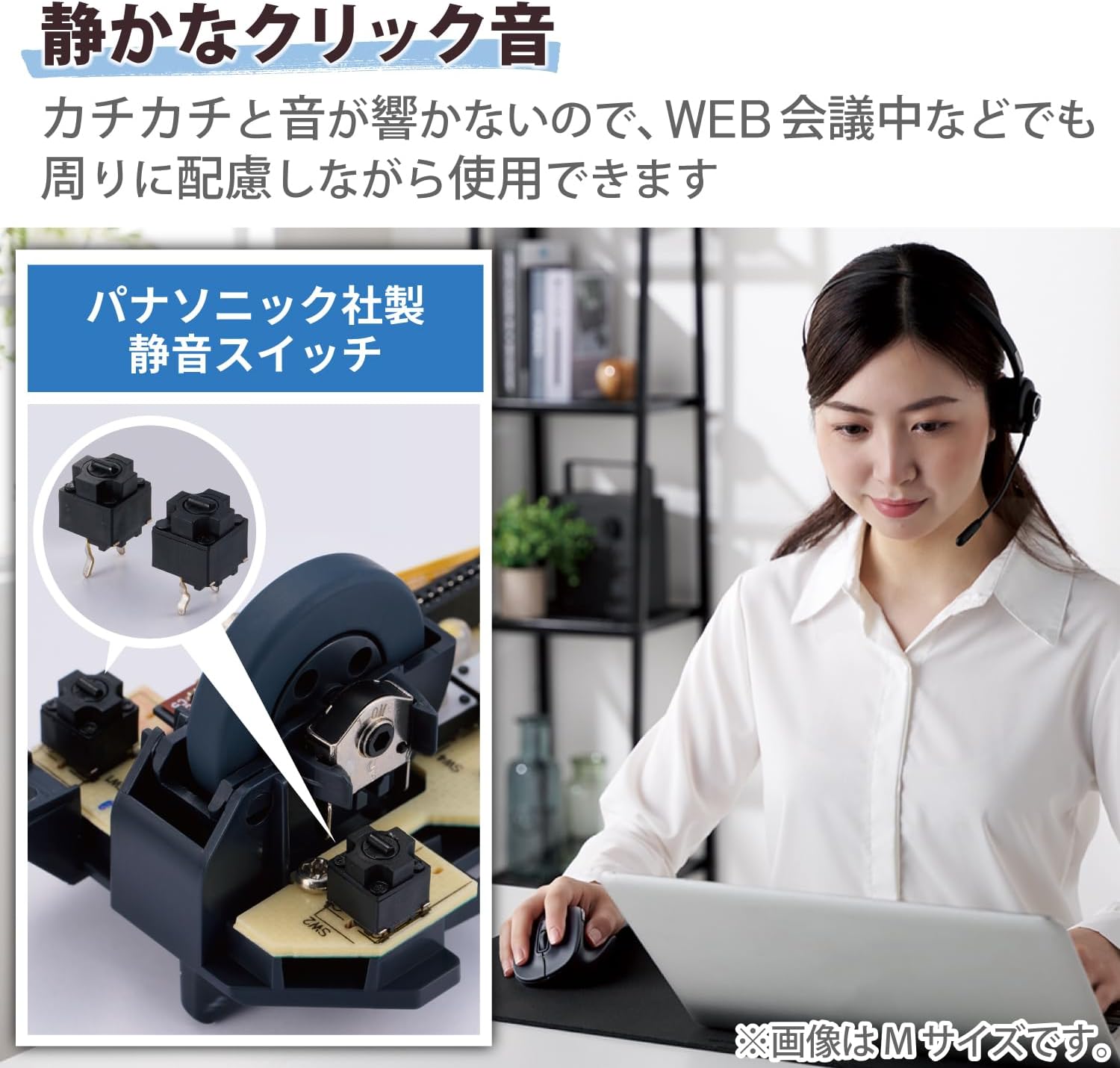
Image: A close-up of the internal Panasonic silent click switches and a user operating the mouse quietly.

Image: Illustration of the multi-pairing feature, showing indicator lights (white for device 1, green for device 2) for switching connections.

Image: Various color models of the EX-G mouse, highlighting the antimicrobial surface treatment.

Image: Diagram illustrating the functions of the 5 buttons: Left Click, Right Click, Double Click, Forward, and Back.
סעטאַפּ
1. באַטאַרייע ייַנמאָנטירונג
- עפֿנט דעם באַטעריע דעקל וואָס געפֿינט זיך אויף דער אונטערשטער זײַט פֿון דער מויז.
- Insert one AAA alkaline battery (included) into the battery compartment, ensuring correct polarity (+/-).
- פאַרמאַכן די באַטאַרייע דעקן סיקיורלי.
2. בלועטאָאָטה פּערינג
- קער אויף די מויז ניצן די מאַכט באַשטימען אויף די דנאָ.
- Press and hold the pairing button on the bottom of the mouse until the LED indicator starts flashing (e.g., white for device 1, green for device 2).
- On your computer or device (Windows, macOS, Android, iOS, iPadOS, ChromeOS), navigate to the Bluetooth settings.
- זוכן פֿאַר available Bluetooth devices and select "ELECOM EX-G" or a similar name.
- Follow any on-screen prompts to complete the pairing process. The LED indicator on the mouse will stop flashing and remain solid when successfully paired.
- To pair a second device, repeat steps 2-5, ensuring the mouse is in the correct pairing mode (e.g., green LED for device 2).
אַפּערייטינג ינסטראַקשאַנז
גרונטלעכע מויז פונקציעס
- לינק קליקט: ערשטיקע סעלעקציע און אַקטיוואַציע.
- רעכט גיט: עפֿנט קאָנטעקסט מעניוס.
- סקראָל ראָד: Scrolls content vertically. Pressing the scroll wheel often acts as a middle click.
- פאָרויס/צוריק קנעפּלעך: Located on the side, these buttons allow for quick navigation in web בראַוזערז און file עקספּלאָרערס.
באַשטימען צווישן פּערד דעוויסעס
If you have paired the mouse with two devices, press the device switching button (usually located near the pairing button on the bottom or a dedicated button on top) to toggle between Device 1 (white LED) and Device 2 (green LED).
דפּי אַדזשאַסטמאַנט
The mouse has a maximum sensitivity of 2000 dpi. While there isn't a dedicated DPI switch mentioned, sensitivity can typically be adjusted through your operating system's mouse settings for personalized control.
וישאַלט
רייניקונג
- Wipe the mouse surface with a soft, dry cloth.
- פאר עקשנות שמוץ, לייכט דampווישט דעם שטאָף מיט וואַסער אָדער אַ מילדן, נישט-שרייַבנדיקן רייניגער. פֿאַרמייַדט שטרענגע כעמיקאַליען.
- Do not allow liquids to enter the mouse body.
באַטערי פאַרבייַט
When the mouse performance degrades or the indicator light suggests low battery, replace the AAA battery following the installation steps in the Setup section.
טראָובלעשאָאָטינג
- מויז ענטפערט נישט:
- Check if the power switch on the bottom of the mouse is ON.
- זיכער מאַכן אַז די באַטאַרייע איז ריכטיק אינסטאַלירט און נישט אויסגעשעפּט. פאַרבייטן אויב נייטיק.
- Verify that the mouse is paired with the correct device (check the LED indicator for Device 1 or 2).
- פּרוּווט ווידער צו פֿאַרבינדן די מויז מיט אײַער דעווײַס.
- אומשטענדלעכע קורסאָר באַוועגונג:
- רייניקט דעם אָפּטישן סענסאָר אויף דער אונטערשטער טייל פֿון דער מויז.
- זייט זיכער אז איר ניצט די מויז אויף א פאסיגע אויבערפלאך. פארמיידט שטארק רעפלעקטיווע אדער דורכזיכטיקע אויבערפלאכן.
- קוק פֿאַר ינטערפיראַנס פון אנדערע וויירליס דעוויסעס.
- Scroll wheel issues (e.g., scrolling in the wrong direction, jumping):
- This can sometimes indicate a hardware issue. Ensure the scroll wheel is clean and free of debris.
- אויב די אַרויסגעבן בלייַבט, קאָנטאַקט קונה שטיצן.
- Cannot connect to a second device:
- Ensure the mouse is in the correct pairing mode for the second device (green LED).
- Confirm your device's Bluetooth is enabled and discoverable.
ספּעסאַפאַקיישאַנז
| סאָרט | ELECOM |
| מאָדעל נומער | M-XGS30BBSKBK |
| קאָליר | שוואַרץ |
| קאַנעקטיוויטי טעכנאָלאָגיע | בלועטאָאָטה |
| ספּעציעלע פֿעיִקייטן | Ergonomic Design, Silent, Multi-pairing, Wireless |
| באַוועגונג דעטעקשאַן טעכנאָלאָגיע | אָפּטיש |
| נומער פון קנעפּלעך | 5 |
| האַנט אָריענטירונג | רעכט-האַנט |
| קאַמפּאַטאַבאַל דעוויסעס | Bluetooth(R) HOGP compatible Windows OS, Android, macOS, iOS, iPadOS, ChromeOS devices |
| אַפּערייטינג סיסטעמס | Android 12, Chrome OS, Windows 11/10, iPadOS 16, macOS Ventura 13 |
| נומער פון באַטעריז | 1 אַאַאַ באַטאַרייע (אַרייַנגערעכנט) |
| ייַזנוואַרג פּלאַטפאָרמע | Mac, PC, Tablet |
| מאַכט מקור | באַטאַרייע פּאַוערד |
| Mouse Max Sensitivity | 2000 דפּי |
| פּראָדוקט וואָג | 82 גראַמז |
| פּראָדוקט דימענסיעס (L x B) | 10.8 סענטימעטער רענטגענ 7.1 סענטימעטער |
| יוניט גראף | 1 אַפּאַראַט |
| רעקאָממענדעד ניצט | אָפיס, גיימינג |
Size Guide (S-size)
The S-size mouse is designed to fit hands where the length from the tip of the middle finger to the base of the palm is approximately 165mm.

Image: Diagram showing the S-size mouse dimensions (Length 108mm, Width 71mm, Height 52mm) and a hand measurement guide for optimal fit.
וואָראַנטי און שטיצן
This ELECOM product comes with a 2 יאָר וואָראַנטי פֿון דעם קויף־דאַטום. ביטע באַהאַלטן אייער קויף־באַווייַז פֿאַר גאַראַנטיע־קליימז.
For technical support, troubleshooting assistance, or warranty service, please visit the official ELECOM website or contact their customer service department. You can find more information and support resources on the ELECOM Brand Store on Amazon.