
הקדמה
Thank you for choosing the EBTOOLS Bluetooth Remote Control Page Turner. This device offers convenient wireless control for various functions on your iOS and Android smartphones, including remote camera shutter, video page turning, and e-book navigation. Please read this manual carefully to ensure proper use and optimal performance.
פּראָדוקט איבערview
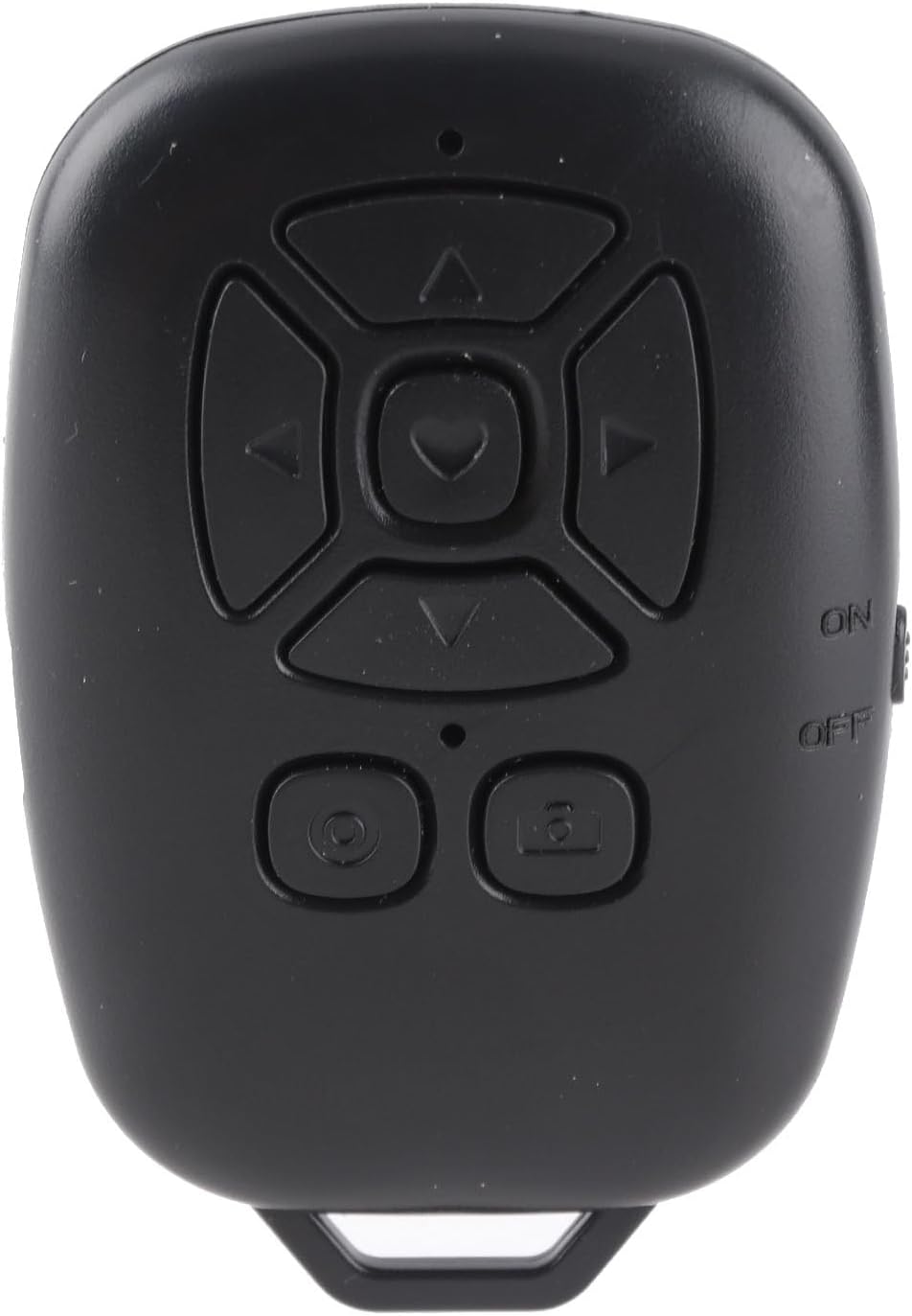
פיגורע 1: פראָנט view of the EBTOOLS Bluetooth Remote Control, showcasing its compact design and intuitive button layout for various functions.
The EBTOOLS Bluetooth Remote Control is a compact and lightweight device designed for ease of use. It features a multi-directional control pad, dedicated camera/record buttons, and an ON/OFF switch. Its ergonomic design allows for comfortable handling, and the integrated loop enables attachment to keychains for portability.
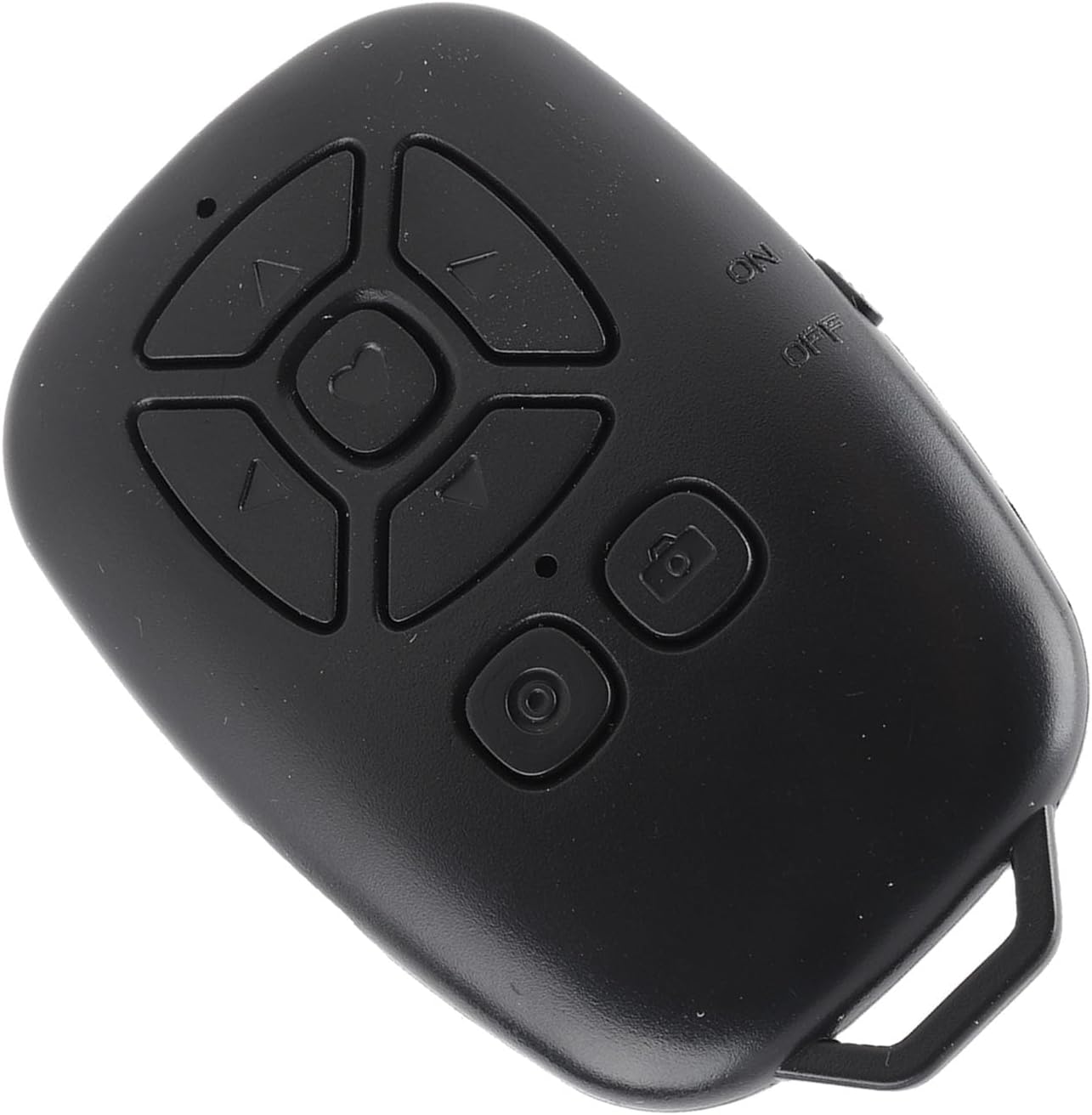
פיגורע 2: אַ ווינקלדיק view of the EBTOOLS Bluetooth Remote Control, showing its ergonomic shape and the side-mounted ON/OFF switch.
ספּעסאַפאַקיישאַנז
| שטריך | דעטאַל |
|---|---|
| בלועטאָאָטה ווערסיע | בלועטאָאָטה 5.0 |
| קאַנעקטיוויטי טעכנאָלאָגיע | בלועטאָאָטה, וסב |
| קאַמפּאַטאַבאַל דעוויסעס | Camera (Smartphones: iOS, Android) |
| רימאָוט קאָנטראָל באַטערי טיפּ | Polymer Lithium Battery, 1 x CR2032 |
| באַטאַרייע קאַפּאַציטעט | 80mAh (איינגעבויט) |
| פּונקט וואָג | 1.2 אונסעס |
| פּעקל דימענשאַנז | 3.54 X 2.76 X 0.79 אינטשעס |
| מאָדעל נומער | EBTOOLSdug3rt25po |
פּעקל אינהאַלט
די פאלגענדע זאכן זענען אַרייַנגערעכנט אין דיין פּעקל:
- 1 x EBTOOLS Bluetooth Remote Control
- 1 x אינסטרוקציע מאַנואַל (דאָס דאָקומענט)
- 1 x USB קאַבל (טיפּ-C)
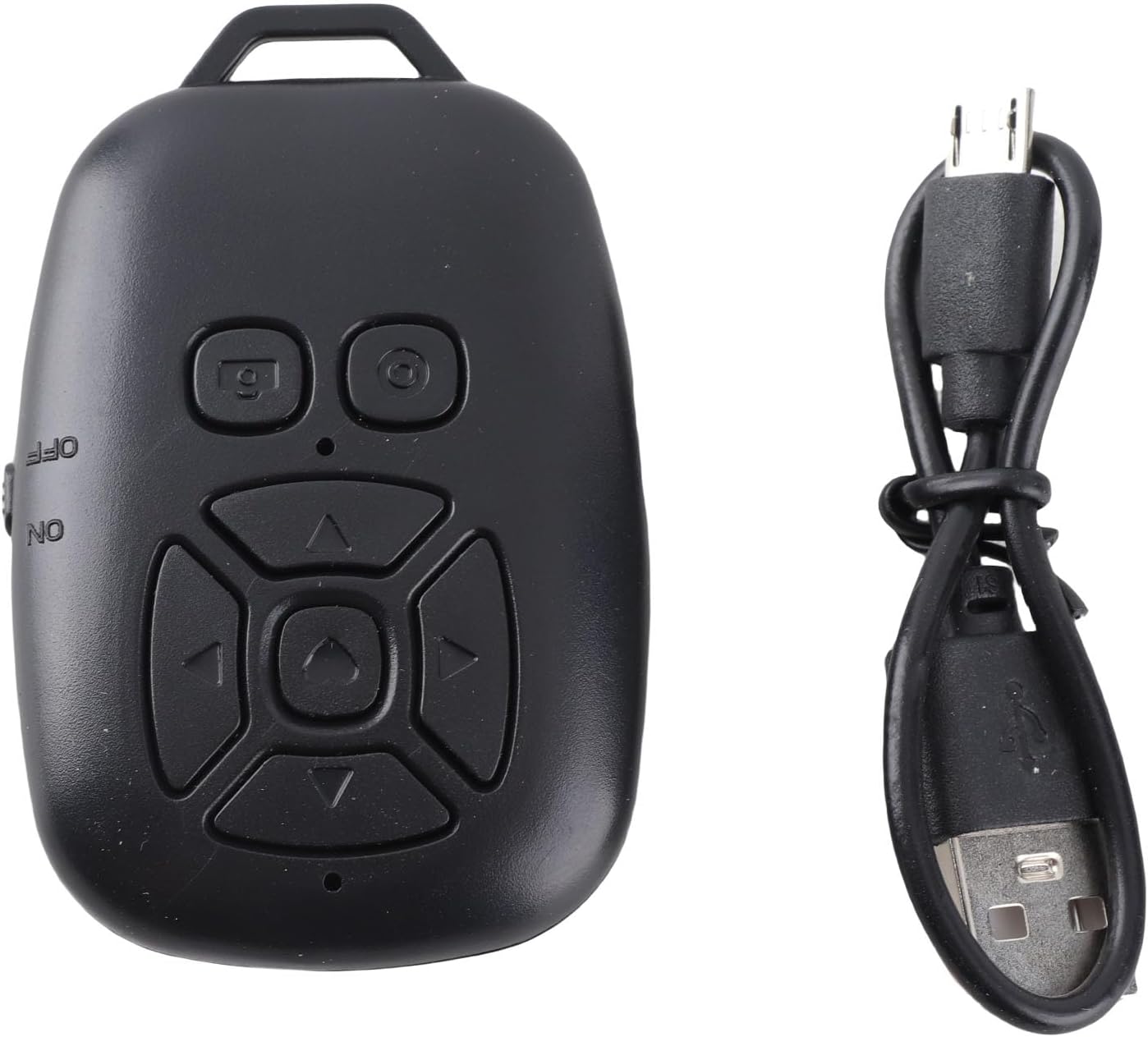
פיגורע 3: The EBTOOLS Bluetooth Remote Control alongside its USB-C charging cable, highlighting the device's compact size and charging method.
סעטאַפּ
1. בלועטאָאָטה קאַנעקשאַן
- Ensure the remote control is charged (refer to the Charging section).
- Turn on the remote control using the ON/OFF switch located on the side.
- On your smartphone, navigate to סעטטינגס > בלועטאָאָטה.
- זוכן פֿאַר available Bluetooth devices. The remote control will appear as BLE M3.
- אויסקלייַבן BLE M3 to pair and connect. Once connected, the indicator light on the remote will typically stop flashing or turn solid.
2. For iOS Systems (Additional Settings)
After establishing the Bluetooth connection, iOS users may need to enable Accessibility features for full functionality:
- גיין צו סעטטינגס > אַקסעסאַביליטי > ריר > AssistiveTouch.
- Toggle AssistiveTouch צו ON.
- פאַרזיכערן Perform Touch Gestures is also set to ON within the AssistiveTouch settings.
3. For Android Systems
Once the Bluetooth connection is successfully established, the remote control is generally ready for use on Android devices without further specific settings.

פיגורע 4: A person using the EBTOOLS Bluetooth Remote Control to capture a selfie with a smartphone, demonstrating its utility for remote photography.
אַפּערייטינג ינסטראַקשאַנז
Remote Shutter Function
Open your smartphone's camera application. Press the dedicated camera button on the remote control to remotely trigger the shutter for photos or start/stop video recording. This allows for stable shots and wider angles, especially when using a tripod.
Page Turning and Media Control
The directional buttons (up, down, left, right) and the central button can be used for various functions depending on the application:
- Short Video Apps: Use the up/down buttons to scroll through videos, and the left/right buttons for other navigation or interactions. The central button may act as a 'like' or 'play/pause' function.
- E-book Readers: Use the left/right buttons to turn pages.
- מוזיק/ווידעא ווידערשפּיל: Control volume, skip tracks, or play/pause media.
Adjusting Camera Point (for specific apps)
If the camera point or cursor is not aligned in certain applications, you can adjust its position:
- Press and hold the camera button on the remote.
- While holding the camera button, use the up, down, left, or right directional keys to move the cursor on your screen to the desired camera position.
- Release the camera button once the cursor is correctly positioned.

פיגורע 5: A user interacting with a smartphone, with the EBTOOLS Bluetooth Remote Control positioned nearby, illustrating its convenience for media control and page turning.
טשאַרדזשינג די מיטל
The EBTOOLS Bluetooth Remote Control features a USB Type-C charging port for convenient recharging. When the battery is low, connect the provided USB Type-C cable to the remote control and a standard USB power source (e.g., computer USB port, wall adapter). The indicator light will typically show charging status and turn off or change color when fully charged.
זאָרגן און וישאַלט
- האַלט דעם אַפּאַראַט טרוקן. נעץ קען שאַטן עלעקטראָנישע קאָמפּאָנענטן.
- פֿאַרמײַדט עקסטרעמע טעמפּעראַטורן. שטעלט נישט אויס צו דירעקטער זון אָדער זייער קאַלטע סביבות.
- רייניקט דעם אַפּאַראַט מיט אַ ווייכן, טרוקענעם שטאָף. ניצט נישט קיין שאַרפע כעמיקאַלן אָדער אַברייסיוו רייניגער.
- האַלט די דעווייס אין אַ זיכער אָרט ווען נישט אין באַנוץ צו פאַרמייַדן גשמיות שעדיקן.
טראָובלעשאָאָטינג גייד
Device Not Connecting via Bluetooth
- Ensure the remote control is turned ON and fully charged.
- מאַכן זיכער אַז בלועטאָאָטה איז ענייבאַלד אויף דיין סמאַרטפאָנע.
- פרובירט אפצופּאַרן און ווידער צופּאַרן דעם דעווייס פֿון אייער טעלעפֿאָן'ס בלועטוט סעטטינגס.
- Restart both your smartphone and the remote control.
- זיכער מאַכן אַז קיין אַנדערע בלוטוט דעוויסעס שטערן נישט די פֿאַרבינדונג.
Functions Not Working on iOS
- באַשטעטיקן אַז AssistiveTouch און Perform Touch Gestures are enabled in your iOS Accessibility settings as described in the Setup section.
רימאָוט קאָנטראָל ניט ריספּאַנדינג
- קאָנטראָלירן די באַטאַרייע מדרגה און ריטשאַרדזש אויב נייטיק.
- Ensure the remote is within the effective Bluetooth range (up to 30 feet/10 meters).
- Confirm the remote is paired and connected to your device.
וואָראַנטי און שטיצן
EBTOOLS products are manufactured with quality and performance in mind. For specific warranty information, please refer to the documentation provided at the time of purchase or contact your retailer. If you encounter any issues or require technical assistance, please reach out to the customer support channel provided by your seller.