
1. הקדמה
Welcome to the user manual for your new ZZB ZB10 10.1-inch Android 14 Tablet PC. This guide provides essential information for setting up, operating, maintaining, and troubleshooting your device. Please read this manual thoroughly to ensure optimal performance and longevity of your tablet.

פיגורע 1: פראָנט view of the ZZB ZB10 Tablet.
2. וואָס איז אין דער קעסטל
Upon opening your ZZB ZB10 Tablet PC package, please verify that all the following items are included:
- ZZB ZB10 10.1-inch Android 14 Tablet PC
- טיפּ-C קאַבלע
- באַניצער מאַנואַל (דעם דאָקומענט)

Figure 2: The ZZB ZB10 Tablet and its packaging.
3. פּראָדוקט איבערview
Familiarize yourself with the physical components of your ZZB ZB10 Tablet.
3.1 פיזישע קאָמפּאָנענטן
- ווייַז: 10.1-inch IPS screen.
- פראָנט אַפּאַראַט: Located above the screen.
- דערציען אַפּאַראַט: Located on the back panel.
- מאַכט קנעפּל: Typically on the side or top edge.
- באַנד קנעפּלעך: אַדזשאַסטירן אַודיאָ לעוועלס.
- וסב טיפּ-C פּאָרט: פֿאַר טשאַרדזשינג און דאַטן אַריבערפירן.
- מיקראָסד קאָרט שפּעלטל: פֿאַר יקספּאַנדאַבאַל סטאָרידזש.

פיגורע 3: דערציען view of the ZZB ZB10 Tablet, highlighting the camera and model information.
4. סעטאַפּ
4.1 אויפלאָדן די טאַבלעט
Before first use, fully charge your tablet. Connect the provided Type-C cable to the tablet's charging port and the other end to a compatible USB power adapter (not included) or a computer's USB port. The battery indicator on the screen will show charging status.
4.2 מאַכט אויף / אַוועק
- צו מאַכט אויף: דריקן און האַלטן די מאַכט קנעפּל ביז די פאַרשטעלן לייץ.
- צו מאַכט אַוועק: Press and hold the Power button until a menu appears, then select 'Power off'.
- צו ריסטאַרט: Press and hold the Power button until a menu appears, then select 'Restart'.
4.3 ערשט סעטאַפּ
ביים ערשטן מאָל אנצינדן, וועט די טאַבלעט אייך פירן דורך דעם ערשטן סעטאַפּ פּראָצעס. דאָס נעמט טיפּיש אַרײַן:
- אויסקלייבן אייער שפּראַך.
- קאַנעקטינג צו אַ Wi-Fi נעץ.
- אויפשטעלן אייער גוגל אקאונט (אדער איבערשפרינגען פאר שפעטער).
- Reviewאננעמען און אננעמען די תנאים און באדינגונגען.
5. אַפּערייטינג ינסטרוקטיאָנס
5.1 יקערדיק נאַוויגאַציע
The ZZB ZB10 Tablet runs on Android 14, offering an intuitive touch interface.
- צאַפּן: אויסקלייבן אַן אייטעם אָדער עפֿענען אַן אַפּ.
- לאַקכענען: נאַוויגירן דורך סקרינז אָדער סקראָלן אינהאַלט.
- קניפּ-צו-זומען: פֿאַרגרעסערן אָדער פֿאַרקלענערן אינהאַלט אויף דעם עקראַן.
- לאנג פּרעס: צוטריט קאנטעקסטועלע מעניוס אדער באוועג איקאנעס.
5.2 קאַנעקטינג צו Wi-Fi
- גיין צו סעטטינגס > נעץ און אינטערנעט > ווי-פי.
- טוישן Wi-Fi On.
- אויסקלייבן אייער געוואונטשענע נעץ פון דער ליסטע.
- אַרייַן די פּאַראָל אויב געבעטן, און דאַן צאַפּן פאַרבינדן.
5.3 בלועטאָאָטה פּערינג
- גיין צו סעטטינגס > קאָננעקטעד דעוויסעס > בלועטאָאָטה.
- באַשטימען בלועטאָאָטה On.
- Ensure the device you wish to pair is in pairing mode.
- Select the device from the 'Available devices' list and follow on-screen prompts.
5.4 קאַמעראַ באַניץ
The tablet features a 2MP front camera and an 8MP rear camera.
- עפענען די אַפּאַראַט אַפּ.
- צאַפּן דעם שאַטער קנעפּל צו נעמען אַ פאָטאָ.
- טוישט צווישן פראָנט און הינטערשטע קאַמעראַס ניצנדיק די קאַמעראַ ייקאַן.
- אויסקלייבן ווידעא מאָדע צו רעקאָרדירן ווידיאס.

Figure 4: Using the tablet's camera for photos or video calls.
5.5 סטאָרידזש פאַרוואַלטונג
The tablet comes with 32GB of internal storage and supports up to 1TB expandable storage via a MicroSD card.
- To insert a MicroSD card, locate the card slot on the side of the tablet.
- Gently insert the MicroSD card until it clicks into place.
- You can manage storage in סעטטינגס > סטאָרידזש.

Figure 5: The tablet supports extended storage up to 1TB.
5.6 Reading Mode
The tablet features a reading mode designed to reduce eye strain by adjusting screen colors and brightness. This mode can typically be activated from the quick settings panel (swipe down from the top of the screen) or within the display settings.
6. וישאַלט
6.1 רייניקונג
Use a soft, lint-free cloth to clean the screen and body of the tablet. Avoid using harsh chemicals or abrasive materials, which can damage the device.
6.2 באַטערי קער
- פֿאַרמײַדן אויסצושטעלן די טאַבלעט צו עקסטרעמע טעמפּעראַטורן.
- לאָזט נישט די באַטאַרייע זיך אָפט גאָר אויסלאָדן.
- Use only the provided Type-C cable for charging.
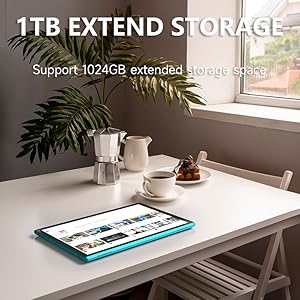
Figure 6: The tablet features a 6000mAh battery for extended use.
6.3 ווייכווארג דערהייַנטיקונגען
קאָנטראָלירט פּעריִאָדיש פֿאַר סיסטעם דערהייַנטיקונגען צו זיכער מאַכן אַז אייער טאַבלעט האט די לעצטע פֿעיִקייטן און זיכערהייט פּאַטשאַז. גייט צו סעטטינגס > סיסטעם > סיסטעם דערהייַנטיקן.
7. טראָובלעשאָאָטינג
אויב איר טרעפט פּראָבלעמען מיט אייער טאַבלעט, זעט די פאלגענדע געוויינטלעכע לייזונגען:
| פּראָבלעם | מעגלעך לייזונג |
|---|---|
| טאַבלעט טוט זיך נישט אנצינדן | Ensure the battery is charged. Connect to a power source for at least 30 minutes. |
| די פאַרשטעלן איז ניט ריספּאַנדאַבאַל | Restart the tablet by holding the power button for 10-15 seconds. |
| ווי-פי קשר ישוז | Restart your Wi-Fi router. Forget the network in tablet settings and reconnect. |
| אַפּפּס קראַשן אָדער פרירן | Clear the app's cache (Settings > Apps > [App Name] > Storage > Clear cache). If the problem persists, uninstall and reinstall the app. |
| פּאַמעלעך פאָרשטעלונג | שליסט אומנייטיקע הינטערגרונט אַפּפּס. רייניקט קאַש און צייטווייליגע files. Consider a factory reset if issues persist (backup data first). |
8. ספּעסאַפאַקיישאַנז
Key technical specifications for the ZZB ZB10 Tablet PC:
- מאָדעל: ZB10
- אַפּערייטינג סיסטעם: אַנדרויד 14
- ווייַז: 10.1-inch IPS, 1280 x 800 pixels
- באַראַן: 6GB (including 4GB virtual memory)
- אינערלעכער סטאָרידזש: 32 גיגאבייט ראַם
- יקספּאַנדאַבאַל סטאָרידזש: ביז 1TB דורך MicroSD קאַרטל
- דערציען אַפּאַראַט: 8 מפּ
- פראָנט אַפּאַראַט: 2 מפּ
- ווירעלעסס קאַנעקטיוויטי: Wi-Fi 802.11ac, Bluetooth
- באַטערי: 6000mAh, up to 12 hours average life
- דימענסיעס: 12 X 7 X 0.3 אינטשעס
- וואָג: 1 פונט
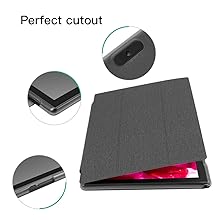
Figure 7: The tablet's 10.1-inch IPS display.
9. וואָראַנטי און שטיצן
For warranty information and customer support, please refer to the documentation provided with your purchase or visit the official ZZB webזייטל. האַלט דיין קויפן באַווייַז פֿאַר וואָראַנטי קליימז.