
URayCoder UHE265-1S-4K
URayCoder 4K HDMI Video Streaming Encoder (Model UHE265-1S-4K) User Manual
קאָמפּרעהענסיווע אינסטרוקציעס פֿאַר סעטאַפּ, אָפּעראַציע און וישאַלט.
1. הקדמה
This manual provides detailed instructions for the URayCoder 4K HDMI Video Streaming Encoder, Model UHE265-1S-4K. This device is designed to convert HDMI video and audio signals into various IP streaming formats, enabling live broadcasts and remote video transmission. Please read this manual thoroughly before operating the device to ensure proper setup and optimal performance.
2. פּראָדוקט איבערview
The URayCoder 4K HDMI Video Streaming Encoder is a hardware device capable of encoding 4K UHD video input into H.265 or H.264 formats for IP streaming. It supports multiple streaming protocols and simultaneous output of up to four video streams.
2.1 שליסל פֿעיִקייטן
- 4K UHD Video Support: Supports up to 3840x2160 resolution at 30fps input/output, or 1920x1080 at 60fps input/output.
- Multiple Streaming Protocols: Compatible with HTTP, RTSP, RTMP(S), SRT, HLS(M3U8), UDP, RTP, MP4, Multicast, Unitcast, ONVIF, and FLV.
- Simultaneous Multi-Stream Output: Outputs up to 4 video streams concurrently, each configurable with different protocols.
- Customizable Video Streams: Add static text, scrolling text, logos, or time overlays. Adjust resolution, frame rate, bitrate, crop, rotate, flip, and mirror options.
- Adjustable Audio Output: Control audio parameters for optimal sound quality.
- ברייט פּלאַטפאָרם קאַמפּאַטאַבילאַטי: Supports live broadcasting to platforms such as YouTube, Facebook, Ustream, Livestream, Twitch, Vimeo, Streamspot, Dacast, Tikilive, and Netrmedi.
2.2 מיטל אויסלייג
The encoder features essential ports for power, video input, audio input, and network connectivity.

פיגור 2.2.1: פאָרנט און הינטן view of the URayCoder 4K HDMI Video Streaming Encoder, showing power input, reset button, HDMI input, audio input, and LAN port.

פיגורע 2.2.2: נאָענט-אַרויף view of the encoder's ports, including DC 12V power, RESET button, HDMI IN, AUDIO IN, and LAN port.

פיגורע 2.2.3: איבערview of URayCoder Encoder features, highlighting H.265/H.264 encoding, multi-streaming, OSD settings, 1000 Base-T, HDCP support, 7x24 working, firmware upgradeability, multi-protocol support, 4K UHD resolution, and low latency.
3. סעטאַפּ
3.1 פיזישע פֿאַרבינדונגען
- פאַרבינדן HDMI מקור: Connect your HDMI video source (e.g., camera, computer, set-top box) to the HDMI ין port on the encoder using an HDMI cable.
- פֿאַרבינדן אַודיאָ מקור (אָפּציאָנעל): If using an external audio source, connect it to the אַודיאָ אין port. Otherwise, audio will be extracted from the HDMI input.
- פאַרבינדן צו די נעץ: פאַרבינדן די לאַן port of the encoder to your network router or switch using an Ethernet cable.
- מאַכט אויף: Connect the 12V DC power adapter to the DC 12V port and plug it into a power outlet. The device will power on automatically.

Figure 3.1.1: Diagram illustrating the connection of HDMI audio and external line-in audio to the encoder.
3.2 נעטוואָרק קאָנפיגוראַטיאָן
After physical connections, the encoder will obtain an IP address via DHCP by default. To access the web- באזירט פאַרוואַלטונג צובינד:
- Ensure your computer is on the same network as the encoder.
- Use a network scanning tool (e.g., IP Scanner) to find the encoder's IP address on your network. The default IP address is often 192.168.1.168, but this can vary based on your network's DHCP server.
- עפענען א web browser and enter the encoder's IP address in the address bar.
- Log in using the default credentials (refer to the included quick start guide for default username and password).

Figure 3.2.1: Icon representing network security. It is recommended to change default login credentials for security.
וויכטיק: For security, it is highly recommended to change the default password immediately after the first login. You may also configure a static IP address if required for your network setup.
3.3 קאַנעקשאַן דיאַגראַמס

Figure 3.3.1: Diagram illustrating a typical live broadcast connection setup. An HDMI source connects to the URayTech Video Encoder, which sends video streams to a router/switch, then over the internet to various live streaming servers like YouTube, Twitch, and Facebook.

Figure 3.3.2: Diagram illustrating remote video transmission. An HDMI source connects to the URayTech Video Encoder, which sends streams via LAN/WAN to devices like laptops/phones or a URayTech Decoder connected to a display monitor.
4. אַפּערייטינג ינסטרוקטיאָנס
The encoder's functions are managed through its web-באזירט צובינד.
4.1 סטאַטוס מאָניטאָרינג
The "Status" page provides real-time information about the device's operation, including running time, CPU usage, memory usage, codec usage, video size, collected frames, and network packet statistics. This page is crucial for verifying input signal and stream health.

Figure 4.1.1: Partial screenshot of the encoder's web interface "Status" page, displaying device status, video stream details, and network information.
4.2 Video Stream Settings
Navigate to the "Encoder" section to configure video parameters for the main stream and substreams.
- קאָדירונג טיפּ: Select H.264 or H.265.
- קאָדעד גרייס: Choose the output resolution (e.g., 3840x2160, 1920x1080, 1280x720).
- FPS (Frame Rate): Set the desired frame rate.
- ביטראַטע קאָנטראָל: Select VBR (Variable Bit Rate) or CBR (Constant Bit Rate).
- Bitrate (kbit): Adjust the video bitrate. Higher bitrates generally result in better quality but require more bandwidth.
- Streaming Protocols: Enable and configure the desired streaming protocols (RTSP, RTMP, HLS, UDP, SRT, etc.) for each stream.

Figure 4.2.1: Partial screenshot of the encoder's web interface "Video" settings page, showing options for encoding type, resolution, frame rate, bitrate, and streaming protocol configuration.

Figure 4.2.2: Diagram illustrating the various streaming protocols supported by the encoder, including MP4, RTSP, HTTP, RTMP(S), Onvif, SRT, HLS, and UDP.
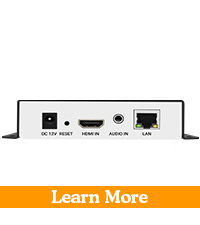
Figure 4.2.3: Icons representing various streaming protocols such as RTMP(S), RTSP, MP4, FLV, HLS, UDP, SRT, and Onvif.

Figure 4.2.4: Visual comparison demonstrating the difference in detail between 1080p and 4K resolutions.
4.3 אַודיאָ סעטטינגס
In the "Audio" section, you can configure audio input and encoding parameters.
- אַודיאָ אַרייַנשרייַב: Choose between Digital (HDMI) or Analog (Line-in).
- Sampלענג קורס: Set the audio sampling rate (e.g., 44100 Hz).
- ענקאָדער: Select the audio encoding format (e.g., AAC, MP3).
- ביטראַטע: Adjust the audio bitrate.
- Digital Volume Gain: סטרויערן די אַודיאָ באַנד.
- דענאָיסע: Enable or disable audio noise reduction.

Figure 4.3.1: Partial screenshot of the encoder's web interface "Audio" settings page, showing options for audio input, sampling rate, encoder type, bitrate, and volume gain.
4.4 OSD (On-Screen Display) Settings
The "OSD" section allows you to add overlays to your video streams.
- טעקסט איבערדעקונגען: Add static or scrolling text, customize font size, color, and position.
- Logo Overlays: Upload and position a custom logo image.
- Time Overlays: Display current time on the video.

Figure 4.4.1: Partial screenshot of the encoder's web interface "OSD" settings page, showing options for configuring text overlays, including zone, alpha, type, position, font size, background color, and font color.
4.5 Supported Platforms and Software
The encoder is compatible with a wide range of streaming platforms and software for receiving and managing streams.

Figure 4.5.1: Icons representing supported streaming platforms such as Dacast, Twitch, Livestream, Wowza, YouTube, Ustream, Vimeo, and Facebook Live.

Figure 4.5.2: Icons representing compatible software and tools like Wirecast, OBS, Flash Player, XSplit, vMix, Ffmpeg, Potplayer, and VLC.

Figure 4.5.3: Illustration of a live event streaming scenario, showing a camera feeding into the URayCoder encoder, with output viewed on a laptop and mobile devices.
5. וישאַלט
5.1 פירמוואַרע דערהייַנטיקונגען
URayCoder provides free lifetime technical support and firmware updates. Regularly checking for and applying firmware updates can improve performance, add new features, and resolve potential issues. Firmware updates are typically performed through the web interface under the "System" or "Upgrade" section. Contact URayCoder support for the latest firmware files און ינסטראַקשאַנז.
5.2 רייניקונג
Keep the device clean and free from dust. Use a soft, dry cloth for cleaning. Do not use liquid cleaners or solvents. Ensure ventilation holes are not obstructed.
5.3 פאַבריק באַשטעטיק
If you encounter persistent issues or forget your login credentials, a factory reset can restore the device to its default settings. This can be done via the web interface (under "System" -> "Factory Reset") or by pressing the physical RESET button on the device for several seconds while it is powered on. Refer to the quick start guide for the exact procedure for your model.
6. טראָובלעשאָאָטינג
| פּראָבלעם | מעגלעך סיבה | לייזונג |
|---|---|---|
| No video signal detected. |
|
|
| קענען ניט צוטריט web צובינד. |
|
|
| Streaming issues (buffering, no stream). |
|
|
| No audio in stream. |
|
|
7. ספּעסאַפאַקיישאַנז
| שטריך | דעטאַל |
|---|---|
| מאָדעל נומער | UHE265-1S-4K |
| ווידעא אַרייַנשרייַב | 1x HDMI |
| אַודיאָ אַרייַנשרייַב | 1x HDMI Embedded Audio, 1x 3.5mm Line-in Audio |
| ווידעא קאָדירונג | H.265 / H.264 |
| מאַקסימום אַרייַנשרייַב האַכלאָטע | 3840x2160@30fps (4K) |
| מאַקסימום רעזולטאַט רעזאָלוציע | 3840x2160@30fps (4K) or 1920x1080@60fps |
| סטרימינג פּראָטאָקאָלס | HTTP, RTSP, RTMP(S), SRT, HLS(M3U8), UDP, RTP, MP4, Multicast, Unitcast, ONVIF, FLV |
| נעץ צובינד | 1x RJ45 Ethernet (10/100/1000Mbps) |
| מאַכט צושטעלן | DC 12V |
| דימענשאַנז | 6.1 רענטגענ 6.02 X 2.05 אינטשעס (פּאַקע דימענשאַנז) |
| וואָג | 12.6 אונסעס |
| פאַבריקאַנט | URay |
8. וואָראַנטי און שטיצן
All URayCoder video encoders include free lifetime technical support and warranty.
- טעכניש שטיצן: For any technical assistance, troubleshooting, or inquiries, please contact URayCoder customer support.
- Firmware/Software Development: SDK and API documentation, along with CGI control protocol documents, are available for secondary development.
- Customization Services: URayCoder offers various customization options, including shell pattern printing, control panel logo addition, and firmware/hardware function development.
Please refer to the official URayCoder webוועבזייטל אדער אייער קויפן דאקומענטאציע פאר ספעציפישע קאנטאקט דעטאלן און גאראנטיע באדינגונגען.
Ask a question about this manual
Ask about setup, troubleshooting, compatibility, parts, safety, or missing instructions. Manuals+ will review the question and use this page’s manual context to help answer it.