
Yinker HD414
Yinker 4K HDMI Matrix Switch 4x4 User Manual
מאָדעל: HD414
1. הקדמה
This user manual provides comprehensive instructions for the installation, operation, and maintenance of the Yinker 4K HDMI Matrix Switch 4x4. This device is designed to connect up to four HDMI input sources and distribute them to four HDMI output displays simultaneously or individually, functioning as both a switcher and a splitter without the need for frequent cable changes.
2. פּראָדוקט איבערview
The Yinker 4K HDMI Matrix Switch 4x4 is a versatile audio/video distribution solution. It supports high-resolution video up to 4Kx2K@30Hz and 1080P@60Hz downscaling, along with 3D video and 36-bit color depth. It is compatible with HDMI 1.4B and HDCP 1.2 standards, and supports various audio formats including PCM, DSD, Dolby, TrueHD, and DTS-HD. The matrix switch allows for flexible control via panel buttons, an IR remote, or RS232 serial commands.

Figure 2.1: Yinker 4K HDMI Matrix Switch 4x4, showcasing its ability to display different content on multiple screens.
3. שליסל פֿעיִקייטן
- 4 In 4 Out Matrix: Connects 4 HDMI input sources to 4 HDMI output displays simultaneously or individually.
- הויך האַכלאָטע שטיצן: Supports resolutions up to 4Kx2K@30Hz and 1080P@60Hz downscale. Compatible with 3D, 36-bit color depth, HDMI1.4B, and HDCP1.2.
- אַודיאָ קאַמפּאַטאַבילאַטי: Supports PCM, DSD, Dolby, TrueHD, and DTS-HD audio formats.
- קייפל סוויטשינג מעטאָדן: Control the matrix via front panel buttons, IR remote, or RS232 serial commands.
- Backlit Buttons & LCD Display: Features vision-friendly backlit buttons and an LCD info screen to display current status and information.
- עדיד פאַרוואַלטונג: Supports auto-scan EDID data and built-in EDID formats for optimal display compatibility.
- מאַכט-אַוועק זכּרון: Automatically restores the previous screen configurations when power is turned on.
- סיגנאַל טראַנסמיסיע: Capable of transferring signals up to 50ft with HDMI 1.4/2.0 cables and up to 65ft with HDMI Fiber cables.
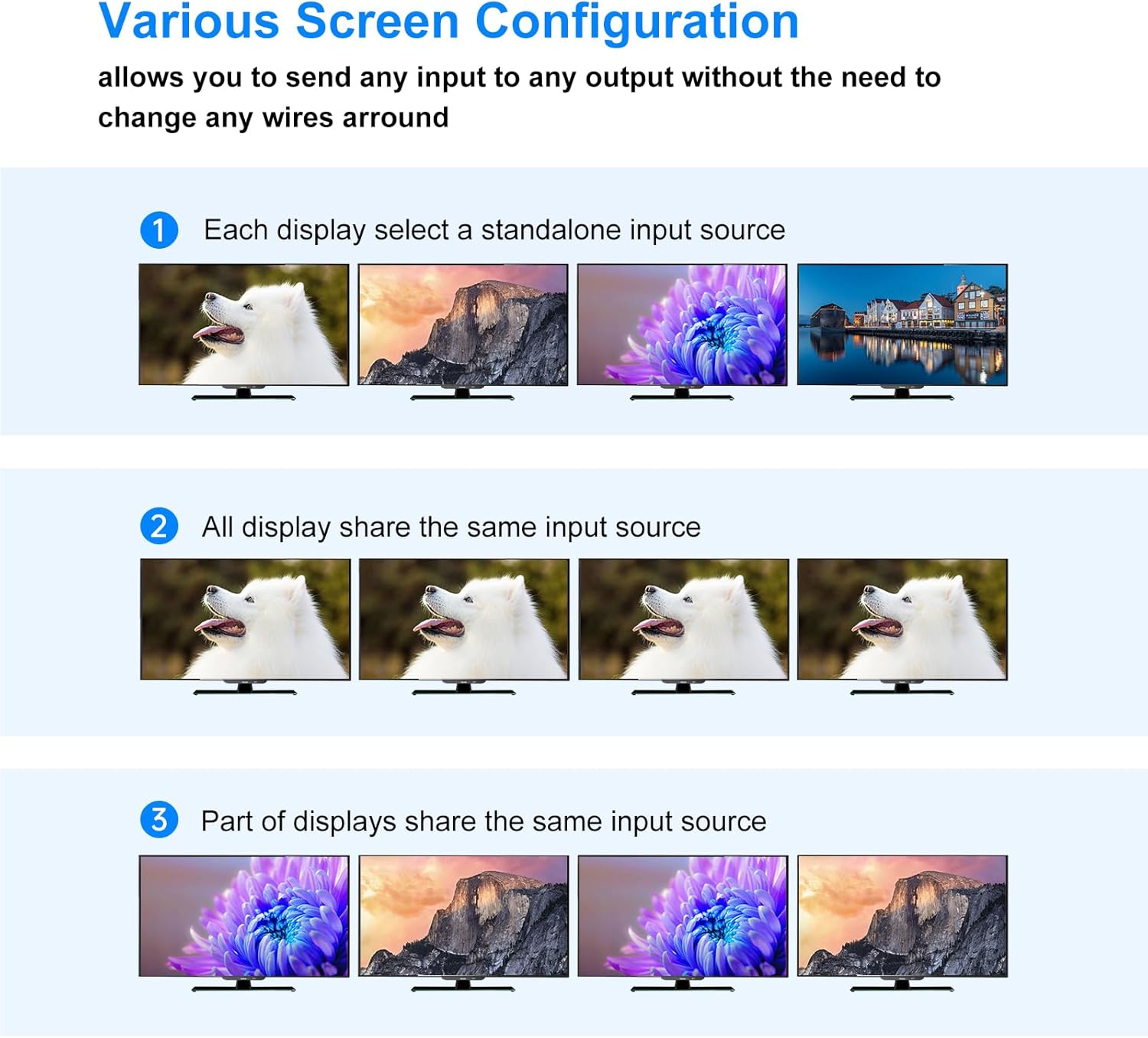
Figure 3.1: Illustration of various screen configurations possible with the Yinker HDMI Matrix Switch, demonstrating its flexibility in routing inputs to outputs.

Figure 3.2: The Yinker HDMI Matrix Switch supports 4K resolution on single screens, connecting various input devices like STB, Laptop, PS4, and PC.
4. פּעקל אינהאַלט
ביטע באַשטעטיקן אַז אַלע זאכן וואָס זענען ליסטעד אונטן זענען אַרייַנגערעכנט אין דיין פּעקל:
- HDMI Matrix Switch (4x4) x1
- רס 232 קאַבלע קס 1
- IR רימאָוט x1
- באַניצער מאַנואַל x1
- מאַכט אַדאַפּטער x1
- CD Driver x1 (for RS232 software, external CD drive may be required)

Figure 4.1: All components included in the Yinker 4K HDMI Matrix Switch package.
5. סעטאַפּ אינסטרוקציעס
Follow these steps to set up your Yinker 4K HDMI Matrix Switch:
- מאַכט אַוועק דעוויסעס: Ensure all HDMI source devices (e.g., PC, Blu-ray player, game console) and display devices (e.g., TVs, monitors, projectors) are powered off before making connections.
- פֿאַרבינדן HDMI אינפּוטס: Connect your HDMI source devices to the HDMI INPUT ports (IN1, IN2, IN3, IN4) on the rear panel of the matrix switch using high-quality HDMI cables.
- Connect HDMI Outputs: Connect your HDMI display devices to the HDMI OUTPUT ports (OUT1, OUT2, OUT3, OUT4) on the rear panel of the matrix switch.
- פאַרבינדן מאַכט: Plug the provided power adapter into the DC 5V port on the matrix switch and then into a power outlet.
- Optional RS232 Connection: If using RS232 control, connect the RS232 cable from your control device (e.g., PC) to the CONSOLE port on the matrix switch. Install the provided software from the CD driver if needed.
- מאַכט אויף: Power on the matrix switch, then power on your HDMI source devices and display devices.

Figure 5.1: Detailed connection diagram illustrating how to connect HDMI input sources and output displays to the matrix switch.

Figure 5.2: The front panel of the Yinker HDMI Matrix Switch, featuring backlit buttons for input and output selection, and an LCD display for status.
6. אַפּערייטינג ינסטרוקטיאָנס
The Yinker 4K HDMI Matrix Switch offers three primary methods for operation:
6.1. פראָנט פּאַנעל קנעפּל קאָנטראָל
The front panel features backlit buttons for intuitive control. The LCD display shows the current switching status.
- Input Buttons (IN1-IN4): Select the desired HDMI input source.
- Output Buttons (OUT1-OUT4): Select the desired HDMI output display(s).
- ENTER/MENU/DOWN/UP Buttons: Used for navigating menus and confirming selections, particularly for EDID management.
- אַלע קנעפּל: Assigns the currently selected input to all output displays.
- EDID קנעפּל: Accesses EDID management settings.
- אויף/אַוועק באַשטימען: מאַכט אָן אָדער אויס דעם אַפּאַראַט.
To switch an input to an output: Press the desired IN button, then press the desired OUT button(s), and finally press the אַרייַן button. The LCD display will confirm the switch.

Figure 6.1: Front panel controls with backlit buttons and LCD display for easy operation.
6.2. יר רימאָוט קאָנטראָל
The included IR remote provides convenient wireless control over the matrix switch.
- Point the remote directly at the IR receiver on the front panel of the matrix switch.
- Use the numbered buttons (1-4) to select inputs and outputs.
- The remote also includes dedicated buttons for ALL, EDID, and navigation.
6.3. רס232 קאָנטראָל
For advanced control and integration into larger systems, the matrix switch can be controlled via RS232 serial commands. Refer to the detailed RS232 command set in the full user manual (provided on CD or available from Yinker support) for specific commands and protocols.

Figure 6.2: The Yinker HDMI Matrix Switch supports three control methods: front panel buttons, IR remote, and RS232 serial port.
6.4. עדיד פאַרוואַלטונג
The EDID (Extended Display Identification Data) management feature ensures optimal compatibility between the source and display devices. The matrix switch can auto-scan EDID data or use built-in EDID formats. This helps in resolving display issues related to resolution or audio formats.
The device also supports saving and recalling up to 16 display scenes, which is useful for quickly switching between predefined configurations.
6.5. Power-Off Memory Function
The matrix switch retains its last active configuration even after being powered off. Upon power restoration, it will automatically revert to the previously set input-to-output routing.
ווידעא 6.1: אן איבערview of the Yinker HDMI Matrix Switch, demonstrating its features including the backlit buttons, LED display, and heat emission holes. This video highlights the physical aspects and basic functionality of the device.
7. וישאַלט
To ensure the longevity and optimal performance of your Yinker 4K HDMI Matrix Switch, please observe the following maintenance guidelines:
- רייניקונג: Use a soft, dry cloth to clean the exterior of the device. Avoid using liquid cleaners or aerosols, as they may damage the unit.
- ווענטילאַטיאָן: Ensure proper ventilation around the device. Do not block the heat emission holes on the sides of the unit.
- סוויווע: Keep the device in a cool, dry place, away from direct sunlight, excessive heat, humidity, and dust.
- האַנדלינג: באַהאַנדלט דאָס אַפּאַראַט מיט פֿאָרזיכט. פֿאַרמײַדט עס צו לאָזן פֿאַלן אָדער אויסשטעלן עס צו שטאַרקע קלאַפּן.
- קאַבלעס: Periodically check HDMI and power cables for any damage or loose connections.
8. טראָובלעשאָאָטינג
If you encounter issues with your Yinker 4K HDMI Matrix Switch, please refer to the following common troubleshooting steps:
| פּראָבלעם | מעגלעך סיבה | לייזונג |
|---|---|---|
| קיין ווידעא ארויסגאַנג אויף דיספּליי. | Loose HDMI cable connection; Incorrect input/output selection; Power issue; EDID incompatibility. |
|
| שלעכטע ווידעא קוואַליטעט אָדער פליקערינג. | Cable quality/length; Resolution mismatch; EDID issue. |
|
| ווייַט קאָנטראָל נישט ארבעטן. | Batteries depleted; Obstruction; Remote not pointed correctly. |
|
| Switching delay. | Normal operation for HDMI handshaking; Complex setup. |
|
9. ספּעסאַפאַקיישאַנז
| אַטריביוט | ווערט |
|---|---|
| פּראָדוקט דימענשאַנז | 10 X 3.9 X 1.3 אינטשעס (בעערעך) |
| פּונקט וואָג | 2.38 פונט |
| מאָדעל נומער | HD414 |
| קאָליר | שוואַרץ |
| קאַנעקטער טיפּ | HDMI |
| קאַמפּאַטאַבאַל דעוויסעס | Projector, Monitor, TVs, Blu-ray player, Personal Computer, Laptop, Game Console, Livestream devices |
| טיפּ קאַבלע | HDMI |
| מאַקס האַכלאָטע | 4Kx2K@30Hz, 1080P@60Hz (downscale) |
| HDMI ווערסיע | הדמי 1.4 ב |
| HDCP ווערסיע | HDCP 1.2 |
Figure 9.1: Product dimensions of the Yinker 4K HDMI Matrix Switch.
10. וואָראַנטי און שטיצן
For any questions, problems, or support inquiries regarding your Yinker 4K HDMI Matrix Switch, please contact YINKER OFFICIAL customer support. Refer to the contact information provided in your product packaging or visit the official Yinker webפּלאַץ פֿאַר הילף.