
1. הקדמה
This manual provides comprehensive instructions for the installation, operation, and maintenance of your Dohaeris 2.5Gbase-T PCIe Network Card. This high-performance network adapter is designed to provide reliable and fast 2.5 Gigabit Ethernet connectivity for compatible computer systems. It features an Intel I226-V chip, ensuring stable and efficient network performance.

Figure 1: Dohaeris 2.5Gbase-T PCIe Network Card. This image shows the network card with its standard height bracket, featuring the RJ45 port and PCIe connector.
2. פּעקל אינהאַלט
ביטע באַשטעטיקן אַז אַלע זאכן זענען פאַראַן און אין גוטן צושטאַנד ווען איר עפֿנט דעם פּעקל:
- Dohaeris 2.5Gbase-T PCIe Network Card (with high-profile bracket pre-installed)
- נידעריק-פּראָfile קלאַמער
- מאַונטינג שרויף
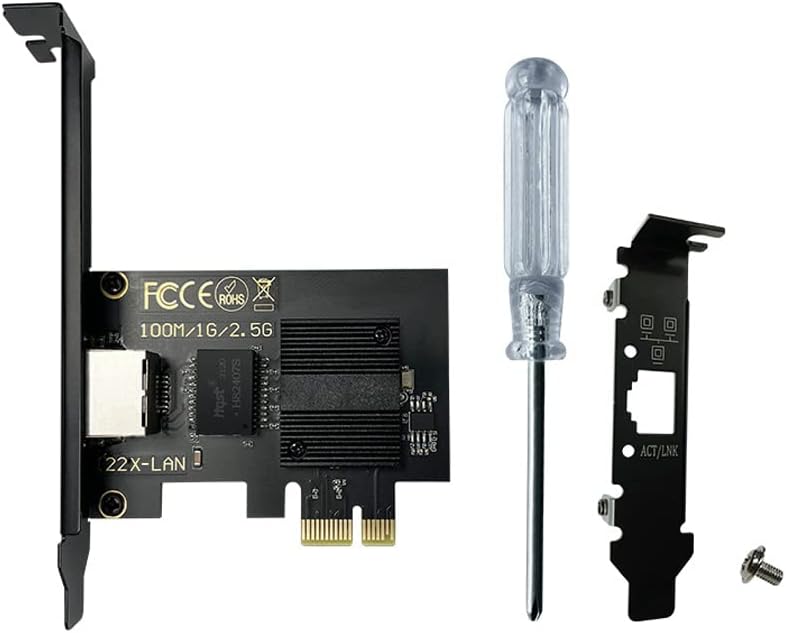
Figure 2: Contents of the product package. This image displays the network card, a low-profile bracket for smaller cases, and a mounting screw.
3. ספּעסאַפאַקיישאַנז
| שטריך | באַשרייַבונג |
|---|---|
| טשיפּסעט | Intel I226-V (Note: This is an Intel chip product, not an Intel branded product.) |
| צובינד | PCI Express x1 (Compatible with x4, x8, x16 slots) |
| נעץ פּאָרט | 1 x RJ45 (10/100/1000/2500Mbps) |
| דאַטאַ אַריבערפירן קורס | 2.5 גיגאבייט פּער סעקונדע |
| שטיצט אַפּערייטינג סיסטעמס | Windows 10/11, Windows Server 2012 and above, VMWare ESXI 5.x/6.x or higher, Linux system |
| קפּו קאָמפּאַטיביליטי | Intel 6th generation and above CPUs (Does not support AMD CPU computers) |
| דימענסיעס (L X W X H) | 5.94 x 4.02 x 1.65 אינטשעס (אומגעפער 15.1 x 10.2 x 4.2 ס״מ) |
| פּונקט וואָג | 3.52 אונס (בעערעך 100 גראַמז) |
| קאָליר | שוואַרץ |
| UPC | 712867335286 |

Figure 3: Approximate dimensions of the network card. The image indicates a length of 12cm, a height of 8cm (including bracket), and a card width of 5.8cm.

פיגורע 4: נאָענט-אַרויף view of key features. This image highlights the fully shielded 8-pin Ethernet port, the high-quality aluminum heat sink for heat dissipation, and the gold-plated PCI-E fingers for stable transmission.
4. סיסטעם קאָמפּאַטאַביליטי
To ensure proper functionality, your system must meet the following requirements:
- אַפּערייטינג סיסטעם: Windows 10/11, Windows Server 2012 or newer, VMWare ESXI 5.x/6.x or higher, or a compatible Linux distribution.
- פּראַסעסער: Intel 6th generation CPU or newer. This network card is not compatible with AMD CPU systems.
- PCIe שפּעלטל: An available PCI Express x1, x4, x8, or x16 slot on your motherboard.

Figure 5: Common PCIe interface types. The card supports motherboards with X1, X4, X8, or X16 card slot interfaces.
5. סעטאַפּ און ייַנמאָנטירונג
5.1. גשמיות ייַנמאָנטירונג
- מאַכט אַוועק און דיסקאַנעקט: Before beginning, ensure your computer is completely powered off and unplugged from the power outlet.
- עפֿענען קאָמפּיוטער קעסטל: אַראָפּנעמען די זייט פּאַנעל פון דיין קאָמפּיוטער קעסטל צו צוטריט די מאָטהערבאָאַרד.
- Identify PCIe Slot: Locate an available PCI Express x1, x4, x8, or x16 slot on your motherboard. Refer to your motherboard's manual if unsure.
- אַראָפּנעמען דעם דעקל פון דעם שפּאַלט: Remove the corresponding metal slot cover from the back of your computer case. If your case requires a low-profile bracket, replace the pre-installed high-profile bracket on the network card with the included low-profile bracket using a small Phillips head screwdriver.
- אַרײַנשטעלן נעץ קאַרטל: Carefully align the network card with the chosen PCIe slot and press down firmly and evenly until it is fully seated. You should hear a click or feel it lock into place.
- זיכערע קאַרטל: Secure the network card to the computer case using the provided mounting screw.
- שליסן פאַל: Replace the computer case side panel and reconnect all cables.
Figure 6: The network card with its standard bracket. Ensure the correct bracket (high or low profile) is installed for your computer case before physical installation.
5.2. דרייווער ינסטאַלירונג
After physical installation, you will need to install the appropriate drivers for the network card to function correctly. The Intel I225 and I226 chips share the same set of drivers.
- דאַונלאָוד דרייווערס: Power on your computer. Once the operating system loads, open a web browser and navigate to the official Intel website's support or download section for network adapters. זוכן פֿאַר drivers compatible with the Intel I226-V or I225-V chipset. Download the latest stable driver package for your specific operating system (Windows 10/11, Linux, etc.).
- Extract Drivers: Unzip the downloaded driver package to a convenient location, such as your desktop.
- Open Device Manager:
- Right-click on "This PC" (or "My Computer") on your desktop or in File Explorer.
- Select "Manage" from the context menu.
- In the Computer Management window, navigate to "Device Manager".
- Locate Network Adapter: Under "Network adapters", you may see an unrecognized device or a generic Ethernet controller. Right-click on this device.
- Update Driver: Select "Update driver".
- Browse for Drivers: Choose "Browse my computer for drivers".
- Specify Location: Click "Browse" and navigate to the folder where you extracted the downloaded drivers. Ensure "Include subfolders" is checked. Click "Next".
- גאַנץ ינסטאַלירונג: The system will now install the drivers. Once completed, a confirmation message will appear. Click "Close".

Figure 7: Driver download process. This image illustrates navigating to the Intel website to download the appropriate driver package.

Figure 8: Driver installation via Device Manager. This image shows the steps to manually update the driver by browsing to the downloaded driver files.
Your Dohaeris 2.5Gbase-T PCIe Network Card should now be recognized and ready for use.
6. אָפּעראַציע
Once the network card is physically installed and its drivers are successfully loaded, it operates automatically. Connect a standard RJ45 Ethernet cable from your router, modem, or network switch to the RJ45 port on the network card. The card will establish a network connection, indicated by activity lights on the port (if present). You can verify network connectivity and speed through your operating system's network settings.

Figure 9: The network card in a typical application. This image shows the card with its Intel I226-V chip, indicating its use in servers, machine vision, industrial computers, and soft routing scenarios.
7. וישאַלט
The Dohaeris 2.5Gbase-T PCIe Network Card requires minimal maintenance. Follow these guidelines to ensure its longevity:
- האַלטן ריין: Periodically clean the interior of your computer case to prevent dust buildup on the network card's components, especially the heatsink. Use compressed air for this purpose.
- פאַרזיכערן אַירפלאָוו: Ensure proper airflow within your computer case to prevent overheating.
- דרייווער דערהייַנטיקונגען: Occasionally check the Intel website for updated drivers. Keeping drivers current can improve performance and stability.
- ויסמיידן פיזיש שעדיקן: Handle the card with care. Avoid bending or applying excessive force to the card or its connectors.
8. טראָובלעשאָאָטינג
If you encounter issues with your network card, refer to the following common troubleshooting steps:
- קיין נעץ פֿאַרבינדונג:
- Verify the Ethernet cable is securely connected to both the network card and your router/modem.
- Check the network status in your operating system.
- Ensure the network card is properly seated in the PCIe slot.
- Reinstall the drivers as described in Section 5.2.
- לאַנגזאַמע נעץ גיכקייט:
- Confirm your router/modem supports 2.5Gbps speeds.
- Ensure your Ethernet cable is rated for Cat5e or higher (Cat6 or Cat6a recommended for 2.5Gbps).
- Update the network card drivers to the latest version.
- Check for other network devices or software consuming bandwidth.
- Card Not Detected in Device Manager:
- זיכער מאַכן אַז די קאַרטל איז גאָר אַרײַן אין דעם PCIe סלאָט.
- Try the card in a different PCIe slot if available.
- Verify your CPU is Intel 6th generation or newer, as AMD CPUs are not supported.
- Check your motherboard's BIOS/UEFI settings to ensure the PCIe slot is enabled.
- דרייווער אינסטאַלאַציע פּראָבלעמען:
- Ensure you downloaded the correct drivers for the Intel I226-V/I225-V chip and your operating system.
- צייטווייליג דיאַקטיווירן אַנטיווירוס ווייכווארג בעת דרייווער אינסטאַלאַציע אויב עס שטערט.
- Run the driver installer as an administrator.
9. וואָראַנטי אינפֿאָרמאַציע
Dohaeris products are manufactured to high quality standards. This product is covered by a manufacturer's warranty against defects in materials and workmanship. The specific terms and duration of the warranty may vary by region and retailer. Please retain your proof of purchase for warranty claims. For detailed warranty information, refer to the documentation provided with your purchase or contact Dohaeris customer support.
10. קונה שטיצן
If you require further assistance or have questions not covered in this manual, please contact Dohaeris customer support through the retailer where you purchased the product or visit the official Dohaeris website for contact information. When contacting support, please have your product model number and purchase details ready.


