
1. הקדמה
Thank you for choosing the EBTOOLS 2.4G Wireless Keyboard and Mouse combo. This product is designed for comfortable and efficient use with its low-noise operation, adjustable DPI settings, and reliable 2.4G wireless connectivity. This manual provides detailed instructions for setup, operation, and maintenance to ensure optimal performance.
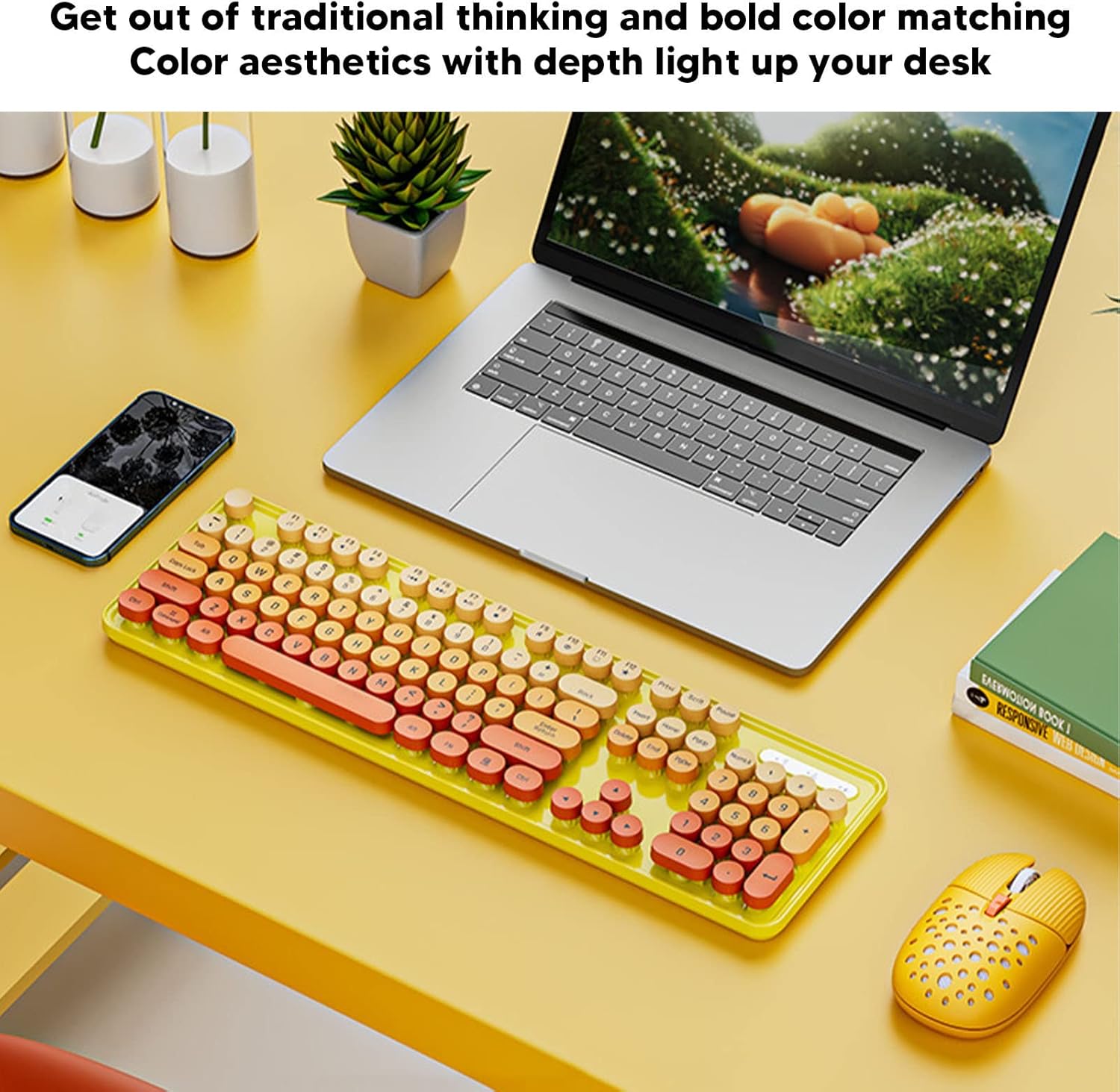
Image: The EBTOOLS 2.4G Wireless Keyboard and Mouse in mixed color yellow, displayed on a desk alongside a laptop and smartphone, showcasinג זײַן דיזײַן און קאָמפּאַקטן פֿאָרעם פֿאַקטאָר.
2. פּעקל אינהאַלט
- 1 x EBTOOLS 2.4G Wireless Keyboard
- 1 x EBTOOLS 2.4G Wireless Mouse
- 1 x USB Receiver (typically stored in the mouse battery compartment)
- באַניצער מאַנואַל (דעם דאָקומענט)
3. סעטאַפּ אינסטרוקציעס
3.1. באַטאַרייע ייַנמאָנטירונג
The keyboard and mouse require batteries for operation. Please ensure you have 1 AA battery for the keyboard and 1 AA battery for the mouse (batteries are not included).
- געפינט די באַטעריע אָפּטייל אויף דער אונטערשטער זייט פון דער קלאַוויאַטור.
- עפענען די באַטאַרייע אָפּטייל דעקן.
- Insert the AA battery according to the polarity indicators (+/-) inside the compartment.
- פאַרמאַכן די באַטאַרייע אָפּטייל דעקן סיקיורלי.

Image: The underside of the EBTOOLS keyboard with the battery compartment open, showing where to insert the AA battery.
3.2. פֿאַרבינדן דעם USB ריסיווער
The keyboard and mouse share a single 2.4G USB receiver for wireless connection.
- Locate the USB receiver. It is typically stored in the battery compartment of the mouse for safekeeping.
- אַרויסנעמען דעם USB ופנעמער פֿון זײַן סטאָרידזש סלאָט.
- Plug the USB receiver into an available USB port on your computer (desktop PC, laptop, etc.).
- The system should automatically detect and install the necessary drivers. This is a plug-and-play device.

Image: A diagram illustrating the compatibility of the keyboard and mouse with various systems, including desktop PCs, laptops, and other computers, highlighting its plug-and-play functionality.

Image: An illustration demonstrating the 2.4G wireless connection mode for the keyboard and mouse, emphasizing the ability to connect two devices wirelessly with a single receiver.
4. אַפּערייטינג ינסטרוקטיאָנס
4.1. Adjusting Mouse DPI
The mouse features three adjustable DPI (Dots Per Inch) settings to suit your preference and task requirements. You can cycle through these settings by pressing the DPI button, usually located near the scroll wheel on the mouse.
- 800 דפּי: פּאַסיק פֿאַר פּינקטלעכע אויפֿגאַבעס אָדער שטייטערע קורסאָר באַוועגונג.
- 1600 דפּי: Standard setting for general use.
- 2400 דפּי: Ideal for faster cursor movement, such as gaming or navigating large screens.
4.2. Using Multimedia Keys
The keyboard is equipped with 18 multimedia keys for quick access to various functions. These keys are typically activated by pressing the Fn key in combination with the corresponding function key (F1-F12) or dedicated multimedia keys.

בילד: א דעטאַלירטע view of the EBTOOLS keyboard layout, highlighting the standard keys and the 18 multimedia keys, along with their respective functions such as volume control, media playback, and quick access to applications.
Common multimedia functions include:
- Volume Down / Up / Mute
- Play / Pause / Previous Track / Next Track
- Home / My Computer / Mail / Favorites
- Other system-specific functions
5. וישאַלט
5.1. רייניקונג
To maintain the longevity and appearance of your keyboard and mouse:
- ניצט אַ ווייכן, טרוקענעם שטאָף צו ווישן די ייבערפלאַכן.
- פֿאַר שווערן שמוץ, אַ ביסל דampווישט דעם שטאָף מיט וואַסער אָדער אַ מילדער רייניקונג לייזונג. פֿאַרמייַדט שטרענגע כעמיקאַליעס.
- ניצט קאמפרעסט לופט צו באזייטיגן שטויב און שמוץ פון צווישן די קלאַוויאַטור קנעפלעך.
5.2. באַטערי פאַרבייַט
When the keyboard or mouse becomes unresponsive or exhibits intermittent connectivity, it may be time to replace the batteries. Follow the battery installation steps in Section 3.1.

Image: An illustration depicting the energy-saving features of the keyboard and mouse, emphasizing lower power consumption and extended battery life for continuous use.
6. טראָובלעשאָאָטינג
| פּראָבלעם | לייזונג |
|---|---|
| קלאַוויאַטור/מויז רעאַגירט נישט |
|
| ינטערמיטאַנט קשר |
|
| מויז קורסאָר איז נישט גלאַט אָדער באַוועגט זיך נישט גלאַט |
|
7. ספּעסאַפאַקיישאַנז
| שטריך | דעטאַל |
|---|---|
| סאָרט | EBTOOLS |
| קאָליר | Mixed Color Yellow |
| קאַנעקטיוויטי טעכנאָלאָגיע | 2.4G Radio Frequency Wireless |
| ספּעציעלע שטריך | נידעריק ראַש אָפּעראַציע |
| קאַמפּאַטאַבאַל דעוויסעס | Personal Computer (Desktop PC, Laptop) |
| אָפּערייטינג סיסטעם | Major PC Operating Systems |
| האַנט אָריענטאַציע (מויז) | אַמבידעקסטראַס |
| באַטעריז פארלאנגט | Yes (1 AA for keyboard, 1 AA for mouse) |
| Number of Keys (Keyboard) | 104 |
| מאַכט מקור | באַטאַרייע פּאַוערד |
| קלאַוויאַטור אויסלייג | QWERTY |
| מויז דפּי סעטטינגס | 800, 1600, 2400 (אַדזשאַסטאַבאַל) |
| מאַטעריאַל | ABS |
8. אפיציעלע פּראָדוקט ווידעאָס
8.1. Keyboard and Mouse Overview
ווידעא: אן איבערview of the EBTOOLS Keyboard and Mouse, demonstrating its features and design. This video is provided by the seller, Zhiyavex-US.
8.2. Yunseity Wireless Keyboard and Mouse Demonstration
Video: A demonstration of the Yunseity Wireless Keyboard and Mouse, showcasing its functionality and user experience. This video is provided by the seller, Zhiyavex-US.
9. וואָראַנטי און שטיצן
EBTOOLS products are designed for reliability and performance. For any questions, technical support, or warranty inquiries, please refer to the contact information provided with your purchase or visit the official EBTOOLS webזייטל. ביטע באַהאַלטן אייער קויפן באַווייַז פֿאַר וואָראַנטי קליימז.
The product comes with a standard return policy of 30 days from the date of purchase for refund or replacement, as per seller terms.