
1. הקדמה
The Intelbras GX 3000 is a multifunction wireless mesh router designed to provide high-speed internet connectivity via 5G/4G networks and Wi-Fi 6. This device integrates advanced Qualcomm technology for both its 5G modem and Wi-Fi 6 solution, ensuring high performance and reliability. It supports up to 128 devices simultaneously on the Wi-Fi network and offers wired connectivity options. The GX 3000 is suitable for various environments, from home to office, providing robust network performance.
This manual provides instructions for setting up, operating, and maintaining your Intelbras GX 3000 router. Please read it carefully before use.
2. Package Contents & Device Overview
2.1. פּעקל אינהאַלט
- Intelbras GX 3000 Wireless Mesh Router
- מאַכט אַדאַפּטער
- נעץ קאַבלע
- שנעלע אָנהייב גייד (נישט אַרייַנגערעכנט אין דעם מאַנואַל)
2.2. דיווייס איבערview
פיגורע 1: פראָנט View of the GX 3000 Router
This image displays the front of the Intelbras GX 3000 router, showing its sleek white design and LED indicators for 5G, 4G, call status, Wi-Fi, and WPS button.

Figure 2: GX 3000 Router with Highlighted Indicators and Ports
This image provides a closer look at the router, emphasizing the LED indicators on the front (5G, 4G, Call, Wi-Fi, WPS) and the various ports located on the rear panel, including LAN, WAN, and TEL ports.
2.2.1. הינטערשטע פּאַנעל פּאָרטן

Figure 3: Rear Panel of the GX 3000 Router
This image shows the rear panel of the router, clearly displaying the LAN, WAN, and TEL ports for wired connections.
- LAN Ports: For connecting wired devices such as computers, smart TVs, or gaming consoles.
- וואַן פּאָרט: For connecting to an external modem or internet source (if not using 5G/4G).
- טעל פּאָרט: For voice services (if supported by your service provider).
- מאַכט אַרייַנשרייַב: קאַנעקט זיך צו די אַרייַנגערעכנטע מאַכט אַדאַפּטער.
2.2.2. Bottom Panel Features

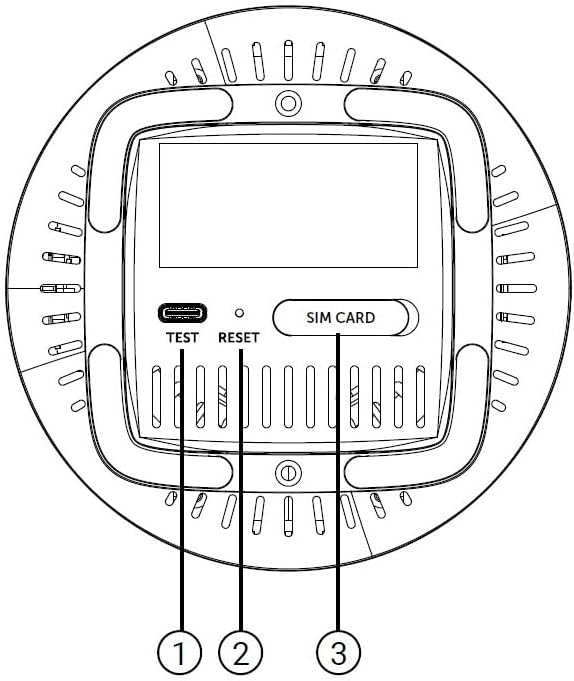
Figure 4: Bottom Panel Features of the GX 3000 Router
This diagram illustrates the bottom panel of the router, highlighting the TEST port, RESET button, and SIM CARD slot.
- TEST Port: פֿאַר דיאַגנאָסטישע צוועקן.
- RESET קנעפּל: געניצט צו צוריקשטעלן די פאַבריק פעליקייַט סעטטינגס. דריקן און האַלטן פֿאַר 10 סעקונדעס בשעת די מיטל איז אנגעצינדן.
- SIM CARD Slot: Insert your 5G/4G SIM card here for mobile broadband connectivity.
3. סעטאַפּ
3.1. ערשטע פּלאַצירונג
Place the router in a central location within your desired coverage area, away from obstructions, metal objects, and other electronic devices that may cause interference. Ensure good ventilation around the device.
3.2. ינסערטינג די סים קאַרד
- מאַכן זיכער אַז די ראַוטער איז פּאַוערד אַוועק.
- Locate the SIM CARD slot on the bottom panel of the router (refer to Figure 4).
- Insert your activated 5G/4G SIM card into the slot with the gold contacts facing down and the notched corner oriented correctly. Push until it clicks into place.
- To remove, gently push the SIM card in again until it springs out.
3.3. קאַנעקטינג מאַכט
- Connect one end of the power adapter to the Power Input port on the rear of the router.
- שטעקט אריין דעם אנדערן עק פונעם מאַכט אַדאַפּטער אין אַ נאָרמאַלן עלעקטרישן ווענטיל.
- The router will power on automatically. Wait for the LED indicators to stabilize.
3.4. Wired Connections (Optional)
If you wish to connect devices via Ethernet:
- Connect one end of the provided network cable to a LAN port on the rear of the router.
- Connect the other end of the network cable to the Ethernet port of your computer, smart TV, or other wired device.
3.5. Initial Wi-Fi Connection
The default Wi-Fi network name (SSID) and password are usually printed on a label on the bottom of the router. Follow these steps to connect:
- On your wireless device (smartphone, laptop, tablet), open the Wi-Fi settings.
- Scan for available networks and select the SSID corresponding to your GX 3000 router.
- Enter the default Wi-Fi password when prompted.
- Once connected, you can access the router's web interface to customize settings.
4. אַפּערייטינג ינסטרוקטיאָנס
4.1. געפֿירט ינדיקאַטאָרס
די פראָנט פּאַנעל LEDs צושטעלן סטאַטוס אינפֿאָרמאַציע:
- 5G LED: ווײַזט אָן דעם סטאַטוס פֿון 5G נעץ.
- 4G LED: ווײַזט אָן דעם סטאַטוס פֿון 4G נעץ.
- Call LED: Indicates voice service status.
- Wi-Fi LED: ווײַזט אָן Wi-Fi נעץ אַקטיוויטעט.
- WPS LED: Indicates WPS function status.
Refer to the full user manual (if provided separately) for detailed LED behavior (e.g., solid, blinking, color) and their meanings.
4.2. אַקסעס די Web פאַרוואַלטונג צובינד
To configure advanced settings, manage your network, or change Wi-Fi credentials, access the router's web צובינד:
- Ensure your device is connected to the GX 3000's Wi-Fi network or via an Ethernet cable.
- עפענען א web בראַוזער (למשל, קראָום, פייערפאָקס, עדזש).
- אין דער אַדרעס באַר, טיפּ די פעליקייַט IP אַדרעס פון די ראַוטער (געוויינטלעך
192.168.1.1or192.168.0.1) and press Enter. This information is usually on the label on the bottom of the router. - Enter the default username and password (also found on the router label).
- You will now be in the router's management interface, where you can customize settings such as Wi-Fi name, password, security protocols, and more.
4.3. Wi-Fi Protected Setup (WPS)
WPS allows you to connect Wi-Fi devices without entering the password manually:
- Press the WPS button on the front of the GX 3000 router (refer to Figure 1). The WPS LED will start blinking.
- Within two minutes, press the WPS button on your client device (e.g., Wi-Fi adapter, printer).
- די דעוויסעס וועט אויטאָמאַטיש פאַרבינדן.
Note: WPS is a convenient feature but may be less secure than manual password entry.
4.4. Mesh Network Expansion
The GX 3000 supports mesh networking to expand Wi-Fi coverage. You can add other compatible Intelbras Qi5 line products to create a seamless mesh network. Each additional Wi-Fi 6 router can extend coverage by up to 300 m². It is recommended to use up to 6 routers in the same mesh network for optimal performance.
Refer to the specific instructions provided with additional mesh units for pairing and configuration.
5. וישאַלט
5.1. רייניקונג די מיטל
- Ensure the router is powered off and unplugged before cleaning.
- ניצן אַ ווייך, טרוקן שטאָף צו ווישן די יקסטיריער פון די מיטל.
- Do not use liquid cleaners, aerosols, or solvents, as they may damage the casinג אדער אינערלעכע קאמפאנענטן.
- האַלט די ווענטילאַציע עפענונגען ריין פון שטויב און שמוץ.
5.2. פירמוואַרע דערהייַנטיקונגען
Periodically check the Intelbras official webזייטל פֿאַר פירמווער דערהייַנטיקונגען. פירמווער דערהייַנטיקונגען קענען פֿאַרבעסערן פאָרשטעלונג, צולייגן נייע פֿעיִקייטן און פֿאַרשטאַרקן זיכערהייט. פֿאָלגט קערפֿול די אינסטרוקציעס וואָס זענען צוגעשטעלט מיטן פירמווער דערהייַנטיקונג פּעקל.
5.3. צוריקשטעלן צו די פאַבריק דיפאָלץ
If you encounter persistent issues or forget your login credentials, you can reset the router to its factory default settings:
- With the router powered on, locate the RESET button on the bottom panel (refer to Figure 4).
- Using a paperclip or a similar pointed object, press and hold the RESET button for approximately 10 seconds.
- Release the button. The router will restart with all settings restored to their original factory defaults.
- You will need to reconfigure your Wi-Fi settings and any other custom configurations after a factory reset.
6. טראָובלעשאָאָטינג
| פּראָבלעם | מעגלעך סיבה | לייזונג |
|---|---|---|
| No power / Router not turning on | Power adapter not connected or faulty; Power outlet not working. |
|
| No internet connection (5G/4G) | SIM card not inserted correctly; SIM card not activated; No 5G/4G signal; Service provider issue. |
|
| קענען ניט פאַרבינדן צו ווי-פי | Incorrect Wi-Fi password; Wi-Fi disabled; Device too far from router. |
|
| לאַנגזאַמע אינטערנעט גיכקייט | Network congestion; Poor signal strength; Interference; Outdated firmware. |
|
| פארגעסן web צובינד פּאַראָל | Password forgotten or changed. |
|
7. ספּעסאַפאַקיישאַנז
| שטריך | דעטאַל |
|---|---|
| סאָרט | Intelbras |
| מאָדעל | GX 3000 |
| קאַנעקטיוויטי טעכנאָלאָגיע | 5G, 4G, Wi-Fi 6 (802.11a/b/g/n/ac/ax) |
| אָפטקייַט באַנד קלאַס | צווייענדיק-באַנד |
| ווירעלעסס קאָמוניקאַציע סטאַנדאַרד | 802.11אַ |
| דאַטאַ אַריבערפירן קורס | ביז 900 מעגאַביטן פּער סעקונדע |
| לאַן פּאָרט באַנדווידט | 1000 מעגאַביט פּער סעקונדע (גיגאַביט עטערנעט) |
| אַנטענע טיפּ | אינערלעכער |
| קאַמפּאַטאַבאַל דעוויסעס | Computer, Notebook, Tablet, Smart TV |
| ספּעציעלע פֿעיִקייטן | Remote Access, Mesh Wi-Fi capability |
| קאָליר | ווייַס |
| פּונקט וואָג | 1000 גראַמז |
| אַרייַנגערעכנט קאַמפּאָונאַנץ | Power supply, Network cable |
| Anatel Homologation Number | 13571-22-00180 |
8. וואָראַנטי & שטיצן
8.1. וואָראַנטי אינפֿאָרמאַציע
Intelbras products are covered by a limited warranty. For specific warranty terms and conditions, please refer to the warranty card included with your product or visit the official Intelbras webזייטל. האַלט דיין קויפן באַווייַז פֿאַר וואָראַנטי קליימז.
8.2. טעכניש שטיצן
If you require technical assistance or have questions not covered in this manual, please contact Intelbras customer support. You can find contact information (phone numbers, email, support portal) on the official Intelbras webפּלאַץ:
Intelbras Official Webפּלאַץ: www.intelbras.com.br
When contacting support, please have your product model (GX 3000) and serial number ready.