
1. הקדמה
The ETOE Smart Projector D2 Pro is a compact and versatile home entertainment device designed to deliver a high-quality viewing experience. Featuring Android TV 10.0, built-in Chromecast, and a native 1080P resolution with 4K support, it provides access to a wide range of streaming content and connectivity options. This manual provides essential information for setting up, operating, and maintaining your projector.

Image: The ETOE Smart Projector D2 Pro, showcasing its compact design, included remote control, and a projection of the Android TV interface with Netflix and other apps.
2. וואָס איז אין דער קעסטל
ביטע קאָנטראָלירט די אינהאַלט פון דער פּאַקעט ווען איר נעמט עס אויס, כּדי צו זיכער מאַכן אַז אַלע זאַכן זענען דאָרט:
- ETOE D2 Pro Projector (x1)
- Remote Control (x1, batteries not included)
- DC 19V Adapter (x1)
- מאַכט שנור (x1)
- User Manual + Quick Guide (x1)
3. פיזישע איבערview
Familiarize yourself with the projector's ports and controls for optimal use.

בילד: הינטערשטע view of the ETOE D2 Pro Projector, highlighting the DC power input, USB port, HDMI port, and Aux audio output.
פּאָרץ און קאַנעקשאַנז:
- DC for Power: פֿאַרבינדט דאָ דעם צוגעשטעלטן מאַכט אַדאַפּטער.
- וסב: For connecting USB drives to play media or connect compatible accessories.
- הדמי: For connecting external devices such as laptops, gaming consoles (PS5/PS4, X-Box ONE), TV boxes, or Fire TV sticks.
- אָקס: For connecting external audio devices like headphones or speakers via a 3.5mm audio cable.
4. סעטאַפּ
4.1 פּלאַצירונג און סקרין גרייס
Position the projector on a stable, flat surface. The optimal projection distance will vary based on your desired screen size. The projector supports screen sizes from 40 inches to 120 inches, with 100 inches being the recommended size for a balanced viewינג דערפאַרונג.
4.2 מאַכט אויף
- Connect the DC 19V adapter to the projector's DC input port.
- צאַפּן די מאַכט שנור אין אַ וואַנט ווענטיל.
- דרוק די מאַכט קנעפּל אויף די פּראַדזשעקטער אָדער די ווייַט קאָנטראָל צו קער אויף די מיטל.
4.3 פאָקוס און קיסטאָון אַדזשאַסטמענט
To ensure a clear and rectangular image, adjust the focus and keystone correction.

Image: Diagram illustrating the manual focus, digital 4D & 4P keystone correction, and digital zoom features of the ETOE D2 Pro Projector.
- מאַנואַל פאָקוס: דרייט דעם פאָקוס רינג אויף דער פּראָיעקטאָר לינז ביז די בילד דערשיינט שאַרף און קלאָר.
- Digital Keystone Correction (4D & 4P): If the projected image is trapezoidal or tilted, use the digital keystone correction feature to adjust it into a perfect rectangle. This can be done through the projector's settings menu.
- Digital Zoom (50% - 100%): Adjust the projection size without physically moving the projector using the digital zoom function in the settings.
5. אפערירן דעם פּראָיעקטאָר
5.1 Android TV 10.0 Interface
The projector runs on Android TV 10.0, providing access to over 8000 apps from Google Play, including Netflix, YouTube, Disney+, HBO Max, and Spotify. Navigate the interface using the remote control.

Image: A comparison showing the rich Android TV 10.0 interface of the ETOE D2 Pro System on the left, with numerous app icons, versus a simpler, less feature-rich interface of other projectors on the right.
- Use the directional buttons on the remote to navigate through menus and select apps.
- Press the 'OK' button to confirm selections.
- Utilize the voice control feature (Google Assistant) on the remote for hands-free content search and control.
5.2 Casting with Chromecast Built-in
The built-in Chromecast allows for seamless content casting from your Android, iOS devices, or laptops.
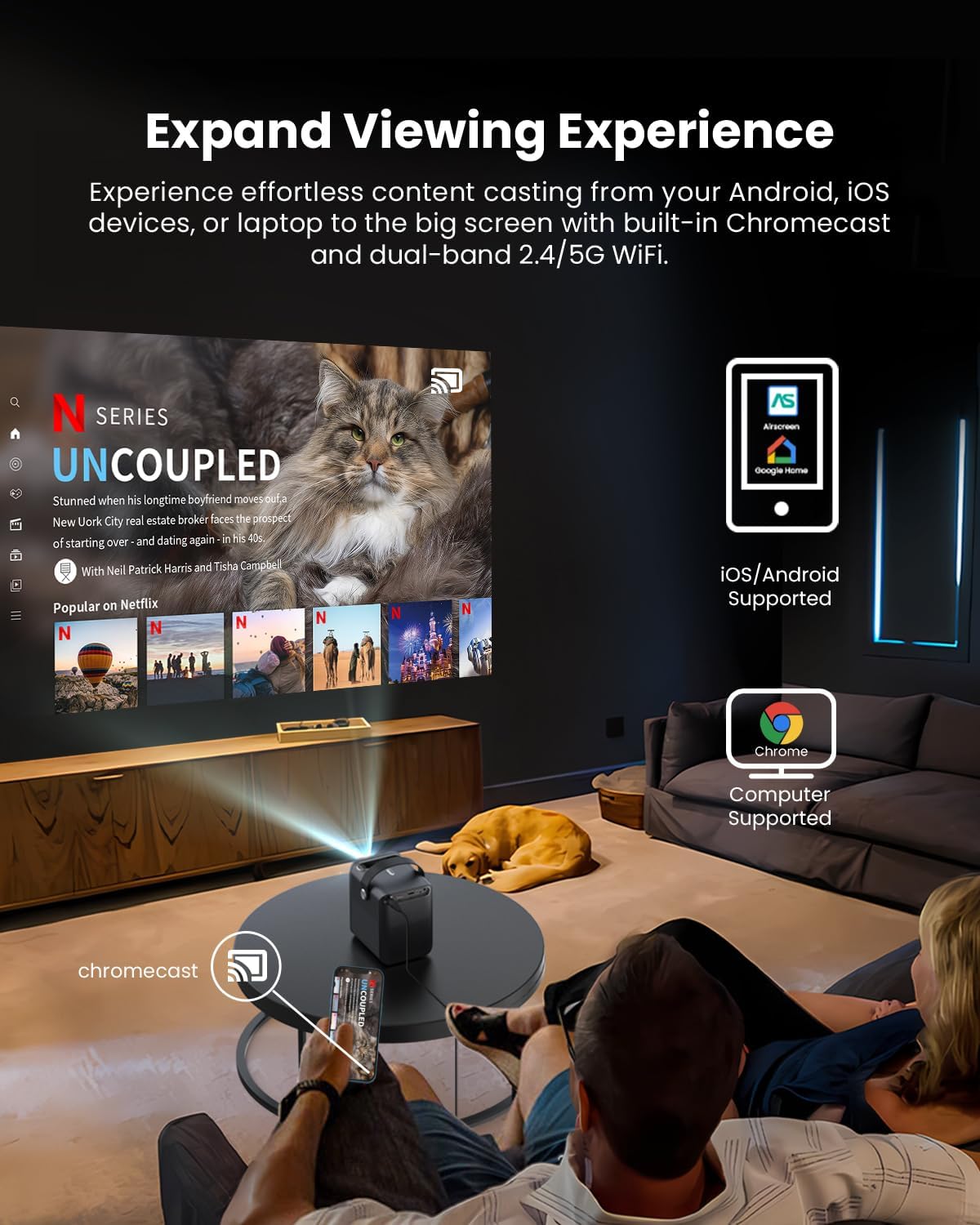
Image: A person relaxing on a couch, casting content from their smartphone to the ETOE D2 Pro Projector, demonstrating the Chromecast feature for an expanded viewינג דערפאַרונג.
- Ensure your mobile device or computer is connected to the same Wi-Fi network as the projector.
- Open a Chromecast-enabled app (e.g., YouTube, Netflix) on your device.
- צאַפּן אויף די קאַסט ייקאַן (usually a rectangle with a Wi-Fi symbol) and select your ETOE D2 Pro Projector from the list of available devices.
5.3 קאַנעקטינג פונדרויסנדיק דעוויסעס
דער פּראָיעקטאָר אָפפערט קייפל קאַנעקטיוויטי אָפּציעס פֿאַר פֿאַרשידענע דעוויסעס.

Image: The ETOE D2 Pro Projector displayed with various compatible accessories, including a TV stick, USB stick, external speaker, and headphones, illustrating its versatile connectivity options.
- הדמי: Connect TV sticks, gaming consoles, laptops, or other HDMI-enabled devices to the HDMI port. Select the HDMI input source from the projector's menu.
- וסב: Insert a USB drive into the USB port to play local media fileס (ווידעאס, פאָטאָס, מוזיק).
- בלועטאָאָטה: Pair Bluetooth speakers or headphones for wireless audio output. Go to the projector's Bluetooth settings to search for and connect to devices.
- אָקס: Use a 3.5mm audio cable to connect wired headphones or external speakers to the Aux port.
5.4 Image and Audio Settings
אַדזשאַסטירן בילד און געזונט סעטטינגס צו אָפּטימיזירן דיין viewינג דערפאַרונג.

Image: The ETOE D2 Pro Projector projecting a vibrant city scene, highlighting its native 1080P Full HD resolution, 4K support, 400 ANSI lumens brightness, and HDR 10 compatibility for stunning image quality.
- בילד מאָדע: Select from preset picture modes (e.g., Standard, Vivid, Movie) or customize settings like brightness, contrast, and color temperature.
- געזונט מאָדע: Choose from various sound modes (e.g., Standard, Music, Movie) or adjust equalizer settings for the built-in dual 3W speakers or connected audio devices.
- פּרויעקציע מאָדע: Adjust the projection mode (e.g., Front, Rear, Ceiling Front, Ceiling Rear) based on your projector's placement.
6. וישאַלט
6.1 Dust-Free Design
The ETOE D2 Pro features a fully-sealed optical engine designed to prevent dust from entering the lens area, ensuring long-term performance and reducing the need for frequent internal cleaning.

Image: An illustration of the ETOE D2 Pro Projector's sealed optical engine, showing how it prevents dust from entering the internal components, ensuring long-lasting performance.
6.2 אַלגעמיינע רייניקונג
- עקסטעריע: Wipe the exterior of the projector with a soft, dry, lint-free cloth. Do not use abrasive cleaners or solvents.
- לענס: Gently clean the projector lens with a lens cleaning cloth or a soft brush designed for optical surfaces. Avoid touching the lens directly with your fingers.
- Ensure the projector is unplugged before cleaning.
7. טראָובלעשאָאָטינג
אויב איר טרעפט פּראָבלעמען מיט אייער פּראָיעקטאָר, זעט די פאלגענדע געוויינטלעכע פּראָבלעמען און לייזונגען:
| פּראָבלעם | מעגלעך סיבה | לייזונג |
|---|---|---|
| קיין בילד | שטראָם קאַבל לויז; אומרעכטע אַרייַנגאַנג מקור; מיטל נישט פארבונדן | Check power connection; Select correct HDMI/USB input; Ensure external device is properly connected and powered on. |
| בלערד בילד | Focus not adjusted; Keystone not corrected | Adjust the manual focus ring; Use digital keystone correction in settings. |
| קיין געזונט | Volume too low; Muted; Incorrect audio output; External device audio issue | Increase volume; Unmute; Check audio output settings (internal speakers, Bluetooth, Aux); Verify audio settings on connected device. |
| ווייַט קאָנטראָל נישט ארבעטן | באַטעריעס נידעריק/טויט; שטערונג צווישן ווייַטקאָנטראָל און פּראָיעקטאָר | Replace batteries; Ensure clear line of sight to the projector's IR receiver. |
| קענען ניט פאַרבינדן צו ווי-פי | Incorrect password; Router issue; Projector too far from router | Double-check Wi-Fi password; Restart router; Move projector closer to router. |
If the problem persists after trying these solutions, please contact ETOE customer support.
8. ספּעסאַפאַקיישאַנז
| שטריך | דעטאַל |
|---|---|
| מאָדעל | ד 2 פּראָ |
| אָפּערייטינג סיסטעם | אַנדרויד טעלעוויזיע 10.0 |
| ווייַז האַכלאָטע | Native 1920 x 1080 (1080P Full HD), 4K video supported |
| ברייטנאַס | 400 אַנסי לומענס |
| קאַנטראַסט פאַרהעלטעניש | HDR 10 support |
| פּרויעקציע גרייס | 40" - 120" (100" recommended) |
| קייסטאָנע קערעקשאַן | Digital 4D & 4P Keystone |
| פארגרעסער פונקציע | Digital Zoom (50% - 100%) |
| קאַנעקטיוויטי | HDMI, USB, Chromecast, 5G WiFi, Bluetooth, Aux |
| אַודיאָ | צווייענדיק 3 וו ספּיקערז |
| אָפּטישער מאָטאָר | Fully-sealed (Dust-proof) |
| פּונקט וואָג | 3.58 פונט |
| פּראָדוקט דימענשאַנז | 5.31 X 4.45 X 5.83 אינטשעס |
9. וואָראַנטי און שטיצן
ETOE provides comprehensive support for your D2 Pro projector:
- וואָראַנטי: A 12-month after-sales service is provided from the date of purchase.
- טעכניש שטיצן: Lifetime technical support is available for all ETOE D2 Pro users.
For any questions, technical assistance, or warranty claims, please contact ETOE customer support directly. There is no need to return the projector without prior contact.