
הקדמה
This manual provides essential information for the safe and efficient use of your ONN 42-Inch Full HD LED Smart TV, Model 100018254. Please read these instructions thoroughly before operating your television and retain them for future reference.
וואָס איז אין די קעסטל
באַשטעטיקן אַז אַלע קאָמפּאָנענטן זענען פאַראַן איידער איר גייט ווייטער מיט דער סעטאַפּ.
- ONN 42-Inch Full HD LED Smart TV
- ווייַט קאָנטראָל
- טעלעוויזיע שטאַנד (2 שטיק)
- שרויפן פֿאַר טעלעוויזיע שטאַנד
- מאַכט שנור
- שנעלע אָנהייב גייד (נישט אַרייַנגערעכנט אין דעם מאַנואַל)

בילד: פראָנט view of the ONN 42-inch Smart TV displaying the Roku TV home screen with various streaming app icons like Netflix, Disney+, Apple TV, Hulu, Peacock, and Roku Channel. The TV is black with slim bezels and two stand feet.
סעטאַפּ
1. אנשטעלן דעם טעלעוויזיע שטאנד
- לייגט פֿאָרזיכטיק דעם טעלעוויזיע־עקראַן אַראָפּ אויף אַ ווייכער, ריינער ייבערפֿלאַך כּדי צו פֿאַרמייַדן שאָדן.
- גלייכט יעדן שטאַנד שטיק מיט די קאָרעספּאָנדירנדיקע שרויף לעכער אויף דער אונטערשטער טייל פון דער טעלעוויזיע.
- באַפעסטיקט יעדן שטאַנד שטיק מיט די צוגעשטעלטע שרויפן. מאַכט זיכער אַז זיי זענען פעסט אָנגעצויגן.

Image: A diagram illustrating the dimensions of the ONN 42-inch TV, showing its width as 43 inches and height as 37 inches when placed on its stand.
2. וואַנט מאָונטינג (אַפּשאַנאַל)
This TV is compatible with VESA standard wall mounts. Refer to your wall mount's instructions for proper installation. Ensure the wall mount can support the weight of the television.

בילד: הינטערשטע view of the ONN 42-inch TV, highlighting the VESA mounting screw holes in a square pattern and various input ports on the side and bottom right.
3. קאַנעקטינג דעוויסעס
Connect your external devices such as cable boxes, gaming consoles, or Blu-ray players to the TV's input ports.
- הדמי: For high-definition audio and video. Use an HDMI cable to connect devices like set-top boxes, game consoles, or streaming sticks.
- וסב: פֿאַר פֿאַרבינדן USB סטאָרידזש דעוויסעס צו שפּילן מעדיע files.
- ווי-פי: For internet connectivity to access smart TV features and streaming services.
4. ערשטע איינשפּאַרונג און סעטאַפּ וויזאַרד
- שטעקט אריין דעם עלעקטרישן שנור אין דעם טעלעוויזאר און דערנאך אין א וואנט ווענטיל.
- דריק דעם מאַכט קנעפּל אויף דער ווײַטקאָנטראָל אָדער אויף דער טעלעוויזיע אַליין.
- Follow the on-screen instructions to complete the initial setup, including language selection, network connection (Wi-Fi), channel scanning, and linking to your Roku account (if applicable).
אַפּערייטינג די טעלעוויזיע
1. רימאָוט קאָנטראָל איבערview
The remote control allows you to navigate the TV's interface and control various functions.
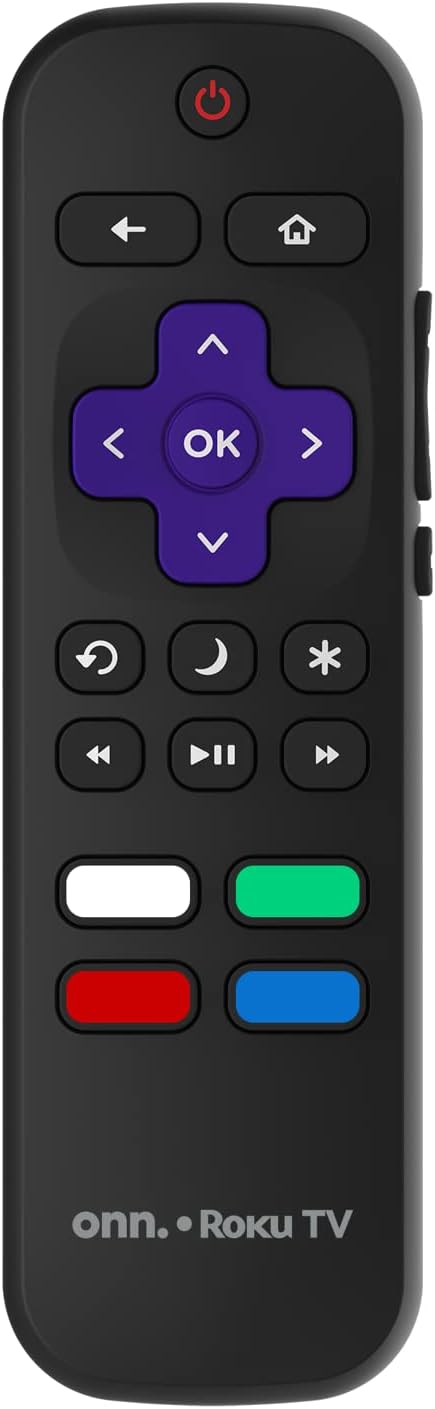
Image: The ONN Roku TV remote control, featuring a power button, directional pad, OK button, home button, back button, volume controls, and dedicated buttons for popular streaming services.
- מאַכט קנעפּל: טורנס די טעלעוויזיע אויף אָדער אַוועק.
- Directional Pad (D-Pad) & OK: נאַוויגירט מעניוז און באַשטעטיקט סעלעקשאַנז.
- היים קנעפּל: קערט זיך צוריק צום ראָקו טעלעוויזיע היים־עקראַן.
- צוריק קנעפּל: קערט צו די פריערדיקע פאַרשטעלן אָדער מעניו.
- באַנד אַרויף / אַראָפּ: אַדזשאַסץ די אַודיאָ באַנד.
- שטיל קנעפּל: מאָט אָדער אַנמיוט די אַודיאָ.
- קאַנאַל אַרויף / אַראָפּ: Changes channels (for antenna/cable inputs).
- דעדיקירטע אַפּ קנעפּלעך: Quick access to popular streaming services like Netflix, Hulu, etc.
2. סמאַרט טעלעוויזיע פֿעיִקייטן
Your ONN Smart TV provides access to a wide range of streaming content and smart functionalities.
- סטרימינג באַדינונגס: Access pre-installed apps like Netflix, YouTube, and many more through the Roku Channel Store.
- קול קאָנטראָל: Compatible with Alexa and Google Assistant for hands-free control (requires a separate compatible voice assistant device).
- אויטאָמאַטישע ווייכווארג דערהייַנטיקונגען: The TV will automatically update its software when connected to the internet, ensuring you have the latest features and security.
3. ינפּוט סעלעקציע
To switch between connected devices (e.g., cable box, game console), use the אַרייַנשרייַב button on your remote or select the desired input from the Roku TV home screen.
4. בילד און קלאַנג סעטטינגס
Access the TV's settings menu to customize picture and sound preferences. Navigate to Settings > TV picture settings or סעטטינגס> אַודיאָ to adjust options like brightness, contrast, color, sound mode, and equalizer settings.
וישאַלט
1. רייניקן דעם עקראַן
- Always turn off the TV and unplug it before cleaning.
- ניצט אַ ווייכן, לינט-פֿרייע שטאָף, אַ ביסל ווייכערampאָפּגעווישט מיט וואַסער אָדער אַ ספּעציעלן עקראַן רייניגער.
- שפריצט נישט רייניגער גלייך אויפן עקראַן. טראָגט עס ערשט אויף דעם שטאָף.
- Avoid using abrasive cleaners, alcohol, benzene, or thinners, as these can damage the screen.
2. ווייכווארג דערהייַנטיקונגען
Ensure your TV is connected to the internet to receive automatic software updates. These updates improve performance, add features, and enhance security. You can manually check for updates in the סעטטינגס > סיסטעם > סיסטעם דערהייַנטיקונג מעניו.
טראָובלעשאָאָטינג
אויב איר טרעפט פּראָבלעמען מיט אייער טעלעוויזיע, באַזירט זיך אויף די פאלגענדע געוויינטלעכע לייזונגען:
קיין מאַכט
- קאָנטראָלירט צי דער עלעקטרישער שנור איז זיכער אריינגעשטעקט אין ביידע דעם טעלעוויזיע און דעם וואַנט אַוטלעט.
- איבערצייגט אז די וואנט-אויסשטעל ארבעט דורך אריינשטעקן אן אנדער אפאראט.
- פרובירט צו דריקן דעם פּאַוער קנעפּל אויף דער טעלעוויזיע אַליין, נישט נאָר די ווײַטקאָנטראָל.
קיין בילד / פארדרייט בילד
- Ensure the correct input source is selected (e.g., HDMI 1, HDMI 2).
- קאָנטראָלירט אַלע קאַבל פֿאַרבינדונגען צווישן דעם טעלעוויזיע און עקסטערנע דעוויסעס.
- Try a different HDMI cable if possible.
- Adjust picture settings (brightness, contrast) in the TV menu.
קיין קלאַנג / נידעריק קלאַנג
- Check if the TV is muted or if the volume is turned down.
- Ensure external audio devices (soundbars, receivers) are properly connected and powered on.
- קאָנטראָלירט די אַודיאָ סעטטינגס אין די טעלעוויזיע מעניו.
נעץ קאַנעקשאַן ישוז
- Verify your Wi-Fi router is powered on and functioning.
- ריסטאַרט דיין ראַוטער און מאָדעם.
- גיין צו סעטטינגס > נעץ > קאָנטראָלירן פֿאַרבינדונג on your TV to diagnose the issue.
- פאַרזיכערן אַז איר אַרייַן די ריכטיק Wi-Fi פּאַראָל.
ספּעסאַפאַקיישאַנז
| שטריך | דעטאַל |
|---|---|
| מאָדעל נומער | 100018254 |
| פאַרשטעלן גרייס | 42 אינטשעס |
| ווייַז טעכנאָלאָגיע | געפירט |
| האַכלאָטע | 1080p (פול HD) |
| דערפרישן קורס | 60 הז |
| קאַנעקטיוויטי | וסב, ווי-פי |
| שטיצט אינטערנעט באַדינונגס | Netflix, YouTube (and others via Roku platform) |
| קאָנטראָל מעטאָד | Voice (via Alexa & Google Assistant compatible devices), Remote Control |
| מאַונטינג טיפּ | וואַנט מאָונט (VESA קאָמפּאַטיבל) |
| קאָליר | שוואַרץ |
| UPC | 671227025567 |

Image: Energy Guide label for Television Model 100018254, indicating an estimated yearly energy cost of $11 based on 12 cents per kWh and 5 hours use per day.
וואָראַנטי און שטיצן
For warranty information and technical support, please refer to the documentation included with your purchase or visit the official ONN support webפּלאַץ. האַלטן דיין קויפן קאַבאָלע פֿאַר וואָראַנטי קליימז.