
1. הקדמה
Welcome to the user manual for your Havit Gaming Mouse MS1032. This document provides essential information for setting up, operating, maintaining, and troubleshooting your device. Please read it carefully to ensure optimal performance and longevity of your mouse.
The Havit MS1032 is a gaming mouse featuring six adjustable DPI settings, a comfortable ergonomic design, and a non-slip surface. It is engineered for smooth and quiet operation, aiming to reduce fatigue during extended use.
2. סעטאַפּ
2.1 פּעקל אינהאַלט
- Havit Gaming Mouse MS1032
- באַניצער מאַנואַל
2.2 סיסטעם רעקווירעמענץ
- Operating System: Windows XP, Windows 7, Linux
- בנימצא וסב פּאָרט
2.3 פֿאַרבינדן די מויז
- Unpack the Havit Gaming Mouse MS1032 from its packaging.
- געפֿינען אַן בנימצא וסב פּאָרט אויף דיין קאָמפּיוטער.
- אַרייַנלייגן די וסב קאַנעקטער פון די מויז אין די וסב פּאָרט.
- אייער אָפּערירן סיסטעם זאָל אויטאָמאַטיש דעטעקטירן און אינסטאַלירן די נייטיקע דרייווערס. דער פּראָצעס קען נעמען אַ פּאָר מינוט.
- Once installation is complete, the mouse is ready for use.
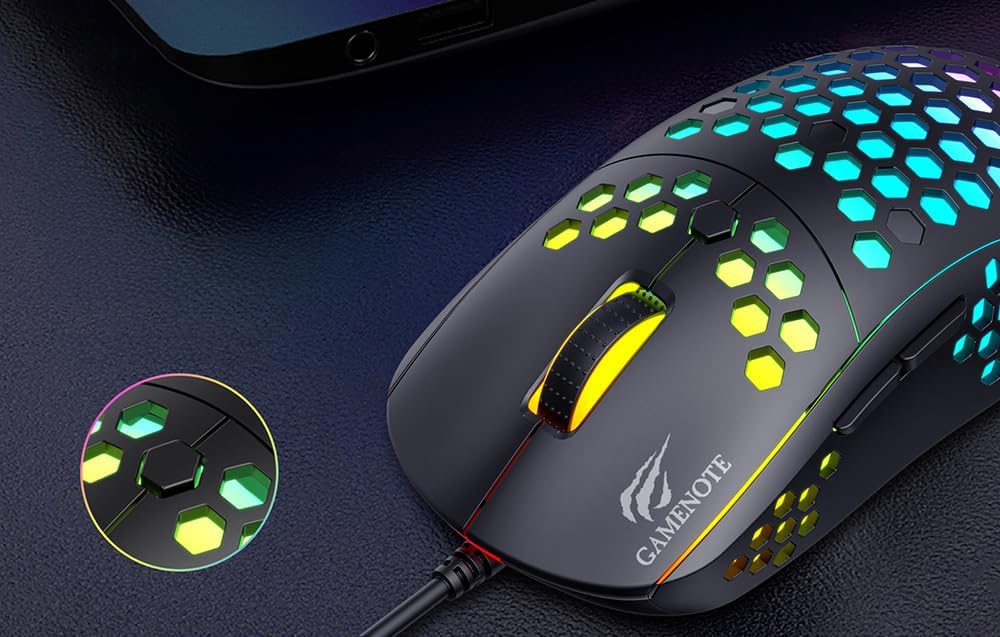
Figure 1: Havit MS1032 Gaming Mouse connected via USB.
3. אַפּערייטינג ינסטרוקטיאָנס
3.1 יקערדיק פאַנגקשאַנז
- לינק קליקט: ערשטיקע אַקציע, סעלעקציע, אַקטיוואַציע.
- רעכט גיט: Opens context menus, performs secondary actions.
- סקראָל ראָד: Scrolls up/down documents or web בלעטער. קען אויך געדריקט ווערן פאר מיטל-קליק פונקציאנאליטעט.
- זייַט קנעפּלעך: טיפּיש געניצט פֿאַר פאָרווערטס/צוריקווערטס נאַוויגאַציע אין web browsers or custom functions in games.
3.2 דפּי אַדזשאַסטמאַנט
The Havit MS1032 features six adjustable DPI (Dots Per Inch) settings, allowing you to change the mouse sensitivity on the fly. This is useful for adapting to different tasks, such as precise aiming in games or fast navigation across multiple monitors.
To adjust the DPI, locate the DPI button, typically positioned behind the scroll wheel. Press this button to cycle through the available DPI settings. The LED lighting on the mouse may change to indicate the current DPI level, providing visual feedback for your selection.
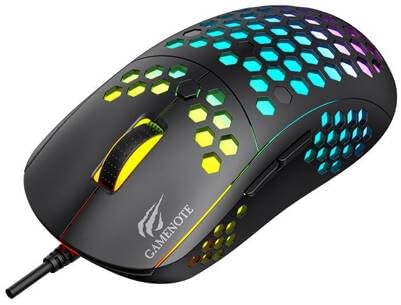
Figure 2: Location of the DPI button (behind the scroll wheel).
4. וישאַלט
4.1 רייניקונג
כּדי צו האַלטן די אָפּטימאַלע פאָרשטעלונג און אויסזען, רייניקט אייער מויז רעגולער:
- אָפּשטעקן די מויז פֿון אייער קאָמפּיוטער איידער איר רייניגט עס.
- ניצן אַ ווייך, לינט-פֿרייַ שטאָף אַ ביסל דampגעוואשן מיט וואַסער אָדער אַ מילדער, נישט-אַברייזיווער רייניקונג לייזונג.
- ווישט אָפּ די ייבערפלאַך פֿון דער מויז מיט אַ פֿאָרזיכטיקייט.
- For crevices and the optical sensor, use a cotton swab or compressed air to remove dust and debris.
- Avoid using harsh chemicals, abrasive cleaners, or excessive moisture, as these can damage the mouse's finish or internal components.
4.2 סטאָרידזש
When not in use, store the mouse in a clean, dry environment away from direct sunlight and extreme temperatures to prevent damage.
4.3 אַלגעמיינע קער
- פֿאַרמײַדט צו לאָזן פֿאַלן די מויז אָדער זי אויסשטעלן צו שטאַרקע קלאַפּן.
- Do not attempt to disassemble the mouse, as this will void the warranty and may cause irreparable damage.
- Keep the mouse away from liquids to prevent electrical damage.
5. טראָובלעשאָאָטינג
If you encounter issues with your Havit Gaming Mouse MS1032, please refer to the following common solutions:
5.1 מויז רעאַגירט נישט
- קוק די USB קאַנעקשאַן: זיכער מאַכן אַז דער USB קאַבל איז זיכער אַרײַנגעשטעקט אין אַ פֿונקציאָנירנדיקן USB פּאָרט אויף אײַער קאָמפּיוטער. פּרוּווט אַן אַנדערן USB פּאָרט.
- ריסטאַרט קאָמפּיוטער: מאנchmal קען א פשוטע קאמפיוטער ריסטארט פאררעכטן קאנעקטיוויטי פראבלעמען.
- פּרובירן אויף אן אנדער קאָמפּיוטער: If possible, test the mouse on another computer to determine if the issue is with the mouse or your computer's setup.
5.2 קורסאָר באַוועגונג איז אומשטענדלעך אָדער שפּרינגענדיק
- ריין סענסער: זיכער מאַכן אַז דער אָפּטישער סענסאָר אויף דער אונטערשטער טייל פון דער מויז איז ריין און פריי פון שטויב אָדער דעבריס.
- טשעק די ייבערפלאַך: Use the mouse on a clean, non-reflective, and uniform surface (e.g., a mouse pad). Avoid glass or highly reflective surfaces.
- צופּאַסן DPI: If the cursor is too fast or too slow, adjust the DPI setting using the DPI button.
5.3 Buttons Not Working
- קוק פֿאַר אַבסטראַקשאַנז: זייט זיכער אז קיין שמוץ איז נישט איינגעהאלטן אונטער די קנעפלעך.
- ווייכווארג קאנפליקט: If you have custom mouse software installed, try uninstalling it temporarily to see if it resolves the issue.
5.4 LED ליכטער ארבעטן נישט
- קוק די קשר: Ensure the mouse is properly connected to the computer.
- מאַכט ציקל: Disconnect and reconnect the mouse to reset its power.
6. ספּעסאַפאַקיישאַנז

Figure 3: Havit MS1032 Gaming Mouse design overview.
| שטריך | דעטאַל |
|---|---|
| מאָדעל | MS1032 |
| סאָרט | האַוויט |
| דימענשאַנז | 15 X 8 X 5.2 סענטימעטער |
| וואָג | 200ג |
| דפּי סעטטינגס | 6 אַדזשאַסטאַבאַל לעוועלס |
| אַפּערייטינג סיסטעמס | לינוקס, ווינדאָוס 7, ווינדאָוס XP |
| קאַנעקטיוויטי | ווייערד וסב |
| באַטעריז פארלאנגט | ניין |
7. וואָראַנטי און שטיצן
For detailed warranty information and technical support, please refer to the official Havit website or contact your local retailer where the product was purchased. It is recommended to keep your purchase receipt as proof of purchase for any warranty claims.
פאַבריקאַנט: האַוויט
מאָדעל נומער: MS1032