
CUPEISI CP20
CUPEISI CP20 Android 15 Tablet User Manual
מאָדעל: CP20
1. הקדמה
Thank you for choosing the CUPEISI CP20 Android 15 Tablet. This manual provides essential information for setting up, operating, and maintaining your device. Please read it thoroughly to ensure optimal performance and longevity of your tablet.
2. וואָס איז אין דער קעסטל
באַשטעטיקן אַז אַלע זאכן זענען פאַראַן אין דיין פּעקל:
- CUPEISI CP20 Android 15 Tablet
- ווירעלעסס קיבאָרד
- Foldable Protective Cover
- בלועטאָאָטה מאַוס
- סטילוס
- טיפּ-C קאַבלע
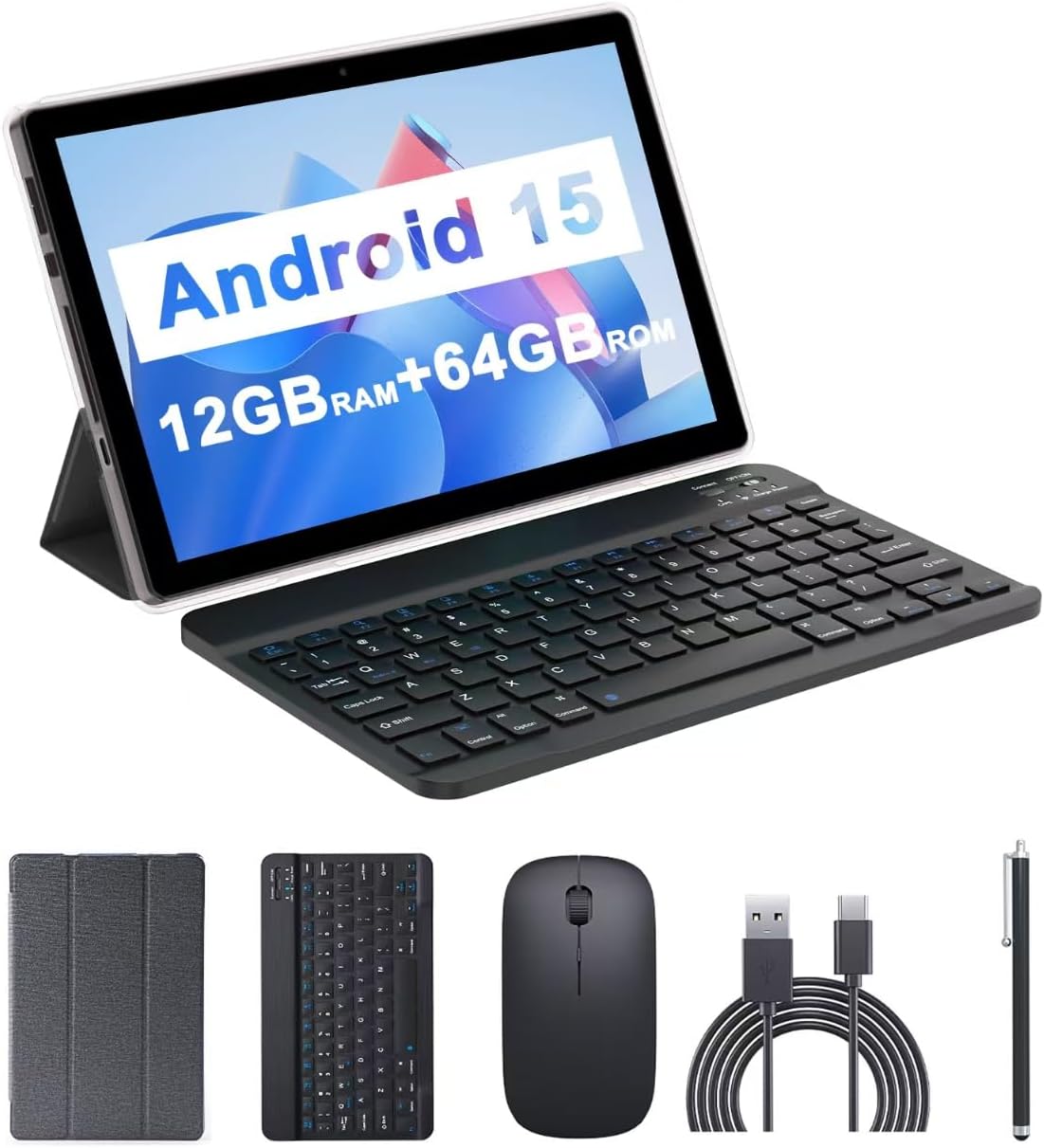
Image: The CUPEISI CP20 Tablet alongside its accessories, including the wireless keyboard, Bluetooth mouse, stylus, and foldable protective cover.
3. פּראָדוקט פֿעיִקייטן און קאָמפּאָנענטן
The CUPEISI CP20 Tablet is designed for versatility and performance, offering a seamless user experience for both work and entertainment.
3.1 שליסל פֿעיִקייטן
- אַפּערייטינג סיסטעם: Stable Android 15.0 system.
- פּראַסעסער: Built-in 1.8GHz Quad-core CPU for efficient multitasking.
- זכּרון און סטאָרידזש: 12GB RAM (4GB+8GB expansion) and 64GB ROM, expandable up to 1TB via microSD card.
- ווייַז: Stunning 10.1-inch 1280x800 IPS HD touch screen for immersive visuals and eye protection.
- באַטערי: Powered by a 6000mAh battery, providing approximately 6 hours of regular operation and up to 12 hours of standby time. Charges via 5V2A Type-C port.
- קאַמעראַס: 8MP rear camera with auto-focus and flash, and a 2MP front camera for clear video calls and photos.
- קאַנעקטיוויטי: Supports 5G WiFi 6 and Bluetooth 5.0.
- 2-אין-1 פאַנגקשאַנאַליטי: Transforms into a laptop or computer mode with the included Bluetooth keyboard, wireless mouse, and foldable protective case.

בילד: איבערview of the tablet's core specifications and features.
3.2 פיזישע קאָמפּאָנענטן
Familiarize yourself with the tablet's physical layout:
- מאַכט קנעפּל: געפינען זיך אויף דער זייט, גענוצט צו אנצינדן/אויסלעשן דעם טאבלעט אדער אויפוועקן/שלאפן דעם עקראן.
- באַנד קנעפּלעך: אַדזשאַסטירן אַודיאָ לעוועלס.
- טיפּ-C פּאָרט: פֿאַר טשאַרדזשינג און דאַטן אַריבערפירן.
- TF/סים קאַרטל שפּעלטל: אַרײַנשטעלן אַ מיקראָSD קאַרטל פֿאַר פֿאַרברייטערטער סטאָרידזש.
- פראָנט אַפּאַראַט: פֿאַר ווידעאָ קאָלס און סעלפֿיז.
- הינטערשטע קאַמעראַ און בליץ: For high-quality photos and videos.
- רעדנער: Two speakers for audio output.

Image: Labeled diagram of the tablet's ports and buttons.
4. סעטאַפּ גייד
4.1 ערשט טשאַרדזשינג
Before first use, fully charge your tablet. Connect the Type-C cable to the tablet's charging port and the other end to a compatible power adapter (5V2A recommended). The battery indicator will show charging status.
4.2 פּאַוערינג אויף / אַוועק
- צו מאַכט אויף: דריק און האלט דעם פּאַוער קנעפּל ביז דער עקראַן צינדט זיך אָן.
- צו מאַכט אַוועק: Press and hold the Power Button, then select 'Power off' from the options that appear on the screen.
- צו ריסטאַרט: Press and hold the Power Button, then select 'Restart'.
4.3 קאַנעקטינג צו Wi-Fi
- גיין צו סעטטינגס > נעץ און אינטערנעט > ווי-פי.
- קער אויף ווי-פי.
- אויסקלייבן אייער געוואונטשענע Wi-Fi נעץ פון דער ליסטע.
- אַרייַן די פּאַראָל אויב געבעטן, און דאַן צאַפּן פאַרבינדן.
4.4 Pairing Bluetooth Accessories
To use the wireless keyboard and Bluetooth mouse, they must be paired with your tablet.
- זייט זיכער אז די קלאַוויאַטור און מויז זענען אויפגעלאָדן און אנגעצונדן.
- אויף אייער טאַבלעט, גייט צו סעטטינגס > קאָננעקטעד דעוויסעס > בלועטאָאָטה.
- קער אויף בלועטאָאָטה.
- The tablet will scan for available devices. Select the keyboard or mouse from the list.
- גיי קיין פּראַמפּס אויף דעם עקראַן צו פאַרענדיקן דעם פּערינג פּראָצעס.

Image: Instructions for connecting the wireless keyboard and mouse via Bluetooth.
4.5 אריינשטעלן א מיקראָSD קאַרטל
To expand storage, insert a microSD card (up to 1TB) into the TF/SIM card slot. Ensure the tablet is powered off before inserting or removing the card.
5. אפערירן אייער טאַבלעט
5.1 יקערדיק נאַוויגאַציע
Navigate the Android interface using touch gestures:
- צאַפּן: אויסקלייבן אַן אייטעם אָדער עפֿענען אַן אַפּ.
- לאַקכענען: סקראל דורך בלעטער אדער ליסטעס.
- קניפּן-צו-זומען: Enlarge or shrink content.
- לאנג דרוק: צוטריט קאנטעקסטועלע מעניוס אדער באוועג איקאנעס.
5.2 Using Keyboard and Mouse
Once paired, the keyboard and mouse function similarly to a laptop. The keyboard allows for efficient typing, while the mouse provides precise cursor control, enhancing productivity.

Image: The tablet in laptop mode, demonstrating its use for productivity tasks.
5.3 קאַמעראַ באַניץ
Open the Camera app to capture photos and videos. Switch between the 2MP front camera and the 8MP rear camera as needed. The rear camera features auto-focus and flash for improved image quality.

Image: Demonstrating the tablet's front and rear camera functionality for video calls and photography.
5.4 App Installation and Management
Download and install applications from the Google Play Store. To manage installed apps, go to סעטטינגס > אַפּפּס.

Image: The tablet running Android 15 OS, showing popular applications like YouTube, Google Play, and Netflix.
6. וישאַלט
6.1 רייניקונג
Use a soft, lint-free cloth to clean the screen and body of the tablet. Avoid using harsh chemicals or abrasive materials. For stubborn smudges, slightly dampווישט דעם שטאָף מיט וואַסער אָדער אַ פאַרשטעלן רייניגער דיזיינד פֿאַר עלעקטראָניק.
6.2 ווייכווארג דערהייַנטיקונגען
קאָנטראָלירט און אינסטאַלירט רעגולער ווייכווארג דערהייַנטיקונגען צו זיכער מאַכן אַז אייער טאַבלעט האט די לעצטע פֿעיִקייטן, זיכערהייט פּאַטשאַז און פאָרשטעלונג פֿאַרבעסערונגען. גייט צו סעטטינגס > סיסטעם > סיסטעם דערהייַנטיקן.
6.3 סטאָרידזש פאַרוואַלטונג
כּדי צו האַלטן די אָפּטימאַלע פאָרשטעלונג, זאָל מען פּעריִאָדיש איבעראַרבעטןview און פאַרוואַלטן דיין טאַבלעט'ס סטאָרידזש. ויסמעקן נישט-נייטיקע fileס, אַראָפּנעמען נישט גענוצטע אַפּפּס, און אַריבערפֿירן גרויסע מעדיע files to external storage (microSD card) if applicable. Go to סעטטינגס > סטאָרידזש צו view באַניץ און באַפֿרײַען פּלאַץ.
7. טראָובלעשאָאָטינג
This section addresses common issues you might encounter with your CUPEISI CP20 Tablet.
7.1 טאַבלעט טוט זיך נישט אָן
- Ensure the tablet is sufficiently charged. Connect it to the charger for at least 30 minutes.
- Perform a forced restart by pressing and holding the Power Button for 10-15 seconds.
7.2 לאַנגזאַמע פאָרשטעלונג
- שליסט נישט גענוצטע אַפּליקאַציעס וואָס לויפן אין הינטערגרונט.
- Clear cached data for apps (Settings > Apps > [App Name] > Storage & cache > Clear cache).
- זיכער מאַכן אַז עס איז דאָ גענוג פֿרײַער סטאָרידזש פּלאַץ.
- ריסטאַרט די טאַבלעט פּעריִאָדיש.
7.3 Wi-Fi קאָנעקטיוויטי פּראָבלעמען
- אַקטיווירן און אויסלעשן Wi-Fi אין די סעטטינגס.
- ריסטאַרט דיין Wi-Fi ראַוטער.
- Forget the network and reconnect (Settings > Network & internet > Wi-Fi > [Network Name] > Forget).
7.4 Rapid Battery Drain
- רעדוצירן פאַרשטעלן ברייטנאַס.
- דיאַקטיווירן Wi-Fi, בלועטוט, און GPS ווען נישט אין באַנוץ.
- באגרענעצן הינטערגרונט אַפּ ריפרעש.
- קאָנטראָלירט באַטאַרייע באַניץ אין סעטטינגס > באַטאַרייע צו ידענטיפיצירן מאַכט-הונגעריקע אַפּפּס.
8. ספּעסאַפאַקיישאַנז
| שטריך | באַשרייַבונג |
|---|---|
| סאָרט | CUPEISI |
| מאָדעל נאָמען | CP20 |
| אָפּערייטינג סיסטעם | אַנדרויד 15 |
| פאַרשטעלן גרייס | 10 אינטשעס |
| פאַרשטעלן האַכלאָטע | 1280 x 800 pixels (IPS HD) |
| פּראַסעסער | 1.8 גיגאהערץ קוואד-קאָר |
| באַראַן | 12 GB (4GB+8GB expansion) |
| פלאַש זכּרון גרייס | 64 גיגאבייט |
| יקספּאַנדאַבאַל סטאָרידזש | ביז 1TB (מיקראָSD) |
| דערציען Webקאַם האַכלאָטע | 8 מפּ |
| פראָנט קאַמעראַ האַכלאָטע | 2 מפּ |
| ווירעלעסס טיפּ | 802.11ax (5G WiFi 6) |
| בלועטאָאָטה | בלועטאָאָטה 5.0 |
| באַטאַרייע קאַפּאַציטעט | 6000 מאַה ליטהיום פּאָלימער |
| דורכשניטלעך באַטאַרייע לעבן | 8 שעה |
| פּונקט וואָג | 1 פונט |
| פּראָדוקט דימענשאַנז | 9.7 X 6.5 X 0.3 אינטשעס |
9. וואָראַנטי און שטיצן
For warranty information and technical support, please refer to the documentation included with your purchase or visit the official CUPEISI webזייטל. האַלט דיין קויפן באַווייַז פֿאַר וואָראַנטי קליימז.
If you encounter issues not covered in this manual, please contact CUPEISI customer service for assistance.
Ask a question about this manual
Ask about setup, troubleshooting, compatibility, parts, safety, or missing instructions. Manuals+ will review the question and use this page’s manual context to help answer it.