
Yinker pk401
Yinker KVM Switch Displayport 4 Port User Manual
Model: pk401
פּראָדוקט איבערview
The Yinker KVM Switch Displayport 4 Port is designed to allow four computers or laptops to share a single DisplayPort monitor, a USB keyboard, a USB mouse, and other USB 2.0 peripherals. This device is ideal for environments requiring efficient management of multiple systems from one workstation, supporting high-resolution video output up to 4K@60Hz.

This image shows the Yinker 4-Port DisplayPort KVM Switch from a top-down perspective, highlighting its compact design and the various ports. Included cables for DisplayPort and USB, along with a wired desktop selector, are also visible.
סעטאַפּ גייד
פּעקל אינהאַלט
- 1x Yinker DisplayPort KVM Switch
- 4x 5ft USB Cables
- 4x 5ft DisplayPort Cables
- 1x מאַכט אַדאַפּטער
- 1x Wired Desktop Controller
- 1x באַניצער מאַנואַל

This image displays all items included in the product package: the KVM switch unit, four USB cables, four DisplayPort cables, a power adapter, a wired desktop controller, and the user manual.
קשר סטעפּס
Follow these steps to connect your KVM switch:
- מאַכט אַוועק דעוויסעס: Ensure all computers and the monitor are powered off before making connections.
- Connect DisplayPort Cables: Connect one end of each DisplayPort cable to the DisplayPort output of your computers (PC1, PC2, PC3, PC4) and the other end to the corresponding DisplayPort input ports (DP IN 1, DP IN 2, DP IN 3, DP IN 4) on the KVM switch.
- Connect USB Cables: Connect one end of each USB cable (USB-A to USB-B) to a USB 2.0 port on your computers and the other end to the corresponding USB-B input ports (USB IN 1, USB IN 2, USB IN 3, USB IN 4) on the KVM switch. These cables transmit keyboard, mouse, and USB peripheral data.
- פֿאַרבינדן מאָניטאָר: Connect your DisplayPort monitor to the 'DP OUT' port on the KVM switch using a DisplayPort cable (not included).
- פֿאַרבינדן קלאַוויאַטור און מויז: Connect your USB keyboard and USB mouse to the dedicated USB 2.0 ports on the KVM switch, typically labeled with keyboard and mouse icons. For optimal performance, ensure these are connected to the correct ports as indicated in the diagram.
- פאַרבינדן USB פּעריפעראַלז: Connect any additional USB 2.0 devices (e.g., USB drive, printer, scanner) to the available USB 2.0 hub ports (USB1, USB2) on the front of the KVM switch.
- Connect Wired Desktop Selector (Optional): If using, connect the wired desktop selector to the 'CONTROL' port on the KVM switch.
- פאַרבינדן מאַכט אַדאַפּטער: Plug the 5V power adapter into the 'DC 5V' port on the KVM switch and then into a power outlet.
- מאַכט אויף דיווייסאַז: Power on the monitor first, then the KVM switch, and finally your computers.

A comprehensive diagram detailing how to connect various devices to the KVM switch, including multiple computers, a single display (monitor, TV, or projector), and shared USB peripherals like a keyboard, mouse, USB drive, and printer.

This diagram illustrates the primary function of the KVM switch: enabling four computers to share a single monitor, keyboard, and mouse setup, streamlining the workspace.
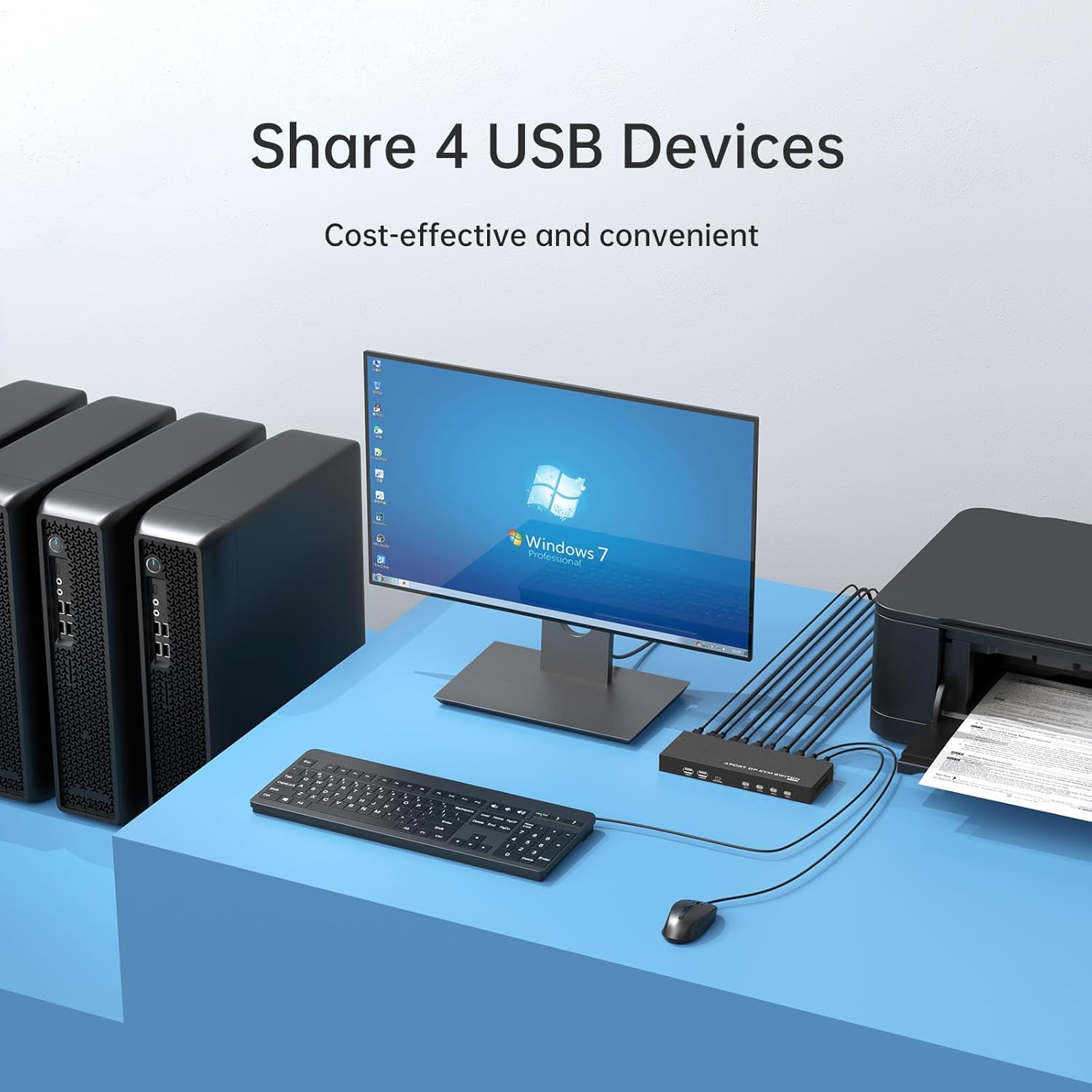
This image demonstrates the KVM switch's ability to share USB devices, such as a printer, among multiple computers, enhancing efficiency and reducing peripheral clutter.
אָפּעראַציע
באַשטימען מאָדעס
The Yinker KVM Switch offers four convenient methods to switch between connected computers:
- Panel Button Switch: Press the corresponding 'PC1', 'PC2', 'PC3', or 'PC4' button on the front panel of the KVM switch to select the desired computer. The backlit indicator will show the active port.
- Wired Desktop Selector: Use the included wired desktop controller for extended switching convenience. Simply press the button on the selector to cycle through the connected computers.
- Hotkey Button: Utilize keyboard hotkeys for quick switching. The default hotkey commands are typically initiated by pressing the 'Scroll Lock' key twice, followed by the port number (e.g., Scroll Lock, Scroll Lock, 1 for PC1). Refer to the user manual for a full list of hotkey commands and customization options.
- Auto-Scan Switch: The KVM switch can be configured to automatically scan and switch between active computers at set intervals. Consult the user manual for instructions on enabling and configuring auto-scan mode.

This image visually explains the four convenient methods available for switching between connected computers: automatic scanning, pressing buttons directly on the KVM unit, using the wired desktop selector, or employing keyboard hotkeys.
USB Hub Functionality
The KVM switch features four USB 2.0 hubs, allowing you to connect additional USB devices beyond your keyboard and mouse. These ports enable sharing of peripherals such as USB drives, printers, or scanners among all connected computers.

A close-up diagram illustrating the USB 2.0 ports on the KVM switch, indicating how they are configured for connecting keyboard, mouse, and additional USB devices.
High Resolution Support
The KVM switch supports resolutions up to 4K (3840x2160) at 60Hz, ensuring a clear and crisp display for demanding applications and multimedia content. It is backward compatible with earlier DisplayPort versions and lower resolutions.

This image highlights the KVM switch's capability to deliver high-quality 4K@60Hz resolution with vivid and delicate picture, suitable for demanding visual tasks.
וישאַלט
To ensure the longevity and optimal performance of your Yinker KVM Switch, follow these simple maintenance guidelines:
- רייניקונג: Use a soft, dry cloth to clean the exterior of the KVM switch. Avoid using liquid cleaners, aerosols, or abrasive materials, as they may damage the device.
- ווענטילאַטיאָן: זיכער מאַכן אַז דער KVM סוויטש איז געשטעלט אין אַ גוט-ווענטילירטן אָרט צו פאַרמייַדן איבערהיצונג. בלאָקירט נישט קיין ווענטילאַציע עפענונגען.
- סטאָרידזש: When not in use for extended periods, store the KVM switch in a cool, dry place away from direct sunlight and extreme temperatures.
- קאַבלע פאַרוואַלטונג: Keep cables organized and free from kinks or excessive bending to prevent damage and ensure stable connections.
טראָובלעשאָאָטינג
If you encounter issues with your Yinker KVM Switch, please refer to the following common problems and their solutions:
| פּראָבלעם | מעגלעך סיבה / לייזונג |
|---|---|
| No display or flickering screen |
|
| קלאַוויאַטור אָדער מויז רעאַגירט נישט |
|
| USB peripherals (e.g., printer, USB drive) not detected |
|
| Window layout changes after switching computers |
|
| Computer does not wake up via KVM keyboard/mouse |
|
טעכניש ספּעסאַפאַקיישאַנז
| שטריך | באַשרייַבונג |
|---|---|
| פּראָדוקט דימענשאַנז | 9.65 X 6.3 X 4.72 אינטשעס |
| פּונקט וואָג | 2.87 פונט |
| מאָדעל נומער | pk401 |
| סאָרט | יינקער |
| אָפּעראַציע מאָדע | OFF-NONE-ON |
| אַפּערייטינג וואָלtage | 5 וואלטס |
| קאַנעקטער טיפּ | צאַפּן אין |
| קרייַז טיפּ | 4-וועג |
| מאַונטינג טיפּ | פּלוג-אין בארג |
| אַקטואַטאָר טיפּ | דרוק קנעפּל |
| ווידעא האַכלאָטע | Up to 4K@60Hz (3840x2160) |
| וסב פּאָרץ | 4 קס וסב 2.0 כאַבז |
| באַשטימען מאָדעס | Panel Button, Wired Desktop Selector, Hotkey, Auto-Scan |
| קאַמפּאַטאַבילאַטי | Unix, Windows, Ubuntu, Fedora, Mac OS X, etc. |
וואָראַנטי אינפֿאָרמאַציע
Specific warranty details for this product are not provided in the available information. Please refer to the product packaging or contact Yinker customer support for warranty terms and conditions.
קונה שטיצן
For technical assistance, troubleshooting, or further inquiries regarding your Yinker KVM Switch, please refer to the contact information provided in your product's user manual or visit the official Yinker webפּלאַץ.