
1. הקדמה
This manual provides detailed instructions for the HPRT N80 Barcode Scanner. It covers the scanner's features, setup, operation, maintenance, and troubleshooting. Please read this manual carefully before using the product to ensure proper and safe operation.

Image: HPRT N80 Barcode Scanner, USB cable, and included instruction manual.
2. פּראָדוקט פֿעיִקייטן
- 1D & 2D Scanning: Supports a wide range of 1D and 2D codes including UPC, UCC/EAN-128, ISBN/ISSN, Code 39, Code 128, Interleaved 2 of 5, QR Code, Data Matrix, and Postal Codes.
- Screen and Paper Scanning: Capable of scanning barcodes from both printed labels and digital screens.
- ברייט קאַמפּאַטאַבילאַטי: Works with Windows, iOS, Android, Linux, and Mac OS. Connects to PCs, laptops, and iPads. (Note: Mac OS requires a USB wired connection).
- Fast and Precise Scan: Utilizes a superior CMOS sensor and image scanning technology for quick decoding. Achieves recognition precision up to 4 mil.
- קייפל סקאַנינג מאָדעס: Offers manual trigger mode, continuous scan mode, and auto-sensing mode.
- ערגאָנאָמיק פּלאַן: Features a comfortable grip and durable ABS plastic construction, designed to withstand drops from up to 3.93ft.

Image: The HPRT N80 barcode scanner demonstrating its ability to decode a wide range of 1D and 2D barcode formats, including QR codes, Data Matrix, and Aztec Code.

Image: Illustration showing the HPRT N80 barcode scanner's capability to read damaged, blurred, and stained barcodes effectively.

Image: The HPRT N80 barcode scanner being applied in various environments, including a supermarket, hospital, warehouse, and library.
3. סעטאַפּ און קאַנעקשאַן
The HPRT N80 Barcode Scanner is designed for plug-and-play functionality, requiring no driver installation for most operating systems.
3.1 דראָטיקע USB פֿאַרבינדונג
- פֿאַרבינדט דעם USB קאַבל צום סקאַנער'ס פּאָרט.
- Plug the USB connector into an available USB port on your computer or device.
- The scanner will be automatically recognized by your system. No additional drivers are typically needed.
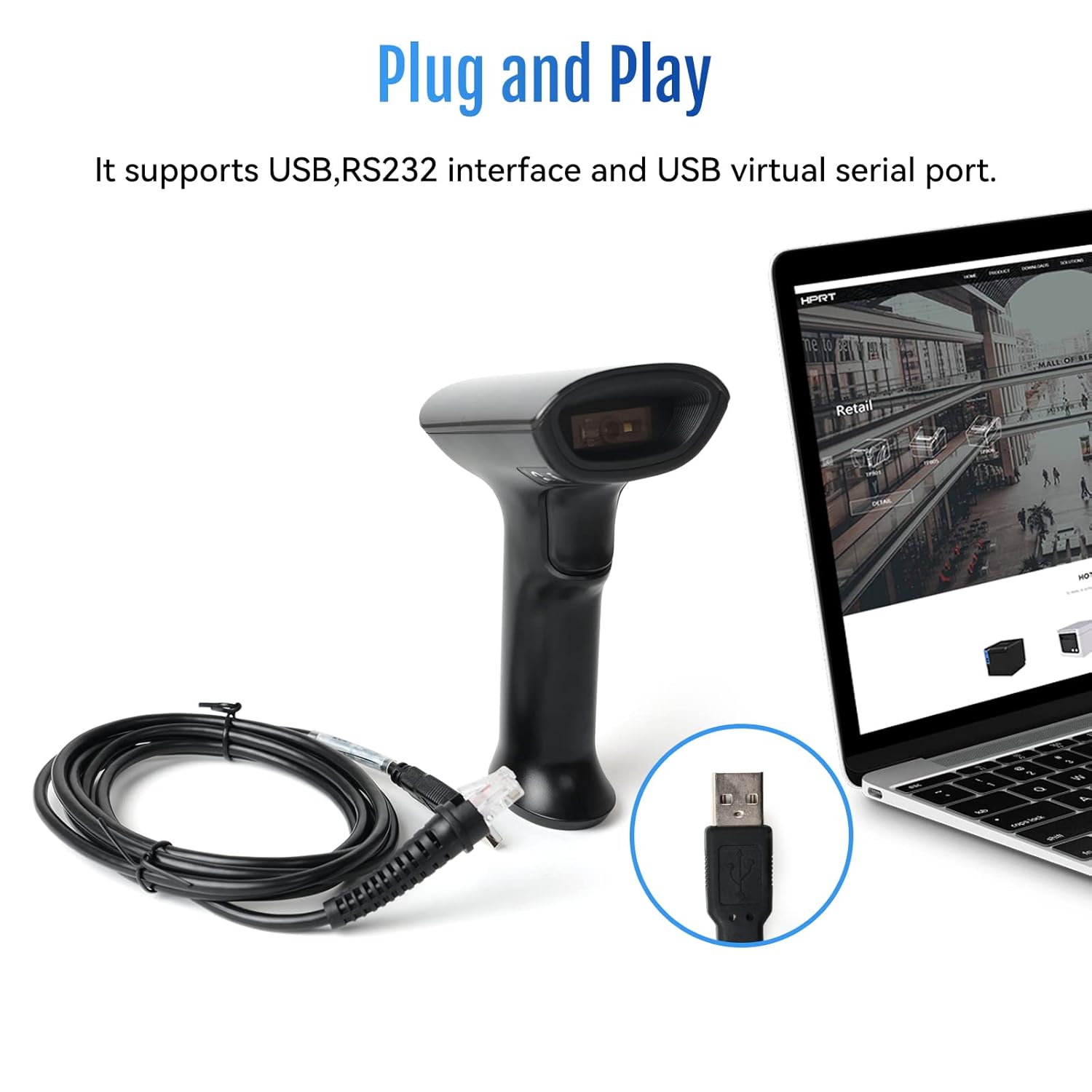
Image: The HPRT N80 barcode scanner with its USB cable, illustrating the plug-and-play connection to a laptop.

Image: A close-up of the HPRT N80 barcode scanner being connected to a laptop, demonstrating the plug-and-play functionality.
4. אָפּעראַציע
The HPRT N80 Barcode Scanner offers various modes for efficient scanning.
4.1 סקענען באַרקאָדס
- האַלט דעם סקאַנער מיטן סקאַנינג פֿענצטער קעגן דעם באַרקאָד.
- Press the trigger button to activate the scan beam.
- Ensure the scan beam covers the entire barcode. A successful scan is usually indicated by an audible beep and/or a visual indicator.
- The decoded data will appear on your connected device.
4.2 סקענען מאָדעס
- מאַנועל טריגער מאָדע: Press the trigger for each scan.
- קעסיידערדיק סקאַן מאָדע: דער סקאַנער שיקט קעסיידער אַרויס אַ סקען שטראַל, סקענענדיק יעדן באַרקאָד וואָס ער דעטעקטירט.
- אַוטאָ סענסינג מאָדע: The scanner activates the scan beam automatically when a barcode is presented within its field of view.

Image: The HPRT N80 barcode scanner performing a fast scan of both 1D and QR codes displayed on a smartphone screen.

Image: The HPRT N80 barcode scanner accurately scanning a barcode even in a dark environment, highlighting its low-light performance.
4.3 Operational Video
Video: Demonstrates the HPRT N80 barcode scanner's fast scanning capabilities for both 1D and 2D barcodes on paper and screens, highlighting its plug-and-play setup and ergonomic design.
5. וישאַלט
To ensure the longevity and optimal performance of your HPRT N80 Barcode Scanner, follow these maintenance guidelines:
- רייניקונג: ניצט אַ ווייכע, טרוקענע שטאָף צו רייניקן די אויסערלעכע זייט פון דעם סקאַנער. פֿאַר דעם סקאַנינג פֿענצטער, ניצט אַ לינט-פֿרייע שטאָף לייכט ווישן.ampגעוואַשן מיט אַ מילדן, נישט-שרייַבנדיקן רייניגער. פֿאַרמייַדן שטרענגע כעמיקאַלן אָדער שרייַבנדיקע מאַטעריאַלן.
- סטאָרידזש: האַלט דעם סקאַנער אין אַ קיל, טרוקן אָרט אַוועק פון דירעקט זונשייַן און עקסטרעמע טעמפּעראַטורן.
- האַנדלינג: While the scanner is designed to be durable, avoid unnecessary drops or impacts.
- קאַבלע זאָרגן: Do not bend or twist the USB cable excessively. Always grasp the plug, not the cable, when disconnecting.
6. טראָובלעשאָאָטינג
If you encounter issues with your HPRT N80 Barcode Scanner, please refer to the following common troubleshooting steps:
- סקאַנער רעאַגירט נישט:
- Ensure the USB cable is securely connected to both the scanner and the host device.
- Try plugging the scanner into a different USB port.
- ריסטאַרט דיין קאָמפּיוטער אָדער האָסט מיטל.
- נישט געקענט סקענען באַרקאָדס:
- Verify that the barcode is not excessively damaged, blurred, or stained.
- זיכער מאַכן אַז די סקאַנינג פֿענצטער איז ריין און פריי פון שטערונגען.
- Check if the scanner is in the correct scanning mode (e.g., manual trigger, continuous, auto-sensing).
- זיכער מאַכן אַז די באַלויכטונג איז גענוג פֿאַרן באַרקאָד.
- אומרעכט דאַטאַ רעזולטאַט:
- Confirm that the correct keyboard layout or input method is selected on your host device.
- Refer to the full product manual (if available) for advanced configuration barcodes to reset settings or adjust data formatting.
If the problem persists, please contact HPRT customer support.
7. ספּעסאַפאַקיישאַנז
| שטריך | דעטאַל |
|---|---|
| סאָרט | HPRT |
| מאָדעל | N80 |
| קאַנעקטיוויטי טעכנאָלאָגיע | וסב קאַבלע |
| מאַכט מקור | באַטאַרייע פּאַוערד |
| קאַמפּאַטאַבאַל דעוויסעס | Laptop (Windows, iOS, Android, Linux, Mac OS) |
| סקאַנינג פיייקייט | 1D & 2D (UPC, EAN, QR, Data Matrix, etc.) |
| געווער | Withstands drops from up to 3.93ft |
8. וואָראַנטי און שטיצן
For warranty information or technical support, please contact HPRT customer service.
- קונה סערוויס בליצפּאָסט: pravin.m@hprt.com
- באַאַמטער Webפּלאַץ: https://www.hprt.com

Image: HPRT customer service contact details, including email and official webפּלאַץ.