
Yinker KH2S
Yinker 4K HDMI KVM Switch 2 Port User Manual
Model: KH2S
הקדמה
The Yinker 4K HDMI KVM Switch 2 Port allows you to control two computers or laptops using a single set of monitor, keyboard, and mouse. This device is designed to streamline your workspace, making it ideal for various environments including work, education, and home studios. It supports high-definition video up to 4K@60Hz and provides multiple USB 2.0 ports for sharing peripherals.

Image: The Yinker 4K HDMI KVM Switch, showing its compact design, multiple ports, and included cables and wired selector.

Image: Various application scenarios for the KVM switch, including business conferences, video conferences, media teaching, and office use, demonstrating its versatility.
פּעקל אינהאַלט
Please verify that all items listed below are included in your package. If any items are missing or damaged, please contact customer service.
- HDMI KVM Switch (x1)
- KVM Cables (x2)
- Wired Selector (x1)
- Type-C Power Cable (x1)
- באַניצער מאַנואַל (x1)

Image: A visual representation of the package contents, including the KVM switch unit, two KVM cables, the wired selector, and the Type-C power cable.

בילד: א נאָענטע בילד view of the KVM switch, cables, wired selector, and user manual, as they appear when unboxed.
פּראָדוקט איבערview
מיטל אויסלייג

Image: A detailed diagram illustrating the front and rear panels of the KVM switch, highlighting the various ports for connection to computers, monitor, and USB peripherals.
The Yinker KVM Switch features a compact design with clearly labeled ports for easy setup and operation.
- אַרייַנשרייַב פּאָרץ: Two HDMI input ports and two USB-B input ports for connecting two computers (PC1 and PC2).
- רעזולטאַט פּאָרץ: One HDMI output port for connecting a single monitor or TV.
- USB 2.0 Hubs: Four USB 2.0 ports for sharing peripherals such as keyboard, mouse, printer, scanner, and U disks.
- DC 5V מאַכט פּאָרט: A Type-C port for optional external power, recommended when using high-consumption USB devices.
- Wired Selector Port: For connecting the included wired desktop selector for remote switching.
- באַשטימען קנעפּל: A button on the top panel for manual switching between connected computers.
- LED ינדיקאַטאָרס: Red/Blue LED indicators to show the currently active input.
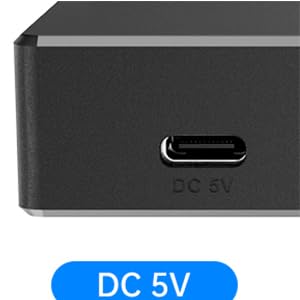
בילד: א נאָענטע בילד view of the DC 5V Type-C power input port on the KVM switch, indicating where to connect the power cable if needed.
שליסל פֿעיִקייטן
- 4K@60Hz High Resolution: Supports resolutions up to 4096x2160@60Hz, 3840x2160@60Hz, and 1920x1080P@60Hz, with HDR 4:4:4 real color and EDID Adaptation.
- USB 2.0 Hubs: Four integrated USB 2.0 ports allow sharing of multiple USB devices.
- גרינג באַשטימען: Switch between two computers with a single button press on the device or via the wired selector.
- ברייט קאַמפּאַטאַבילאַטי: Compatible with Windows 10/8/8.1/7/Vista/XP, Mac OS, Linux, Orange Pi, and Chrome OS.
- Built-in KVM Cables: Includes two USB & HDMI KVM cables to minimize cable clutter.

Image: A comparison showing the integrated Yinker USB HDMI KVM cable versus separate HDMI and USB cables, highlighting the benefit of reduced cable mess.
סעטאַפּ אינסטרוקציעס
Follow these steps to connect your Yinker KVM Switch:
- פֿאַרבינדן מאָניטאָר: Connect your monitor or TV to the HDMI OUT port on the KVM switch using an HDMI cable (not included).
- Connect Computers:
- For PC1: Connect one of the included KVM cables from your computer's HDMI output to the HDMI IN 1 port on the KVM switch, and from your computer's USB port to the USB IN 1 port on the KVM switch.
- For PC2: Connect the second included KVM cable from your second computer's HDMI output to the HDMI IN 2 port on the KVM switch, and from your computer's USB port to the USB IN 2 port on the KVM switch.
- פאַרבינדן פּעריפעראַלס: Connect your keyboard, mouse, and other USB devices (printer, U disk, etc.) to the USB 2.0 HUB ports on the front of the KVM switch.
- Connect Wired Selector (Optional): If desired, connect the wired desktop selector to its dedicated port on the KVM switch.
- Connect Power (If Needed): If you are using high-consumption USB devices or experiencing instability, connect the included Type-C power cable to the DC 5V port on the KVM switch and to a 5V power adapter (not included).

Image: A visual guide demonstrating the complete setup, showing two computers (laptop and desktop) connected to the KVM switch, which in turn is connected to a single monitor, keyboard, and mouse.
אַפּערייטינג ינסטראַקשאַנז
The Yinker KVM Switch offers two methods for switching between connected computers:
1. Panel Button Switching
Press the large button on the top panel of the KVM switch to toggle between PC1 and PC2. The LED indicator (Blue for PC1, Red for PC2) will illuminate to show which computer is currently active.
2. Wired Desktop Selector Switching
If you have connected the wired desktop selector, simply press the button on the selector to switch between PC1 and PC2. This provides convenient switching without needing to reach the KVM unit itself.

Image: A visual guide demonstrating both the panel button switching and the wired desktop selector switching methods, with LED indicators showing the active input.
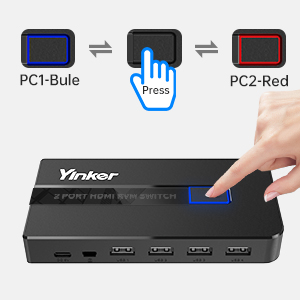
Image: A close-up diagram illustrating the KVM switch's top panel button and how the LED indicator changes color (blue for PC1, red for PC2) upon pressing to switch inputs.
באַמערקונג: The switching gap is approximately 4-5 seconds as the KVM switch adapts to the new input signal.
וישאַלט
To ensure the longevity and optimal performance of your Yinker KVM Switch, please follow these maintenance guidelines:
- Keep the device in a dry, cool place, away from direct sunlight and heat sources.
- ויסמיידן יקספּאָוזינג די מיטל צו וואַסער אָדער אנדערע ליקווידס.
- רייניקט דעם אַפּאַראַט מיט אַ ווייכן, טרוקענעם שטאָף. ניצט נישט קיין שרײַבנדיקע רייניגערס אדער סאָלווענטן.
- ענשור געהעריק ווענטאַליישאַן אַרום די מיטל צו פאַרמייַדן אָוווערכיטינג.
- האַנדלט מיט קייבלען און קאַנעקטאָרס מיט לײַכטקייט צו פאַרמייַדן שאָדן.
טראָובלעשאָאָטינג
If you encounter issues with your KVM switch, refer to the following common problems and solutions:
| פּראָבלעם | מעגלעך סיבה | לייזונג |
|---|---|---|
| No display on monitor after switching. |
|
|
| קלאַוויאַטור/מויז רעאַגירט נישט. |
|
|
| Switching takes too long (more than 5 seconds). |
|
|
ספּעסאַפאַקיישאַנז
| שטריך | דעטאַל |
|---|---|
| מאָדעל נומער | KH2S |
| פּראָדוקט דימענשאַנז | 5 X 1.97 X 0.98 אינטשעס |
| פּונקט וואָג | 13.76 אונסעס |
| ווידעא האַכלאָטע | Up to 4K@60Hz (4096x2160@60Hz, 3840x2160@60Hz, 1920x1080P@60Hz) |
| קאָליר דעפּט | HDR 4:4:4 |
| וסב פּאָרץ | 4 קס וסב 2.0 כאַבז |
| מאַכט צושטעלן | DC 5V (טיפּ-C) |
| אָפּעראַציע מאָדע | Manual (Button, Wired Selector) |
| אַפּערייטינג סיסטעמס | Windows, Mac OS, Linux, Orange Pi, Chrome OS |

Image: A visual representation of the KVM switch's support for 4K@60Hz resolution and the recommended cable lengths (up to 10ft/3m) for optimal performance.
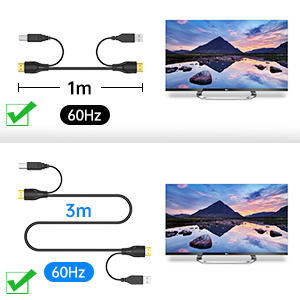
Image: A diagram detailing the support for 4K@60Hz resolution, showing successful transmission with both 1m (3ft) and 3m (10ft) cables, confirming compatibility with longer cables for high-resolution signals.
וואָראַנטי און שטיצן
Yinker provides a 1 יאָר וואָראַנטי for this product. For technical assistance, troubleshooting, or warranty claims, please contact Yinker customer service. Please have your product model number (KH2S) and purchase information ready when contacting support.
For more information or to purchase longer KVM cables, please visit the official Yinker store or contact their support channels.