
הקדמה
The Sandberg Wireless Numeric Keypad Pro 630-09 is a versatile and compact numeric keypad designed to enhance productivity for users working with spreadsheets, data entry, and calculations. It offers dual connectivity options: 2.4 GHz wireless via a USB dongle and Bluetooth, providing flexibility for various setups. This manual provides detailed instructions for setting up, operating, maintaining, and troubleshooting your numeric keypad.
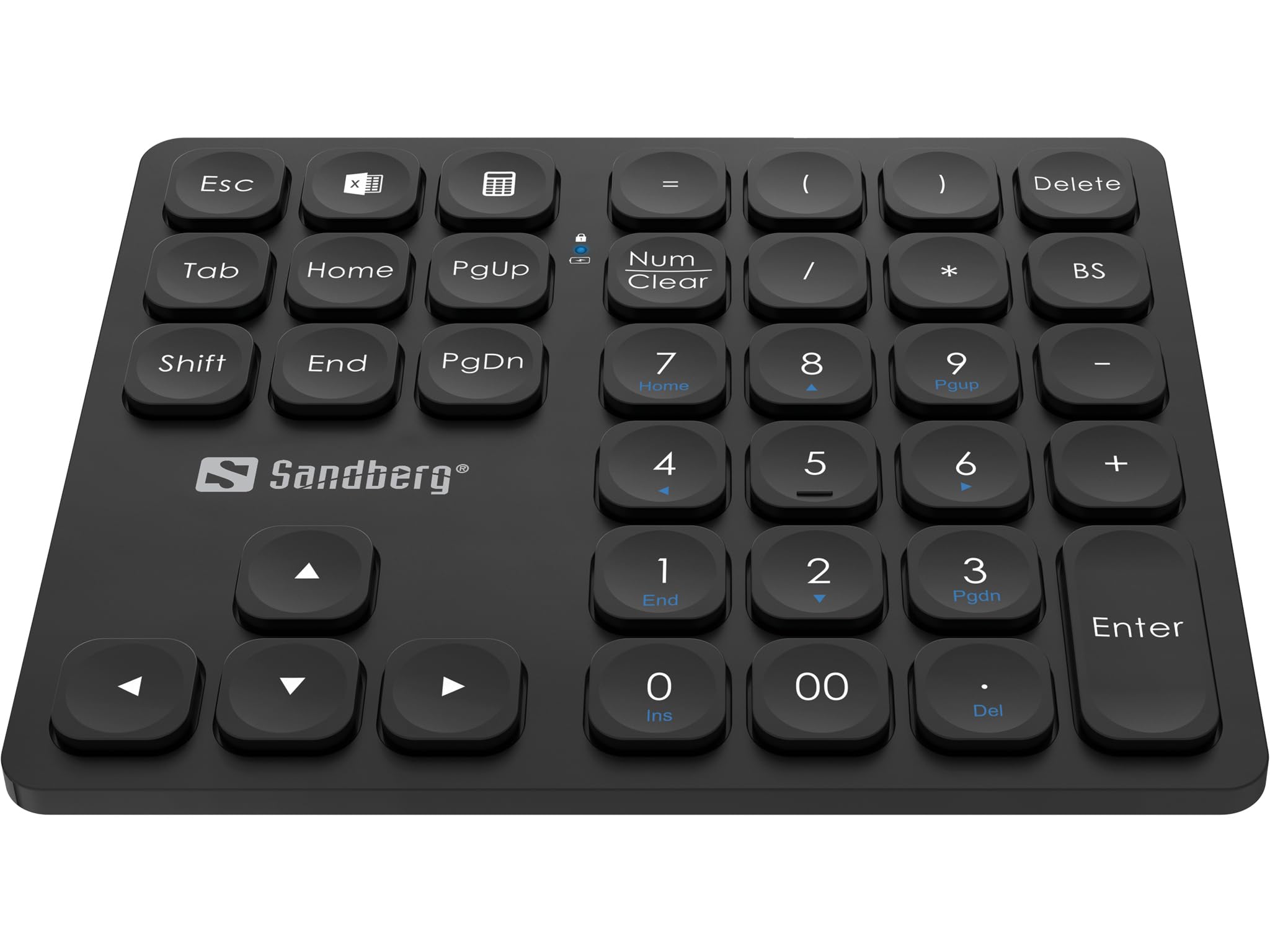
בילד: ווינקלדיק view of the Sandberg Wireless Numeric Keypad Pro 630-09, showcasing its compact design and key layout.
סעטאַפּ
1. אַנפּאַקקינג און ערשט דורכקוק
Carefully remove the numeric keypad from its packaging. Ensure all components are present: the numeric keypad unit, a USB receiver (dongle), and any included charging cables or documentation. Inspect the keypad for any signs of damage.
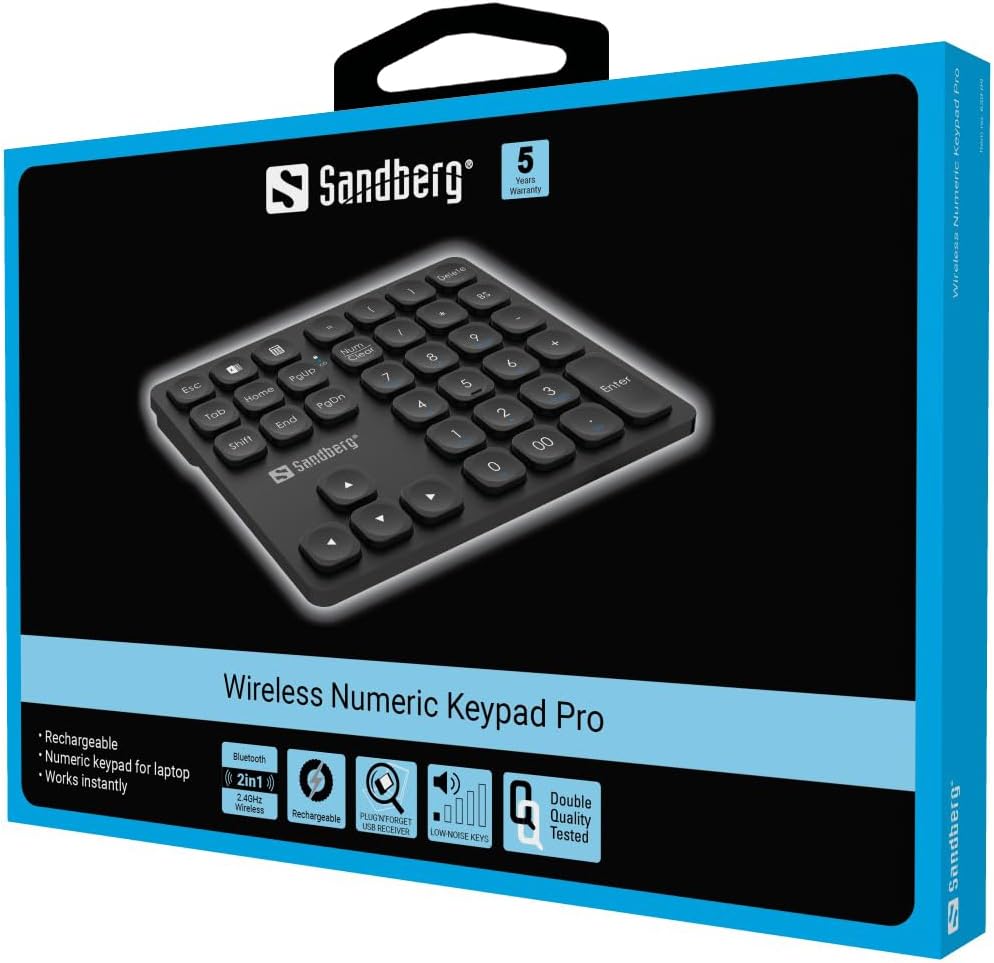
Image: The retail packaging for the Sandberg Wireless Numeric Keypad Pro, highlighting key features and the product image.
2. אויפלאָדן דעם קלאַוויאַטור
The Sandberg Wireless Numeric Keypad Pro is rechargeable. Before first use, it is recommended to fully charge the device. Connect the provided charging cable to the keypad's charging port and to a USB power source (e.g., computer USB port, USB wall adapter). An indicator light will typically show the charging status and turn off or change color when fully charged.
3. Connecting via 2.4 GHz Wireless (USB Receiver)
- Locate the USB receiver (dongle) that came with your keypad. It may be stored in a compartment on the keypad itself.
- צאַפּן די וסב ופנעמער אין אַ בנימצא וסב פּאָרט אויף דיין קאָמפּיוטער.
- Turn on the numeric keypad. There is usually a power switch on the side or back of the device.
- Your computer should automatically detect and install the necessary drivers. The keypad should be ready for use within a few seconds.
4. קאַנעקטינג דורך בלועטאָאָטה
- Ensure the numeric keypad is turned on and in Bluetooth pairing mode. This usually involves pressing and holding a dedicated Bluetooth button or a combination of keys until an indicator light flashes. Refer to the keypad's specific instructions for entering pairing mode.
- On your computer or device, open the Bluetooth settings.
- זוכן פֿאַר new Bluetooth devices. The keypad should appear as "Sandberg Numeric Keypad Pro" or a similar name.
- Select the keypad from the list to initiate pairing. Follow any on-screen prompts, such as entering a PIN, if required.
- Once paired, the indicator light on the keypad will typically stop flashing and remain solid, indicating a successful connection.
באַמערקונג: The keypad supports both 2.4 GHz wireless and Bluetooth. You may need to switch between modes using a dedicated switch or key combination on the keypad if you intend to use both.
Operating the Keypad
The Sandberg Wireless Numeric Keypad Pro features a standard numeric layout along with several function keys to enhance usability.

בילד: פון אויבן אַראָפּ view of the numeric keypad, clearly displaying the layout of all 36 keys, including numeric, function, and navigation keys.
שליסל פאַנגקשאַנז איבערview
- Numeric Keys (0-9, 00, .): Standard number input.
- Arithmetic Operators (+, -, *, /): For calculations.
- אַרייַן: Confirms input or action.
- Esc: Escape key, often used to cancel or exit.
- טאַב: Moves cursor to the next field or cell.
- שיפט: Used in combination with other keys for secondary functions.
- Delete / BS (Backspace): Deletes characters.
- Num Clear (Num Lock): Toggles the numeric keypad between number input and navigation functions (Home, End, PgUp, PgDn, arrow keys). An indicator light typically shows when Num Lock is active.
- Home, End, PgUp, PgDn: Navigation keys, active when Num Lock is off.
- פײַל קנעפּלעך (אַרויף, אַראָפּ, לינקס, רעכטס): Navigation keys, active when Num Lock is off.
- Calculator Shortcut Key: A dedicated key (often with a calculator icon) to quickly launch the calculator application on your operating system.
- Excel Shortcut Key: A dedicated key (often with an Excel icon) to quickly launch Microsoft Excel or a similar spreadsheet application.
מאַכט שפּאָרן מאָדע
To conserve battery life, the keypad will enter a sleep mode after a period of inactivity. To wake the keypad, simply press any key. It may take a moment for the connection to re-establish with your computer.
וישאַלט
רייניקונג
To clean your numeric keypad, ensure it is turned off and disconnected from any power source. Use a soft, lint-free cloth lightly dampened with water or a mild, non-abrasive cleaning solution. Avoid spraying liquids directly onto the keypad. Do not use harsh chemicals or abrasive materials, as these can damage the surface and key legends.
טשאַרדזשינג
When the battery is low, an indicator light on the keypad will typically signal this. Connect the keypad to a USB power source using the provided charging cable. Avoid overcharging by disconnecting the cable once the battery is full.
סטאָרידזש
When not in use for extended periods, store the keypad in a cool, dry place away from direct sunlight and extreme temperatures. If storing for a long time, ensure the battery is partially charged (around 50%) to prolong its lifespan.
טראָובלעשאָאָטינג
- קלאַוויאַטור רעאַגירט נישט:
- Ensure the keypad is turned on.
- קאָנטראָלירט די באַטאַרייע מדרגה און לאָדנט אויף אויב נייטיק.
- For 2.4 GHz connection: Ensure the USB receiver is securely plugged into a working USB port. Try a different USB port.
- For Bluetooth connection: Ensure Bluetooth is enabled on your device and the keypad is paired. Try re-pairing the device.
- If the keypad entered sleep mode, press any key to wake it up.
- Keys are laggy or unresponsive:
- Ensure the keypad is fully charged. Low battery can affect performance.
- Reduce the distance between the keypad and the receiver/device, and remove any potential obstructions.
- If using 2.4 GHz, try plugging the USB receiver into a different USB port, preferably a direct port on the computer rather than a hub.
- If using Bluetooth, check for interference from other wireless devices.
- Specific keys (e.g., =, (, )) not working in certain programs (e.g., Excel):
- This can sometimes be due to software-specific key mapping or operating system settings. Check your program's settings for keyboard shortcuts or input methods.
- Ensure your operating system's keyboard layout matches your physical keypad layout.
- Keypad disconnects frequently:
- This could be a power-saving feature. Adjust power management settings on your computer to prevent USB devices or Bluetooth from being turned off to save power.
- Ensure the keypad is fully charged.
- Check for strong wireless interference.
ספּעסאַפאַקיישאַנז
| שטריך | דעטאַל |
|---|---|
| סאָרט | Sandberg |
| מאָדעל נומער | 630-09 |
| קאַנעקטיוויטי טעכנאָלאָגיע | 2.4 GHz Wireless (via USB dongle), Bluetooth |
| נומער פון קיז | 36 |
| שליסל טיפּ | Silenziatore (as per Mechanical Keyboard Switch Model) |
| מאַכט מקור | קריקאָנלאָדלעך באַטערי |
| פּראָדוקט וואָג | 1 גראַם (Note: This value seems unusually low and might be a data entry error. Refer to product packaging for accurate weight.) |
| גלאבאלע האַנדל לעגיטימאַציע נומער (GTIN) | 05705730630095 |
וואָראַנטי און שטיצן
וואָראַנטי אינפֿאָרמאַציע
The Sandberg Wireless Numeric Keypad Pro 630-09 comes with a 5 יאָר וואָראַנטי. Please retain your proof of purchase for warranty claims. For detailed terms and conditions, refer to the warranty card included with your product or visit the official Sandberg webפּלאַץ.
קונה שטיצן
For further assistance, technical support, or to inquire about replacement parts, please visit the official Sandberg support webזייטל אדער קאנטאקטירן זייער קאסטומער סערוויס דעפארטמענט. קאנטאקט אינפארמאציע קען געווענליך געפונען ווערן אויף דער פראדוקט פאקאדזש אדער דעם פאבריקאנט'ס webפּלאַץ.