
1. הקדמה
This user manual provides comprehensive instructions for the installation, operation, and maintenance of your HUNSN RJ05f Mini Firewall Appliance. Please read this manual thoroughly before using the device to ensure proper functionality and to prevent damage. Keep this manual for future reference.
2. זיכערקייַט אינפֿאָרמאַציע
- פאַרזיכערן די מאַכט צושטעלן וואָלtage matches the device's requirements (12V/5A).
- שטעלט נישט אויס דעם אפאראט צו פייכטקייט, עקסטרעמע טעמפעראטורן, אדער דירעקטער זונשייַן.
- Avoid blocking ventilation openings to prevent overheating. This device is fanless, but proper airflow is still recommended.
- פרובירט נישט צו עפענען אדער פאררעכטן דעם אפאראט אליין. לאָזט איבער אלע סערוויסעס צו קוואַליפֿיצירטע פּערסאָנעל.
- ניצן בלויז די צוגעשטעלט מאַכט אַדאַפּטער און קייבאַלז.
3. פּעקל אינהאַלט
באַשטעטיקן אַז אַלע זאכן זענען פאַראַן אין פּעקל:
- HUNSN RJ05f Mini Firewall Appliance
- מאַכט אַדאַפּטער (12V/5A)
- מאַכט שנור
- וואָראַנטי קאַרד
4. פּראָדוקט איבערview
4.1 פראָנט פּאַנעל

The front panel features essential connectivity and control options:
- DP (DisplayPort): פֿאַר פֿאַרבינדן צו אַן עקראַן.
- מאַכט קנעפּל: To power the device on or off.
- הדמי: פֿאַר פֿאַרבינדן צו אַן עקראַן.
- וסב 3.0 פּאָרץ (x2): For high-speed peripheral connections.
4.2 דערציען פּאַנעל
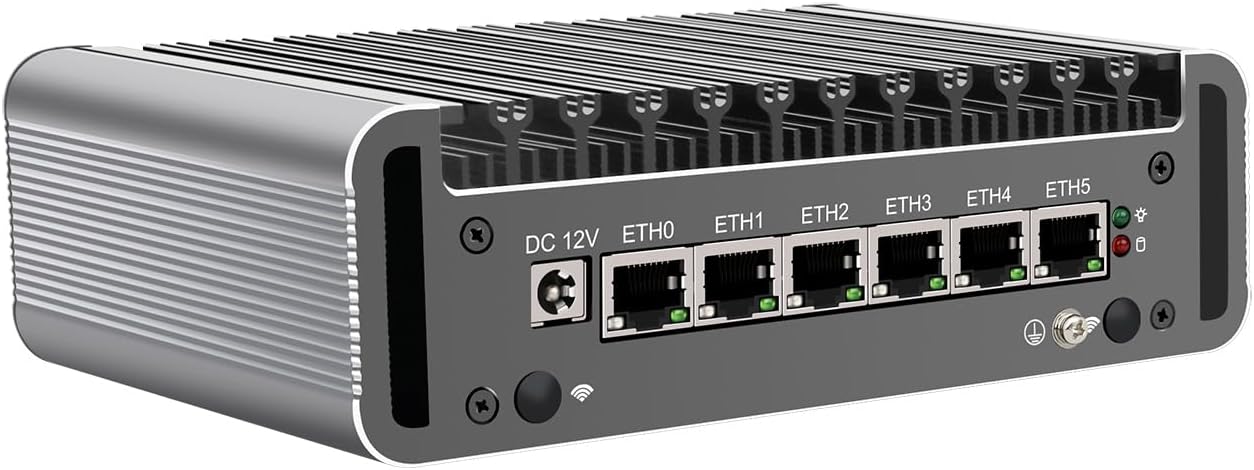
The rear panel provides network and additional peripheral connections:
- DC 12V: מאַכט אַרייַנגאַנג דזשאַק.
- ETH0 - ETH5 (x6): Intel 2.5GbE I226-V LAN ports for network connections.
- וסב 2.0 פּאָרץ (x2): For standard peripheral connections.
4.3 אַלגעמיינע View
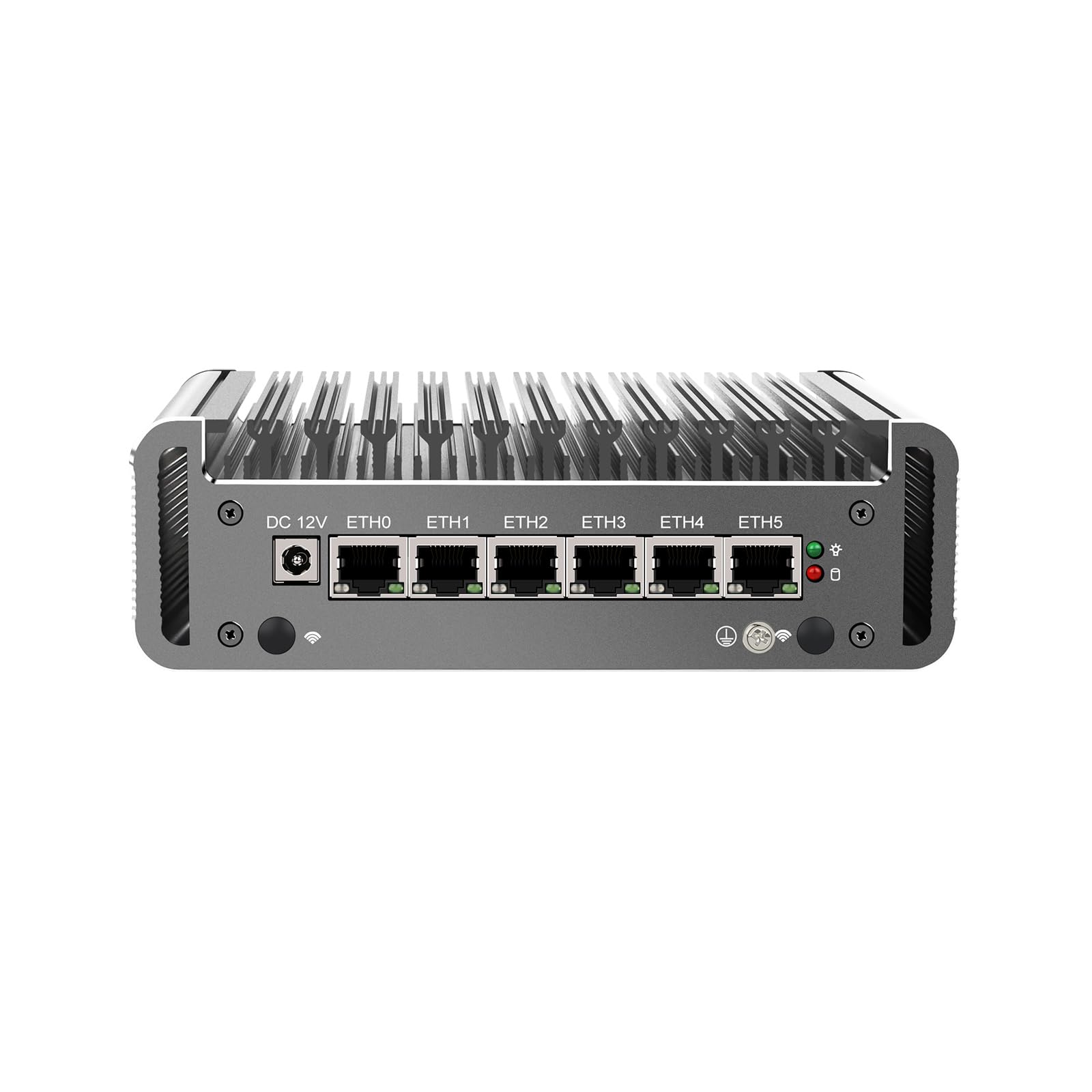
אַ גענעראַל view of the appliance highlights its compact, fanless design, which ensures silent operation and efficient heat dissipation through its aluminum chassis.
5. ספּעסאַפאַקיישאַנז
| שטריך | באַשרייַבונג |
|---|---|
| מאָדעל | HUNSN RJ05f |
| שאַסי מאַטעריאַל | אַלומינום |
| קפּו | Intel Celeron N5105 (Quad-Core, 4M Cache, up to 2.90 GHz) |
| AES-NI Support | יא |
| זכּרון | 2 x SODIMM DDR4 2933 MHz, Max. 32GB |
| סטאָרידזש | 1 x M.2 2280 NVMe, 1 x 2.5 inch SATA SSD/HDD |
| נעץ קאַרד | 6 x Intel 2.5GbE I226-V |
| איך / אָ צובינד | DP, Power ON/OFF, HDMI, 2 x USB 3.0, 2 x USB 2.0, DC_IN, 6 x LAN |
| יקספּאַנשאַן | Mini PCIe slot for WiFi/4G (with SIM slot) |
| מאַכט | DC 100-240V AC/50-60Hz, 12V/5A |
| אַפּערייטינג טעמפּעראַטור | 0 ~ 70°C (32 ~ 140°F) |
| סטאָרידזש טעמפּעראַטור | -20 ~ 80 C (-130 ~ 176 F) |
| קאָרעוו הומידיטי | 10% ~ 90% (ניט-קאַנדענסינג) |
| טדפּ | 10 וו |
| קאָאָלינג סיסטעם | פאָכערלעסס |
| דימענשאַנז | 155 × 126 × 53 מם |
| וואָג | 1.5 קג |
| אַס קאַמפּאַטאַבילאַטי | FreeBSD-based router systems (e.g., pfSense Plus, OPNsense), Linux distributions, Windows OS (UEFI only) |
| פאַנגקשאַנז | Auto Power-On (default enabled), Wake-on-LAN, System Power Management, Temperature Management |
6. סעטאַפּ
6.1 Hardware Installation (Optional)
The RJ05f may require installation of RAM, M.2 NVMe SSD, 2.5-inch SATA SSD/HDD, or a Mini PCIe WiFi/4G module. Follow these general steps:
- צוגרייטן די מיטל: Disconnect the power adapter. Place the device on a clean, static-free surface.
- עפֿנט דעם שאַסי: Carefully remove the screws securing the bottom cover.
- ינסטאַלירן קאַמפּאָונאַנץ:
- באַראַן: Insert DDR4 SODIMM modules into the slots until they click into place.
- M.2 NVMe SSD: Insert the M.2 SSD into its slot and secure it with the provided screw.
- 2.5-inch SATA SSD/HDD: Mount the drive into the designated bay and connect the SATA data and power cables.
- Mini PCIe Module: Insert the WiFi/4G module into the Mini PCIe slot and connect any necessary antenna cables. If installing a 4G module, insert the SIM card into the SIM slot.
- פֿאַרמאַכן דעם שאַסי: Replace the bottom cover and secure it with the screws.
6.2 קאַנעקטינג פּעריפעראַלס
- ווייַז: Connect a monitor to the DP or HDMI port.
- קלאַוויאַטור / מויז: Connect USB keyboard and mouse to the USB ports.
- נעץ: Connect Ethernet cables from your modem/router and to your internal network devices to the 2.5GbE LAN ports (ETH0-ETH5).
- מאַכט: Connect the power adapter to the DC 12V input and plug it into a power outlet.
6.3 מאַכט אויף
Press the power button on the front panel to turn on the device. The power indicator light will illuminate.
7. אפערירן סיסטעם אינסטאַלאַציע
The HUNSN RJ05f does not come with a pre-installed operating system. You will need to install a compatible OS such as pfSense Plus, OPNsense, a Linux distribution, or Windows OS (UEFI only).
- Create Bootable Media: Prepare a USB drive with the desired operating system's installation image.
- צוטריט צו בייאָוס: Power on the device and repeatedly press the DEL or F2 key to enter the BIOS/UEFI setup.
- קאָנפיגורירן שטיוול אָרדער: In the BIOS/UEFI settings, navigate to the Boot menu and set the USB drive as the primary boot device. Save changes and exit.
- אינסטאַלירן אָפּערירן סיסטעם: The device will boot from the USB drive. Follow the on-screen instructions to install your chosen operating system.
- נאָך ינסטאַלירונג: After installation, remove the USB drive and restart the device. Configure your network settings and firewall rules according to your OS documentation.
8. יקערדיק אָפּעראַציע
- מאַכט אויף / אַוועק: Press the front panel power button. For a controlled shutdown, use the operating system's shutdown function.
- בייאָוס סעטטינגס: To access BIOS settings, press DEL or F2 during startup. Here you can configure boot options, system time, and other hardware settings.
- Auto Power-On: The device supports auto power-on (default enabled) which can be configured in the BIOS.
- וועק-אויף-לאן (WoL): This feature allows the device to be powered on remotely via a network signal. Ensure WoL is enabled in the BIOS and configured in your operating system.
9. וישאַלט
- רייניקונג: Use a soft, dry cloth to clean the exterior of the device. Do not use liquid cleaners or aerosols. Ensure the heat fins are free from dust accumulation to maintain optimal cooling performance.
- Firmware דערהייַנטיקונגען: קאָנטראָלירט פּעריִאָדיש דעם פאַבריקאַנט'ס website for BIOS/UEFI firmware updates. Follow the provided instructions carefully when performing updates.
- ווייכווארג דערהייַנטיקונגען: Keep your operating system and installed software up to date to ensure security and performance.
10. טראָובלעשאָאָטינג
- קיין מאַכט: Check the power adapter and power cord connections. Ensure the power outlet is functional.
- קיין ווייַז: Verify that the monitor is connected correctly to the DP or HDMI port and is powered on. Try a different display cable or monitor.
- אפערירן סיסטעם בוט נישט: Check BIOS boot order settings. Ensure the installed OS is compatible and correctly installed.
- נעץ קאָנעקטיוויטי פּראָבלעמען: Verify Ethernet cable connections. Check network adapter drivers and configurations within your operating system.
- איבערהייצונג: Ensure the device is placed in a well-ventilated area and that the heat fins are not obstructed by dust or other objects.
11. וואָראַנטי און שטיצן
Your HUNSN RJ05f Mini Firewall Appliance comes with a warranty. Please refer to the included warranty card for details regarding coverage and duration. For technical support, product inquiries, or warranty claims, please contact your vendor or the manufacturer's official support channels. Keep your purchase receipt as proof of purchase.