
הקדמה
This manual provides detailed instructions for the installation, operation, and maintenance of your EZoneTronics PCD001 Portable Wireless Car Stereo. Please read this manual thoroughly before using the device to ensure proper functionality and to prevent damage.
פּראָדוקט איבערview
שליסל פֿעיִקייטן
- 7-Inch Touchscreen Display: Provides a clear and responsive interface for navigation and media control.
- וויירלעס עפל קארפליי און אנדרויד אויטא: Seamlessly integrates with Apple and Android smartphones for navigation, music, and communication.
- FM טראַנסמיטער: Connects to your vehicle's original radio system via AUX Out or FM Out for audio output.
- פּלוג און שפּיל ינסטאַלירונג: Designed for easy setup without modifying existing car equipment.
- ווערסאַטאַל מאַונטינג אָפּציעס: Can be mounted on the dashboard or windshield using a suction cup holder.
- נאָך פאַנגקשאַנז: Supports Bluetooth connectivity, hands-free calling, voice control (Siri/Google Assistant), video playback, and music streaming.
- מעדיע קאַמפּאַטאַבילאַטי: Supports SD card and USB devices for media playback.
וואָס איז אין די קעסטל
באַשטעטיקן אַז אַלע קאָמפּאָנענטן זענען פאַראַן ביים אויספּאַקן:
- 1 x EZoneTronics PCD001 Portable Wireless Car Stereo Unit
- 1 x Mounting Bracket (for dash or windshield)
- 1 x Car Charger (power adapter)
- 1 x Driving Recorder (if included in your package)
- 1 x SD Card (if included in your package)
- 1 רענטגענ Webcam (if included in your package)
Note: The inclusion of the Driving Recorder, SD Card, and Webcam may vary by package.
סעטאַפּ און ינסטאַלירונג
מאַונטינג די מיטל
The device can be mounted on your car's dashboard or windshield. Choose a location that does not obstruct your view אָדער אַרייַנמישנ זיך מיט פאָרמיטל קאָנטראָלס.
- ריין די ייבערפלאַך: Ensure the chosen mounting surface (dashboard or windshield) is clean and dry.
- צוטשעפּען די סאַקשאַן קאַפּ: Press the suction cup firmly onto the surface and engage the locking mechanism to secure it.
- סטרויערן די ווינקל: Use the adjustable arm and swivel joint to position the screen for optimal viewing. The mount allows for 360-degree rotation and 180-degree angle adjustment.
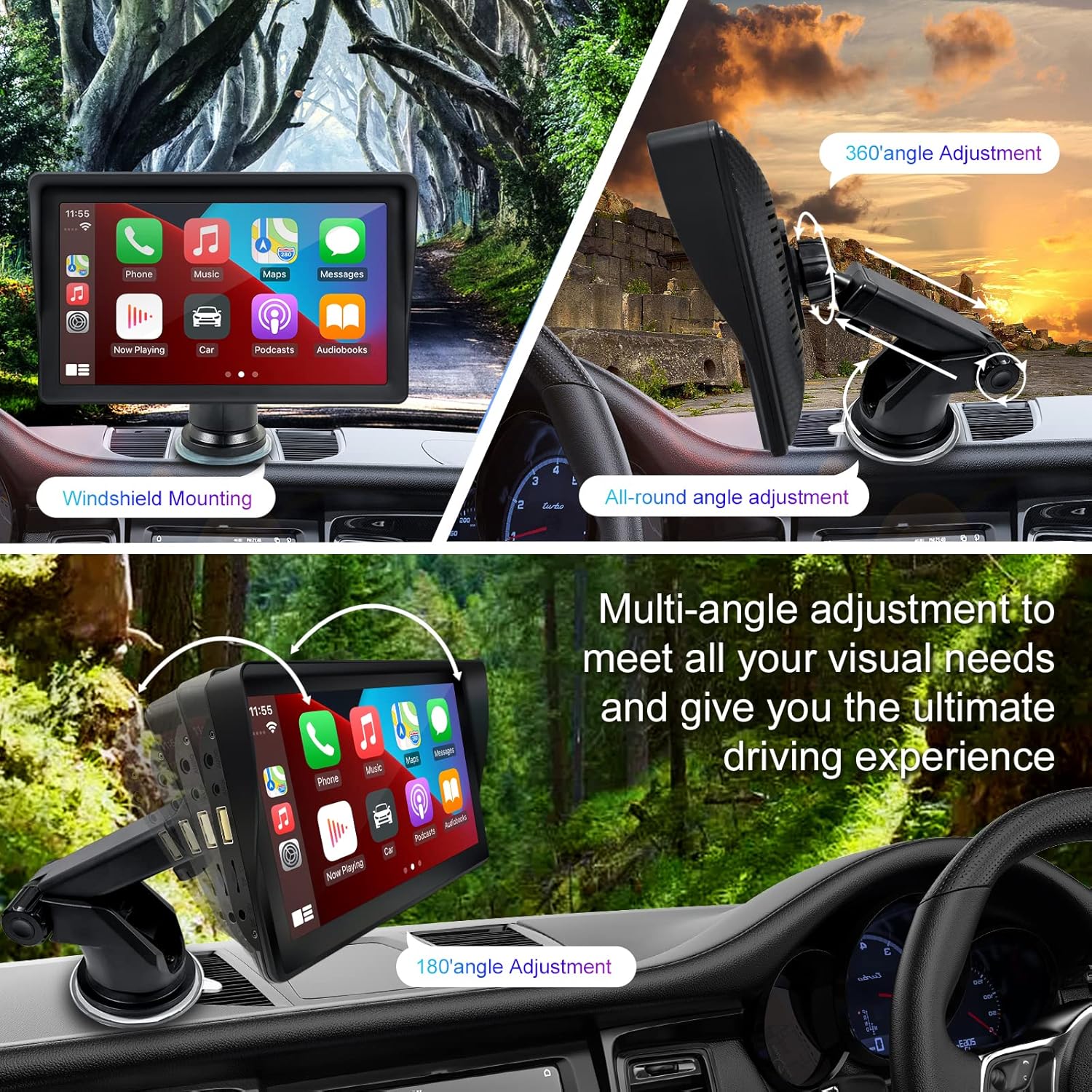
Figure 1: Mounting options and angle adjustments for the portable car stereo.
מאַכט קאַנעקשאַן
Connect the provided car charger to the device's power input port and then into your vehicle's 12V power outlet (cigarette lighter socket). The device supports 12-24V power input.
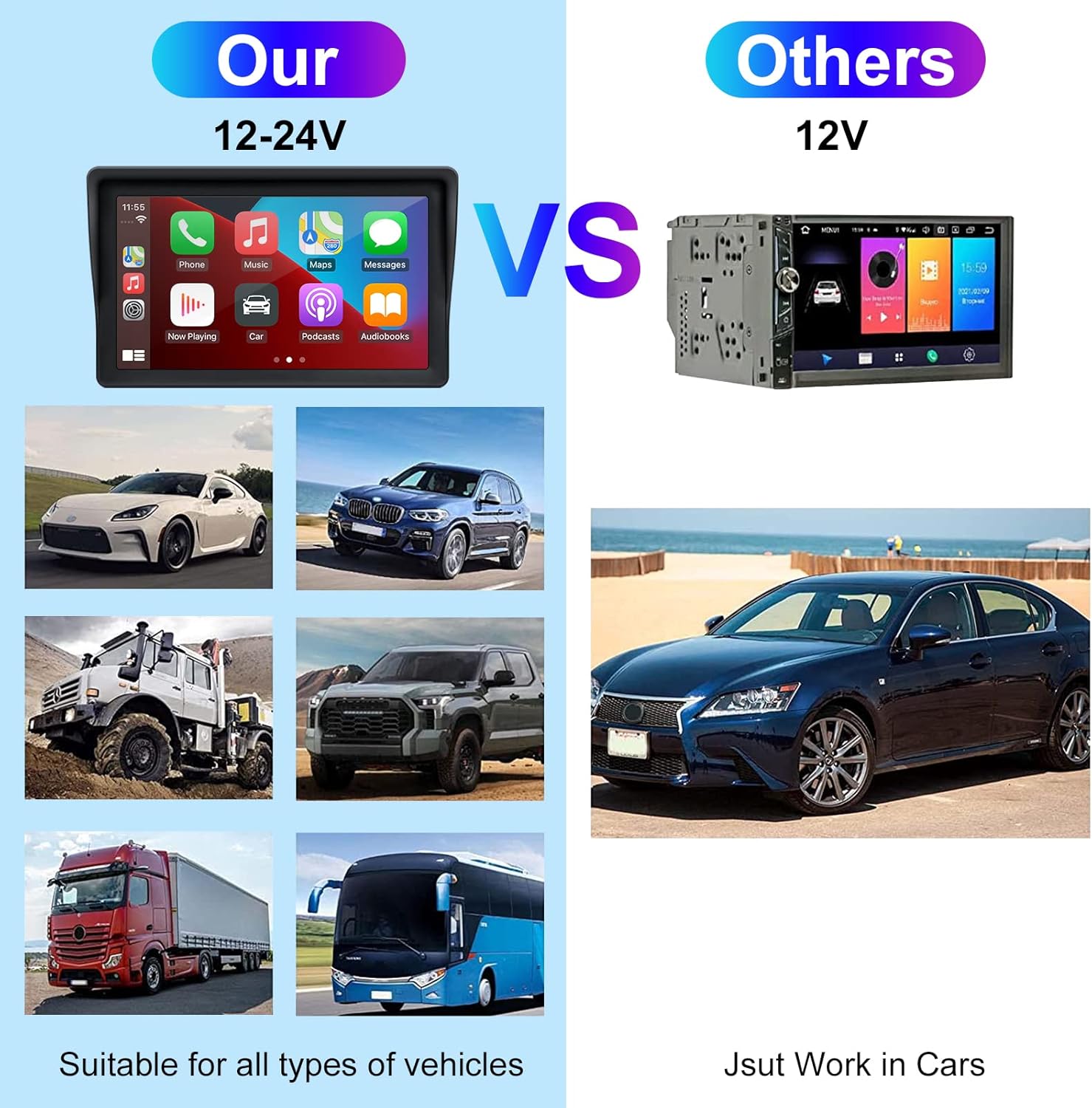
Figure 2: The EZoneTronics unit is compatible with 12-24V vehicle power systems.
אַפּערייטינג ינסטראַקשאַנז
Initial Power On and Interface
Once powered, the device will boot up and display the main interface. This interface provides access to Apple CarPlay, Android Auto, and other functions.

Figure 3: Main interface displaying Apple CarPlay.
Connecting to Apple CarPlay or Android Auto
The device supports wireless connection for both Apple CarPlay and Android Auto.
- אַקטיווירן בלועטוט און וויי-פיי: אויף אייער סמאַרטפאָון, מאַכט זיכער אַז ביידע בלועטוט און Wi-Fi זענען אַקטיוויזירט.
- פּאָר דיווייס: On the car stereo, navigate to the Bluetooth settings and pair with your smartphone.
- אָטאַמאַטיק קשר: Once paired, the device should automatically prompt you to connect to Apple CarPlay or Android Auto. Follow the on-screen instructions on both the car stereo and your phone to complete the setup.
- שפּיגל לינק: For devices not supporting CarPlay or Android Auto, or if you prefer, you can use the Mirror Link function to display your phone's screen on the unit.

Figure 4: Wireless connection for Apple CarPlay and Android Auto.
Audio Output (FM Transmitter / AUX Out)
To output audio from the car stereo to your vehicle's sound system, you have two primary options:
- FM טראַנסמיטער:
- On the EZoneTronics unit, select the FM Transmitter function.
- Choose an unused FM frequency.
- Tune your vehicle's FM radio to the same frequency. Audio from the portable stereo will now play through your car's speakers.
- AUX אויס:
- Connect an AUX cable from the AUX Out port on the EZoneTronics unit to your vehicle's AUX In port.
- Select AUX input on your vehicle's audio system.


Figure 5: FM Transmitter and other core functions.
Voice Control (Siri / Google Assistant)
Once connected to Apple CarPlay or Android Auto, you can activate your smartphone's voice assistant (Siri or Google Assistant) for hands-free control. This allows you to make calls, send messages, get directions, and play music using voice commands.
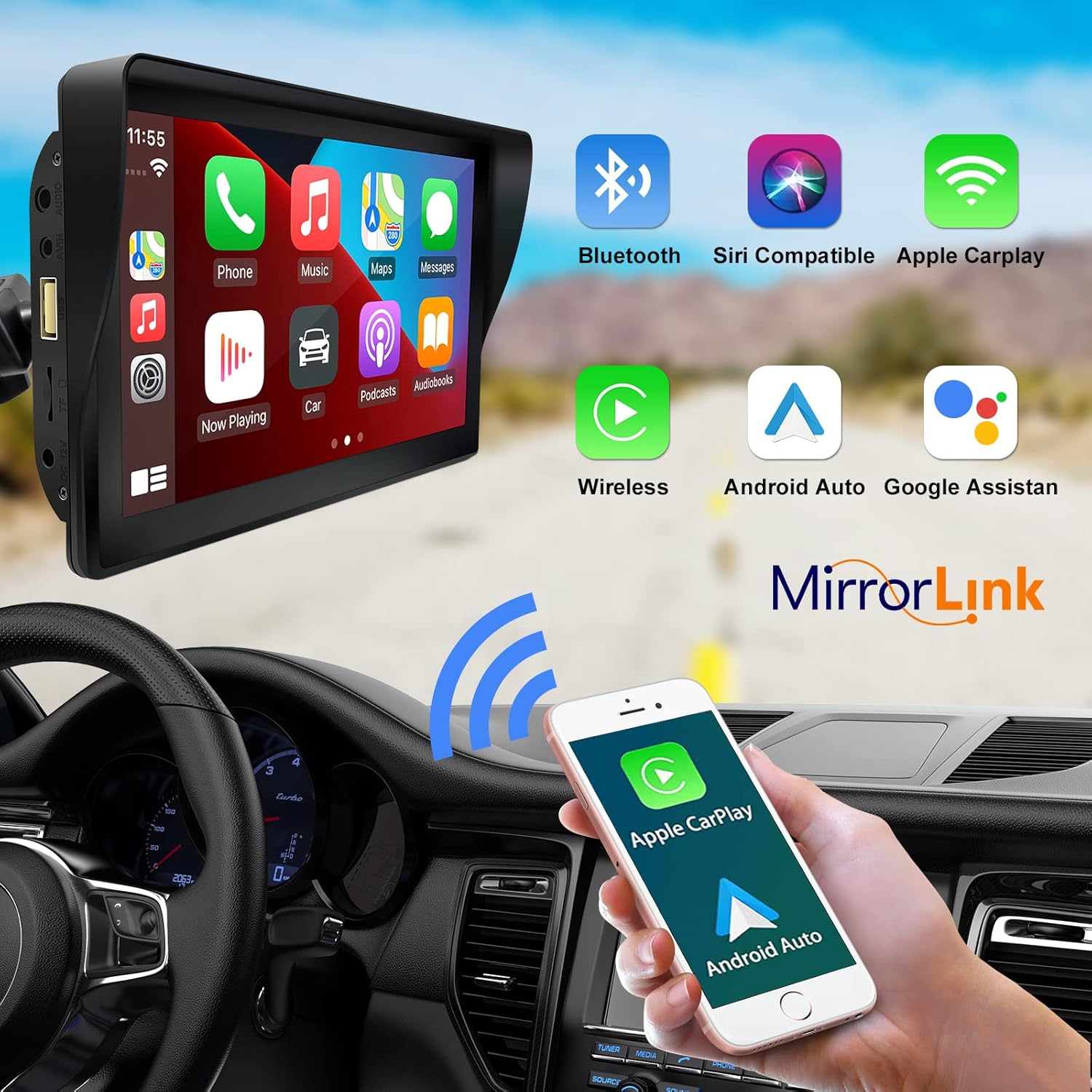
Figure 6: Voice control and connectivity features.
Media Playback (SD Card / USB)
The unit supports media playback from SD cards and USB devices.
- Insert an SD card into the designated slot or a USB drive into the USB port.
- Navigate to the media player application on the car stereo.
- Select the desired audio or video files פֿאַר פּלייבאַק.


Figure 7: USB and SD card media playback options.
טראָובלעשאָאָטינג
If you encounter issues with your EZoneTronics PCD001, refer to the following common problems and solutions:
| פּראָבלעם | מעגלעך סיבה / לייזונג |
|---|---|
| די מיטל טוט נישט מאַכט אויף. |
|
| Cannot connect to Apple CarPlay / Android Auto wirelessly. |
|
| No audio output from car speakers. |
|
| דער טאָוטשסקרין רעאַגירט נישט. |
|
| GPS navigation is inaccurate or not working. |
|
ספּעסאַפאַקיישאַנז
| שטריך | דעטאַל |
|---|---|
| מאָדעל נאָמען | PCD001 |
| סאָרט | EZoneTronics |
| פאַרשטעלן גרייס | 7 אינטשעס |
| ווייַז טיפּ | IPS |
| ריר סקרין טיפּ | קאַפּאַסיטיווע |
| אָפּערייטינג סיסטעם | Android (Internal OS for unit functions, supports CarPlay/Android Auto) |
| קאַנעקטיוויטי טעכנאָלאָגיע | Wireless CarPlay, Wireless Android Auto, Bluetooth, FM Transmitter, AUX Out |
| אַודיאָ רעזולטאַט מאָדע | AUX, Stereo |
| שטיצט סאַטעליט נאַוויגאַציע סיסטעם | GPS (via connected smartphone) |
| מאַונטינג טיפּ | דאַשבאָרד מאָונט, ווינדשילד מאָונט |
| קאַמפּאַטאַבאַל דעוויסעס | Smartphones (Apple iOS and Android) |
| פאָרמיטל סערוויס טיפּ | Car (Universal 12-24V compatibility) |
וישאַלט
Proper maintenance ensures the longevity and optimal performance of your EZoneTronics PCD001.
- רייניקונג די פאַרשטעלן: ניצט אַ ווייכן, לינט-פֿרייע שטאָף צו פֿאָרזיכטיק ווישן דעם עקראַן. פֿאַר שווערע פֿלעקן, אַ ביסל ווישןampווישט דעם שטאָף מיט וואַסער אָדער אַ פאַרשטעלן-זיכער רייניגער. פֿאַרמייַדט שטרענגע כעמיקאַלן אָדער אַברייסיוו מאַטעריאַלן.
- קאַבלע פאַרוואַלטונג: Ensure all cables are neatly routed and secured to prevent entanglement or damage.
- טעמפּעראַטור: Avoid exposing the device to extreme temperatures, both hot and cold, for extended periods.
- ווייכווארג דערהייַנטיקונגען: קאָנטראָלירט פּעריִאָדיש דעם פאַבריקאַנט'ס website or device settings for any available software updates to improve performance and add features.
וואָראַנטי און שטיצן
וואָראַנטי אינפֿאָרמאַציע
The EZoneTronics PCD001 Portable Wireless Car Stereo comes with a איין יאָר וואָראַנטי פֿון דעם קויפֿדאַטום. די וואָראַנטי דעקט פֿאַבריקאַציע חסרונות און מאַלפאַנגקשאַנז אונטער נאָרמאַל נוצן. עס דעקט נישט שעדיקן געפֿירט דורך מיסברויך, אַקסאַדאַנץ, נישט-אָטעריזירטע מאָדיפֿיקאַציעס, אָדער אומריכטיקע ינסטאַלירונג.
ביטע האַלטן דיין דערווייַז פון קויפן פֿאַר וואָראַנטי קליימז.
קונה שטיצן
For technical assistance, warranty claims, or further inquiries, please contact EZoneTronics customer support:
- Webפּלאַץ: www.ezonetronics.com
- בליצפּאָסט: support@ezonetronics.com
When contacting support, please provide your product model (PCD001) and a detailed description of the issue.