
1. הקדמה
This manual provides essential information for setting up, operating, and maintaining your Doro Tablet. Designed for ease of use, the Doro Tablet features a simplified Android interface with large icons and clear sound, making it ideal for users seeking a straightforward digital experience. Please read this manual thoroughly to ensure proper use and to maximize your tablet's potential.

Image: The Doro Tablet displaying its simplified home screen with large icons for common functions like Google, Help, Settings, Assistant, Play Store, Video Call, View, Send, Search, and Camera. The tablet rests on its included wooden stand.
2. אַלגעמיינע סאַפעטי אינפארמאציע
- באַטערי זיכערקייַט: Do not attempt to replace the battery yourself. Use only Doro-approved chargers and cables.
- וואַסער קעגנשטעל: The Doro Tablet is not water-resistant. Avoid exposure to liquids.
- טעמפּעראַטור: Operate the tablet within recommended temperature ranges (0°C to 35°C).
- רייניקונג: ניצט אַ ווייכע, טרוקענע שטאָף פֿאַר רייניקונג. פֿאַרמייַדט שטרענגע כעמיקאַלן.
- געהער שוץ: פֿאַרמײַדט פֿאַרלענגערט הערן אויף הויכע וואָלומען כּדי צו פֿאַרמײַדן שאָדן צו דער הערן.
3. סעטאַפּ
3.1 אויספּאַקן און ערשטע אָפּצאָל
Upon unboxing, ensure all components are present: Doro Tablet, USB-C charging cable, power adapter, and wooden stand. Connect the tablet to the power adapter using the USB-C cable and charge it fully before first use. The battery indicator on the screen will show charging status.
3.2 מאַכט אויף און אַוועק
- צו מאַכט אויף: Press and hold the power button (located on the side) until the Doro logo appears.
- צו מאַכט אַוועק: דריק און האלט דעם מאַכט קנעפּל, און דערנאָך סעלעקטיר 'אויסשלאָגן' פֿון די אָפּציעס אויף דעם עקראַן.
3.3 ערשטע סעטאַפּ וויזאַרד
The first time you power on your tablet, a setup wizard will guide you through essential configurations:
- שפּראַך סעלעקציע: קלייַבן דיין בילכער שפּראַך.
- Wi-Fi קאַנעקשאַן: Select your Wi-Fi network and enter the password. A stable internet connection is required for updates and app downloads.
- גוגל אקאונט: לאָג אַרײַן מיט אײַער גוגל אַקאַונט אָדער שאַפֿט אַ נײַעם. דאָס איז נייטיק צו באַקומען צוטריט צום גוגל פּליי סטאָר און אַנדערע גוגל באַדינונגען.
- Doro Interface Settings: Customize settings for the simplified Doro interface, including text size and icon arrangement.

Image: The Doro Tablet highlighting its user-friendly features, including ease of use, four speakers for clear audio, and an extra bright screen for enhanced readability. Icons indicate adjustable text size, screen brightness, and Bluetooth connectivity.
4. Operating the Doro Tablet
4.1 Simplified User Interface (EVA)
The Doro Tablet features an intuitive EVA user interface with large, clear icons and simplified menus. This design ensures easy navigation and access to core functions.

Image: The Doro Tablet showcasing its 'View' menu, which organizes functions by usage, such as 'My emails', 'My photos and videos', 'My calendar', 'My contacts', 'My notes', and 'My geographical position'. This illustrates Doro's patented, Android-based user interface designed for simplicity.
4.2 יקערדיק נאַוויגאַציע
- צאַפּן: Touch an icon or item once to open or select it.
- לאַקכענען: Slide your finger across the screen to scroll through lists or switch between home screens.
- קניפּ-צו-זומען: ניצט צוויי פינגער צו פארגרעסערן אדער פארקלענערן בילדער אדער web בלעטער.
4.3 קאָמוניקאַציע
The Doro Tablet is equipped for easy communication:
- ווידעא קאַללס: Use the 'Video Call' icon to initiate video calls with friends and family. The tablet's cameras (5MP front, 8MP rear) provide clear video.
- אָנזאָג: Access messaging applications through the 'Send' or 'View' menus to send and receive text messages or emails.
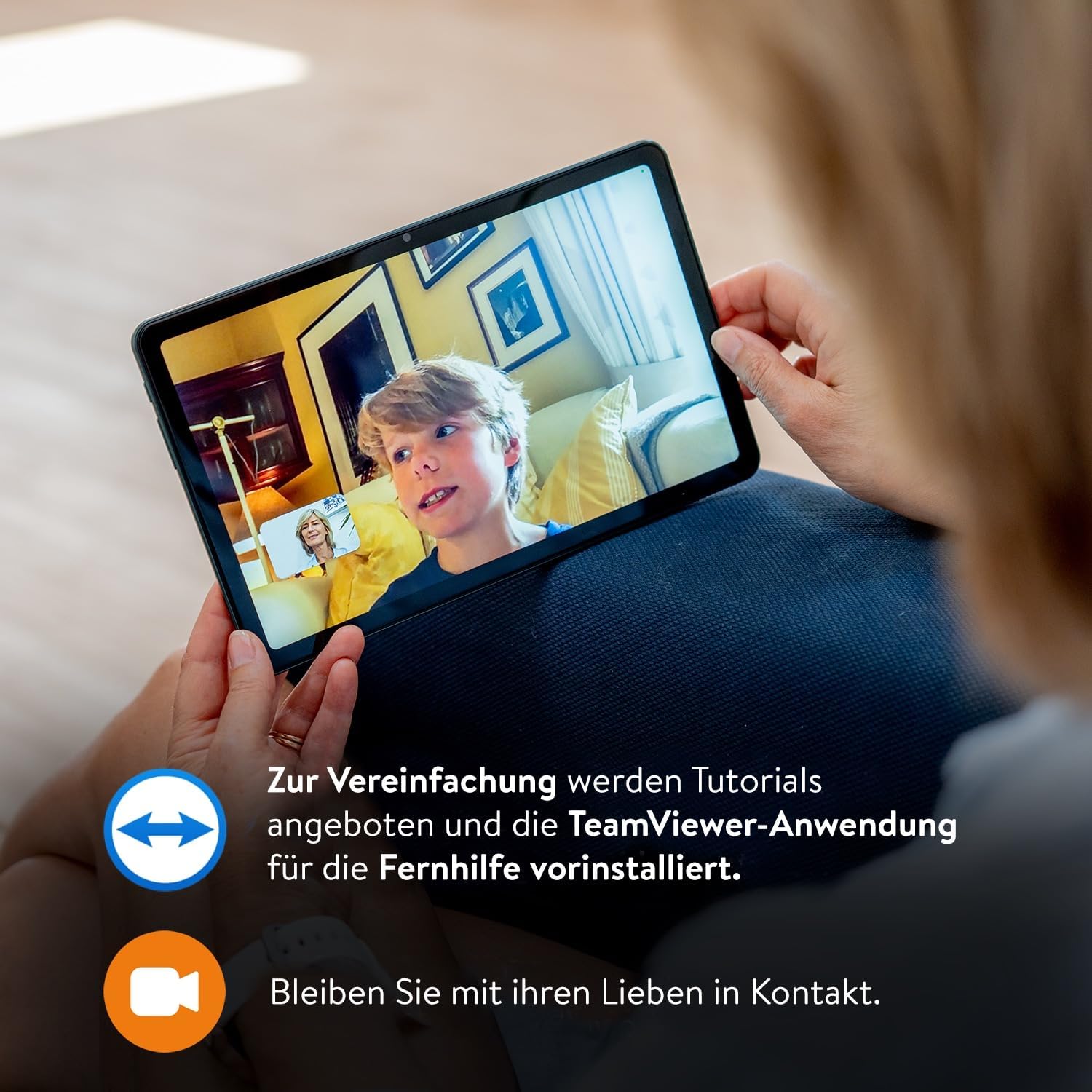
Image: A user engaged in a video call on the Doro Tablet, demonstrating its communication capabilities. The image also notes the availability of tutorials and the pre-installation of TeamViewer for remote assistance, emphasizing connectivity and support.
4.4 Multimedia and Internet
- Viewing Photos & Videos: ניצט די 'View' menu to access your photos and videos. The 10.4-inch HD screen offers a bright and high-contrast display for comfortable viewing.
- קלאָר סאָונד: Enjoy high-quality audio from the tablet's four speakers, perfect for watching videos or making calls.
- אינטערנעט בראַוזינג: The 'Search' icon provides access to internet browsing.

Image: A collage of Doro Tablet features, including its large, bright, and high-contrast screen, pre-installed TeamViewer for remote support, the included wooden stand, the intuitive EVA user interface, and its clear, powerful sound. The 'Search' menu is also depicted, offering options like 'Something on the Internet', 'Around me', and 'An item on my tablet'.
4.5 Using the Wooden Stand
The included wooden stand provides a stable base for your tablet, allowing for hands-free viewing during video calls or media consumption. It features two grooves to accommodate the tablet with or without a protective case.

בילד: א דעטאַלירטע view of the Doro Tablet's wooden stand, designed to hold the tablet securely for hands-free use.
5. וישאַלט
- רייניקונג די פאַרשטעלן: Gently wipe the screen with a microfiber cloth. For stubborn smudges, slightly dampווישט דעם שטאָף מיט וואַסער אָדער אַ פאַרשטעלן רייניגער ספּעציעל דיזיינד פֿאַר עלעקטראָניק.
- באַטערי זאָרגן: To prolong battery life, avoid fully discharging the tablet frequently. Charge it when the battery level is low, and avoid leaving it plugged in for extended periods after it's fully charged.
- ווייכווארג דערהייַנטיקונגען: Periodically check for system updates in the 'Settings' menu to ensure your tablet has the latest features and security patches.
- סטאָרידזש פאַרוואַלטונג: רעגולער אויסמעקן נישט-נייטיקע זאכן files and apps to free up storage space and maintain optimal performance.
6. טראָובלעשאָאָטינג
If you encounter issues with your Doro Tablet, refer to the following common solutions:
| פּראָבלעם | לייזונג |
|---|---|
| די טאַבלעט טוט זיך נישט אָן. | Ensure the tablet is charged. Connect it to the charger for at least 30 minutes, then try powering on again. If it still doesn't turn on, perform a forced restart by holding the power button for 10-15 seconds. |
| די פאַרשטעלן איז ניט ריספּאַנדאַבאַל. | ריסטאַרט די טאַבלעט. אויב די פּראָבלעם בלייבט, זאָרגט אַז דער עקראַן איז ריין און פריי פון שמוץ. |
| קענען ניט פאַרבינדן צו ווי-פי. | Check if Wi-Fi is enabled in 'Settings'. Verify the Wi-Fi password. Restart your Wi-Fi router. |
| דער קלאַנג איז פֿאַרדרייט אָדער צו נידעריק. | Check the volume settings. Ensure the speakers are not obstructed. Restart the tablet. |
| אַפּליקאַציעס זענען פּאַמעלעך אָדער קראַכן. | Close unused applications. Clear app caches in 'Settings' > 'Apps'. Ensure sufficient storage space is available. Restart the tablet. |
7. ספּעסאַפאַקיישאַנז
Below are the technical specifications for the Doro Tablet:
- סאָרט: דאָראָ
- מאָדעל נאָמען: דאָראָ טאַבלעט
- אַפּערייטינג סיסטעם: אַנדרויד
- פאַרשטעלן גרייס: 10.4 אינטשעס
- פאַרשטעלן האַכלאָטע: 1920 x 1200 pixels (1080p Full HD)
- פּראַסעסער סאָרט: יוניסאָק
- פּראַסעסער גיכקייַט: 1.8 גהז
- באַראַן: 4 גיגאבייט
- סטאָרידזש קאַפּאַציטעט: 32 גיגאבייט
- Graphics Chipset Brand: Unisoc (Integrated)
- קאַנעקטיוויטי: Wi-Fi (802.11n), Bluetooth
- ייַזנוואַרג צובינד: HDMI
- קאַמפּאַטאַבאַל פּעריפעראַלס: Stylus Pen, HDMI compatible external screen, Bluetooth keyboard, Bluetooth headset
- דימענשאַנז (L x W x H): 24.6 X 15.6 X 0.8 סענטימעטער
- פּראָדוקט וואָג: 477 גראַמז
- ספּעציעלע פֿעיִקייטן: סטערעאָ ספּיקער
- באַטערי: 1 ליטיום-יאָן (אַרייַנגערעכנט)
8. וואָראַנטי און שטיצן
For detailed warranty information, please refer to the warranty card included with your Doro Tablet or visit the official Doro website. Doro provides support for its products, and you can typically find contact information for customer service on their website. Information regarding spare parts availability and guaranteed software updates is not explicitly provided in the product details and may vary. Please consult Doro's official channels for the most current information.