
1. הקדמה
This manual provides detailed instructions for the setup, operation, and maintenance of your CUPEISI Android 14 Tablet, Model Q2S. Please read this manual thoroughly before using your device to ensure proper functionality and to maximize its lifespan.
The CUPEISI Q2S is a 7-inch tablet featuring the Android 14 operating system, a 1.6GHz Quad-core processor, 8GB RAM (4GB fixed, 4GB virtual), 32GB internal storage expandable up to 1TB, a 1024x600 IPS touch screen, and dual cameras.
2. פּעקל אינהאַלט
באַשטעטיקט אַז אַלע זאכן וואָס זענען ליסטעד אונטן זענען פאַראַן אין אייער פּראָדוקט פּאַקאַדזשינג:
- CUPEISI Android 14 Tablet (Model Q2S)
- טיפּ- C וסב קאַבלע
- באַניצער מאַנואַל (דעם דאָקומענט)
אויב עס פעלט אדער זענען געשעדיגט עפעס, ביטע קאנטאקטירט קאסטומער סופארט.
3. דיווייס איבערview
מאַכט זיך באַקאַנט מיט די גשמיות קאָמפּאָנענטן פון אייער טאַבלעט.
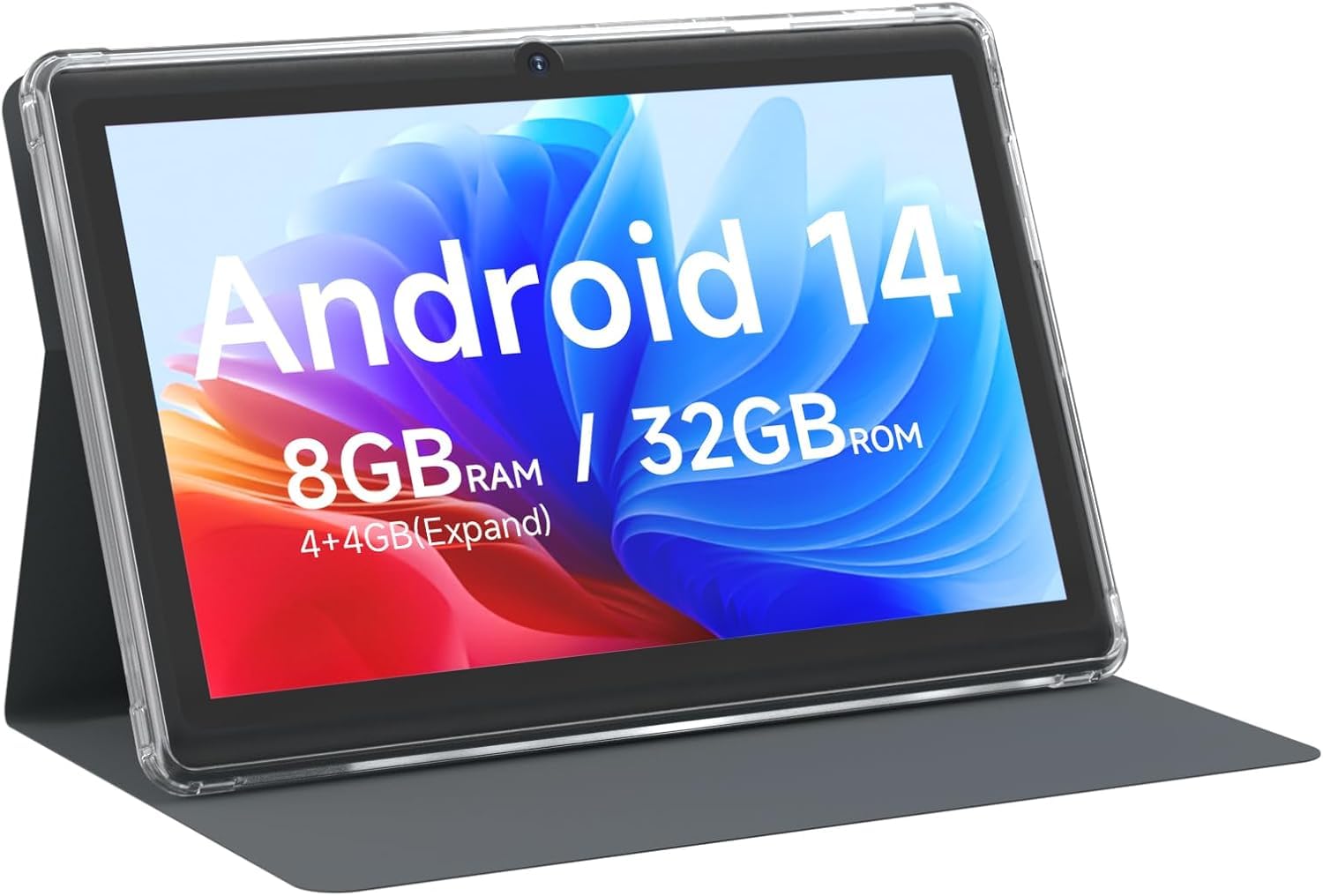
פיגורע 3.1: פראָנט view of the CUPEISI Q2S Tablet, showing the display with various application icons.

פיגורע 3.2: פראָנט און צוריק views of the CUPEISI Q2S Tablet, highlighting its compact design and textured rear panel.

פיגורע 3.3: The 7-inch IPS screen of the CUPEISI Q2S Tablet, showcasinג זײַן אַרויסווײַז קוואַליטעט.
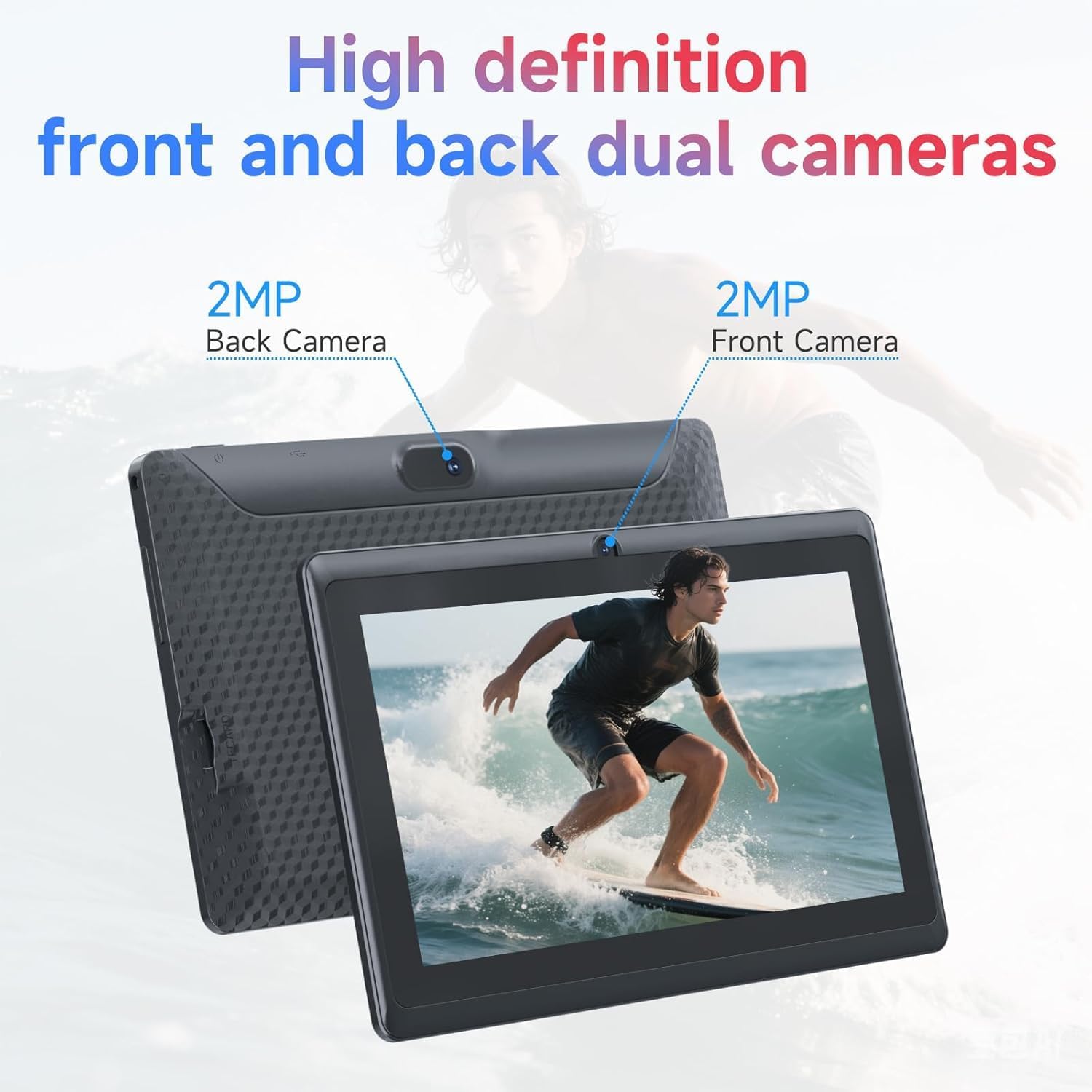
פיגורע 3.4: Illustration of the CUPEISI Q2S Tablet's front and rear camera locations.
3.1 קנעפּלעך און פּאָרץ
- מאַכט קנעפּל: Press and hold to turn the tablet on or off. Press briefly to sleep or wake the screen.
- באַנד קנעפּלעך: סטרויערן די אַודיאָ באַנד.
- וסב טיפּ-C פּאָרט: פֿאַר אָפּלאָדן דעם טאַבלעט און פֿאַרבינדן צו אַ קאָמפּיוטער פֿאַר דאַטן טראַנספֿער.
- מיקראָסד קאָרט שפּעלטל: אַרײַנשטעלן אַ מיקראָSD קאַרטל פֿאַר פֿאַרברייטערטער סטאָרידזש.
- פראָנט אַפּאַראַט: געפינען זיך אויף דער פראָנט בעזעל, גענוצט פֿאַר ווידעאָ רופן און סעלפֿיז.
- דערציען אַפּאַראַט: געפינען זיך אויף דער הינטערשטער פאנעל, גענוצט פארן נעמען בילדער און ווידעאס.
- רעדנער: אַודיאָ רעזולטאַט.
4. סעטאַפּ
4.1 אויפלאָדן די טאַבלעט
Before first use, fully charge the tablet. Connect the provided Type-C USB cable to the tablet's charging port and the other end to a compatible USB power adapter (not included) or a computer's USB port. The battery indicator on the screen will show charging status.
4.2 פּאַוערינג אויף / אַוועק
- צו מאַכט אויף: Press and hold the Power button until the CUPEISI logo appears.
- צו מאַכט אַוועק: דריק און האלט דעם פּאַוער קנעפּל ביז דער פּאַוער אָפּציעס מעניו דערשיינט. סעלעקטיר "אויסלאָשן" און באַשטעטיק.
- צו ריסטאַרט: פֿון די מאַכט אָפּציעס מעניו, סעלעקטירן "ריסטאַרט" און באַשטעטיקן.
4.3 ערשטע סעטאַפּ וויזאַרד
ביים ערשטן מאָל אנצינדן, וועט די טאַבלעט אייך פירן דורך אַן ערשטן סעטאַפּ פּראָצעס:
- שפּראַך סעלעקציע: קלייַבן דיין בילכער שפּראַך.
- Wi-Fi קאַנעקשאַן: Connect to an available Wi-Fi network. This is essential for downloading apps and accessing online services.
- גוגל אקאונט: Sign in with your Google account or create a new one. This allows access to Google Play Store, Gmail, and other Google services.
- טאָג און צייט: שטעלט איין דעם ריכטיקן דאטום און צייט, אדער לאזט דעם נעץ עס אויטאמאטיש שטעלן.
- פאַרשטעלן לאַק: Set up a PIN, pattern, or password for screen security.
5. אַפּערייטינג ינסטרוקטיאָנס
5.1 יקערדיק נאַוויגאַציע
- ריר דזשעסטשערז: צאַפּן צו סעלעקטירן, סווייפּן צו סקראָלן, צוקניפּן צו פארגרעסערן.
- היים פאַרשטעלן: דער צענטראלער צענטער פֿאַר אייערע אַפּפּס און ווידזשעטס.
- אָנזאָג פּאַנעל: סווייפּ אַראָפּ פֿון דער שפּיץ פֿונעם עקראַן צו צוקומען צו נאָטיפיקאַציעס און שנעלע סעטטינגס.
- אַפּ שופלאָד: לאַקכענען אַרויף פֿון די דנאָ פון דעם עקראַן צו view אַלע אינסטאַלירן אַפּלאַקיישאַנז.
5.2 אינסטאַלירן און פאַרוואַלטן אַפּפּס
You can download and install applications from the Google Play Store. The tablet is GMS certified, ensuring compatibility with Google services.
- ינסטאַלירן אַפּפּס: עפענען די שפּיל סטאָר app, search for your desired app, and tap "Install".
- נעם אַוועק אַפּפּס: Press and hold an app icon on the home screen or app drawer, then drag it to "Uninstall" or select the uninstall option. Alternatively, go to סעטטינגס > אַפּפּס > זען אַלע אַפּפּס, select the app, and tap "Uninstall".
6. קאַנעקטיוויטי
6.1 ווי-פי קאַנעקשאַן
צו פאַרבינדן צו אַ Wi-Fi נעץ:
- גיין צו סעטטינגס > נעץ און אינטערנעט > Wi-Fi.
- טוישן Wi-Fi On.
- אויסקלייַבן דיין געוואלט נעץ פון דער רשימה פון בנימצא נעטוואָרקס.
- אַרייַן די פּאַראָל אויב געבעטן און צאַפּן פאַרבינדן.
The tablet supports 2.4G/5G WiFi 6 for faster and more stable connections.
6.2 בלועטאָאָטה פּערינג
To pair with a Bluetooth device (e.g., headphones, speakers):
- גיין צו סעטטינגס> קאָננעקטעד דעוויסעס> קאַנעקשאַן פּרעפֿערענצן> בלועטאָאָטה.
- באַשטימען בלועטאָאָטה On.
- מאַכן זיכער אַז דיין בלועטאָאָטה מיטל איז אין פּערינג מאָדע.
- צאַפּן פאַרבינדן אַ נייַ מיטל און אויסקלייבן אייער דעווייס פון דער ליסטע.
- גיי קיין פּראַמפּס אויף דעם עקראַן צו פאַרענדיקן פּערינג.
7. קאַמעראַ יוז
Your tablet is equipped with a 2MP front camera and a 5MP rear camera.
- עפענען די אַפּאַראַט אַפּ.
- צאַפּן אויף די קאַמעראַ ייקאַן צו באַשטימען צווישן פראָנט און הינטערשטע קאַמעראַס.
- צאַפּן דעם שאַטער קנעפּל צו נעמען אַ פאָטאָ.
- אויסקלייבן ווידעא מאָדע צו רעקאָרדירן ווידיאס.
8. סטאָרידזש מאַנאַגעמענט
The tablet comes with 32GB of internal storage. You can expand this storage up to 1TB using a microSD card.

פיגורע 8.1: Tablet screen illustrating available storage space (8GB RAM, 32GB ROM).
8.1 אריינשטעלן א מיקראָSD קאַרטל
- געפינט דעם microSD קאַרטל שפּעלטל אויף דער זייט פון דער טאַבלעט.
- פֿאָרזיכטיק אַרײַנשטעלן די microSD קאַרטל אין דעם שפּאַלט ביז עס קליקט אַרײַן אין פּלאַץ.
- The tablet will detect the new storage. You may be prompted to format the card for optimal use with the tablet.
8.2 פאַרוואַלטן סטאָרידזש
צו view and manage your storage, go to סעטטינגס> סטאָרידזש. Here you can see how much space is used by apps, photos, videos, and other files, and manage your microSD card.
9. וישאַלט
9.1 רייניקן די טאַבלעט
- ניצט אַ ווייכן, לינט-פֿרייע שטאָף צו רייניקן דעם עקראַן און קערפּער פֿון דער טאַבלעט.
- פֿאַר שווערע פֿלעקן, אַ ביסל דampווישט דעם שטאָף מיט וואַסער אָדער אַ פאַרשטעלן רייניגער דיזיינד פֿאַר עלעקטראָניק.
- פֿאַרמײַדן ניצן שטרענגע כעמיקאַלן, אַברייסיוו רייניגער, אָדער אַעראָסאָל ספּרײַס.
9.2 באַטערי קער
- פֿאַרמײַדט אויסשטעלן די טאַבלעט צו עקסטרעמע טעמפּעראַטורן (הייס אָדער קאַלט).
- לאָזט נישט די באַטאַרייע זיך גאָר אָפט אויסלאָדן. לאָדט עס אויף איידער עס פאַלט אונטער 20%.
- Use only the provided Type-C cable for charging.
9.3 ווייכווארג דערהייַנטיקונגען
Periodically check for software updates to ensure optimal performance and security. Go to סעטטינגס > סיסטעם > סיסטעם דערהייַנטיקונג.
10. טראָובלעשאָאָטינג
די סעקציע באהאנדלט אלגעמיינע פראבלעמען וואס איר קענט באגעגענען מיט אייער טאבלעט.
10.1 Tablet Does Not Turn On
- Ensure the tablet is sufficiently charged. Connect it to a power source and wait a few minutes before attempting to power it on again.
- דריק און האלט דעם פּאַוער קנעפּל פֿאַר לפּחות 10-15 סעקונדעס צו דורכפירן אַ געצוואונגענע ריסטאַרט.
10.2 Slow Performance or Apps Crashing
- נאָענט ומנייטיק הינטערגרונט אַפּלאַקיישאַנז.
- Clear the cache of frequently used apps (סעטטינגס > אַפּפּס > זען אַלע אַפּפּס > [אַפּ נאָמען] > סטאָרידזש און קאַש > ויסמעקן קאַש).
- Ensure you have sufficient free storage space. Uninstall unused apps or move large fileס צו אַ מיקראָסד קאָרט.
- ריסטאַרט די טאַבלעט.
10.3 Wi-Fi פֿאַרבינדונג פּראָבלעמען
- Ensure Wi-Fi is enabled on the tablet (סעטטינגס > נעץ און אינטערנעט > Wi-Fi).
- ריסטאַרט דיין Wi-Fi ראַוטער.
- Forget the network and reconnect (סעטטינגס > נעץ און אינטערנעט > Wi-Fi, tap the network, then פארגעסן).
10.4 באַטעריע ווערט שנעל אויסגעליידיקט
- רעדוצירן פאַרשטעלן ברייטנאַס.
- דיאַקטיווירן Wi-Fi, בלועטוט, און GPS ווען נישט אין באַנוץ.
- Close background apps that consume significant power.
- טשעק באַטאַרייע באַניץ אין סעטטינגס> באַטערי צו אידענטיפיצירן מאַכט-הונגעריקע אַפּפּס.
11. ספּעסאַפאַקיישאַנז
Detailed technical specifications for the CUPEISI Android 14 Tablet Q2S.
| מאָדעל נאָמען | Q8MPRO |
| נומער מאָדעל נומער | ק 2 ס |
| אָפּערייטינג סיסטעם | אַנדרויד 14 |
| פּראַסעסער | 1.6 GHz Quad-core (ARM) |
| באַראַן | 8GB (4GB fixed, 4GB virtual) |
| אינערלעכער סטאָרידזש | 32 גיגאבייט פלאַש זכּרון |
| יקספּאַנדאַבאַל סטאָרידזש | ביז 1TB דורך MicroSD קאַרטל |
| פאַרשטעלן גרייס | 7 אינטשעס |
| פאַרשטעלן האַכלאָטע | 1024 x 600 pixels IPS HD Touch Screen |
| דערציען אַפּאַראַט | 5 מפּ |
| פראָנט אַפּאַראַט | 2 מפּ |
| ווירעלעסס טיפּ | 802.11g (2.4G/5G WiFi 6) |
| בלועטאָאָטה | BT 5.0 |
| דורכשניטלעך באַטאַרייע לעבן | 6 שעה |
| פּונקט וואָג | 13.4 אונסעס |
| פּראָדוקט דימענשאַנז | 7.5 X 0.3 X 4.3 אינטשעס |
12. זיכערקייַט אינפֿאָרמאַציע
- Do not expose the tablet to water or excessive moisture.
- Avoid dropping or subjecting the tablet to severe impacts.
- Do not attempt to disassemble or repair the tablet yourself. This may void the warranty and cause damage.
- Use the tablet in well-ventilated areas.
- Keep the tablet away from strong magnetic fields.
- אַוועקוואַרפן די טאַבלעט און איר באַטאַרייע פאַראַנטוואָרטלעך לויט די לאָקאַלע רעגולאַציעס.
13. וואָראַנטי און שטיצן
For warranty information and customer support, please refer to the documentation provided with your purchase or visit the official CUPEISI website. If you encounter any issues not covered in this manual, please contact CUPEISI customer service for assistance.