
1. פּראָדוקט איבערview
The havit GK59 Gaming Microphone is designed for clear audio capture during gaming, streaming, and voice communication. It features a condenser microphone for high-quality sound and a versatile design for ease of use.

פיגורע 1.1: פראָנט view of the havit GK59 Gaming Microphone, showcasing its main body, stand, and control buttons.
שליסל פֿעיִקייטן:
- גרינג צו נוצן: Simple plug-and-play functionality.
- Good Performance: Delivers clear and consistent audio.
- Good Quality: Durable construction for reliable use.
- פּאָרטאַטיוו פּלאַן: סאָליד און גרינג צו אַריבערפירן.
- אַדזשאַסטאַבאַל שטיין: Allows for flexible positioning.
2. סעטאַפּ אינסטרוקציעס
2.1 פּעקל אינהאַלט
ביטע טשעק די פּאַקעט פֿאַר די פאלגענדע זאכן:
- havit GK59 Gaming Microphone
- וסב קאַנעקשאַן קאַבלע
- באַניצער מאַנואַל (דעם דאָקומענט)
2.2 פֿאַרבינדן דעם מיקראָפֿאָן
The GK59 microphone offers versatile connectivity options for various devices.
- USB קשר: Connect the provided USB cable to the USB-C port on the back of the microphone and the other end to an available USB port on your computer or gaming console. The microphone is plug-and-play and should be automatically recognized by most operating systems.
- 3.5mm Jack Connection: For devices supporting a 3.5mm auxiliary input, connect a 3.5mm audio cable (not included) to the 3.5mm jack on the back of the microphone and to your device's audio input.
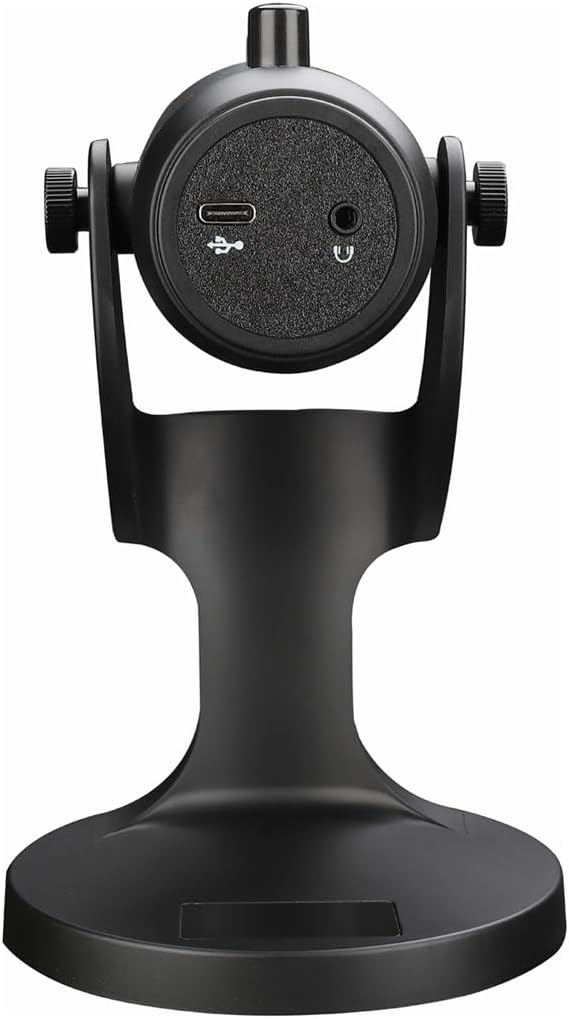
פיגורע 2.1: דערציען view of the havit GK59 Gaming Microphone, highlighting the USB-C port for data and power, and the 3.5mm headphone jack for monitoring.
After connecting, ensure the microphone is selected as the default input device in your system's sound settings or your gaming/streaming software.
3. אַפּערייטינג ינסטרוקטיאָנס
3.1 יקערדיק קאָנטראָלס
The havit GK59 features intuitive controls located on the front of the microphone body:
- שטיל קנעפּל: Press to mute or unmute the microphone. An indicator light will typically show the mute status.
- מיקראָפאָן +/- קנעפּלעך: Adjust the microphone input sensitivity (gain). Press '+' to increase, '-' to decrease.
- VOL +/- קנעפּלעך: Adjust the headphone output volume for monitoring. Press '+' to increase, '-' to decrease.
- עקאָ +/- קנעפּלעך: Adjust the echo effect level. Press '+' to increase, '-' to decrease.
פיגורע 3.1: דעטאַילעד view of the microphone's control panel, including the mute button, microphone gain, volume, and echo adjustment buttons.
3.2 Adjusting Microphone Position
The microphone is equipped with an adjustable stand, allowing you to optimize its position for best sound capture and comfort.
- Gently hold the microphone body and the base of the stand.
- Tilt the microphone forward or backward to achieve the desired angle. The stand's design helps reduce vibration and abnormal sounds during use.
- Position the microphone approximately 6-12 inches (15-30 cm) from your mouth for optimal voice clarity.

Figure 3.2: The havit GK59 microphone demonstrating its adjustable tilt feature on the stand, designed for anti-vibration.
4. וישאַלט
4.1 רייניקונג
To maintain the microphone's performance and appearance:
- Disconnect the microphone from its power source before cleaning.
- ניצט אַ ווייכן, טרוקענעם שטאָף צו ווישן די אויסערלעכע ייבערפלאַכן.
- ניצט נישט פליסיקע רייניגער, אַעראָסאָלן אדער סאָלווענטן, ווײַל די קענען שעדיקן די ענדיקונג אדער אינעווייניקסטע קאָמפּאָנענטן.
4.2 סטאָרידזש
When not in use, store the microphone in a cool, dry place away from direct sunlight and extreme temperatures. Protect it from dust and moisture.
5. טראָובלעשאָאָטינג
If you encounter issues with your havit GK59 Gaming Microphone, please refer to the following table for common problems and solutions:
| פּראָבלעם | מעגלעך סיבה | לייזונג |
|---|---|---|
| No sound input from microphone | מיקראָפאָן איז נישט קאָננעקטעד רעכט אומרעכטע איינגאַבע מיטל אויסגעקליבן מיקראָפאָן מיוטיד | זיכער מאַכן אַז דער USB קאַבל איז זיכער פארבונדן. Check system sound settings and select GK59 as input. דריק דעם "Mute" קנעפּל אויפן מיקראָפאָן צו אויפהערן שטומען. |
| נידעריק מיקראָפאָן באַנד | Microphone gain too low System input volume too low | Press the 'MIC +' button on the microphone. Adjust input volume in your system's sound settings. |
| פארדרייט אדער אומקלאר אודיא | Microphone gain too high Microphone too close to mouth ינווייראַנמענאַל ראַש | Press the 'MIC -' button on the microphone. אַדזשאַסטירן דעם מיקראָפאָן פּאָזיציע (6-12 אינטשעס פֿון מויל). רעדוצירן הינטערגרונט ראַש אין דיין סביבה. |
| No headphone monitoring sound | כעדפאָונז נישט קאָננעקטעד Headphone volume too low | Ensure headphones are plugged into the 3.5mm jack. Press the 'VOL +' button on the microphone. |
6. טעכניש ספּעסאַפאַקיישאַנז
Below are the technical specifications for the havit GK59 Gaming Microphone:
| שטריך | באַשרייַבונג |
|---|---|
| סאָרט | האַוויט |
| מאָדעל נומער | GK59 |
| קאַנעקטיוויטי טעכנאָלאָגיע | USB, 3.5 mm Jack (Auxiliary) |
| רעקאָממענדעד ניצט | גיימינג |
| פּאָליאַר מוסטער | ונידירעקטיאָנאַל |
| מיקראָפאָן פאָרם פאַקטאָר | Handheld (with desktop stand) |
| פּונקט וואָג | 429 גראַמז |
| ימפּידאַנס | 250 אָהמס |
| סיגנאַל-צו-נויז ראַטיאָ | 18 דב |
| אַודיבלע ראַש | 18 דעציבעלן |
| מאַכט מקור | עלעקטריש מיט שנור (דורך USB) |
| קאַמפּאַטאַבאַל דעוויסעס | Gaming Consoles, PCs |
| נומער דימענשאַנז (LxWxH) | 5.59 X 4.92 X 9.06 אינטשעס |
| קאָליר | שוואַרץ |
7. וואָראַנטי און שטיצן
7.1 וואָראַנטי אינפֿאָרמאַציע
The havit GK59 Gaming Microphone comes with a standard manufacturer's warranty. Please refer to the warranty card included in your product packaging or visit the official havit webזייטל פֿאַר דעטאַלירטע וואָראַנטי טערמינען און באדינגונגען.
7.2 קונה שטיצן
For technical assistance, troubleshooting not covered in this manual, or warranty claims, please contact havit customer support through their official channels. You can find more information and contact details on the האַוויט קראָם אויף עמעזאָן אָדער זייער באַאַמטער webפּלאַץ.