
הקדמה
This manual provides essential information for setting up, operating, maintaining, and troubleshooting your CUPEISI 7-inch Android 14 Tablet. Please read this guide thoroughly to ensure proper use and to maximize your tablet's performance and longevity.
וואָס איז אין די קעסטל
באַשטעטיקן אַז אַלע זאכן זענען פאַראַן ביים אויספּאַקן:
- CUPEISI 7-inch Android 14 Tablet
- טיפּ-C קאַבלע
- באַניצער מאַנואַל (דעם דאָקומענט)
פּראָדוקט איבערview
The CUPEISI Q2S tablet features a 7-inch HD IPS display, powered by a 1.6GHz Quad-core processor and running Android 14. It includes 8GB RAM (4GB physical + 4GB virtual) and 32GB internal storage, expandable up to 1TB via microSD card. The tablet is equipped with dual cameras and supports Wi-Fi and Bluetooth connectivity.
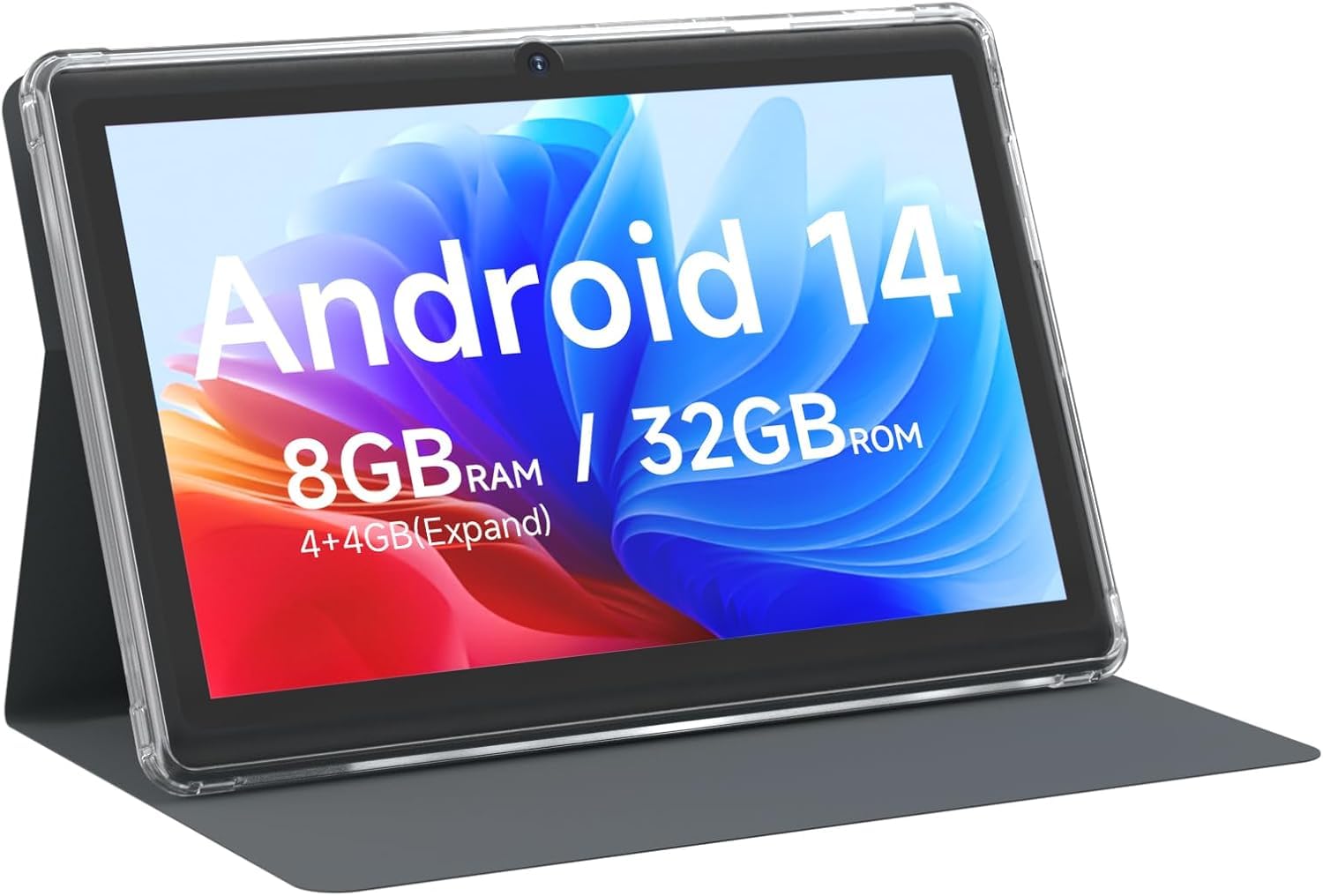
CUPEISI 7-inch Android 14 Tablet, front view.

איבערview of CUPEISI 7-inch Android 14 Tablet features including OS, CPU, RAM, ROM, Screen, Camera, Battery, and WiFi.
סעטאַפּ
1. טשאַרדזשינג די טאַבלעט
Before first use, fully charge the tablet. Connect the provided Type-C cable to the tablet's charging port and the other end to a compatible USB power adapter (not included) or a computer's USB port. The battery indicator on the screen will show charging status.
2. פּאַוערינג אויף און ערשט סעטאַפּ
- דריקן און האַלטן די מאַכט קנעפּל ביז די פאַרשטעלן לייץ.
- Follow the on-screen prompts to select your language, region, and other initial settings.
3. קאַנעקטינג צו ווי-פי
- גיין צו סעטטינגס > נעץ און אינטערנעט > ווי-פי.
- טוישן Wi-Fi On.
- אויסקלייבן אייער געוואונטשענע Wi-Fi נעץ פון דער ליסטע.
- אַרייַן די נעץ פּאַראָל אויב געבעטן, און דאַן צאַפּן פאַרבינדן.
4. Google Account Setup
A Google account is required to download apps from Google Play Store and access Google services. You can sign in with an existing account or create a new one during the initial setup or later via סעטטינגס > אַקאַונץ.
אפערירן דיין טאַבלעט
1. גרונטלעכע נאַוויגאַציע און געשטן
- צאַפּן: אויסקלייבן אַן אייטעם אָדער עפֿענען אַן אַפּ.
- לאַקכענען: סקראָלן דורך סקרינז אדער רשימות.
- קניפּ: פארגרעסערן אדער פארקלענערן בילדער און web בלעטער.
- לאנג פּרעס: צוטריט קאנטעקסטועלע מעניוס אדער באוועג איקאנעס.
2. פאַרוואַלטן אַפּליקאַציעס

Tablet screen showing various application icons, illustrating the 8GB RAM and 32GB ROM storage capacity.
- ינסטאַלירן אַפּפּס: Open the Google Play Store app, search for your desired app, and tap ינסטאַלירן.
- נעם אַוועק אַפּפּס: Long-press an app icon on the home screen or app drawer, then drag it to the נעם אַוועק אָפּציע, אדער גיין צו סעטטינגס > אַפּפּס > select the app > נעם אַוועק.
3. סטאָרידזש מאַנאַגעמענט
The tablet has 32GB of internal storage. You can expand this by inserting a microSD card (up to 1TB) into the designated slot. To manage storage, go to סעטטינגס > סטאָרידזש.
4. ניצן די קאַמעראַ
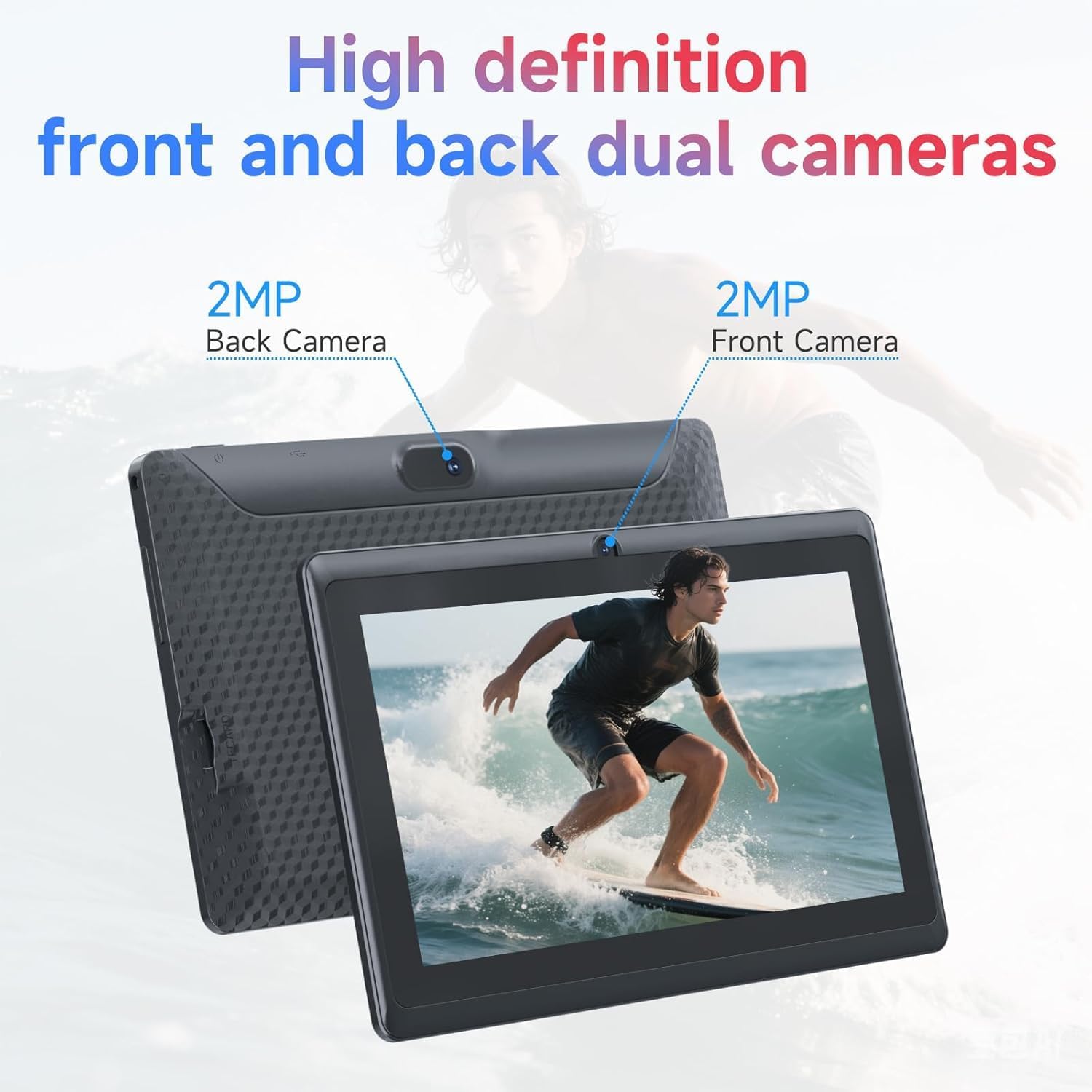
Illustration of the tablet's dual cameras, featuring a 5MP front camera and an 8MP rear camera.
The tablet features a 5MP front camera and an 8MP rear camera. Open the אַפּאַראַט app to take photos or record videos. Tap the camera icon to switch between front and rear cameras.
5. קאָנעקטיוויטי (בלוטוט)
צו פאַרבינדן בלועטאָאָטה דעוויסעס:
- גיין צו סעטטינגס > קאָננעקטעד דעוויסעס > בלועטאָאָטה.
- באַשטימען בלועטאָאָטה On.
- אויסקלייַבן פאַרבינדן אַ נייַ מיטל and choose your device from the list.
6. Eye Protection Mode

The 7-inch IPS HD screen of the tablet displaying a colorful image, highlighting its 1024x600 resolution.
The tablet's display is designed to reduce blue light emission for eye comfort. You can enable or adjust eye protection settings in סעטטינגס > ווייַז.

A user engaged in a video conference on the tablet, demonstrating its suitability for work and study.
וישאַלט
1. רייניקונג און קער
- ניצט אַ ווייכן, לינט-פֿרייע שטאָף צו רייניקן דעם עקראַן און קערפּער פֿון דער טאַבלעט.
- ויסמיידן ניצן האַרב קעמיקאַלז אָדער אַברייסיוו מאַטעריאַלס.
- Keep the tablet away from extreme temperatures, direct sunlight, and moisture.

An image depicting the tablet's drop protection feature, showing it withstands impacts.
2. ווייכווארג דערהייַנטיקונגען
קאָנטראָלירט און אינסטאַלירט רעגלמעסיק ווייכווארג דערהייַנטיקונגען צו ענשור אָפּטימאַל פאָרשטעלונג און זיכערהייט. גייט צו סעטטינגס > סיסטעם > סיסטעם דערהייַנטיקן.
3. באַטעריע אָפּטימיזאַציע
- To prolong battery life, reduce screen brightness, disable Wi-Fi/Bluetooth when not in use, and close background apps.
- פֿאַרמײַדט אָפֿט פֿולשטענדיק אויסצולאָדן די באַטעריע.
טראָובלעשאָאָטינג
| אַרויסגעבן | מעגלעך לייזונג |
|---|---|
| טאַבלעט טוט זיך נישט אָן | Ensure the tablet is charged. Connect to a power source and wait a few minutes before attempting to power on again. |
| ווי-פי קשר ישוז | Check if Wi-Fi is enabled in settings. Restart your router and the tablet. Ensure you have entered the correct password. |
| פּאַמעלעך פאָרשטעלונג | Close unnecessary background applications. Clear cache from apps in Settings > Apps. Consider performing a factory reset if issues persist (back up data first). |
| אַפּפּס קראַשן אָדער פרירן | Update the app to the latest version. Clear the app's cache and data in Settings > Apps. Reinstall the app. |
ספּעסאַפאַקיישאַנז
| סאָרט | CUPEISI |
| מאָדעל נומער | ק 2 ס |
| אָפּערייטינג סיסטעם | אַנדרויד 14 |
| פּראַסעסער | 1.6 GHz Quad-core (ARM Cortex) |
| באַראַן | 8 GB (4GB fixed + 4GB virtual) |
| אינערלעכער סטאָרידזש | 32 גיגאבייט |
| יקספּאַנדאַבאַל סטאָרידזש | ביז 1 טב דורך מיקראָסד קאַרטל |
| פאַרשטעלן גרייס | 7 אינטשעס |
| ווייַז האַכלאָטע | 1024 x 600 Pixels IPS HD |
| פראָנט אַפּאַראַט | 5 מפּ |
| דערציען אַפּאַראַט | 8 מפּ |
| באַטאַרייע קאַפּאַציטעט | 3000 מאַה |
| דורכשניטלעך באַטאַרייע לעבן | 6 שעה |
| קאַנעקטיוויטי | Wi-Fi (802.11g), Bluetooth |
| צובינד | וסב טיפּ-C |
| דימענסיעס (L x B x H) | 7.5" x 4.3" x 0.3" |
| פּונקט וואָג | 0.38 קילאָגראַמס |
וואָראַנטי אינפֿאָרמאַציע
The CUPEISI Q2S Tablet comes with a 1-year limited warranty from the date of purchase. This warranty covers manufacturing defects and workmanship under normal use. It does not cover damage caused by misuse, accidents, unauthorized modifications, or external factors. Please retain your proof of purchase for warranty claims.
קונה שטיצן
For further assistance, technical support, or warranty inquiries, please refer to the contact information provided with your product packaging or visit the official CUPEISI website. When contacting support, please have your tablet model number (Q2S) and proof of purchase ready.