
AMOCAM TF2
AMOCAM TF2 פינגערפּרינט טיר צוטריט קאָנטראָל קיפּאַד סיסטעם באַניצער מאַנואַל
מאָדעל: TF2
1. הקדמה
This manual provides detailed instructions for the installation, operation, and maintenance of your AMOCAM TF2 Metal Fingerprint Door Access Control Keypad System. Please read this manual thoroughly before installation and use to ensure proper functionality and safety.

Image: The AMOCAM TF2 Fingerprint Door Access Control Keypad System, including the keypad unit and five blue ID key fobs.
2. פּראָדוקט פֿעיִקייטן
- Multiple User Capacity: Supports up to 10,000 users with options for fingerprint identification, EM IC ID key cards, and password access.
- Advanced Biometric Fingerprint Sensor: Features semiconductor biometric fingerprint technology for rapid 1-second unlocking.
- דוראַבאַל קאַנסטראַקשאַן: Constructed with strong zinc alloy electroplated technology, epoxy encapsulated for anti-vandal and weatherproof performance (IP68 rated). Suitable for both indoor and outdoor use.
- Flexible Operation Modes: Can function as a standalone keypad or as a card reader.
- ימפּרוווד זיכערהייט: Compatible with all electric locks and includes full programming capabilities directly from the keypad.
- באַניצער באַמערקונגען: Built-in buzzer and Light Dependent Resistor (LDR) provide sound and light feedback for clear operation.
- Backlit Touch Keypad: Touch keypad panel with LED indication and 3-color LEDs to display working status. Backlight ensures visibility in low-light conditions.
- Wiegand צובינד: Supports Wiegand 26/34 input and output for integration with other access control systems.

Image: The AMOCAM TF2 keypad highlighting its IP68 weatherproof rating and backlit keys, shown with water droplets on its surface.
3. פּעקל אינהאַלט
The AMOCAM TF2 system package includes the following items:
- Access Control Keypad Unit
- 5 x ID Key Fobs
- וויירינג טערמינאַל
- באַניצער מאַנואַל
Image: The AMOCAM TF2 Fingerprint Door Access Control Keypad System, including the keypad unit and five blue ID key fobs.
4. ספּעסאַפאַקיישאַנז
| שטריך | דעטאַל |
|---|---|
| סאָרט | AMOCAM |
| מאָדעל נומער | TF2 |
| לאַק טיפּ | ביאָמעטרישע, קלאַוויאַטור |
| דימענסיעס (L X W X H) | 5.3 X 1.8 X 0.9 אינטשעס (135 מם X 47 מם X 23 מם) |
| מאַטעריאַל | מעטאַל, צינק |
| רעקאַמענדיד נוצן | דרינענדיק / דרויסנדיק |
| באַניצער קאַפּאַסיטי | 10,000 |
| Wiegand צובינד | WG26/34 Input and Output |
| קאָנטראָל מעטאָד | ריר |
| פּונקט וואָג | 15.5 אונס (0.44 קילאָגראַמס) |
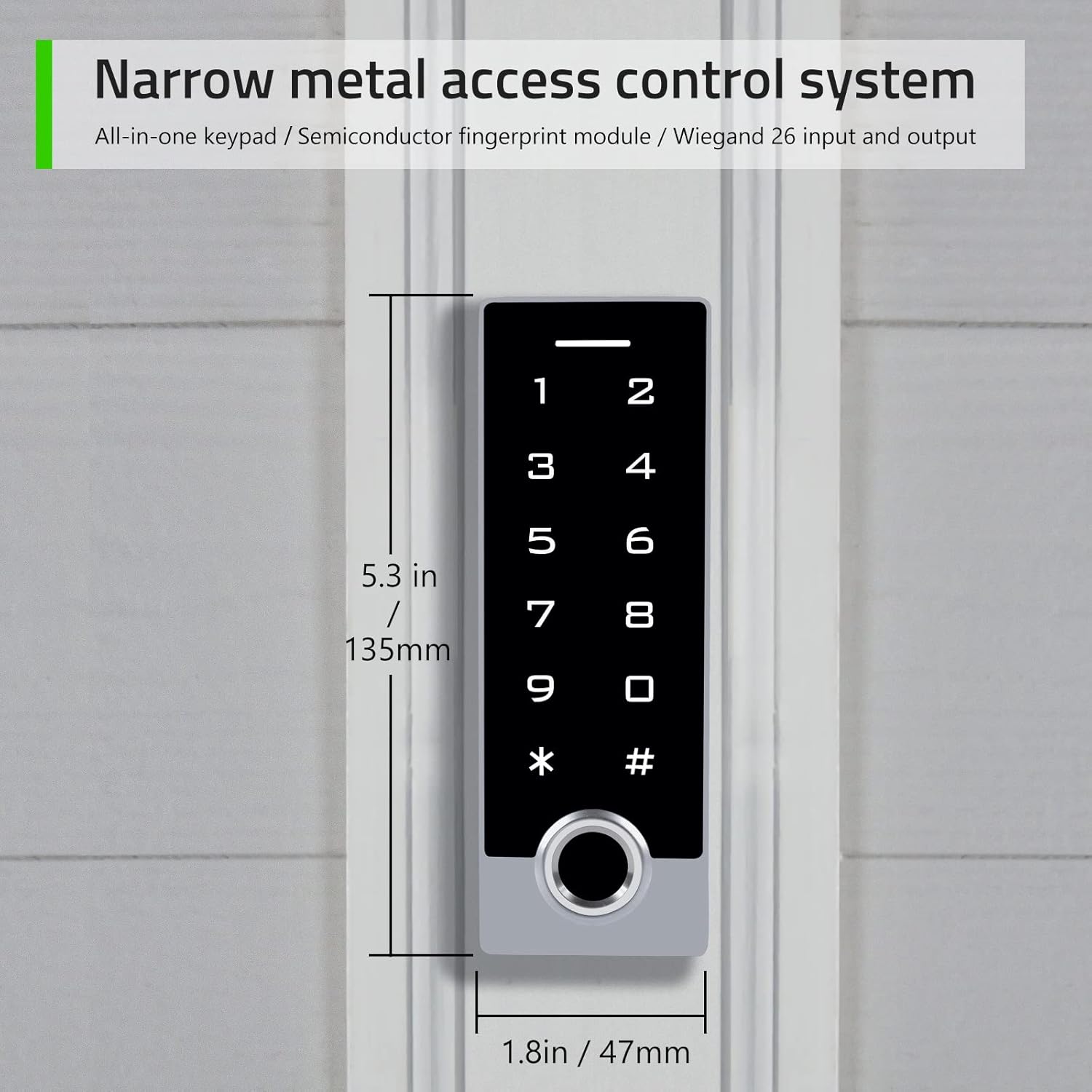
Image: The AMOCAM TF2 keypad showing its narrow shell design and dimensions (5.3 inches in length, 1.8 inches in width).
5. אויפשטעלן און אינסטאַלירן
Proper installation is crucial for the optimal performance and security of your access control system. It is recommended to consult a professional for complex wiring setups.
5.1 וויירינג דיאַגראַמע
Refer to the following diagrams for connecting the AMOCAM TF2 keypad to your access control system or garage/sliding door opener.

Image: Detailed wiring diagrams for connecting the AMOCAM TF2 keypad to a power supply control, exit button, and various lock types (NC Magnetic Lock, NO Strike Lock), as well as to a garage/sliding door opener.
5.2 מאַונטינג
The keypad is designed for both indoor and outdoor use. Ensure the mounting surface is flat and secure. Use appropriate screws and anchors for your wall type. The anti-prying hexagonal star screw provides additional security.
6. אַפּערייטינג ינסטרוקטיאָנס
The default administrator code is "999999". Always change this code immediately after initial setup for security purposes.
6.1 צולייגן באַניצער פינגערפּרינץ
Follow these steps to add a new user fingerprint to the system:
- Ensure the indicator red light is on (standby status).
- דרוק *Admin code # (Default admin code is "999999"). The red light will flash, indicating entry into administrator mode.
- דרוק 11 (Menu code for adding fingerprints).
- Place the user's finger on the fingerprint sensor. Lift and place again (typically twice for successful capture).
- דרוק # צו באַשטעטיקן.
- דרוק * to exit administrator mode.
6.2 Adding User Passcodes
To add a new user passcode (4 to 6 digits) to the system:
- Ensure the indicator red light is on (standby status).
- דרוק *Admin code # (Default admin code is "999999"). The red light will flash, indicating entry into administrator mode.
- דרוק 11 (Menu code for adding user codes).
- Enter a 1 to 4 digit independent user ID (e.g., 35), then press #.
- Enter a 4 to 6 digit user passcode (e.g., 2468), then press #.
- דרוק * twice to exit administrator mode.
6.3 Adding ID Cards (Key Fobs)
To add new ID cards or key fobs to the system:
- Ensure the indicator red light is on (standby status).
- דרוק *Admin code # (Default admin code is "999999"). The red light will flash, indicating entry into administrator mode.
- דרוק 11 (Menu code for adding cards).
- Present each ID card/key fob to the keypad's reader. Cards can be added continuously.
- דרוק # to end card reading.
- דרוק * to exit administrator mode.
6.4 אַנלאַקינג די טיר
The AMOCAM TF2 offers multiple methods for unlocking the door:
- פינגערפּרינט: שטעלן אַ רעגיסטרירט פינגער אויף די פינגערפּרינט סענסער.
- שפּריכוואָרט: Enter a registered user passcode followed by #.
- ID Card/Key Fob: Present a registered ID card or key fob to the keypad's reader.
- אַרויסגאַנג קנעפּל: Press the connected exit button from inside the premises.
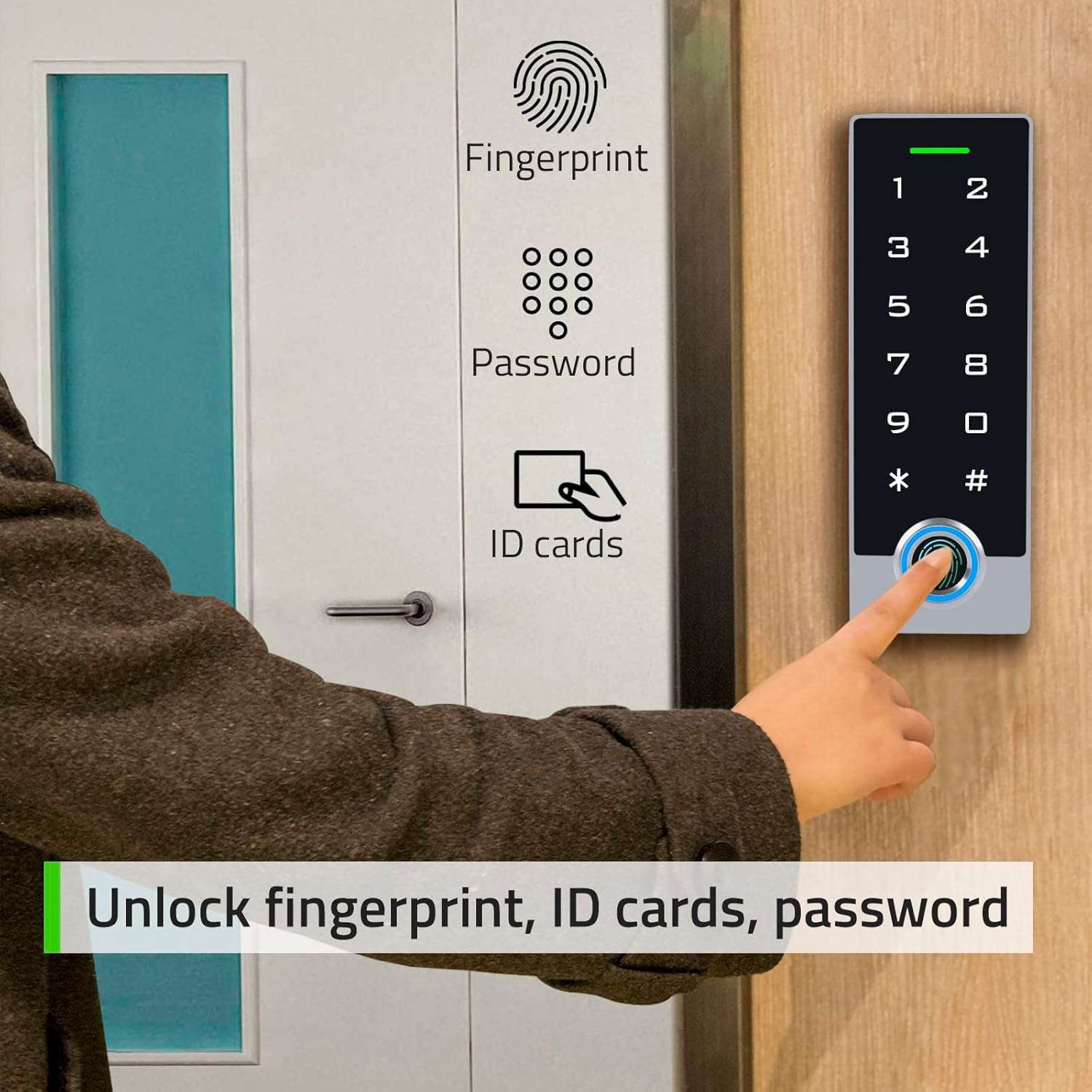
Image: A person using the AMOCAM TF2 keypad to unlock a door via fingerprint, with icons indicating fingerprint, password, and ID card unlock options.
6.4.1 Fingerprint Unlock Demonstration
6.4.2 Exit Button Unlock Demonstration
7. וישאַלט
- רייניקונג: Use a soft, dry cloth to clean the keypad surface. Avoid abrasive cleaners or solvents that may damage the finish or electronic components.
- סענסאָר זאָרגן: Keep the fingerprint sensor clean and free of dirt or moisture to ensure accurate readings.
- רעגולער טשעקס: קאָנטראָלירט פּעריִאָדיש אַלע וויירינג פֿאַרבינדונגען צו זיכער מאַכן אַז זיי זענען זיכער און פֿרײַ פֿון קעראָוזשאַן.
- Firmware דערהייַנטיקונגען: קוק די פאַבריקאַנט ס webזייטל פֿאַר אַלע בנימצא פירמווער דערהייַנטיקונגען צו ענשור אָפּטימאַל פאָרשטעלונג און זיכערהייט.
8. טראָובלעשאָאָטינג
| פּראָבלעם | מעגלעך סיבה | לייזונג |
|---|---|---|
| קיפּאַד ריספּאַנד נישט | קיין מאַכט, פרייַ פֿאַרבינדונג, אָדער סיסטעם טעות. | Check power supply and wiring. Restart the system by disconnecting and reconnecting power. |
| פינגערפּרינט ניט דערקענט | Dirty sensor, incorrect finger placement, or unregistered fingerprint. | Clean the sensor. Ensure proper finger placement. Re-register fingerprint if necessary. |
| Passcode not working | Incorrect passcode, unregistered passcode. | Verify the passcode. Ensure the passcode is correctly registered. |
| ID card not working | Unregistered card, card damage. | Ensure the card is registered. Try another card. Re-register the card if needed. |
| טיר עפֿנט זיך נישט אויף | Lock malfunction, wiring issue, insufficient power. | Check the lock mechanism and wiring. Ensure adequate power supply to the lock. |
9. וואָראַנטי און שטיצן
AMOCAM products are designed for reliability and performance. For warranty information, technical support, or service inquiries, please refer to the official AMOCAM webזייטל אדער קאנטאקטירט קאסטומער סערוויס גלייך. האלט אייער קויף קוויטל פאר גאראנטיע טענות.
פֿאַר ווייַטער הילף, באַזוכן די AMOCAM Store on Amazon.
Ask a question about this manual
Ask about setup, troubleshooting, compatibility, parts, safety, or missing instructions. Manuals+ will review the question and use this page’s manual context to help answer it.