
1. הקדמה
The Metronic Touchbox HD4 is a digital satellite decoder designed to receive free-to-air (FTA) satellite channels in HD. It offers features such as USB recording, Time Shift functionality, and multimedia playback. This device is not compatible with TNTSAT or FRANSAT encrypted channels.

Image 1.1: Metronic Touchbox HD4 Digital Satellite Decoder, front-angled view.
2. סעטאַפּ
2.1 אַנפּאַקינג
נעמט פֿאָרזיכטיק אַרויס אַלע קאָמפּאָנענטן פֿון דער פּאַקעט. מאַכט זיכער אַז די פֿאָלגנדיקע זאַכן זענען פֿאַראַן:
- Metronic Touchbox HD4 Decoder
- ווייַט קאָנטראָל
- מאַכט אַדאַפּטער
- באַניצער מאַנואַל (דעם דאָקומענט)
2.2 קאַנעקשאַנז
Before connecting, ensure all devices are powered off. Refer to the diagram below for port identification.
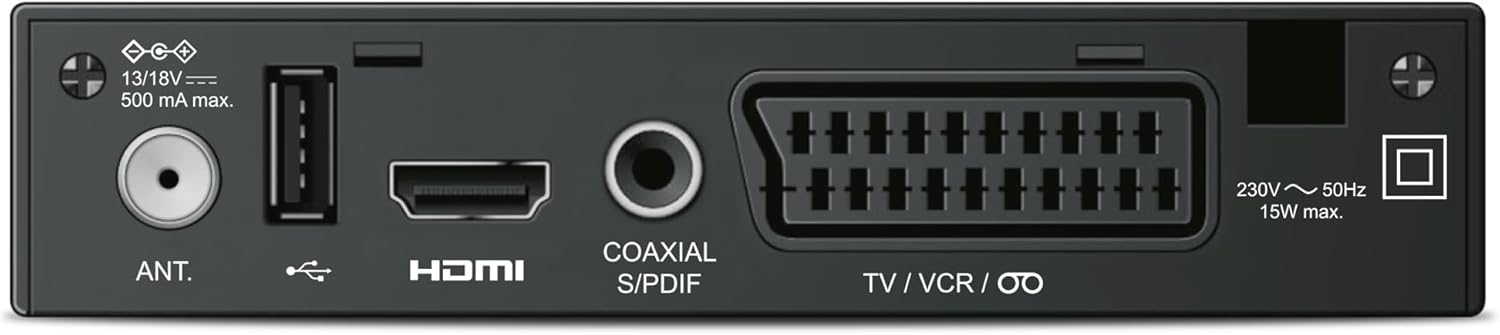
Image 2.1: Rear panel connections including Antenna In, USB, HDMI, Coaxial S/PDIF, and SCART (TV/VCR).
- Satellite Antenna Connection: Connect your satellite dish cable to the "ANT." input port on the rear of the decoder.
- HDMI קשר: Use an HDMI cable to connect the "HDMI" output port on the decoder to an HDMI input on your television.
- מאַכט קשר: Connect the power adapter to the decoder's power input and then plug it into a wall outlet.
- USB מיטל (אפציאנאל): For recording or media playback, connect a USB flash drive or external hard drive to the USB port on the front or rear of the decoder.
2.3 First Time Setup and Channel Scan
After connecting all cables, power on your television and select the correct HDMI input. Then, power on the Metronic Touchbox HD4. The device will likely guide you through an initial setup wizard. Follow the on-screen prompts to:
- אויסקלייַבן דיין בילכער שפּראַך.
- Configure satellite settings (LNB type, frequency, etc. - consult your satellite dish installer if unsure).
- Perform an automatic channel scan to find available free-to-air satellite channels. This process may take several minutes.
Once the scan is complete, the decoder will display the first available channel.
3. אַפּערייטינג ינסטרוקטיאָנס
This section details the primary functions of your Metronic Touchbox HD4 decoder using the remote control.

Image 3.1: Metronic Touchbox HD4 decoder with its dedicated remote control.
3.1 יקערדיק אָפּעראַציע
- מאַכט אויף / אַוועק: דרוק די מאַכט button on the remote control or the front panel.
- קאַנאַל סעלעקציע: ניצן די טש+ / טש- buttons to navigate channels sequentially, or enter the channel number directly using the numeric keypad.
- באַנד קאָנטראָל: ניצן די VOL + / VOL- קנעפּלעך צו סטרויערן די אַודיאָ באַנד.
- מעניו אַקסעס: דרוק די MENU button to access the main settings and features. Use arrow keys to navigate and OK צו באַשטעטיקן.
- עלעקטראָניש פּראָגראַם גייד (EPG): דרוק די EPG קנעפּל צו view פּראָגראַם סקעדזשולז.
3.2 Recording (PVR Function)
To record programs, a USB storage device (flash drive or external hard drive, not included) must be connected to the decoder's USB port.

Image 3.2: Connecting a USB storage device to the front USB port for recording and media playback.
- אינסטאַנט רעקאָרדינג: בשעת איר קוקט אויף א פראגראם, דריקט דעם REC button on the remote control to start recording. Press האַלטן צו ענדיקן די רעקאָרדינג.
- Scheduled Recording (Timer): Access the EPG or the Timer menu to schedule recordings for future programs. Set the start time, end time, and channel.
- רעקאָרדעד files are typically saved in MKV or MP4 format and can be played back on the decoder or on a PC/Mac using compatible software (e.g., VLC).
3.3 Time Shift Function
The Time Shift function allows you to pause live television and resume watching later. A USB storage device must be connected for this feature.
- בשעת איר קוקט אויף לעבעדיגע טעלעוויזיע, דריקט דעם פּויזע button. The program will pause, and the decoder will begin recording to the USB device.
- דרוק שפּיל to resume watching from where you left off.
- איר קענען נוצן FFW (שנעל פאָרווערטס) און REW (Rewind) to navigate within the buffered content.
- דרוק האַלטן to exit Time Shift mode and return to live TV.
3.4 מולטימעדיאַ ווידערשפּיל
The USB port also supports playback of multimedia files (videos, photos, music) stored on a USB device.
- פאַרבינדן דיין וסב מיטל.
- Access the "Media" or "USB" menu from the main menu.
- בלעטער דיין files און אויסקלייבן דעם געוואונטשענעם אינהאַלט פֿאַר ווידערשפּיל.
3.5 Subtitling (DVB)
If a broadcast offers DVB subtitles, you can enable them through the decoder's menu or a dedicated subtitle button on the remote (if available).
4. וישאַלט
4.1 רייניקונג
To clean the decoder, disconnect it from the power supply. Use a soft, dry cloth to wipe the exterior. Do not use liquid cleaners or abrasive materials.
4.2 ווייכווארג דערהייַנטיקונגען
קאָנטראָלירט פּעריִאָדיש דעם פאַבריקאַנט'ס webפּלאַץ (www.metronic.com) for any available software updates. Follow the instructions provided with the update file carefully to avoid damaging the device.
5. טראָובלעשאָאָטינג
If you encounter issues with your Metronic Touchbox HD4, refer to the following common problems and solutions:
| פּראָבלעם | מעגלעך סיבה | לייזונג |
|---|---|---|
| קיין בילד אָדער געזונט | Incorrect HDMI input selected on TV, loose cable connections, decoder not powered on. | Check TV input, ensure all cables are securely connected, verify decoder power. |
| "קיין סיגנאַל" מעסעדזש | Satellite dish misalignment, antenna cable issue, incorrect satellite settings. | Check antenna cable connection, verify satellite settings in the menu, consider professional satellite dish alignment. |
| קען נישט רעקאָרדירן צו USB | USB device not connected, insufficient storage space, incompatible USB format. | Ensure USB device is connected and recognized, check available space, format USB device to a compatible file system (e.g., FAT32, NTFS). |
| Cannot receive TNTSAT/FRANSAT channels | The decoder is not designed for these encrypted services. | This decoder only receives free-to-air satellite channels and does not support TNTSAT or FRANSAT. No solution for this specific decoder. |
6. ספּעסאַפאַקיישאַנז
Below are the technical specifications for the Metronic Touchbox HD4 decoder:
- מאָדעל: Touchbox HD4
- סאָרט: מעטראָניק
- קאָליר: שוואַרץ
- רעזאלוציע: HD 1080p (Supports 576i/p, 720i/p, 1080i/p)
- טונער: 950-2150 מהז
- דעמאָדולאַטאָר: Standard DVB-S / DVB-S2
- וסב פּאָרץ: 1 (configurable front or rear)
- קאַנעקטיוויטי: HDMI, SCART (Péritel), USB, Coaxial S/PDIF
- אַודיאָ רעזולטאַט מאָדע: סטערעאָ
- שטיצט אַודיאָ פֿאָרמאַט: PCM
- Container Formats (Recording/Playback): MKV / MP4
- פֿעיִקייטן: Time Shift, USB Recording, EPG, DVB Subtitling, Timer Programming
- דימענשאַנז (L x W x H): 14.3 סענטימעטער X 8 סענטימעטער X 3.2 סענטימעטער
- מאַכט קאַנסאַמשאַן: מאַקסימום 15 וו
- אָריגין: כינע

Image 6.1: Physical dimensions of the Metronic Touchbox HD4 decoder.
7. וואָראַנטי און שטיצן
7.1 וואָראַנטי אינפֿאָרמאַציע
This product comes with a standard manufacturer's warranty. Please refer to the warranty card included in your product packaging or visit the official Metronic webזייטל פֿאַר דעטאַלירטע תּנאים און באַדינגונגען. האַלט דיין קויף באַווייַז פֿאַר וואָראַנטי קליימז.
7.2 קונה שטיצן
For technical assistance, troubleshooting beyond this manual, or service inquiries, please contact Metronic customer support. Contact details can typically be found on the manufacturer's webוועבזייטל אדער אויף דער פּראָדוקט פּאַקאַדזשינג.
Metronic Official Webפּלאַץ: www.metronic.com