
1. הקדמה
The AZDOME M300 is a compact, monitor-less dash cam designed for easy installation and discreet operation. It features 1296P high-resolution recording, WiFi connectivity for smartphone control, and a super capacitor for enhanced durability and safety across a wide temperature range. This manual provides detailed instructions for installation, operation, and maintenance to ensure optimal performance of your device.

Figure 1: AZDOME M300 Dash Cam Overview
2. שליסל פֿעיִקייטן
- 1296P High-Resolution Recording: כאַפּט קלאָרע פֿוסtage of license plates and road signs.
- WiFi קאַנעקטיוויטי: Connects to your smartphone via the dedicated AZDOME app for viewing, playback, downloading, and managing recordings.
- סופּער קאַפּאַסיטער: Replaces traditional batteries for improved safety, rapid charging, and reliable operation in extreme temperatures (-20°C to 70°C).
- ג-סענסאָר: Automatically detects impacts and locks the current recording file to prevent overwriting, preserving critical accident evidence.
- שלייף רעקאָרדינג: Continuously records by overwriting the oldest fileווען די זכּרון קאַרטל איז פול, וואָס גאַראַנטירט אַן אומגעשטערטע רעקאָרדינג.
- 24-שעה פּאַרקינג מאָניטאָרינג: Provides surveillance when your vehicle is parked (requires a separately purchased hardwire kit).
- ברייט דינאַמיש קייט (WDR): Enhances video quality in varying light conditions, ensuring clear images in both bright and dark areas.
- נאַכט זעאונג: Equipped with an F1.8 aperture 6-layer lens for clear recording in low-light conditions.
- Compact and Discreet Design: Monitor-less design minimizes obstruction to the driver's view and is inconspicuous in the vehicle.
- גרינג ינסטאַלירונג: Mounts securely with double-sided tape, suitable for front or rear installation.
3. סעטאַפּ
3.1 פּעקל אינהאַלט
איידער די אינסטאַלאַציע, ביטע באַשטעטיקן אַז אַלע קאָמפּאָנענטן זענען פאַראַן:
- AZDOME M300 דאַש קאַם
- Car Mount (with adhesive tape)
- Car Charger (USB)
- באַניצער מאַנואַל
- Wiring Tool Kit
- עלעקטראָסטאַטיק פילם

Figure 2: AZDOME M300 Package Contents and Easy Installation
3.2 אריינשטעלן די מיקראָSD קאַרטל
Insert a MicroSD card (Class 10+ or U3, A2 speed, up to 128GB, not included) into the designated slot on the dash cam. Ensure the card is inserted correctly until it clicks into place.
3.3 גשמיות ינסטאַלירונג
- רייניקט דעם ווינטשילד געגנט וואו איר פּלאַנירט צו מאָנטירן די דאַש קאַם.
- Apply the electrostatic film to the cleaned area on the windshield. This helps protect your windshield and makes removal easier.
- Attach the dash cam mount with the double-sided tape to the electrostatic film. Ensure it is positioned to provide a clear view of the road without obstructing your driving vision. The camera's view can be adjusted by 90 degrees.
- Connect the car charger to the dash cam and route the cable neatly along the windshield and dashboard to the car's power outlet (cigarette lighter socket). Use the provided wiring tool to tuck the cable.
- The dash cam can be installed on either the front or rear windshield.

Figure 3: Flexible Installation for Front or Rear View
3.4 WiFi Connection and App Setup
The AZDOME M300 uses WiFi for smartphone connectivity via the AZDOME app. This allows you to control the device and manage recordings without a built-in monitor.
- אָפּלאָדירן די AZDOME אַפּ פֿון די אַפּ סטאָר (iOS) אָדער גוגל פּליי סטאָר (אַנדרויד).
- Ensure the dash cam is powered on and the WiFi indicator light is blue. If not, press and hold the WiFi button for 3 seconds to activate/deactivate WiFi.
- אויף אייער סמאַרטפאָון, גייט צו סעטטינגס > WLAN (Wi-Fi) and connect to the WiFi network named "M300-****". The initial password is "12345678".
- Once connected, open the AZDOME app. The main screen should display "M300".
- דריקט אויף "Real-time Screen" צו view לעבן פאָאָtagפון די דאַש קאַם.
Important Notes for WiFi Connection:
- Keep your smartphone within 3 meters of the dash cam for a stable connection.
- For iPhone users, ensure your system language is set to Japanese if experiencing connection issues.
- Grant "Location Information Permissions" to the AZDOME app during installation. If already installed, check app permissions in your phone settings.
- If connection issues persist, try turning off your smartphone's mobile data communication (Settings > AZDOME > Mobile Data Communication > OFF) or check your wireless data settings (Settings > Wireless Data > WLAN).

Figure 4: Connecting to the AZDOME App via WiFi
4. אָפּעראַציע
4.1 אָטאַמאַטיק רעקאָרדינג
The dash cam automatically starts recording when the vehicle's engine is turned on and stops when the engine is turned off. Recordings are saved in segments (e.g., a few minutes per file).
4.2 שלייף רעקאָרדינג
When the MicroSD card is full, the loop recording function automatically overwrites the oldest unlocked video files to make space for new recordings. This ensures continuous recording without manual intervention.
4.3 נויטפאַל רעקאָרדינג (G-סענסאָר)
The built-in G-sensor detects sudden shakes or impacts. When an event is detected, the dash cam automatically locks the current video file, preventing it from being overwritten by loop recording. These locked files are crucial evidence in case of an accident.
4.4 קול רעקאָרדינג
The dash cam supports voice recording. This feature can be enabled or disabled via the AZDOME app settings. Voice recordings can provide additional context for accident situations.
4.5 פּאַרקינג מאָניטאָרינג
For 24-hour parking monitoring, a separate hardwire kit (e.g., JYX04 Buck Line, ASIN: B09KPSBZNY) is required. When connected, the dash cam can monitor your vehicle for impacts or motion even when parked, providing protection against hit-and-runs or vandalism.
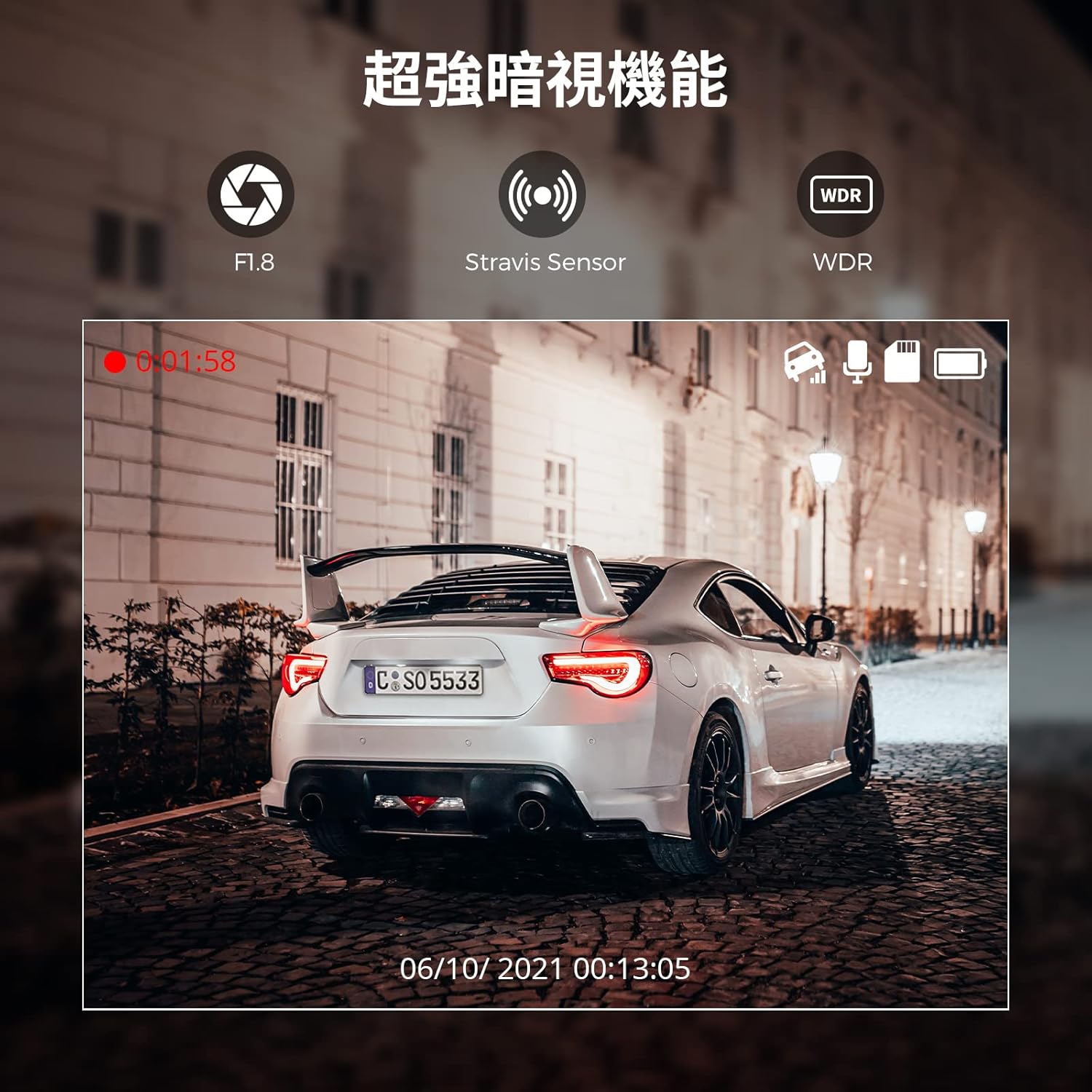
Figure 5: 24-Hour Parking Monitoring
4.6 App Functions (View, Playback, Download, Share)
Using the AZDOME app connected via WiFi:
- פאַקטיש-צייט View: See what the dash cam is recording live on your smartphone.
- פּלייבאַק: Access and play recorded video files directly from the dash cam.
- אראפקאפיע: Save important video files from the dash cam to your smartphone.
- ייַנטיילן: Easily share downloaded videos with family and friends via social media.
Video 1: AZDOME M300 Dash Cam Features Overview. This video demonstrates the compact design, easy installation, WiFi connectivity, 1296P recording, loop recording, and G-sensor functionality.
5. וישאַלט
5.1 מיקראָSD קאַרטל פאַרוואַלטונג
To ensure optimal performance and prevent recording errors, it is recommended to format the MicroSD card regularly (e.g., once a month) using the AZDOME app. This helps maintain the card's health and prevents data corruption.
5.2 רייניקונג די מיטל
Wipe the dash cam lens and body with a soft, dry cloth to remove dust and smudges. Avoid using abrasive cleaners or solvents that could damage the device.
6. טראָובלעשאָאָטינג
6.1 פראבלעמען מיט WiFi קאנעקשאן
- Cannot connect to M300-**** WiFi: Ensure the dash cam's WiFi indicator is blue. If not, long-press the WiFi button for 3 seconds. Keep your phone within 3 meters of the dash cam.
- App not displaying real-time screen: For iPhones, ensure the system language is set to Japanese. Verify that the AZDOME app has "Location Information Permissions" enabled. Try reinstalling the app. In phone settings, try turning off "Mobile Data Communication" for the AZDOME app or check "Wireless Data" settings.
6.2 Recording Errors or Poor Quality
- Recording misses or corrupted files: Ensure you are using a genuine MicroSD card with a write speed of Class 10+ or U3, A2. Lower quality or slower cards can cause issues. Try formatting the SD card.
- Image quality not as expected: The dash cam records in 1296P. If you changed the resolution to 1080P, revert it to 1296P for higher quality.
6.3 Playback Issues
- Slow playback or freezing: Try turning off Bluetooth on your smartphone during playback to avoid potential interference.
6.4 Power Cable Length
The included power cable is designed for front installation. If installing the dash cam in the rear, you may need to purchase a longer USB power cable or an extension.
7. ספּעסאַפאַקיישאַנז
| באַשרייַבונג | ווערט |
|---|---|
| סאָרט | AZDOME |
| מאָדעל נאָמען | AZDOME M300 |
| ווידעא קאַפּטורע רעסאָלוטיאָן | 1296p (also supports 1080p) |
| קאַנעקטיוויטי טעכנאָלאָגיע | ווי-פי |
| ספּעציעלע פֿעיִקייטן | Multi-functional (G-Sensor, Loop Recording, WDR, Night Vision, Parking Monitoring) |
| מאַונטינג טיפּ | קלעפּיק בארג |
| קאָליר | שוואַרץ |
| View ווינקל | 170 דיגריז |
| קאָנטראָל מעטאָד | אַפּ |
| פאַרשטעלן גרייס | 1.5 inches (IPS Display) |
| נומער דימענשאַנז (ד רענטגענ וו רענטגענ ה) | 3 X 9.8 X 4.5 סענטימעטער |
| פּונקט וואָג | 0.34 קג |
| Max MicroSD Card Support | 128 גיגאבייט |
8. וואָראַנטי & שטיצן
8.1 פּראָדוקט וואָראַנטי
The AZDOME M300 comes with a 1 יאָר וואָראַנטי פֿון דעם קויפֿדאַטום. די וואָראַנטי דעקט פֿאַבריקאַציע־דעפֿעקטן און גאַראַנטירט אַ פֿאַרלעסלעכן אָפּעראַציע פֿון אייער אַפּאַראַט.
8.2 קונה שטיצן
For any questions, concerns, or technical assistance regarding your AZDOME M300 dash cam, please do not hesitate to contact us. Our support team is available to provide prompt assistance.
קאָנטאַקט מעטהאָדס:
- Via Amazon messaging service.
- Via Email (refer to product packaging or official AZDOME website for email address).
Note: LINE support has been discontinued. Please use Amazon or email for all inquiries.