
1. הקדמה
This manual provides detailed instructions for the installation, operation, and maintenance of your Spedal MINIEYE AC1 Dash Cam. Please read this manual thoroughly before using the device to ensure proper functionality and safety. The MINIEYE AC1 is designed to record your driving journey in high definition and offers advanced features for enhanced road safety.
2. פּראָדוקט איבערview
2.1 שליסל פֿעיִקייטן
- 1944P Ultra Full HD Recording: כאַפּט קלאָרע ווידעאָ פֿוtage with a 140° wide-angle field of view.
- AI ADAS (Advanced Driver-Assistance System): Provides real-time alerts for collision avoidance.
- איינגעבויטע ג-סענסאר: Automatically detects sudden movements or impacts and locks footage.
- 24-שעה פּאַרקינג מאָניטאָרינג: Monitors your vehicle even when parked (requires hardwire kit, sold separately).
- שטאַרק נאַכט זעאונג: Ensures clear recordings in low-light conditions.
- שלייף רעקאָרדינג: Overwrites the oldest footagווען די זכּרון קאַרטל איז פול, וואָס זיכערט קאַנטיניואַס רעקאָרדינג.
- אַפּ קאָנטראָל: Manage settings, view footage, and download videos via a dedicated mobile application.
2.2 פּעקל אינהאַלט
באַשטעטיקט אַז אַלע זאכן וואָס זענען אויסגערעכנט אונטן זענען פאַראַן אין אייער פּעקל:
- MINIEYE AC1 Dash Cam Unit
- מאַשין טשאַרדזשער
- מאַכט קאַבלע
- מאָניטאָר קאַבלע
- Host Base
- גפּס מאָדולע
- עלעקטראָסטאַטיק סטיקער
- Crowbar (for cable routing)
- בלאָז לעוועל
- Free 32GB TF Card (MicroSD Card)
- באַניצער מאַנואַל (דעם דאָקומענט)
2.3 אַפּאַראַט קאָמפּאָנענטן
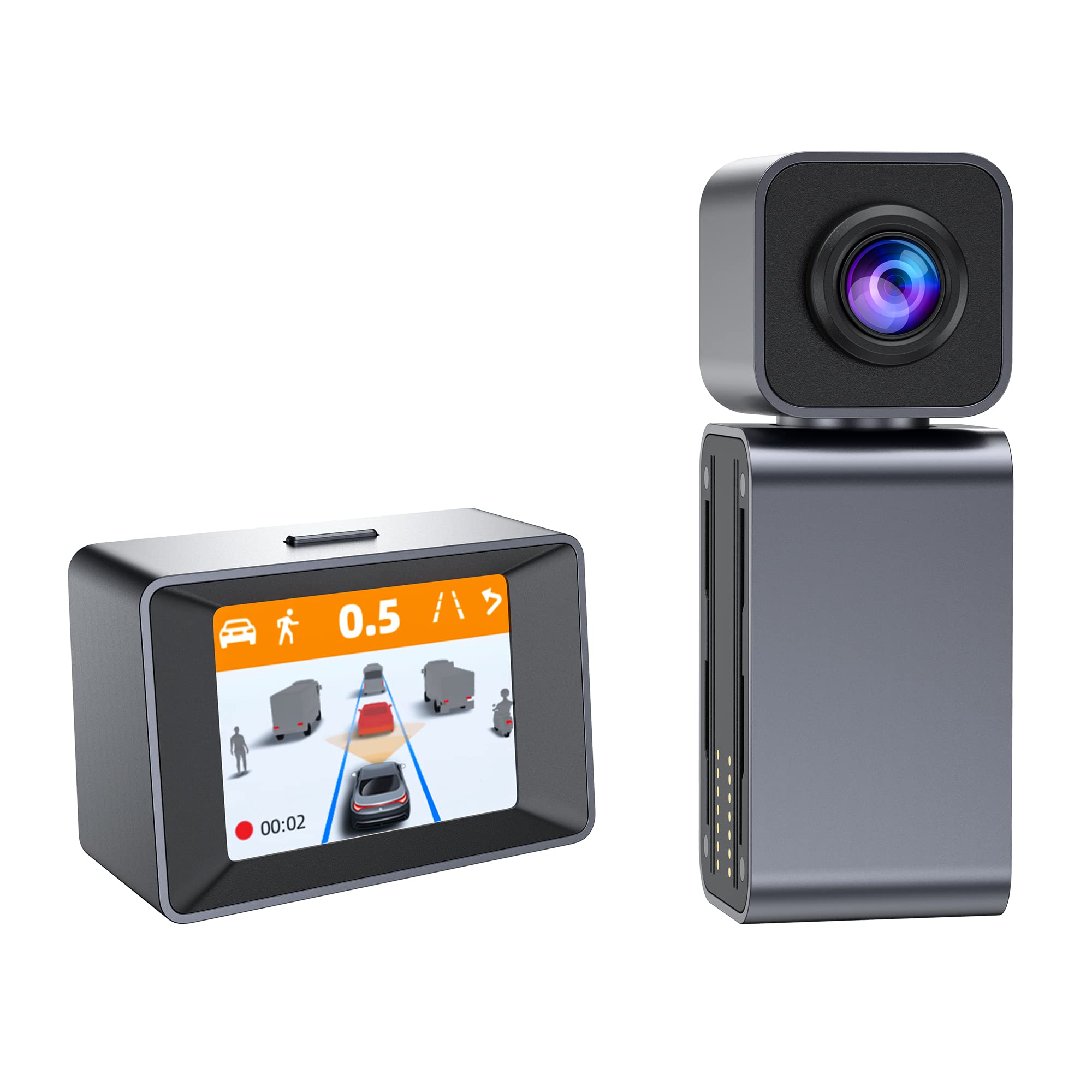
Image: The MINIEYE AC1 Dash Cam showing the main recording unit with its lens and the separate display unit. The display unit shows a simulated traffic scenario with distance warnings, illustrating the ADAS functionality.
3. סעטאַפּ
3.1 ינסטאַלירונג
- צוגרייטן די ווינדשילד: Clean the area on your windshield where the dash cam will be mounted. Ensure it is free of dust and grease.
- צולייגן עלעקטראָסטאַטיש סטיקער: Apply the electrostatic sticker to the cleaned area. This helps in easy removal and prevents residue on the windshield.
- Attach Host Base: Secure the host base to the electrostatic sticker. Use the bubble level to ensure the base is level for optimal camera angle.
- מאָנט דאַש קאַם: Attach the MINIEYE AC1 Dash Cam unit to the host base.
- אַריינשטעלן TF קאַרטל: Insert the provided 32GB TF card into the designated slot on the dash cam. Ensure it is inserted correctly until it clicks into place.
- פאַרבינדן מאַכט: Connect the power cable to the dash cam and route it along the windshield edge and dashboard using the crowbar to tuck it neatly. Plug the car charger into your vehicle's cigarette lighter socket.
- Connect Monitor (if applicable): If using an external monitor, connect it using the monitor cable.
- פאַרבינדן GPS מאָדול: Attach the GPS module to the dash cam for location and speed data recording.
3.2 ערשטע איינשטראָם און סעטטינגס
- מאַכט אויף: Start your vehicle. The dash cam will automatically power on and begin recording.
- פֿאָרמאַטירונג TF קאָרט: It is recommended to format the TF card upon first use and periodically thereafter to ensure optimal performance. This can usually be done through the device settings or the mobile app.
- סטרויערן די אַפּאַראַט ווינקל: Adjust the camera lens to ensure it captures the road ahead clearly, covering the desired field of view.
3.3 אַפּ קאָנטראָל סעטאַפּ
- אראפקאפיע אַפּ: זוכן פֿאַר the "MINIEYE" in your smartphone's app store (iOS or Android) and install it.
- פאַרבינדן צו Wi-Fi: Enable Wi-Fi on your smartphone and connect to the dash cam's Wi-Fi network. The network name and password can typically be found in the dash cam's settings or manual.
- פּאָר דיווייס: Open the MINIEYE app and follow the on-screen instructions to pair your dash cam.
- קאַנפיגיער סעטטינגס: Use the app to adjust recording resolution, G-sensor sensitivity, parking monitoring settings, and other preferences.
4. אַפּערייטינג ינסטרוקטיאָנס
4.1 גרונטלעכע רעקאָרדירונג
Once powered on, the MINIEYE AC1 automatically begins continuous loop recording. Video files are saved in segments (e.g., 1, 3, or 5 minutes) to the TF card. When the card is full, the oldest unprotected files זענען אָוווערריטאַן.
4.2 G-Sensor and Emergency Recording
The built-in G-Sensor detects sudden impacts or rapid acceleration/deceleration. When triggered, the current video segment is automatically locked and saved to a protected folder, preventing it from being overwritten by loop recording. The sensitivity of the G-Sensor can be adjusted via the mobile app.
4.3 פּאַרקינג מאָניטאָרינג
With the optional hardwire kit (not included), the dash cam can monitor your vehicle while parked. If an impact or motion is detected, the dash cam will automatically record a short video segment. Ensure this feature is enabled and configured in the app settings.
4.4 ADAS (Advanced Driver-Assistance System)
The AI ADAS features provide real-time alerts to enhance driving safety:
- פאָרווערטס קאָליזשאַן וואָרענונג (FCW): וואָרנט אייך אויב איר דערנענטערט זיך צו אַ פאָרמיטל פאָרויס צו שנעל.
- ליין אָפּפאָר וואָרענונג (LDW): Notifies you if your vehicle drifts out of its lane without signaling.
- Front Vehicle Start Alert: Informs you when the vehicle in front of you has started moving after a stop.
These alerts are typically visual on the display and/or audible. Calibration may be required for optimal ADAS performance.
4.5 Viewינג און דאַונלאָודינג Footage
FootagE קענען זיין viewed directly on the dash cam's display (if available) or more conveniently through the MINIEYE mobile application. Use the app to browse recorded videos, download important clips to your smartphone, or share them.
5. וישאַלט
- ריין די לענס: Regularly clean the camera lens with a soft, lint-free cloth to ensure clear video quality.
- פֿאָרמאַטירונג TF קאָרט: Format the TF card every 2-4 weeks to prevent data corruption and maintain optimal recording performance. Back up any important files איידער פאָרמאַטטינג.
- Firmware דערהייַנטיקונגען: Check the MINIEYE app or official website periodically for firmware updates. Keeping your dash cam's firmware updated ensures access to new features and performance improvements.
- סטאָרידזש: ווען נישט אין באַנוץ פֿאַר לענגערע פּעריאָדן, זאָל מען האַלטן די דאַש קאַם אין אַ קיל, טרוקן אָרט, אַוועק פֿון דירעקטער זון.
6. טראָובלעשאָאָטינג
- דאַש קאַם גייט נישט אָן:
- Check the car charger connection and ensure the vehicle's cigarette lighter socket is functioning.
- Ensure the power cable is securely connected to the dash cam.
- רעקאָרדינג פּראָבלעמען (למשל, איינפֿרירן, פֿאַרדאָרבן fileס):
- פֿאָרמאַטירן די טף קאָרט.
- Try a different high-speed (Class 10 or U1/U3) TF card.
- Ensure the TF card is not full of locked files.
- אַפּ קשר פּראָבלעמס:
- זיכער מאַכן אַז די דאַש קאַם'ס Wi-Fi איז ענייבאַלד.
- ריסטאַרט ביידע די דאַש קאַם און דיין סמאַרטפאָון.
- Verify you are connecting to the correct Wi-Fi network and using the correct password.
- ADAS Alerts Not Functioning:
- Ensure ADAS features are enabled in the app settings.
- Perform ADAS calibration if available in the app.
- זיכער מאַכן אַז די קאַמעראַ לינז איז ריין און נישט געשטערט.
7. ספּעסאַפאַקיישאַנז
| שטריך | דעטאַל |
|---|---|
| מאָדעל נאָמען | MINIEYE AC1 |
| סאָרט | ספּעדאַל |
| ווידעא קאַפּטורע רעסאָלוטיאָן | 1944 פּ |
| פאַקטיש ווינקל פון View | 140 דיגריז |
| קאַנעקטיוויטי טעכנאָלאָגיע | USB, Wireless (for App Control) |
| קאָנטראָל מעטאָד | אַפּ |
| מאַונטינג טיפּ | סאַקשאַן בארג |
| פאָרמיטל סערוויס טיפּ | מאַשין |
| פאַבריקאַנט | Shenzhen Youjia Innov Tech Co., Ltd |
8. וואָראַנטי און שטיצן
For warranty information, technical support, or service inquiries, please refer to the warranty card included with your product or visit the official Spedal website. You may also contact Spedal customer service directly through the contact information provided on their website or within the MINIEYE mobile application.
ביטע האַלטן דיין דערווייַז פון קויפן פֿאַר וואָראַנטי קליימז.