
פלאַממאַ FX200
FLAMMA FX200 מולטי-עפעקטן גיטאַר פּראַסעסער באַניצער מאַנואַל
מאָדעל: FX200
1. הקדמה
This manual provides detailed instructions for the operation and maintenance of your FLAMMA FX200 Multi Effects Guitar Processor. Please read this manual thoroughly to ensure proper usage and to maximize the potential of your device.
The FLAMMA FX200 is a versatile multi-effects processor designed for guitarists, featuring a 5-inch LCD touch screen, extensive input/output options, and a wide array of effects, amplifier models, and cabinet simulations.
2. זיכערקייַט פּריקאָשאַנז
- שטעלט נישט אויס דעם אַפּאַראַט צו רעגן, פייכטקייט, אדער עקסטרעמע טעמפּעראַטורן.
- ויסמיידן פּלייסינג די אַפּאַראַט לעבן היץ קוואלן אָדער אין דירעקט זונשייַן.
- ניצט נאָר דעם ספּעציפֿישן מאַכט אַדאַפּטער.
- פרובירט נישט צו צענעמען אדער מאדיפיצירן דעם איינהייט. לאָזט איבער אלע סערוויסעס צו קוואַליפֿיצירטע פּערסאָנעל.
- האַלטן אויס פון דערגרייכן פון קינדער.
3. פּעקל אינהאַלט
באַשטעטיקן אַז אַלע זאכן זענען פאַראַן אין פּעקל:
- FLAMMA FX200 Multi Effects Guitar Processor
- מאַכט אַדאַפּטער
- וסב- C קאַבלע
- באַניצער מאַנואַל (דעם דאָקומענט)

Figure 3.1: Contents of the FLAMMA FX200 package.
4. דיווייס איבערview
4.1 פראָנט פּאַנעל
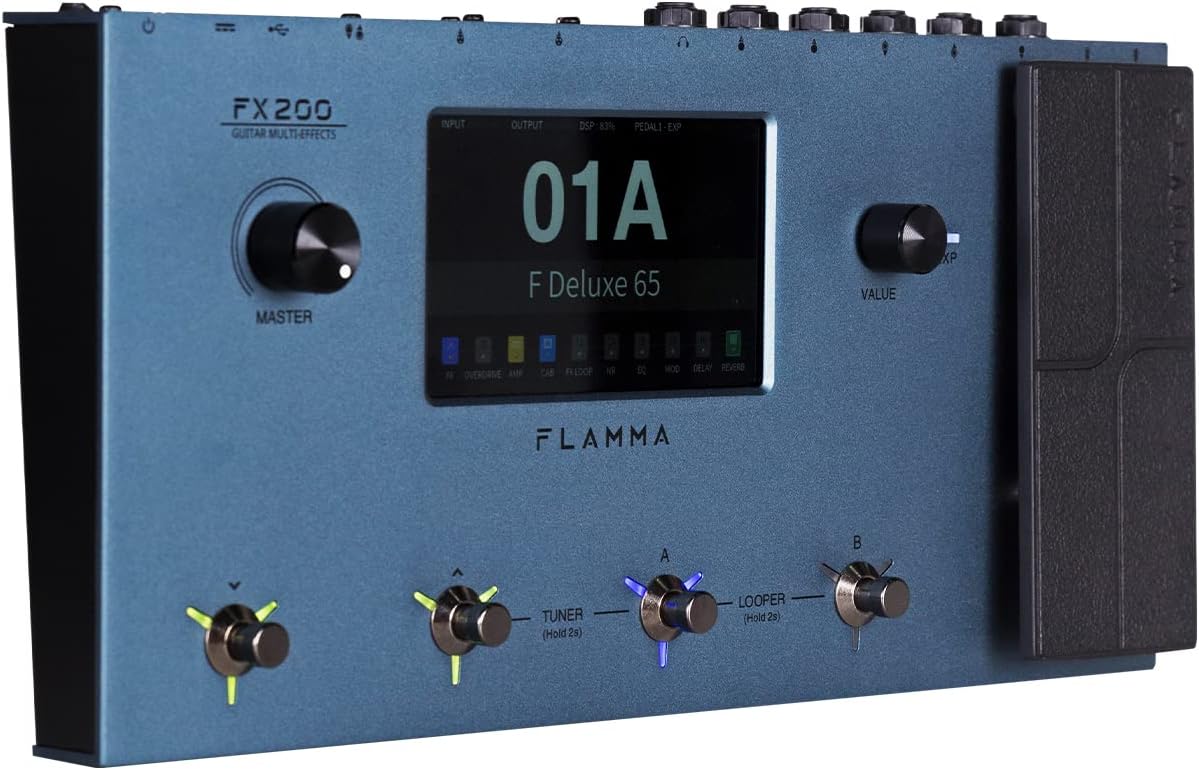
Figure 4.1: Front Panel Layout of the FX200.
- בעל קנעפּל: אַדזשאַסטירט די אַלגעמיינע אַרויסגאַנג באַנד.
- לקד ריר סקרין: 5-inch display for navigation, parameter editing, and preset management.
- Value Knob: Used for data entry and parameter adjustments.
- Footswitches (A, B, C, D): Control presets, effects, looper, and tuner functions.
- עקספּרעססיאָן פּעדאַל: Assignable for real-time control of various effects parameters.
4.2 Rear Panel (I/O)

Figure 4.2: Rear Panel Input/Output Connections.
- AUX IN: 3.5 מ״מ סטערעאָ אַרייַנגאַנג פֿאַר עקסטערנע אַודיאָ דעוויסעס.
- עקספּ 2: External expression pedal input.
- איינגאבע: 1/4-inch mono input for guitar.
- SEND/RETURN: Stereo FX Loop for integrating external effects pedals.
- OUTPUT (L/MONO, R): 1/4-inch stereo outputs to ampליפיער אָדער מיקסער.
- פאָנעס: 3.5 מם סטעריאָו כעדפאָון רעזולטאַט.
- GND/LIFT: גראונד ליפט סוויטש צו עלימינירן זשומען.
- XLR OUT (L, R): Balanced XLR stereo outputs for direct connection to PA systems or audio interfaces.
- MIDI אריין/אויס: 5-pin MIDI connectors for external MIDI control.
- USB DC IN: USB-C port for power and connection to a computer.
- מאַכט סוויטש: טורנס די אַפּאַראַט אויף/אַוועק.
5. סעטאַפּ
5.1 ערשט מאַכט-אַרויף
- Connect the provided power adapter to the USB DC IN port on the rear panel.
- צאַפּן די מאַכט אַדאַפּטער אין אַ פּאַסיק אַק ווענטיל.
- Flip the Power Switch to the ON position. The unit will power on and display the startup screen.
5.2 Connecting Your Guitar and Ampליפער
- פאַרבינדן דיין גיטאַרע צו די אַרייַנשרייַב דזשעק ניצנדיק אַ סטאַנדאַרט 1/4-אינטש אינסטרומענט קאַבל.
- פאַרבינדן די אויסגאַנג L/MON דזשעק צו דיין גיטאר amplifier's input using a 1/4-inch instrument cable. For stereo output, connect the OUTPUT R jack to a second amplifier or mixer input.
- Alternatively, for direct recording or PA system connection, use XLR cables from the XLR OUT L און XLR OUT R ports to your audio interface or mixer.
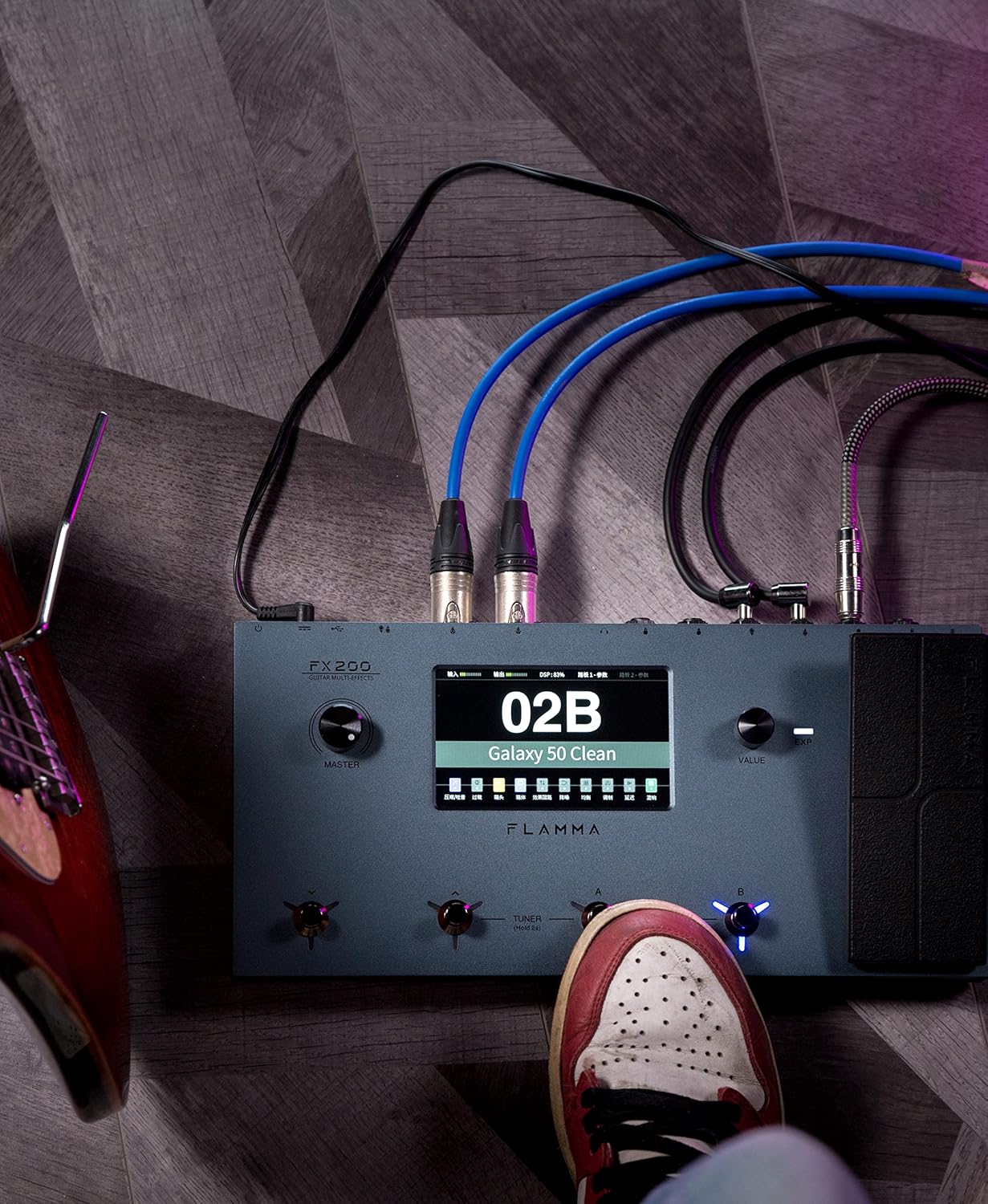
Figure 5.1: Typical connection setup for the FX200.
5.3 קאַנעקטינג צו אַ קאָמפּיוטער
The FX200 can be connected to a computer for editing presets, firmware updates, and USB audio recording.
- Download the specialized editing software from the official FLAMMA webפּלאַץ.
- Connect the FX200 to your computer using the provided USB-C cable.
- Launch the editing software. The software will detect the FX200, allowing you to manage presets, effects, and perform firmware updates.

Figure 5.2: FX200 connected to a computer for software editing.
6. אַפּערייטינג ינסטרוקטיאָנס
6.1 נאַוויגירן דעם ריר־עקראַן
The 5-inch LCD touch screen is the primary interface for controlling the FX200. Tap icons and parameters to select them, and use the Value Knob to adjust values.

פיגור 6.1: אינטעראַקטירן מיטן טאָוטש סקרין אינטערפֿייס.
6.2 פּריסעט מאַנאַגעמענט
The FX200 features 200 editable user preset slots. Presets can be selected using the footswitches or by navigating the touch screen.
- אויסקלייבן פאָרסעטן: In Play mode, press footswitches A or B to cycle through presets within a bank. Press footswitches C or D to change banks.
- רעדאַגירן פּרעסעט: Tap on an effect module icon on the touch screen to access its parameters. Adjust settings using the Value Knob.
- היט פּרעסעץ: After editing, tap the 'Save' icon on the touch screen and follow the prompts to store your changes to a user preset slot.
6.3 Effect Modules and Chain
The FX200 includes 10 effect modules with over 160 different effect types, 58 preamp models, and 30 cabinet simulations. The effects chain can be customized.
- Module Order: Drag and drop effect module icons on the touch screen to change their order in the signal chain.
- Activating/Deactivating Modules: Tap an effect module icon to toggle it on or off within a preset.
- Third-Party IRs: The unit supports third-party impulse response files (up to 1024 sampling points) with 50 empty slots for custom cabinet simulations. Use the editing software to load IRs.

Figure 6.2: Customizable effects chain on the FX200.
6.4 לאָאָפּער און פּויק מאַשין
The FX200 includes an integrated 52-second looper and 80 drum machine variations with 10 metronome styles.
- לויפער: Access the looper function via a dedicated footswitch or the touch screen. Record, overdub, play, and stop loops.
- פּויק מאַשין: Select drum patterns and metronome styles from the touch screen interface. Adjust tempo and volume.
6.5 USB Audio Recording
The FX200 supports USB audio recording, allowing you to record directly to your computer.
- Connect the FX200 to your computer via USB-C.
- Select the FX200 as your audio input device in your Digital Audio Workstation (DAW) software.
- Adjust input levels on both the FX200 and your DAW for optimal recording.
7. וישאַלט
- רייניקונג: ניצט אַ ווייכע, טרוקענע שטאָף צו רייניקן דעם אַפּאַראַט. ניצט נישט קיין שרײַבנדיקע רייניגערס אדער סאָלווענטן.
- סטאָרידזש: When not in use for extended periods, store the unit in a dry, cool place away from direct sunlight.
- Firmware דערהייַנטיקונגען: Regularly check the FLAMMA website for firmware updates to ensure optimal performance and access to new features. Updates are performed via the USB-C connection and editing software.
8. טראָובלעשאָאָטינג
| פּראָבלעם | מעגלעך סיבה | לייזונג |
|---|---|---|
| קיין מאַכט | Power adapter not connected or faulty; Power switch off. | Ensure power adapter is securely connected and plugged into a working outlet. Check power switch. |
| קיין געזונט רעזולטאַט | Incorrect cable connections; Master volume too low; Amplifier off; Effect module bypassed. | Verify all audio cables are correctly connected. Increase Master volume. Check amplifier power. Ensure desired effect modules are active. |
| זשומען אדער גערויש | Ground loop; Faulty cables; Interference. | Engage the GND/LIFT switch. Try different cables. Ensure power supply is stable and away from other electronics. |
| ריר פאַרשטעלן ניט ריספּאַנדאַבאַל | צייטווייליגע ווייכווארג פראבלעם. | Restart the unit by cycling the power switch. If the issue persists, contact customer support. |
| קענען ניט פאַרבינדן צו קאָמפּיוטער | USB-C cable issue; Driver not installed; Software not running. | Ensure USB-C cable is functional. Install necessary drivers. Launch the FLAMMA editing software. |
9. ספּעסאַפאַקיישאַנז
| שטריך | דעטאַל |
|---|---|
| ווייַז | 5-אינטש LCD ריר-עקראַן |
| ווירקונג מאָדולעס | 10 modules, 160+ effect types |
| Preamp מאָדעלס | 58 |
| Cabinet Simulations | 30 (IR-based, 1024pts), 50 user IR slots |
| באַניצער פּרעסעץ | 200 editable slots |
| לאָאָפּער | 52 סעקונדעס |
| פּויק מאַשין | 80 variations, 10 metronome styles |
| קאַנעקטיוויטי | AUX IN, EXP2, INPUT, SEND/RETURN, OUTPUT (L/MONO, R), PHONES, XLR OUT (L, R), MIDI IN/OUT, USB-C |
| USB Audio Recording | געשטיצט |
| דימענסיעס (L X W X H) | 13.5 X 6.6 X 2 אינטשעס (34.3 X 16.8 X 5.1 סענטימעטער) |
| וואָג | 3.9 פונט (1.77 קג) |
| מאַכט צושטעלן | 9V DC (דורך USB-C) |
| גוף מאַטעריאַל | מעטאַל |
10. וואָראַנטי און שטיצן
FLAMMA products are covered by a limited warranty. For detailed warranty information, product registration, and technical support, please visit the official FLAMMA webפּלאַץ אָדער קאָנטאַקט זייער קונה דינסט.
Official FLAMMA Webפּלאַץ: www.flamma.com
For any issues not covered in this manual, please refer to the online resources or contact FLAMMA customer support directly.
Ask a question about this manual
Ask about setup, troubleshooting, compatibility, parts, safety, or missing instructions. Manuals+ will review the question and use this page’s manual context to help answer it.