
הקדמה
This manual provides detailed instructions for the setup, operation, maintenance, and troubleshooting of your Keychron V5 Wired Custom Mechanical Keyboard. The Keychron V5 is a 96% layout keyboard featuring QMK/VIA programmability, hot-swappable switches, double-shot PBT keycaps, and compatibility with macOS, Windows, and Linux systems.
פּעקל אינהאַלט
ביטע באַשטעטיקן אַז אַלע זאכן זענען פאַראַן אין דיין פּעקל:
- Keychron V5 ווייערד מנהג מעטשאַניקאַל קלאַוויאַטור
- וסב-C צו וסב-C קאַבלע
- וסב- א צו וסב- C אַדאַפּטער
- קייקאַפּ פּולער
- באַשטימען פּולער
- Additional Keycaps for Windows/macOS
סעטאַפּ
קאַנעקטינג די קלאַוויאַטור
To connect your Keychron V5 keyboard:
- געפינט דעם USB-C פּאָרט אויף דער הינטערשטער זייט פון דער קלאַוויאַטור.
- Connect one end of the provided USB-C to USB-C cable to the keyboard.
- Connect the other end of the cable to a USB-C port on your computer. If your computer only has USB-A ports, use the provided USB-A to USB-C adapter.
- די קלאַוויאַטור וועט ווערן אויטאָמאַטיש דערקענט דורך דיין אָפּערייטינג סיסטעם.
System Toggle (Mac/Windows)
The Keychron V5 includes a system toggle switch to ensure full compatibility with both macOS and Windows operating systems. This switch is typically located on the back or side of the keyboard.
צו בייטן צווישן אפערירן סיסטעמען:
- Locate the 'Win/Mac' toggle switch.
- Slide the switch to the 'Mac' position for macOS or 'Win' position for Windows.
- The keyboard will adjust its key mappings accordingly.

בילד: זייט view of the Keychron V5 keyboard, highlighting the system toggle switch and USB-C port for system compatibility.
Ergonomic Angle Adjustment
The keyboard features adjustable feet to customize the typing angle for improved ergonomics.
To adjust the typing angle:
- Flip the keyboard over to access the feet on the underside.
- Gently pull out the feet to extend them to your desired angle. There are usually two levels of adjustment.

Image: The Keychron V5 keyboard with its adjustable feet extended, demonstrating the ergonomic angle design.
אַפּערייטינג ינסטראַקשאַנז
שליסל פונקציעס און אויסלייג
The Keychron V5 features a 96% layout with 97 keys, efficiently retaining function keys and a num pad while saving desk space. The keyboard comes with pre-installed double-shot PBT keycaps in an OSA profile, designed for a comfortable fingertip feel and excellent oil resistance.
בילד: א פולשטענדיגע view of the Keychron V5 keyboard, showcasing its 96% layout and keycap design.
QMK/VIA קאַסטאַמייזיישאַן
The Keychron V5 supports QMK/VIA firmware, allowing for comprehensive customization of key mappings, macros, and backlight effects. VIA is a graphical user interface that simplifies the programming process.
צו קאַסטאַמייז דיין קלאַוויאַטור:
- Download the VIA software from the official Keychron website or the VIA GitHub repository.
- Connect your keyboard to your computer.
- Launch the VIA software. The software should automatically detect your Keychron V5.
- Use the intuitive interface to remap keys, create macros, and adjust lighting settings across multiple layers.
For detailed instructions on using QMK/VIA, refer to the official Keychron documentation or community guides.

Image: A visual representation of the VIA software interface, demonstrating how users can customize key layouts and macros for the Keychron V5.
Programmable Knob
The Keychron V5 features a programmable rotary knob, which can be customized via QMK/VIA to control various functions such as volume, zoom, or scrolling.
To customize the knob's function:
- Open the VIA software.
- Navigate to the knob customization section.
- Assign desired functions for clockwise rotation, counter-clockwise rotation, and pressing the knob.

בילד: א נאָענטע בילד view of the programmable rotary knob on the Keychron V5 keyboard, highlighting its textured surface.
הייס-סוואַפּפּאַבלע סוויטשיז
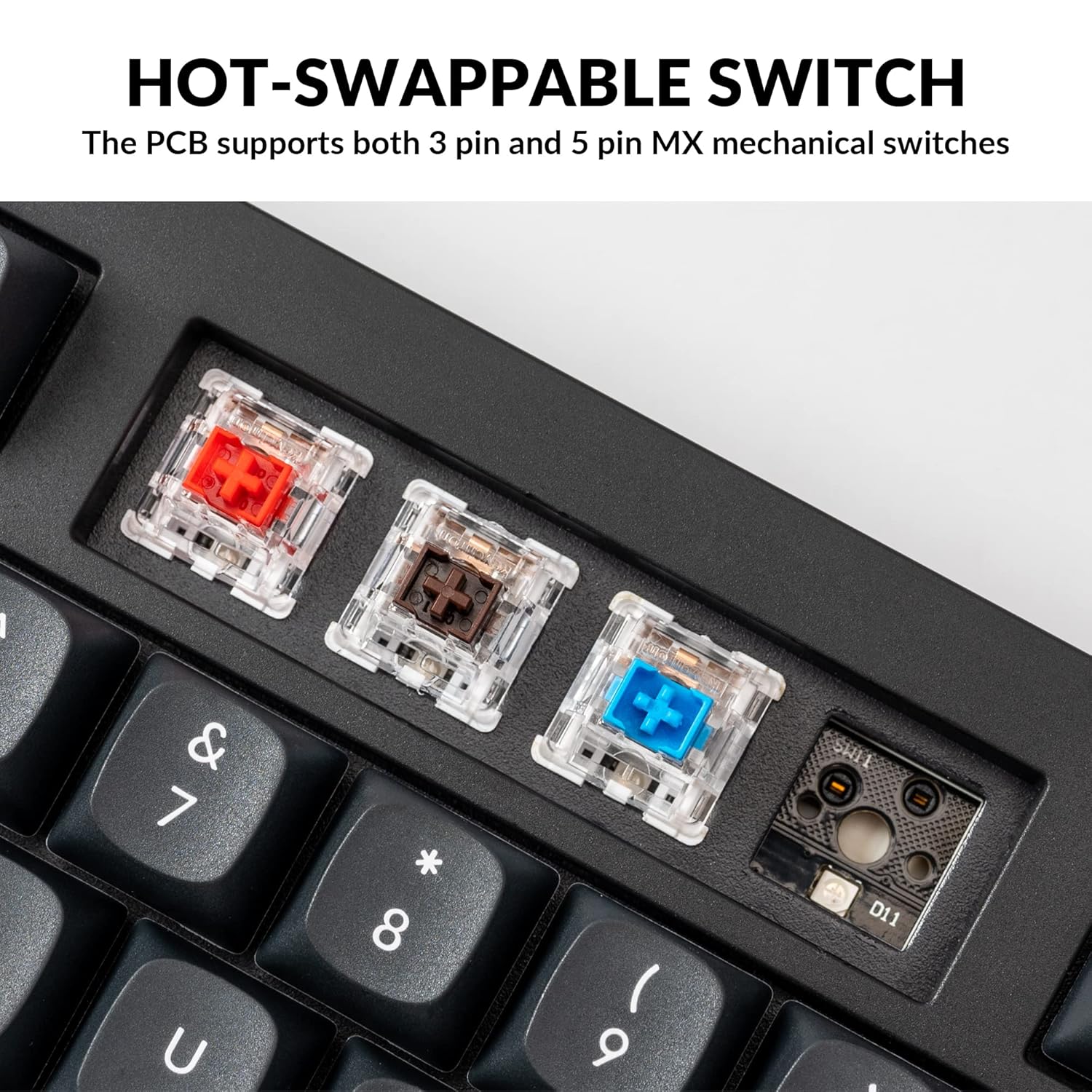
The Keychron V5 is equipped with hot-swappable sockets, allowing you to change mechanical switches without soldering. It supports most 3-pin and 5-pin MX mechanical switches (e.g., Cherry, Gateron, Kailh, Panda).
The keyboard comes with pre-lubed K Pro Red linear switches, offering a smooth and responsive typing experience with a lifespan of up to 50 million keystrokes.
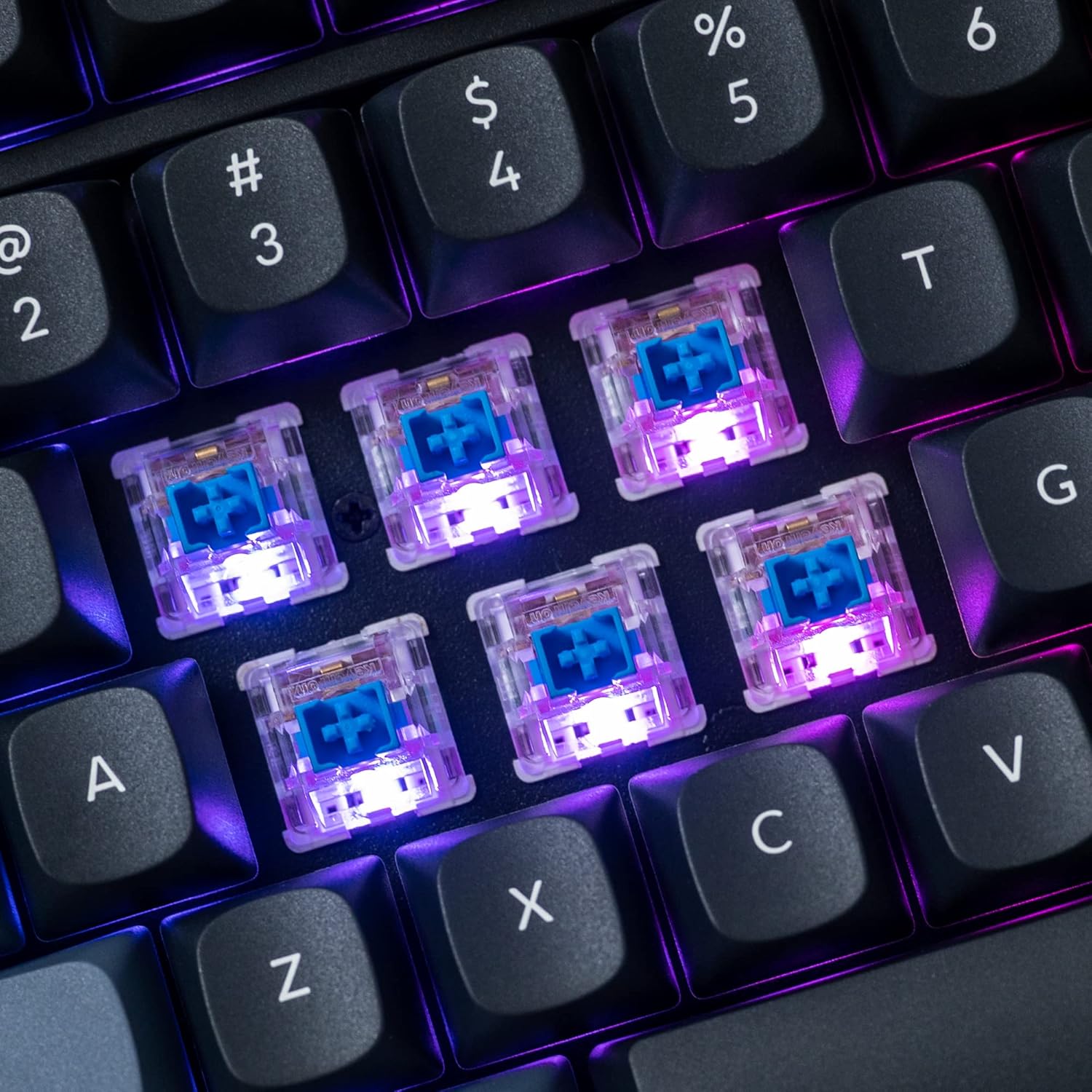
בילד: א דעטאַלירטע view of the hot-swappable mechanical switches on the Keychron V5 keyboard, illuminated by RGB backlighting.
באַקלייט
The V5 features south-facing RGB backlighting, designed to better illuminate the keyboard from the typist's angle and prevent interference when using Cherry-profile keycaps. You can customize the backlight effects and colors using the VIA software.

Image: A close-up of the double-shot PBT keycaps on the Keychron V5 keyboard, showcasing their texture and legends.
וישאַלט
רייניקונג
To maintain the cleanliness and longevity of your keyboard:
- שליסל קאַפּס: ניצט אַ קלאַוויאַטור-אויסרייסער צו אַראָפּנעמען די קלאַוויאַטור-קאַפּס. רייניקט זיי מיט אַ מילדער זייף-לייזונג און אַ ווייכן שטאָף, דערנאָך שווענקט און טריקנט גוט איידער איר לייגט זיי צוריק אָן.
- קלאַוויאַטור גוף: Wipe the keyboard body with a soft, damp שטאָף. ויסמיידן ניצן האַרב קעמיקאַלז אָדער אַברייסיוו מאַטעריאַלס.
- שטויב: ניצט קאמפרעסט לופט צו באַזײַטיקן שטויב און שמוץ פון צווישן די קלאַוויאַטורן און סוויטשעס.
באַשטימען פאַרבייַט
צו פארטרעטן א סוויטש:
- ניצנדיק דעם צוגעשטעלטן קלאַוויאַטור-אויסציער, נעמט פֿאָרזיכטיק אַראָפּ דעם קלאַוויאַטור פֿון דעם סוויטש וואָס איר ווילט פֿאַרבייטן.
- Insert the switch puller tool around the top and bottom clips of the switch.
- Gently squeeze the clips and pull the switch straight up to remove it from the PCB.
- גלייכט אויס די פּינס פון דעם נייעם סוויטש מיט די לעכער אויף דער פּקב. מאַכט זיכער אַז די פּינס זענען גלייך.
- Press the new switch firmly into place until it clicks. Ensure it is seated properly and not bent.
- באַפעסטיקט צוריק דעם שליסל.
קלאַוויאַטור פאַרבייַט
To replace keycaps:
- Use the keycap puller to gently remove the existing keycap by hooking it onto the keycap and pulling upwards.
- Align the new keycap with the cross-shaped stem of the switch.
- Press the new keycap firmly down until it is fully seated.
טראָובלעשאָאָטינג
- קלאַוויאַטור ניט ריספּאַנדינג:
Ensure the USB cable is securely connected to both the keyboard and the computer. Try a different USB port or cable. Verify the system toggle switch is set correctly for your operating system. - שליסלען רעגיסטרירט זיך נישט:
If specific keys are not working, the switch might be faulty or not fully seated. Try removing and re-inserting the switch. If the issue persists, replace the switch. - פראבלעמען מיט באַקלייטונג:
Check VIA software settings to ensure backlighting is enabled and configured correctly. If only certain LEDs are not working, it might indicate a faulty LED or switch. - QMK/VIA Software Not Detecting Keyboard:
Ensure the keyboard is connected via USB. Close and reopen the VIA software. Make sure you have the correct firmware loaded if you have flashed custom firmware. - Keycaps Feel Loose:
Ensure keycaps are fully pressed onto the switch stems. If a keycap consistently feels loose, the switch stem might be damaged, or the keycap's cross-mount might be worn.
ספּעסאַפאַקיישאַנז
| שטריך | באַשרייַבונג |
|---|---|
| סאָרט | Keychron |
| מאָדעל | V5 |
| קלאַוויאַטור באַשרייַבונג | מעטשאַניקאַל |
| קלאַוויאַטור אויסלייג | QWERTY, 96% Layout (97 Keys) |
| קאַנעקטיוויטי טעכנאָלאָגיע | מיט אַ דראָט (USB-C) |
| קאַמפּאַטאַבאַל דעוויסעס | PC (macOS, Windows, Linux) |
| באַשטימען טיפּ | Linear (K Pro Red) |
| Hot-swappable Support | Yes (3-pin and 5-pin MX mechanical switches) |
| קייקאַפּס | Double-shot PBT, OSA Profile |
| באַקלייט | דרום-פארענדיקט RGB |
| אָפּצוימונג מאַטעריאַל | פּאָליבוטילען טעראַפטאַלאַט, סיליקאָן |
| נאָך פֿעיִקייטן | QMK/VIA Programmable, Programmable Knob, Screw-in Stabilizers |
וואָראַנטי און שטיצן
Keychron products are typically covered by a limited warranty. For specific warranty terms, duration, and conditions, please refer to the warranty information provided with your product packaging or visit the official Keychron webפּלאַץ.
For technical support, troubleshooting assistance, or to inquire about replacement parts, please contact Keychron customer service through their official website's support portal. When contacting support, please have your product model (Keychron V5) and purchase details ready.