
1. הקדמה
Welcome to the HyperX Armada 25 Gaming Monitor user manual. This document provides essential information for setting up, operating, maintaining, and troubleshooting your new monitor. The HyperX Armada 25 is designed for competitive gaming, featuring a 24.5-inch Full HD (1920x1080) IPS panel, a 240Hz refresh rate, and a 1ms response time, ensuring smooth and responsive visuals. It also includes NVIDIA G-SYNC compatibility to eliminate screen tearing and minimize input latency. A desk mount is included for convenient setup and to maximize desk space.
שליסל פֿעיִקייטן:
- אַלע-אין-איין פּעקל: Includes an ergonomic arm and desk mount for easy setup and space-saving.
- High Refresh Rate & Response Time: 240Hz refresh rate and 1ms response time for ultra-smooth gaming.
- Vibrant IPS Panel: 24.5-inch Full HD (1920x1080) IPS panel delivers stunning visuals with accurate colors and wide viewינג אַנגלעס.
- NVIDIA G-SYNC קאָמפּאַטיבל: Eliminates screen tearing and reduces stuttering for a fluid gaming experience.

אפיציעלע פּראָדוקט ווידעא:
2. סעטאַפּ
This section guides you through the initial setup of your HyperX Armada 25 Gaming Monitor, including assembly and connection to your computer.
2.1. Assembling the Desk Mount
The HyperX Armada 25 comes with an integrated ergonomic desk mount. Follow the instructions provided in the separate quick start guide for detailed assembly steps. The monitor head easily snaps into the arm, allowing for quick and secure installation.

2.2. קאַנעקטינג די מאָניטאָר
Connect the monitor to your computer using the appropriate cables. The HyperX Armada 25 supports both HDMI and DisplayPort connections.
- פֿאַרבינדט איין עק פֿון דעם HDMI אָדער DisplayPort קאַבל צום קאָרעספּאָנדירנדיקן פּאָרט אויף אייער קאָמפּיוטער'ס גראַפיקס קאַרטל.
- Connect the other end of the cable to an available HDMI 2.0 or DisplayPort 1.4 port on the back of your monitor.
- פֿאַרבינדט דעם עלעקטרישן שנור צום מאָניטאָר און דערנאָך צו אַן עלעקטרישן ווענטיל.
- דרוק די מאַכט קנעפּל אויף די מאָניטאָר צו קער עס אויף.

3. אַפּערייטינג די מאָניטאָר
This section covers basic operation and navigation of the monitor's On-Screen Display (OSD) menu.
3.1. אויף-סקרין דיספּליי (OSD) נאַוויגאַציע
The OSD menu is controlled using a joystick located on the back of the monitor. This joystick allows you to power on/off the monitor and navigate through various settings.
- דריק דעם דזשויסטיק: צו עפענען דעם OSD מעניו אדער באשטעטיגן אן אויסוואל.
- Move the joystick Up/Down/Left/Right: To navigate through menu options and adjust settings.
- Hold the joystick: To power off the monitor.

3.2. Adjusting Monitor Position
The ergonomic desk mount allows for flexible positioning of your monitor. You can adjust the height, tilt, swivel, and pivot to find your optimal viewינג ווינקל.
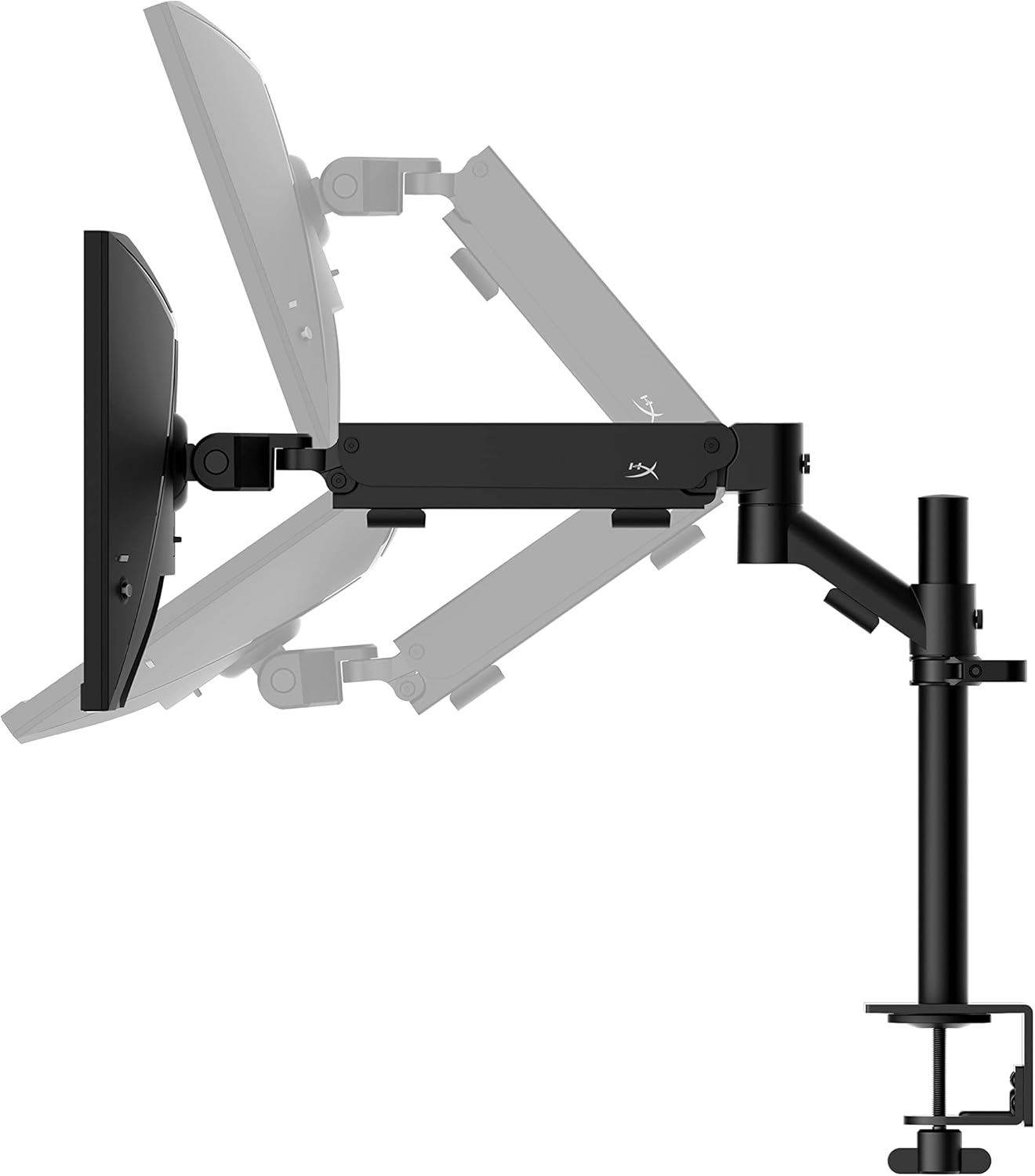

4. וישאַלט
Proper maintenance ensures the longevity and optimal performance of your HyperX Armada 25 Gaming Monitor.
- רייניקונג די פאַרשטעלן: ניצן אַ ווייך, לינט-פֿרייַ שטאָף לייטלי דampened with water or a specialized screen cleaner. Avoid using harsh chemicals, abrasive materials, or direct spraying onto the screen.
- רייניקונג פון די Casing: ווישט אויס דעם מאָניטאָר casinג מיט אַ ווייכן, טרוקענעם שטאָף.
- ווענטילאַטיאָן: זיכערט זיך אז די מאָניטאָר'ס ווענטילאַציע עפענונגען זענען נישט פארשטאפט צו פארמיידן איבערהיצונג.
- מאַכט אַוועק ווען ניט אין נוצן: אויסלעשן דעם מאָניטאָר ווען עס איז נישט אין באַנוץ פֿאַר לענגערע פּעריאָדן צו שפּאָרן ענערגיע און פֿאַרלענגערן זיין לעבן.
5. טראָובלעשאָאָטינג
If you encounter issues with your monitor, refer to the following common troubleshooting steps.
- קיין מאַכט:
- קוק אויב די מאַכט קאַבלע איז סיקיורלי פארבונדן צו די מאָניטאָר און די מאַכט ווענטיל.
- זיכער מאַכן אַז די עלעקטרישע ווענטיל אַרבעט ריכטיק.
- דרוק די מאַכט קנעפּל אויף די מאָניטאָר.
- קיין סיגנאַל:
- איבערצייגט אז דער HDMI אדער DisplayPort קאבל איז זיכער פארבונדן סיי צום מאָניטאָר און סיי צו אייער קאָמפּיוטער.
- זייט זיכער אז אייער קאמפיוטער איז אנגעצונדן און נישט אין שלאף מאָדע.
- אויסקלייבן די ריכטיקע אינפוט מקור ניצנדיק די OSD מעניו.
- Flickering Screen or Image Issues:
- Check the display cable for damage or loose connections.
- זייט זיכער אז אייערע גראַפיקס קאַרטל דרייווערס זענען אַרויף צו דאַטע.
- אַדזשאַסטירן די רעפרעש קורס אין אייער קאָמפּיוטער'ס דיספּליי סעטטינגס.
- If G-SYNC is enabled, try disabling it temporarily to see if the issue persists.
- Buttons Not Responding (OSD Joystick):
- מאַכן זיכער אַז די מאָניטאָר איז פּאַוערד אויף.
- Try restarting the monitor by unplugging and replugging the power cable.
- Clean around the joystick to ensure no debris is obstructing its movement.
6. ספּעסאַפאַקיישאַנז
Detailed technical specifications for the HyperX Armada 25 Gaming Monitor.
| שטריך | דעטאַל |
|---|---|
| פּראָדוקט דימענשאַנז | 21.94 X 25.79 X 31.12 אינטשעס; 16.98 פונט |
| נומער מאָדעל נומער | HyperX Armada 25 |
| ערשטער דאַטע בנימצא | 24 אויגוסט 2022 |
| פאַבריקאַנט | HP ינק. |
| ASIN | B0B2C1G356 |
| ווייַז גרייס | 24.5-אינטש דיאַגאָנאַל |
| האַכלאָטע | FHD (1920x1080) |
| דערפרישן קורס | 240 הז |
| טאַפליע טיפּ | IPS פּאַנעל |
| ענטפער צייט | 1ms |
| סינק טעכנאָלאָגיע | NVIDIA® G-SYNC® קאַמפּאַטאַבאַל |
| Included Mount | Desk Mount Included |
| קאַנעקטיוויטי | HDMI and Display Port |
7. וואָראַנטי און שטיצן
For warranty information, technical support, or to access additional resources, please visit the official HyperX webפּלאַץ אָדער קאָנטאַקט זייער קונה דינסט.
- Official HyperX Webפּלאַץ: www.hyperx.com
- פּראָדוקט שטיצע בלאַט: Refer to the support section on the HyperX webוועבזייטל פֿאַר דיין ספּעציפֿישן מאָדעל.