
1. הקדמה
This manual provides detailed instructions for the setup, operation, and maintenance of your KECAG 10.1 Inch Digital Picture Frame. Please read this manual thoroughly before using the device to ensure proper functionality and to maximize your user experience. Keep this manual for future reference.
2. פּראָדוקט איבערview
2.1 שליסל פֿעיִקייטן
- 10.1 Inch 1080P HD IPS Screen: Features a 1920x1080 resolution with a 180° wide-angle IPS display for clear viewפון פארשידענע ווינקלען.
- מולטימעדיאַ פּלייבאַק: Supports photo slideshows, video playback, and music playback.
- באַוועגונג סענסאָר: Automatically turns the frame on/off based on detected movement to conserve energy.
- Timing On/Off Function: Allows scheduled power on and off times.
- Versatile Media Support: Compatible with SD cards and USB flash drives.
- באַניצער-פרייַנדלעך צובינד: Simple main menu for easy navigation.
- ווייַט קאָנטראָל: Provides convenient operation from a distance.
- נאָך פאַנגקשאַנז: Includes calendar and alarm features.
2.2 פּעקל אינהאַלט
- KECAG 10.1 Inch Digital Picture Frame
- 32 גב וסב פלאַש דרייוו
- ווייַט קאָנטראָל
- מאַכט אַדאַפּטער
- באַניצער מאַנואַל

פיגורע 2.2.1: The KECAG 10.1 Inch Digital Picture Frame displaying a family photo, accompanied by its remote control.
3. סעטאַפּ
3.1 מאַכט קאַנעקשאַן
- Locate the power adapter included in the package.
- Connect the small end of the power adapter cable to the DC IN port on the back of the digital picture frame.
- שטעקט אריין דעם אנדערן עק פונעם מאַכט אַדאַפּטער אין אַ נאָרמאַלן עלעקטרישן ווענטיל.
- The frame will automatically power on or enter standby mode.
3.2 Inserting Media (USB Drive or SD Card)
The digital picture frame supports both USB flash drives and SD cards for media playback.
- Identify the USB port and SD card slot on the side or back of the frame.
- For a USB drive: Carefully insert the USB flash drive into the USB port.
- For an SD card: Insert the SD card into the SD card slot with the metal contacts facing down, until it clicks into place.
- Ensure the media is inserted correctly to avoid damage.

פיגורע 3.2.1: Illustrated steps for connecting media (USB/SD card) and power to the digital picture frame.
3.3 Initial Power On and Language Settings
- Once powered on, the frame may display a language selection screen.
- Use the remote control's navigation buttons (Up/Down/Left/Right) to select your preferred language.
- דרוק די אַרייַן קנעפּל צו באַשטעטיקן דיין סעלעקציע.
4. אַפּערייטינג ינסטרוקטיאָנס
4.1 רימאָוט קאָנטראָל פאַנגקשאַנז
The remote control allows for convenient navigation and setting adjustments. Ensure the remote is aligned with the infrared sensor on the frame during use.
- מעניו: Access the main menu or return to the previous menu.
- פאָטאָ: Directly enter photo playback mode.
- מוזיק: Directly enter music playback mode.
- פֿילם: Directly enter video playback mode.
- אַרויסגאַנג: Exit current function or menu.
- אַרייַן: Confirm selection or play/pause media.
- שטעל אויף: אַקסעס סיסטעם סעטטינגס.
- נאַוויגאַציע קנעפּלעך (אַרויף/אַראָפּ/לינקס/רעכטס): נאַוויגירן דורך מעניוז און אָפּציעס.
- VOL+/VOL-: Adjust volume during video or music playback.
4.2 הויפּט מעניו נאַוויגאַציע
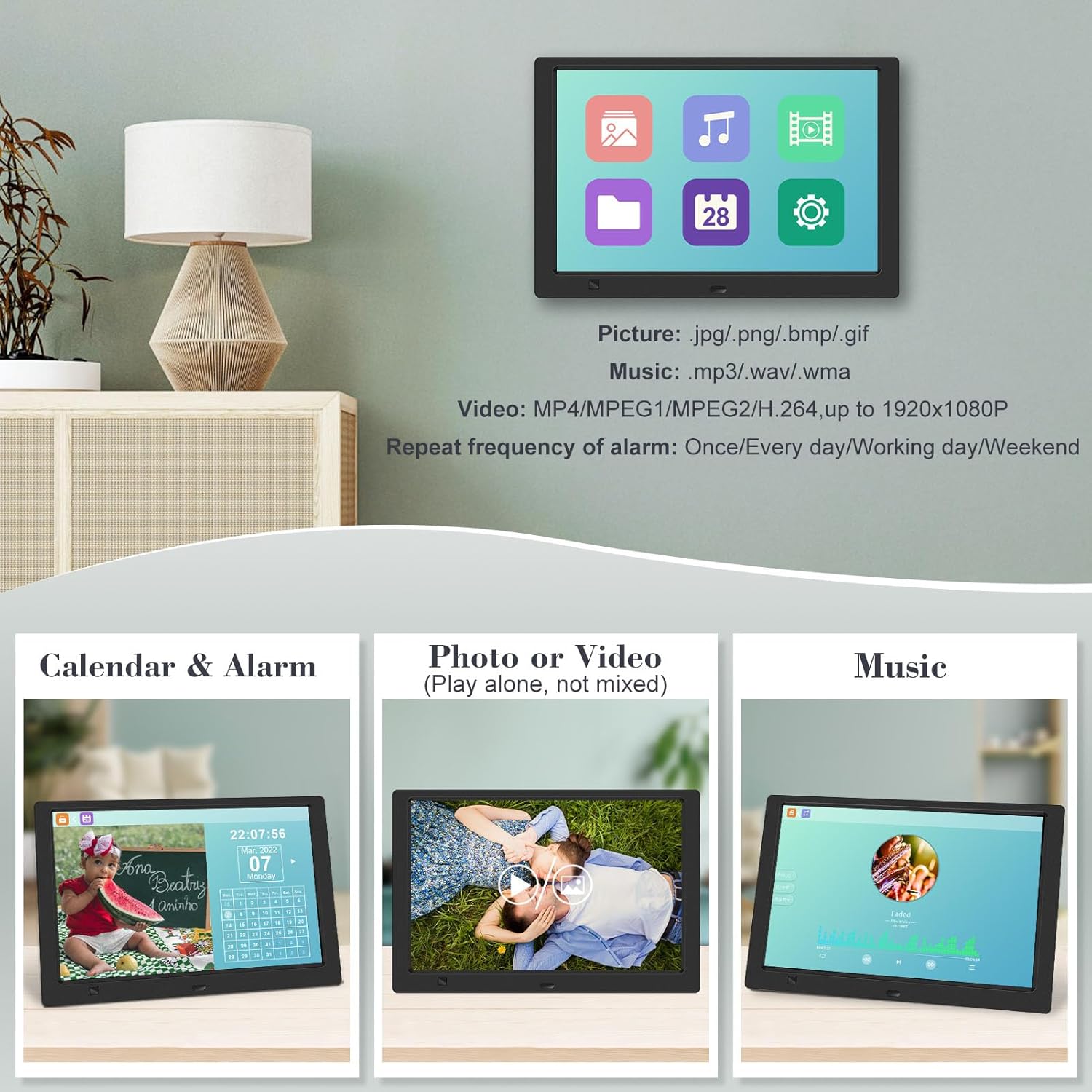
From the main menu, you can select different functions:
- בילד: View photos in a slideshow.
- מוזיק: שפּיל אַודיאָ files.
- קאַלענדאַר: Display calendar and set alarms.
- סעטטינגס: קאָנפֿיגורירן דיווייס פּרעפֿערענצן.

פיגורע 4.2.1: The digital picture frame's interface showing options for Calendar, Photo/Video, and Music playback.
4.3 Photo Playback
- פון די הויפּט מעניו, אויסקלייַבן בילד אָדער דריקן די פאָטאָ קנעפּל אויף די ווייַט.
- The frame will automatically start a slideshow of photos found on the inserted media.
- פּלייבאַק סדר: In settings, you can choose between Shuffle, Sequential, or Repeat All.
- איבערגאַנג עפֿעקטן: Select from various effects like Up/Down, Mosaic, Left/Right, or Random.
- בילד פאַרview: Access a thumbnail view of your photos.
- בילד ראָוטיישאַן: Adjust the orientation of images (vertical/horizontal).
- סקרין ברייטנאַס: Adjust the display brightness in the settings menu.
פיגורע 4.3.1: The digital picture frame displaying a photo slideshow with background music and various image transition options.

פיגורע 4.3.2: Visual representation of slideshow and image preview options, including settings for playback order, display scale, picture rotation, time window, and screen brightness adjustment.
4.4 Video and Music Playback
- פון די הויפּט מעניו, אויסקלייַבן פֿילם or מוזיק, or use the corresponding buttons on the remote.
- נאַוויגירן צו דער געוואלט file using the remote control and press אַרייַן צו שפּילן.
- Supported video formats: MP4/MPEG1/MPEG2/H.264 up to 1920x1080.
- Supported music formats: MP3/WAV/WMA.
4.5 באַוועגונג סענסאָר פונקציע
The motion sensor helps save energy by automatically turning the frame on or off.
- To enable/disable the motion sensor, go to the סעטטינגס מעניו.
- Select the motion sensor option and toggle it On or Off.
- When enabled, the frame will power on when movement is detected and turn off after a period of inactivity.
4.6 Timing On/Off Function
Set specific times for the frame to automatically power on and off.
- אַקסעס די סעטטינגס מעניו.
- Locate the Timing On/Off function.
- Set your desired power-on time and power-off time. You can also configure this for specific days (e.g., weekdays, weekends, every day).

פיגורע 4.6.1: Demonstrates the smart motion sensor turning on the frame when movement is detected and the timing on/off function for scheduled operation.
5. וישאַלט
5.1 רייניקן דעם עקראַן
צו רייניקן דעם עקראַן, ווישט עס אָפּ מיט אַ ווייכן, טרוקענעם, לינט-פֿרײַעם שטאָף. פֿאַר שווערע פֿלעקן, ווישט עס אַ ביסלampווישט דעם שטאָף מיט וואַסער אָדער אַ רייניקונג לייזונג וואָס איז זיכער פֿאַרן עקראַן. פֿאַרמייַדט די נוצן פֿון שאַרפֿע כעמיקאַלן אָדער אַברייסיוו מאַטעריאַלן.
5.2 אַלגעמיינע קער
- Keep the frame away from direct sunlight, heat sources, and excessive moisture.
- ויסמיידן דראַפּינג די מיטל אָדער אונטערטעניק צו שטאַרק ימפּאַקץ.
- Do not attempt to disassemble the frame; this will void the warranty.
- ענשור געהעריק ווענטאַליישאַן אַרום די מיטל.
6. טראָובלעשאָאָטינג
If you encounter issues with your digital picture frame, please refer to the following common problems and solutions:
| פּראָבלעם | מעגלעך סיבה | לייזונג |
|---|---|---|
| דער ראַם גייט נישט אָן. | שטראָם אַדאַפּטער נישט פארבונדן אדער אַ דעפעקטיווע אַוטלעט. | Ensure the power adapter is securely connected to the frame and a working electrical outlet. Try a different outlet. |
| No photos/videos/music displayed. | No media inserted, media not recognized, or unsupported file פֿאָרמאַט. | Ensure a USB drive or SD card is properly inserted. Check if files are in supported formats (JPG/PNG/BMP/GIF for photos; MP4/MPEG1/MPEG2/H.264 for video; MP3/WAV/WMA for music). Try reformatting the media (backup data first). |
| ווייַט קאָנטראָל נישט ארבעטן. | Battery depleted, remote not aimed correctly, or sensor obstructed. | Replace the remote control battery. Ensure the remote is pointed directly at the frame's infrared sensor. Remove any obstructions between the remote and the frame. |
| דער עקראַן איז ליידיק אָדער פֿאַרפֿרוירן. | צייטווייליגע ווייכווארג פראבלעם. | Unplug the power adapter, wait 10 seconds, then plug it back in to restart the frame. |
7. ספּעסאַפאַקיישאַנז
| שטריך | באַשרייַבונג |
|---|---|
| פאַרשטעלן גרייס | 10.1 אינטשעס |
| האַכלאָטע | 1920 x 1080 (1080p HD IPS) |
| אַספּעקט פאַרהעלטעניש | 16:9 |
| Viewינג אַנגלע | 180° |
| קאַמפּאַטאַבאַל דעוויסעס | SD Card, USB Drive |
| שטיצט פאָטאָ פאָרמאַץ | JPG, PNG, BMP, GIF |
| שטיצט ווידעא פֿאָרמאַטירונגען | MP4, MPEG1, MPEG2, H.264 (up to 1920x1080) |
| שטיצט מוזיק פֿאָרמאַטירונגען | MP3, WAV, WMA |
| באַוועגונג סענסאָר | יא |
| נומער מאָדעל נומער | KECAG-CA-001 |
| פּראָדוקט דימענשאַנז | 6.4 X 9.7 X 0.99 אינטשעס |
| פּונקט וואָג | 1.59 פונט |
| באַטעריעס (ווייטקאָנטראָל) | 1 ליטהיום מעטאַל באַטאַרייע (אַרייַנגערעכנט) |
| פאַבריקאַנט | KECAG |
8. וואָראַנטי און שטיצן
For warranty information, please refer to the documentation included with your product packaging. KECAG provides 24-hour customer service to assist with any issues or questions you may have regarding your digital picture frame. Please contact customer support for assistance.