
Cuifati Cuifatip0izksa79g3281
Cuifati Wireless Smart Remote Control User Manual
Model: Cuifatip0izksa79g3281
הקדמה
This manual provides comprehensive instructions for the Cuifati Wireless Smart Remote Control. It covers setup, operation, maintenance, and troubleshooting to ensure optimal performance and longevity of your device. This remote control features 2.4G and Bluetooth 5.0 connectivity, voice control, and IR learning capabilities, making it compatible with a wide range of devices such as Nvidia Shield, PCs, Projectors, Smart TVs, and Android TV Boxes.
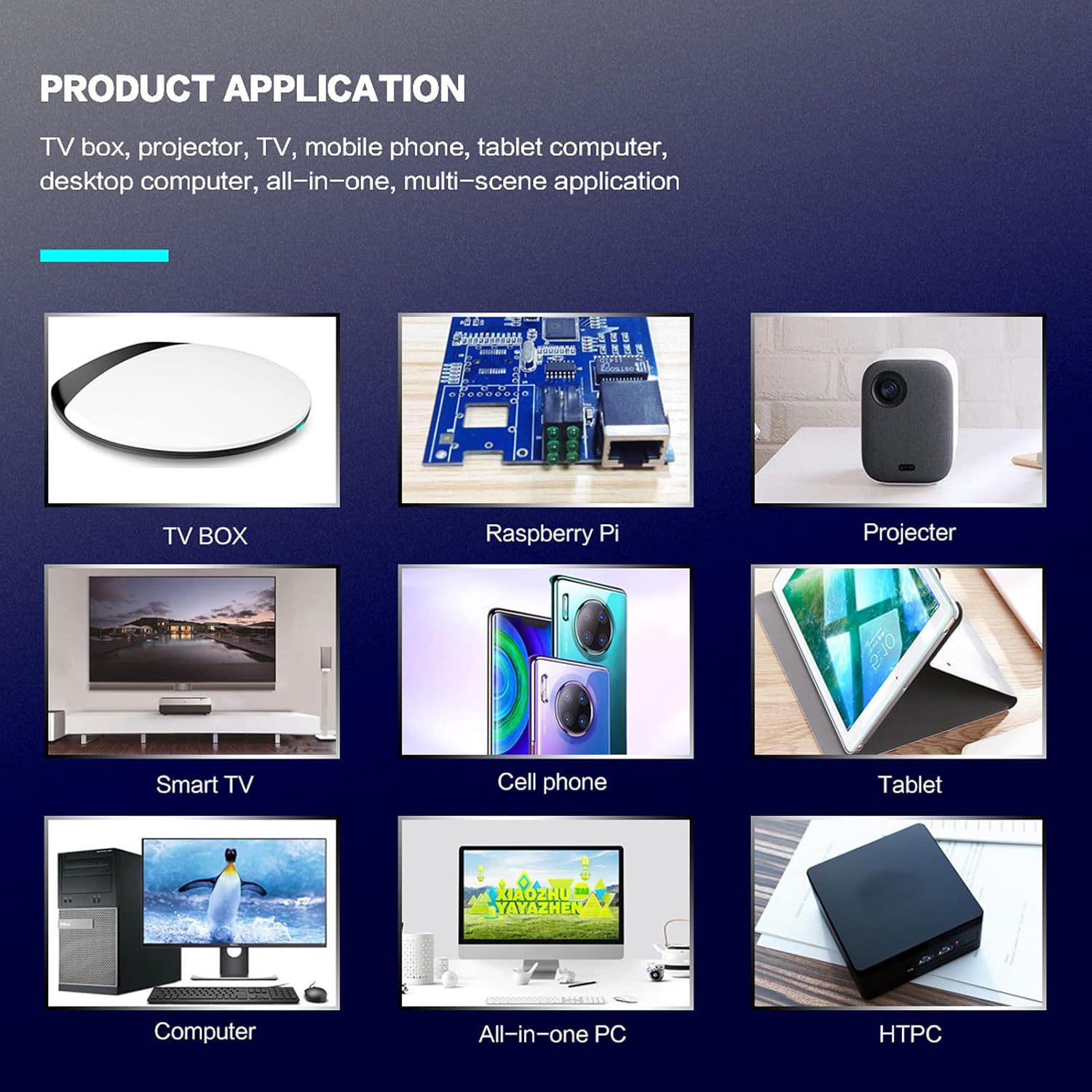
פיגורע 1: פּראָדוקט אַפּלאַקיישאַן עקסamples.
פּעקל אינהאַלט
ביטע באַשטעטיקן אַז אַלע זאכן זענען פאַראַן אין דיין פּעקל:
- 1 x Cuifati Wireless Smart Remote Control
- 1 קס 2.4 ג וסב ופנעמער
- 1 x באַניצער מאַנואַל
ספּעסאַפאַקיישאַנז
| שטריך | דעטאַל |
|---|---|
| סאָרט | Cuifati |
| מאָדעל נומער | Cuifatip0izksa79g3281 |
| מאַטעריאַל | ABS |
| Voltage | 3.0 V |
| קאַנעקטיוויטי מאָדעס | 2.4G, בלועטוט 5.0 |
| אַפּערייטינג קראַנט | <15 מאַ |
| סטאַנדביי קראַנט | <20 uA |
| אַפּערייטינג דיסטאַנסע | >10 meters (32.8 feet) |
| באַטערי טיפּ | 2 X AAA באַטעריז (ניט אַרייַנגערעכנט) |
| נומער פון קנעפּלעך | 5 (Control buttons, total buttons are more) |
| קאַמפּאַטאַבאַל דעוויסעס | Streaming devices, Televisions, PCs, Projectors, Smart TVs, Android TV Boxes |
| ספּעציעלע שטריך | Universal, Voice Control, IR Learning, Backlit |
סעטאַפּ גייד
1. באַטאַרייע ייַנמאָנטירונג
די ווייַט קאָנטראָל ריקווייערז צוויי אַאַאַ באַטעריז (ניט אַרייַנגערעכנט).
- עפענען די באַטאַרייע אָפּטייל דעקן אויף די צוריק פון די ווייַט קאָנטראָל.
- אַרײַנשטעלן צוויי AAA באַטעריעס, און זיכער מאַכן אַז די פּאָלאַריטעט איז ריכטיק (+ און -).
- פאַרמאַכן די באַטאַרייע אָפּטייל דעקן סיקיורלי.

פיגורע 2: Battery compartment with AAA batteries.
2. פֿאַרבינדן די ווײַטקאָנטראָל
The remote control supports both 2.4G wireless and Bluetooth 5.0 connectivity.
2.1. 2.4G Wireless Connection (via USB Receiver)
- Insert the 2.4G USB receiver into an available USB port on your device (e.g., Smart TV, Android TV Box, PC).
- The device should automatically detect and install the necessary drivers.
- די ווייַט קאָנטראָל איז איצט גרייט פֿאַר נוצן.
2.2. בלועטוט 5.0 פֿאַרבינדונג
For Bluetooth connection, ensure your device supports Bluetooth 5.0 or higher.
- אויף די ווייַט קאָנטראָל, דריקן און האַלטן די OK קנעפּל און די צוריקקומען button simultaneously for 3 seconds. The indicator light on the remote will flash rapidly, indicating it is in pairing mode.
- אויף אייער דעווייס, גייט צו די בלועטוט סעטינגס און זוכט פאר פארהאן דעווייסעס.
- Select "G20s Pro" (or similar device name) from the list of found devices to pair.
- אַמאָל פּערד, וועט די אינדיקאַטאָר ליכט אויף דער ווייַט קאָנטראָל אויפהערן צו בלינקען.

פיגורע 3: בלועטאָאָטה פּערינג ינסטראַקשאַנז.
אַפּערייטינג ינסטראַקשאַנז
1. קנעפּל פונקציעס איבערview
Familiarize yourself with the layout and functions of the remote control buttons.

פיגורע 4: Remote control button layout and functions.
- Power (IR Learning Key): Turns the device on/off. Can be programmed via IR learning.
- מיק: Activates voice input.
- ינדיקאַטאָר ליכט: Shows status (pairing, IR learning).
- Mute (IR Learning Key): Mutes/unmutes audio. Can be programmed via IR learning.
- Pg+ / Pg-: Page Up / Page Down.
- Navigation Keys (Up/Down/Left/Right): For menu navigation.
- OK / Enter / Mouse Left: Confirms selection or acts as left mouse click.
- Return / Mouse Right: Goes back or acts as right mouse click.
- היים: Returns to the home screen.
- Open Google Voice Assistant: Dedicated button for voice assistant.
- Volume - / Volume +: Adjusts volume.
- שפּיל / פּויזע: קאָנטראָלירט מעדיע ווידערשפּיל.
- פֿריִערדיקע / ווייַטער: Skips to previous or next media track.
- BackSpace: Deletes characters.
- מעניו: Press and hold to turn on/off the backlight.
2. קול קאָנטראָל
The remote control supports voice commands for compatible devices. Press the מיק button and speak clearly into the remote to issue commands or search content.
3. IR לערנען פונקציע
The Power and Mute buttons can learn infrared signals from your existing TV remote control, allowing you to control basic TV functions with this remote.

פיגורע 5: IR Learning process for the Power button.
- דריקן און האַלטן די מאַכט קנעפּל (אָדער שטום button) on the Cuifati remote for 3 seconds. The red indicator light will flash slowly, entering IR learning mode.
- Point the infrared emitter of your original TV remote control directly at the infrared receiver of the Cuifati remote (approximately 2-3 cm apart).
- Press the desired button on your original TV remote (e.g., Power button). The Cuifati remote's red indicator light will flash rapidly and then turn off, indicating successful learning.
- Repeat the process for other buttons if desired.
4. Motion Sensing (Air Mouse)
The remote control features a gyroscope core compensation algorithm for motion sensing, allowing it to function as an air mouse. Move the remote in the air to control the cursor on your screen.

פיגורע 6: Motion sensing in action.
וישאַלט
- Keep the remote control dry. Avoid exposure to moisture or liquids.
- רייניקט די ווײַטקאָנטראָל מיט אַ ווייכן, טרוקענעם שטאָף. ניצט נישט קיין שרײַבנדיקע רייניגערס אדער סאָלווענטן.
- אויב די ווײַטקאָנטראָל וועט נישט ווערן גענוצט פֿאַר אַ לענגערע צײַט, נעמט אַרויס די באַטעריעס כּדי צו פֿאַרמײַדן ליקאַדזש.
- פֿאַרמײַדט צו לאָזן אַראָפּ די ווײַטקאָנטראָל אָדער אויסשטעלן עס צו שטאַרקע קלאַפּן.
טראָובלעשאָאָטינג
- די ווײַטקאָנטראָל רעאַגירט נישט:
- זיכער מאַכן אַז די באַטעריעס זענען ריכטיק אינסטאַלירט און נישט אויסגעשעפּט. טוישן אויב נייטיק.
- Check if the 2.4G USB receiver is properly inserted into the device's USB port.
- For Bluetooth connection, ensure the remote is paired correctly. Re-pair if connection is lost.
- Ensure there are no obstructions between the remote and the device (for 2.4G) or within Bluetooth range.
- Voice control is not working:
- Ensure the remote is properly connected via 2.4G or Bluetooth.
- Verify that your device supports voice input and that the microphone is enabled.
- Speak clearly and close to the remote's microphone.
- IR לערנען איז דורכגעפאלן:
- Ensure the original remote's IR emitter is pointed directly at the Cuifati remote's IR receiver, within 2-3 cm.
- זייט זיכער אז די ארגינעלע ווײַטקאָנטראָל האט גענוג באַטעריע־קראַפט.
- Repeat the learning steps carefully.
וואָראַנטי און שטיצן
Specific warranty information is not provided in this manual. For warranty details, technical support, or service inquiries, please refer to the product packaging or contact the manufacturer directly through their official webפּלאַץ אָדער קונה דינסט טשאַנאַלז.
Ask a question about this manual
Ask about setup, troubleshooting, compatibility, parts, safety, or missing instructions. Manuals+ will review the question and use this page’s manual context to help answer it.