
הקדמה
The Microware EZCap 273 is a portable, standalone HDMI video capture device designed to record 1080P at 60 frames per second (fps) video directly to a Micro SD card. This device eliminates the need for a PC during recording, offering convenience for capturing content from various HDMI sources such as gaming consoles, set-top boxes, and camcorders. It features a built-in screen for preview and playback, a microphone input for commentary, and schedule recording capabilities.
פּראָדוקט פֿעיִקייטן
- 1080P@60fps Video Recording: Captures and records Full HD 1080p HDMI videos at 60 frames per second from devices with HDMI output. Compatible with gaming consoles (Nintendo Switch, PS4, Xbox One, Wii U), PCs, DV, Live TV, DVR, VHS VCR, Camcorders, and DSLRs. Note: Does not support live streaming.
- מיקראָפאָן אַרייַנשרייַב: Allows for recording gameplay with simultaneous microphone narration.
- פּלאַן רעקאָרדינג: Program recording tasks by setting a schedule, target channel, and duration.
- PC & PC-Free Modes: Records directly to a Micro SD card without a PC. Can also connect to a PC to download recorded videos. Supports exFAT and FAT32 file סיסטעמען.
- Offline Learning Support: Facilitates recording online classes for later review, addressing time conflicts and enabling playback for study.
- ינאַגרייטיד ווייַז: Features a 3.5-inch screen for video preview און פּלייבאַק.
- ווייַט קאָנטראָל: Includes a remote for convenient operation.
פּעקל אינהאַלט
באַשטעטיקן אַז אַלע זאכן זענען פאַראַן אין פּעקל:
- Microware EZCap 273 Video Capture Device
- AV אַדאַפּטער
- TF Card Reader
- ווייַט קאָנטראָל
- Power Adapter (if included, not explicitly listed but implied for standalone operation)
- באַניצער מאַנואַל
Device Layout and Connections
מאַכט זיך באַקאַנט מיט די אַפּאַראַט'ס פּאָרץ און קאָנטראָלס.

בילד: פראָנט און זייט view of the EZCap 273, showing the 3.5-inch display, operation buttons, DC/USB port, Micro SD card slot, HDMI In, HDMI Out, Microphone input, Earphone output, and the Power On/Off/Transfer switch.
- DC/USB Port: For power supply and PC connection.
- מיקראָ סד קאָרט שפּעלטל: Insert your Micro SD card for recording storage.
- HDMI ין: Connect your video source (e.g., game console, set-top box).
- HDMI אויס: Connect to a display (e.g., TV, monitor) for pass-through viewing.
- Microphone Input (3.5mm TRS): Connect an external microphone for audio commentary.
- Earphone Output (3.5mm TRRS): פאַרבינדן כעדפאָונז פֿאַר אַודיאָ מאָניטאָרינג.
- מאַכט סוויטש: Controls power and switches between Record and Transfer modes.
- אָפּעראַציע קנעפּלעך: For menu navigation, recording, playback, and other functions.
סעטאַפּ אינסטרוקציעס
- אַרייַנלייגן מיקראָ סד קאָרט: Ensure a formatted Micro SD card (exFAT or FAT32) is inserted into the Micro SD card slot.
- פאַרבינדן מאַכט: Connect the power adapter to the DC/USB port and plug it into a power outlet.
- HDMI Input Connection: Connect an HDMI cable from your video source (e.g., gaming console, set-top box) to the HDMI ין port on the EZCap 273.
- HDMI Output Connection (Optional): Connect another HDMI cable from the HDMI OUT port on the EZCap 273 to your TV or monitor for real-time viewing.
- Microphone/Headphone Connection (Optional): If desired, connect a 3.5mm TRS microphone to the Microphone input and 3.5mm TRRS headphones to the Earphone output.
- מאַכט אויף: Slide the power switch to the "ON" position. The device's screen should activate.

Image: The EZCap 273 device shown alongside its remote control, illustrating the primary components for setup and operation.
אַפּערייטינג ינסטראַקשאַנז
רעקאָרדינג ווידעא
- Ensure the device is powered on and connected as described in the Setup section.
- Verify the video source is active and displaying on the EZCap 273's screen (and external display, if connected).
- דרוק די רעק / האַלטן button on the device or remote control to begin recording. A recording indicator will appear on the screen.
- צו האַלטן רעקאָרדינג, דריקן די רעק / האַלטן button again. The recorded video will be saved to the Micro SD card.
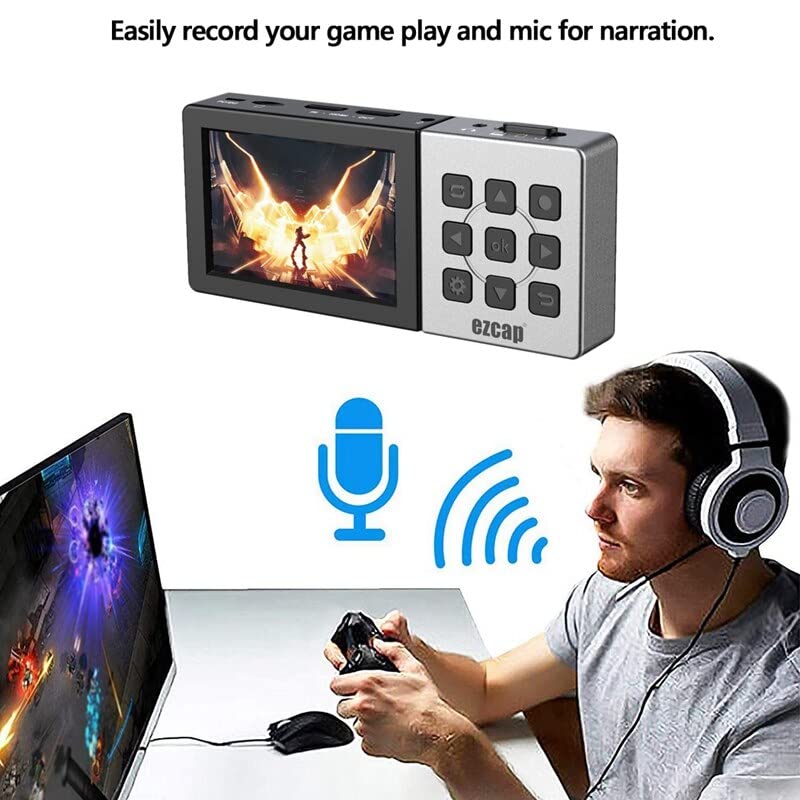
Image: A user engaged in gaming, with the EZCap 273 connected and a microphone symbol indicating active audio input for narration.
Using Microphone Input
- Connect a 3.5mm TRS microphone to the Microphone input port.
- The device will automatically mix the microphone audio with the HDMI audio during recording.
- Adjust microphone volume through the device's menu settings if available.
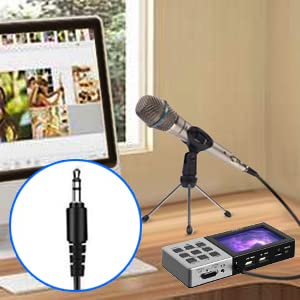
Image: A visual representation of connecting a 3.5mm microphone jack to the EZCap 273 device for audio input.
פּלאַן רעקאָרדינג
- Access the device's menu using the מעניו button on the device or remote.
- Navigate to the "Schedule Recording" option.
- Set the desired recording mode (e.g., once, daily), start time (YY/MM/DD), and duration (e.g., 10 min, 30 min, 60 min).
- Confirm the settings to activate the scheduled recording.

Image: The EZCap 273 device with graphical elements representing a clock and calendar, indicating its schedule recording functionality.
פּלייבאַק רעקאָרדעד ווידיאס
- From the main interface, navigate to the playback menu.
- סעלעקטירן דעם געוואלט ווידעא file from the list on the Micro SD card.
- Use the navigation buttons (Play, Rewind, Fast Forward) on the device or remote to control playback.

Image: The EZCap 273 device showcasing its 3.5-inch display, actively playing back recorded video content.
PC Connection (Transfer Mode)
- מאַכן זיכער אַז די מיטל איז פּאַוערד אַוועק.
- Connect the EZCap 273 to your PC using a USB cable via the DC/USB port.
- Slide the power switch to the "Transfer" position. The device will be recognized as a mass storage device by your computer.
- You can now access the Micro SD card content and transfer recorded videos to your PC.

Image: The EZCap 273 device connected to a laptop via a USB cable, demonstrating its PC connection capability for file אַריבערפירן.
וישאַלט
- רייניקונג: ניצט אַ ווייכע, טרוקענע שטאָף צו רייניקן דעם אַפּאַראַט. פֿאַרמייַדט פֿליסיקע רייניגער אָדער אַברייסיוו מאַטעריאַלן.
- סטאָרידזש: האַלט דעם אַפּאַראַט אין אַ קיל, טרוקן אָרט אַוועק פון דירעקט זונשייַן און עקסטרעמע טעמפּעראַטורן.
- Micro SD Card Care: Regularly back up your recordings. Format the Micro SD card periodically to maintain optimal performance.
- באַטערי: The device has a built-in rechargeable battery. For optimal battery life, avoid fully discharging the battery frequently.
טראָובלעשאָאָטינג
| פּראָבלעם | מעגלעך סיבה | לייזונג |
|---|---|---|
| No video displayed on screen/TV. | Incorrect HDMI connection, power issue, incompatible resolution. |
|
| Recording fails or stops unexpectedly. | Micro SD card full, incorrect format, card error, power interruption. |
|
| No microphone audio in recordings. | Microphone not connected, faulty microphone, incorrect settings. |
|
| Device not recognized by PC in Transfer Mode. | Incorrect switch position, faulty USB cable, driver issue. |
|
ספּעסאַפאַקיישאַנז
| שטריך | דעטאַל |
|---|---|
| סאָרט | מיקראָוואַרע |
| מאָדעל נאָמען | EZCap 273 |
| ייַזנוואַרג צובינד | וסב 2.0 |
| ווידעא קאַפּטורע רעסאָלוטיאָן | 1080 פּ |
| אַפּערייטינג סיסטעם קאַמפּאַטאַבילאַטי | Windows, macOS (for PC connection) |
| רעקאַמענדיד נוצן | ווידעא רעקאָרדינג |
| ספּעציעלע פֿעיִקייטן | Portable, Standalone Recording, Built-in Display, Microphone Input, Schedule Recording |
| פּלאַטפאָרמע קאַמפּאַטאַבילאַטי | PlayStation, Xbox, Nintendo Switch, PC, DV, Live TV, DVR, VHS VCR, Camcorder, DSLR |
| AV Output Format | עמפּעג-4 |
| נומער דימענשאַנז | 10 X 3 X 8 סענטימעטער |
| Input / Pass-through Resolution | 720x480 (60p), 720x576 (50p), 1280x720p (60p), 1920x1080 (50i/60i/50p/60p) |
| כאַפּן האַכלאָטע | 720x480 (60p), 720x576 (50p), 1280x720p (60p), 1920x1080 (50p/60p) |
| רעקאָרד פֿאָרמאַט | Video / MP4, Audio / AAC Stereo |
| רעקאָרד קוואַליטי | מאַקסימום 22Mbps @ 1080P 60fps |
| רעקאָרד File גרייס | מאַקסימום 4 גיגאבייט פּער file |
| מיקראָפאָן אַרייַנשרייַב | 3.5mm TRS standard |
| כעדפאָון רעזולטאַט | 3.5mm TRRS standard |
וואָראַנטי און שטיצן
This Microware EZCap 273 device comes with a 3 Months replacement warranty on manufacturing defects only.
For technical support or warranty claims, please contact Microware Multimedia Private Limited:
- קונה הילף ליניע: +91 9867245665
- קאָנטאַקט פאַבריקאַנט: 022 - 28729725
- אַדרעס: Shop No. 2, Ground Floor, Sayeed Ebrahim Mansion, Dr Bhadkamkar Road, Near Minerva Cinema, Grant road(E), Mumbai - 400007
איר קענט אויך באַזוכן דעם באַאַמטער MICROWARE Store on Amazon פֿאַר מער אינפֿאָרמאַציע.