
1. באַגריסונג
Welcome to the BYYBUO SmartPad T10 user manual. This guide provides detailed instructions on setting up, operating, maintaining, and troubleshooting your new Android 12 tablet. Please read this manual thoroughly to ensure optimal performance and longevity of your device.
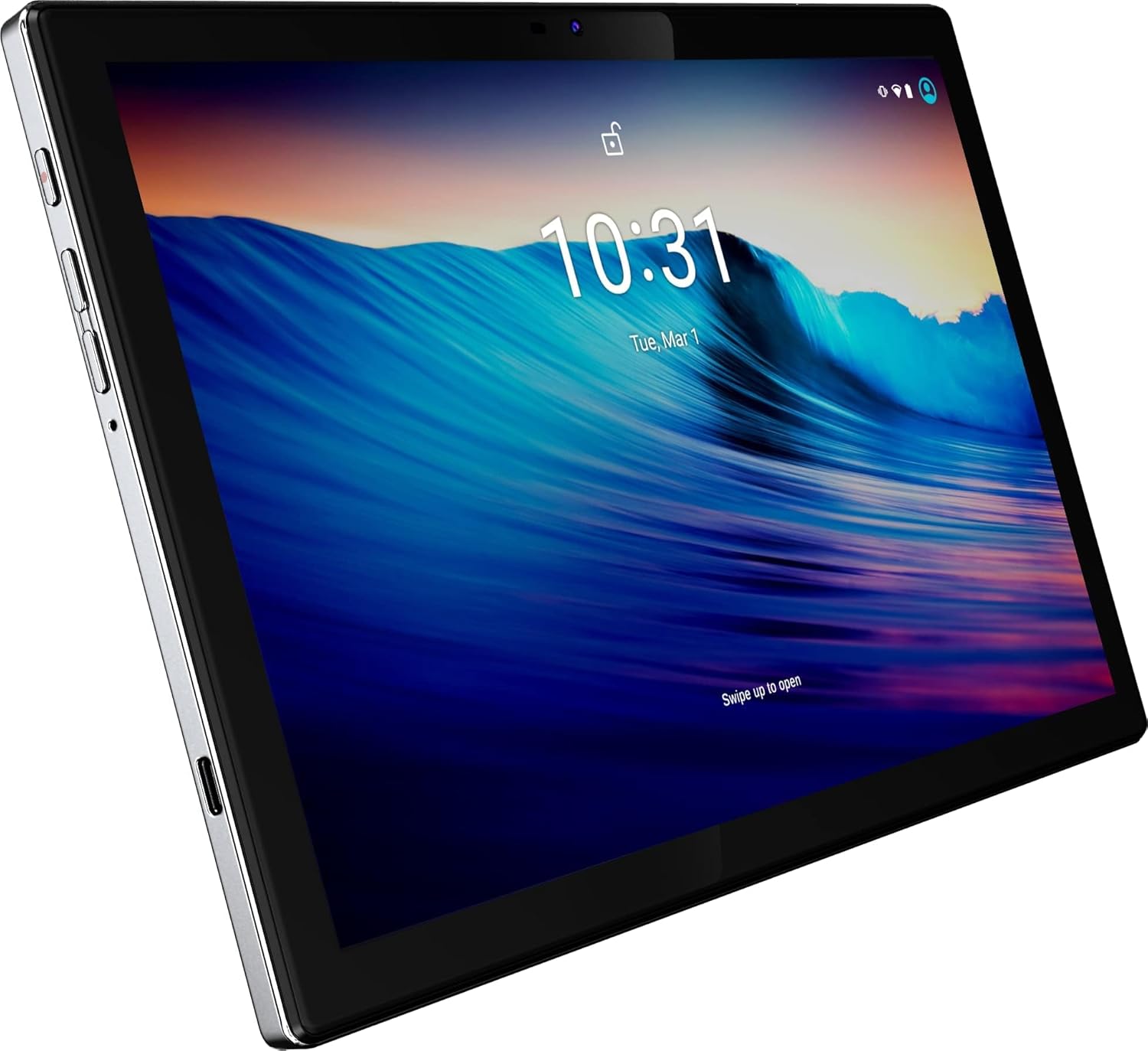
פיגורע 1: פראָנט view of the BYYBUO SmartPad T10 Tablet.
2. פּראָדוקט איבערview
2.1 קאַמפּאָונאַנץ
- 10.1-אינטש פול HD IPS דיספּליי: High-resolution touchscreen for clear visuals.
- פראָנט אַפּאַראַט: פֿאַר ווידעאָ קאָלס און סעלפֿיז.
- דערציען אַפּאַראַט: פֿאַר כאַפּן בילדער און ווידעאָס.
- מאַכט קנעפּל: צו אנצינדן/אויסלעשן דעם אפאראט אדער עס אריינלייגן אין שלאף.
- באַנד קנעפּלעך: צו סטרויערן די אַודיאָ לעוועלס.
- וסב- C פּאָרט: פֿאַר טשאַרדזשינג און דאַטן אַריבערפירן.
- 3.5 מם כעדפאָון דזשאַק: פֿאַר אַודיאָ רעזולטאַט.
- MicroSD/TF Card Slot: פֿאַר יקספּאַנדאַבאַל סטאָרידזש.
- צווייענדיק ספּיקערז: For enhanced audio experience.

פיגורע 2: זייַט view highlighting ports and buttons.
2.2 שליסל פֿעיִקייטן
- High-Performance Octa-Core Processor: Ensures smooth operation and efficient multitasking.
- אַנדרויד 12 אָפּערייטינג סיסטעם: Provides a user-friendly interface and access to the latest apps.
- 7000mAh באַטאַרייע קאַפּאַציטעט: Offers extended usage time for entertainment and productivity.
- 64GB Internal Storage (Expandable to 512GB): Ampלע פּלאַץ פֿאַר אַפּפּס, פאָטאָס און ווידיאס.
- 1920x1200 IPS Display: ברענגט לעבעדיקע פארבן און שאַרפע דעטאַלן פֿאַר אַן איממערסיווע viewינג דערפאַרונג.
- Dual-band Wi-Fi (2.4G+5G): For fast and stable internet connectivity.
- בלועטאָאָטה 4.2: פֿאַר פֿאַרבינדן וויירלעס אַקסעסאָריעס.
- געבויט-אין GPS: For navigation and location-based services.
- Dual Cameras (5MP Front, 13MP Rear): For capturing memories and video calls.
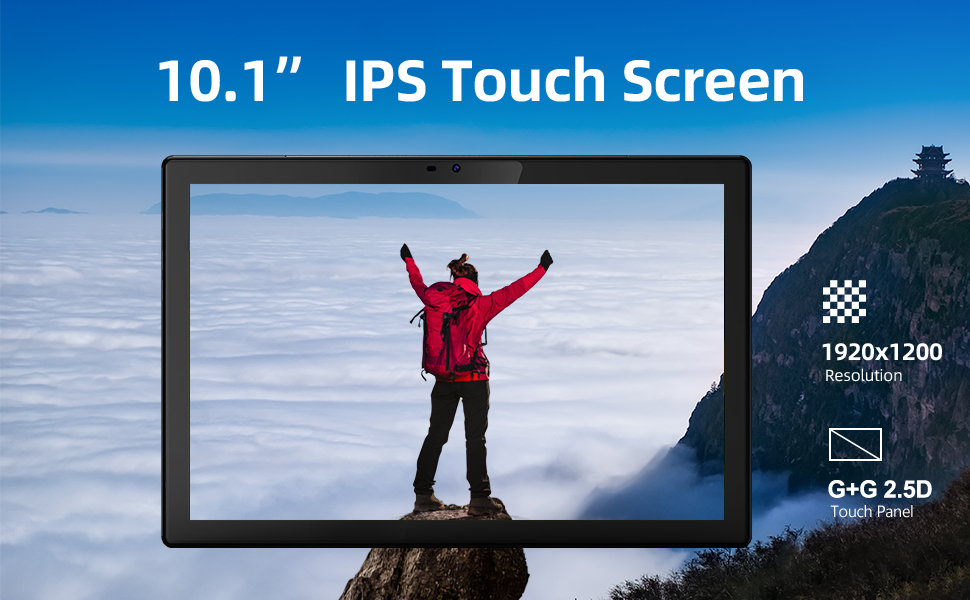
פיגור 3: וויזועלע רעפּרעזענטאַציע פון שליסל פֿעיִקייטן.
3. סעטאַפּ גייד
3.1 ערשט אָפּצאָל
Before first use, fully charge your SmartPad T10 using the provided USB-C cable and charger. The battery indicator on the screen will show charging progress.

Figure 4: The tablet's large battery capacity ensures long usage.
3.2 מאַכט אויף / אַוועק
- צו מאַכט אויף: Press and hold the Power button on the side of the tablet until the BYYBUO logo appears.
- צו מאַכט אַוועק: Press and hold the Power button until a menu appears. Select 'Power off' and confirm.
- צו שלאפן/אויפוואכן: דריקן בעקיצער די מאַכט קנעפּל.
3.3 ווי-פי קאַנעקשאַן
- גיי צו 'סעטטינגס' > 'נעץ און אינטערנעט' > 'Wi-Fi'.
- אַקטיווירן Wi-Fi "אויף".
- אויסקלייבן אייער געוואונטשענע Wi-Fi נעץ פון דער ליסטע.
- אַרייַן די פּאַראָל אויב געבעטן און צאַפּן 'פאַרבינדן'.
3.4 גוגל אקאונט אויפשטעלן
Upon first power-on or after a factory reset, you will be guided through the initial setup process, including connecting to Wi-Fi and signing in with your Google account. A Google account is required to download apps from the Google Play Store.
3.5 סטאָרידזש יקספּאַנשאַן
The SmartPad T10 supports MicroSD/TF cards up to 512GB for expanded storage. Locate the card slot on the side of the tablet. Use the provided tool to open the tray, insert the card, and close the tray securely.

Figure 5: Expandable storage for more content.
4. Operating Your SmartPad
4.1 נאַוויגאַציע
The SmartPad T10 features a highly responsive touchscreen. Use standard Android gestures such as tap, swipe, pinch-to-zoom, and long-press to navigate the interface and interact with apps.

Figure 6: The Android 12 interface on the SmartPad T10.
4.2 אַפּ פאַרוואַלטונג
- דאַונלאָודינג אַפּפּס: Open the 'Play Store' app, search for your desired app, and tap 'Install'.
- אַראָפּנעמען אַפּפּס: Long-press the app icon on the home screen or app drawer, then drag it to 'Uninstall' or select 'Uninstall' from the pop-up menu. Alternatively, go to 'Settings' > 'Apps' > select the app > 'Uninstall'.
4.3 קאַמעראַ באַניץ
Access the camera app from the home screen or app drawer. You can switch between the front (5MP) and rear (13MP) cameras. Tap the shutter button to take photos or switch to video mode to record.
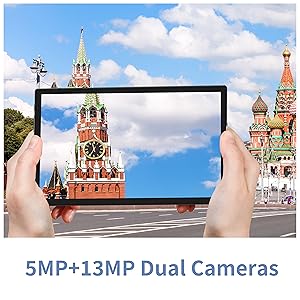
Figure 7: The tablet features dual cameras for versatile photography.
4.4 מעדיע ווידערשפּיל
Enjoy videos and music on your SmartPad T10. The 1920x1200 IPS display provides a clear viewing experience, and dual speakers offer quality audio. You can download streaming apps like Netflix and YouTube from the Play Store.

Figure 8: The Full HD display is ideal for media consumption.
ווידעא 1: אפיציעלע פּראָדוקט ווידעא ווייַזונגasing the BYYBUO SmartPad T10's features and usage scenarios.
4.5 בלועטאָאָטה פּערינג
- גיי צו 'סעטטינגס' > 'פארבונדענע דעווייסעס' > 'בלוטעט'.
- Toggle Bluetooth 'On'.
- מאַכן זיכער אַז דיין בלועטאָאָטה מיטל איז אין פּערינג מאָדע.
- Select the device from the 'Available devices' list and follow on-screen prompts to pair.
4.6 דזשי-פי-עס פונקציאָנאַליטעט
The built-in GPS allows for accurate location tracking and navigation. Use pre-installed map applications or download your preferred navigation apps from the Google Play Store.
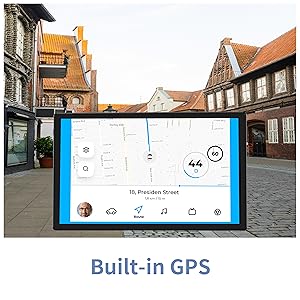
Figure 9: Built-in GPS for reliable navigation.
5. וישאַלט און קער
5.1 רייניקונג
Use a soft, lint-free cloth to clean the screen and body of the tablet. Avoid using harsh chemicals or abrasive materials that could damage the surface.
5.2 באַטערי קער
- פֿאַרמײַדט עקסטרעמע טעמפּעראַטורן, ווײַל זיי קענען פֿאַרערגערן די לעבן פֿון דער באַטעריע.
- לאָזט נישט די באַטאַרייע גאָר אויסליידיקן אָפט.
- ניצט נאָר דעם צוגעשטעלטן טשאַרדזשער אָדער אַ סערטיפיצירטן קאָמפּאַטיבלע טשאַרדזשער.
5.3 ווייכווארג דערהייַנטיקונגען
Periodically check for system updates to ensure your tablet has the latest features and security patches. Go to 'Settings' > 'System' > 'System update'.
5.4 סטאָרידזש פאַרוואַלטונג
רעגולער אויסמעקן נישט-נייטיקע זאכן files, cache data, and uninstall unused apps to free up storage space and maintain optimal performance. You can manage storage in 'Settings' > 'Storage'.
6. טראָובלעשאָאָטינג פּראָסט ישוז
| פּראָבלעם | מעגלעך לייזונג |
|---|---|
| די דעווייס וועט זיך נישט אנצינדן | זיכער מאַכן אַז די באַטאַרייע איז אויפגעלאָדן. פֿאַרבינדט דעם טשאַרדזשער און וואַרט אַ פּאָר מינוט איידער איר פּרוּווט ווידער אָנצוצינדן. |
| ווי-פי קשר ישוז | Restart the tablet and your Wi-Fi router. Check Wi-Fi settings to ensure correct network and password. Try forgetting and re-connecting to the network. |
| אַפּפּס קראַשן אָדער פרירן | Clear the app's cache and data (Settings > Apps > [App Name] > Storage). If the issue persists, uninstall and reinstall the app. Ensure sufficient free storage space. |
| פּאַמעלעך פאָרשטעלונג | שליסט נישט גענוצטע הינטערגרונט אַפּפּס. רייניקט קאַש און צייטווייליגע files. Consider a factory reset if performance issues persist after other troubleshooting steps. |
| באַטאַרייע דריינז געשווינד | Reduce screen brightness. Disable unused features like Bluetooth or GPS. Close background apps. Check for apps consuming excessive battery in Settings > Battery. |
7. טעכניש ספּעסאַפאַקיישאַנז
| שטריך | באַשרייַבונג |
|---|---|
| סאָרט | BYYBUO |
| מאָדעל נאָמען | T10 |
| פאַרשטעלן גרייס | 10.1 אינטשעס |
| פאַרשטעלן האַכלאָטע | 1920 x 1200 פּיקסעלס (פול HD IPS) |
| פּראַסעסער | Octa-Core 2.0 GHz (MediaTek) |
| באַראַן | 4 גיגאבייט |
| אינערלעכער סטאָרידזש | 64 גיגאבייט |
| יקספּאַנדאַבאַל סטאָרידזש | Up to 512 GB (MicroSD/TF) |
| אָפּערייטינג סיסטעם | אַנדרויד 12 |
| באַטאַרייע קאַפּאַציטעט | 7000mAh (ליטיום פּאָלימער) |
| דורכשניטלעך באַטאַרייע לעבן | 12 שעה |
| ווירעלעסס טיפּ | 802.11b/g/ac (2.4G+5G WiFi) |
| בלועטאָאָטה | בלועטאָאָטה 4.2 |
| קאַמעראַס | Rear: 13 MP, Front: 5 MP |
| פּונקט וואָג | 1.23 פונט |
| דימענשאַנז (LxWxH) | 0.01 X 0.31 X 0.01 אינטשעס |
8. וואָראַנטי און שטיצן
8.1 וואָראַנטי אינפֿאָרמאַציע
For specific warranty details, please refer to the warranty card included in your product packaging or contact BYYBUO customer support directly. Keep your proof of purchase for warranty claims.
8.2 קונה שטיצן
If you encounter any issues or have questions not covered in this manual, please contact BYYBUO customer support. You can find contact information on the official BYYBUO website or through your purchase platform. BYYBUO offers 24-hour online support.
Visit the official BYYBUO Store: BYYBUO Amazon Store
For community support and updates, you may also check the BYYBUO Facebook page: BYYBUO Facebook