
BoxWave MagnetoSnap PD AllCharge Cable (100W)
BoxWave MagnetoSnap PD AllCharge Cable (100W) User Manual
Model: MagnetoSnap PD AllCharge Cable (100W)
הקדמה
This manual provides detailed instructions for the BoxWave MagnetoSnap PD AllCharge Cable (100W). Please read this manual thoroughly before using the product to ensure proper operation and longevity.
The MagnetoSnap PD AllCharge Cable is a versatile charging and data transfer solution featuring a braided nylon cable, magnetic interchangeable tips (USB-C and Micro USB), and support for up to 100W Power Delivery.
פּעקל אינהאַלט
- 1 x BoxWave MagnetoSnap PD AllCharge Cable (100W)
- 1 x USB-C Magnetic Tip
- 1 x Micro USB Magnetic Tip
- (Note: ONN Tablet (10.1 in) device not included)
פּראָדוקט איבערview

The BoxWave MagnetoSnap PD AllCharge Cable shown with its three interchangeable magnetic tips: USB-C, Micro USB, and a third tip (likely Apple connector based on other images, though not explicitly listed in features).

א נענטער view of the braided cable and the magnetic tips, highlighting their design for easy attachment and detachment.

This graphic demonstrates how the magnetic tips snap into the cable, providing a secure connection for charging.

An illustration detailing the three types of magnetic connectors included: Apple Connector, USB-C, and Micro USB, making the cable compatible with a wide range of devices.

This image highlights the cable's built-in USB Type-C adapter, accessible by pulling away the USB-A end, allowing for versatile power source connections.
סעטאַפּ און קאַנעקשאַן
- אויסקלייבן די ריכטיגע עצ: Identify the charging port type on your device (USB-C or Micro USB).
- Insert the Magnetic Tip: Gently insert the chosen magnetic tip into your device's charging port. The tip is designed to remain in the port for convenience.
- פאַרבינדן די קאַבלע: Bring the magnetic end of the MagnetoSnap PD AllCharge Cable close to the inserted tip. The magnets will automatically snap the cable into place, establishing a connection.
- פאַרבינדן צו מאַכט מקור: Plug the USB-A end of the cable into a compatible power adapter (e.g., wall charger, power bank, computer USB port). For USB-C power sources, pull away the built-in USB-A adapter to reveal the USB Type-C port and connect.
- באַשטעטיקן קשר: Ensure the cable is securely connected and your device indicates that it is charging.
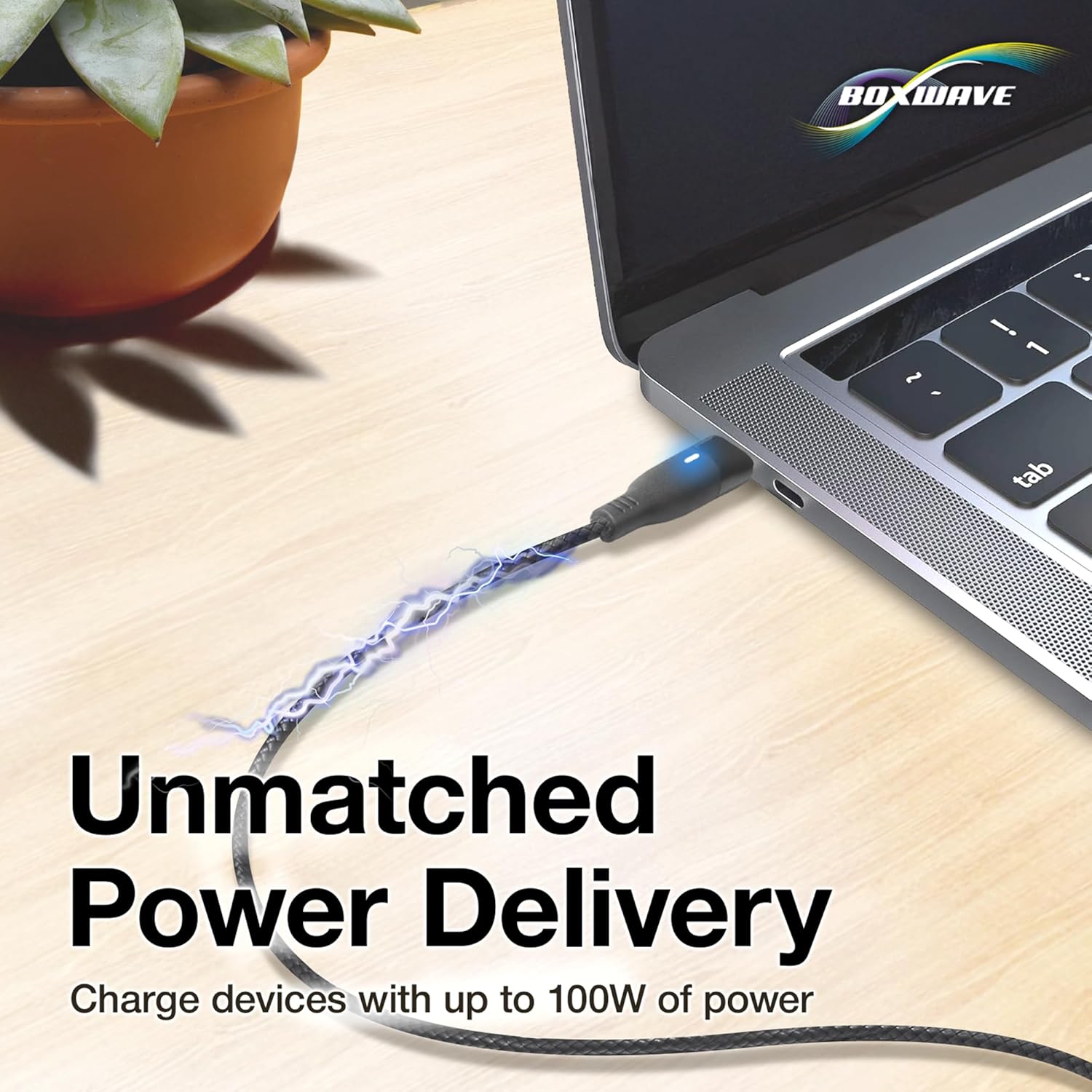
The cable connected to a laptop, demonstrating its capability to deliver up to 100W of power for high-demand devices.
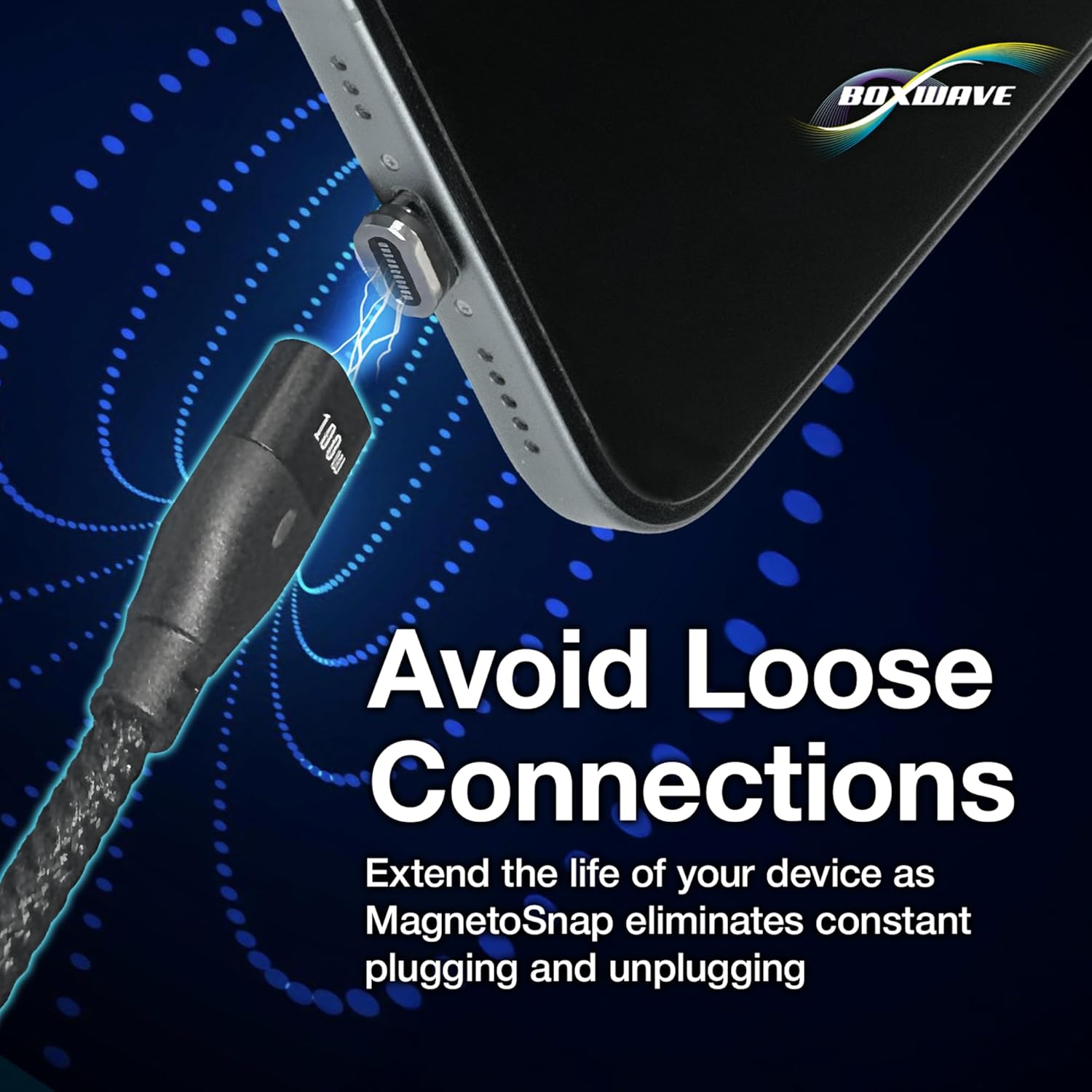
This image illustrates how the magnetic connection helps prevent wear and tear on your device's charging port by eliminating constant plugging and unplugging.
אַפּערייטינג ינסטראַקשאַנז
טשאַרדזשינג דיין מיטל
Once the magnetic tip is inserted into your device and the cable is connected to a power source, your device will begin charging. The cable supports Power Delivery (PD) up to 100W, allowing for rapid charging of compatible devices, including laptops.
דאַטאַ אַריבערפירן
The MagnetoSnap PD AllCharge Cable also supports data transfer. To transfer data, connect the cable to your device and then plug the other end into a computer's USB port. The cable supports data transfer speeds up to 480Mbps.

A visual representation of the cable's dual functionality: simultaneously charging a smartphone and syncing data with a laptop.
וישאַלט און זאָרג
- רייניקונג: Use a soft, dry cloth to clean the cable and magnetic tips. Avoid using harsh chemicals or abrasive materials.
- סטאָרידזש: When not in use, store the cable in a cool, dry place, away from direct sunlight and extreme temperatures.
- האַנדלינג: Do not bend the cable excessively or apply undue force to the connectors. The braided nylon design enhances durability, but proper handling is still recommended.
- Magnetic Tips: Ensure the magnetic tips remain free of dust and debris to maintain optimal connection.
טראָובלעשאָאָטינג
| פּראָבלעם | מעגלעך סיבה | לייזונג |
|---|---|---|
| מיטל ניט טשאַרדזשינג. | Loose connection; Power source issue; Incorrect tip; Device issue. | Ensure magnetic connection is secure. Try a different power adapter or USB port. Verify the correct magnetic tip is used for your device. Test with another device if possible. |
| פּאַמעלעך טשאַרדזשינג. | Low power output from source; Device not supporting fast charging; Background apps. | Use a power adapter that supports Power Delivery (PD) for faster charging. Close unnecessary background applications on your device. |
| דאַטן טראַנספער אַרבעט נישט. | Loose connection; Driver issues on computer; Device settings. | Ensure cable is firmly connected to both device and computer. Check your device's USB connection settings (e.g., "File Transfer" mode). Try a different USB port on your computer. |
| Magnetic tip not staying in device. | Incorrect tip size; Damaged tip or port. | Ensure the tip is fully inserted and compatible with your device's port. If the tip or port appears damaged, discontinue use and contact support. |
ספּעסאַפאַקיישאַנז
| שטריך | דעטאַל |
|---|---|
| סאָרט | BoxWave |
| מאָדעל נאָמען | MagnetoSnap PD AllCharge Cable (100W) |
| קאַנעקטער טיפּ | Micro USB, USB Type C (Magnetic Interchangeable Tips) |
| טיפּ קאַבלע | וסב |
| מאַכט עקספּרעס | אַרויף צו 100 וו |
| דאַטאַ טראַנספער ספּיד | אַרויף צו 480 מבפּס |
| קאַמפּאַטאַבאַל דעוויסעס | PC, Tablet, and other devices with USB-C or Micro USB ports |
| ספּעציעלע שטריך | Braided Nylon, Data Transfer, Fast Charging, Magnetic Connectors |
| קאָליר | דזשעט שווארצע |
| קאַבלע לענג | בעערעך 3 פֿיס |
| פּונקט וואָג | 0.8 אונס |
| פּעקל דימענשאַנז | 3.54 X 2.99 X 0.47 אינטשעס |
וואָראַנטי און שטיצן
For warranty information and technical support, please refer to the official BoxWave website or contact their customer service directly. Limited 3rd party tech support for your device (up to 3 inquiries via messaging) is mentioned, but for product-specific warranty, the manufacturer's official channels are recommended.
BoxWave Corporation Contact Information:
- Webפּלאַץ: www.boxwave.com (Example link, actual link not provided in JSON)
- קונה סערוויס: זעט website for contact methods.
Ask a question about this manual
Ask about setup, troubleshooting, compatibility, parts, safety, or missing instructions. Manuals+ will review the question and use this page’s manual context to help answer it.