
FMOUSE B09K4248DB_CA NARF
FMOUSE Slim Multifunctional Bluetooth Mouse User Manual
Model: B09K4248DB_CA NARF
הקדמה
This manual provides comprehensive instructions for the FMOUSE Slim Multifunctional Bluetooth Mouse. Please read it carefully to ensure proper use, optimal performance, and longevity of your device. This mouse offers versatile connectivity, silent operation, and convenient shortcut functions for enhanced productivity.
וואָס איז אין די קעסטל
- 1 x Silent Wireless Mouse
- 1 x וסב טשאַרדזשינג קאַבלע
- 1 x וסב ופנעמער
- 1 x ינסטרוקטיאָן מאַנואַל
פּראָדוקט איבערview

The FMOUSE Slim Multifunctional Bluetooth Mouse, shown here with its USB receiver partially extended from the top. It features a sleek grey design with RGB lighting on the scroll wheel and three prominent buttons on the top surface.
שליסל פֿעיִקייטן:
- Multi-functional Bluetooth Mouse: Connects to two devices simultaneously (Bluetooth 5.1 and 2.4G USB receiver). Features a stylish design with multiple buttons for enhanced productivity. Operates silently.
- Desktop Return Button: A dedicated shortcut button to instantly return to your computer's home page, offering quick privacy protection.
- Adjustable Volume / Mute Button: A shortcut button to instantly mute your computer's volume. Long press and scroll to adjust volume.
- 4 Adjustable DPI Levels: Easily switch cursor sensitivity between 800, 1200, 1600, and 2400 DPI. The scroll wheel's light color indicates the current DPI level. Long press the DPI button to turn off the roller light.
- ברייט קאַמפּאַטאַבילאַטי: Dual Mode Mouse compatible with Windows, MacOS, iPadOS, ChromeOS, and Linux.
- טיפּ C קריקאָנלאָדלעך: Convenient USB-C charging.
- שלאַנק און פּאָרטאַטיוו: Compact design for easy travel and storage.
- Magnetic Receiver Slot: Securely stores the USB receiver within the mouse.
סעטאַפּ
1. אויפלאָדן די מויז
Before first use, ensure the mouse is fully charged. Connect the provided USB charging cable to the Type-C port on the front of the mouse and to a USB power source (e.g., computer USB port, wall adapter).

The image shows the mouse connected via a USB-C cable for charging. The scroll wheel light indicates charging status: red for charging, off when charging is complete, and flashing red for low battery.
- טשאַרדזשינג ינדיקאַטאָר: The scroll wheel light will be red while charging.
- טשאַרדזשינג גאַנץ: די ליכט וועט קער אַוועק ווען די טשאַרדזשינג איז גאַנץ.
- נידעריק באַטערי: The light will flash red when the battery is low.
2. Connecting the Mouse (Dual Mode)
The FMOUSE supports two connection methods: 2.4G Wireless (via USB receiver) and Bluetooth 5.1.
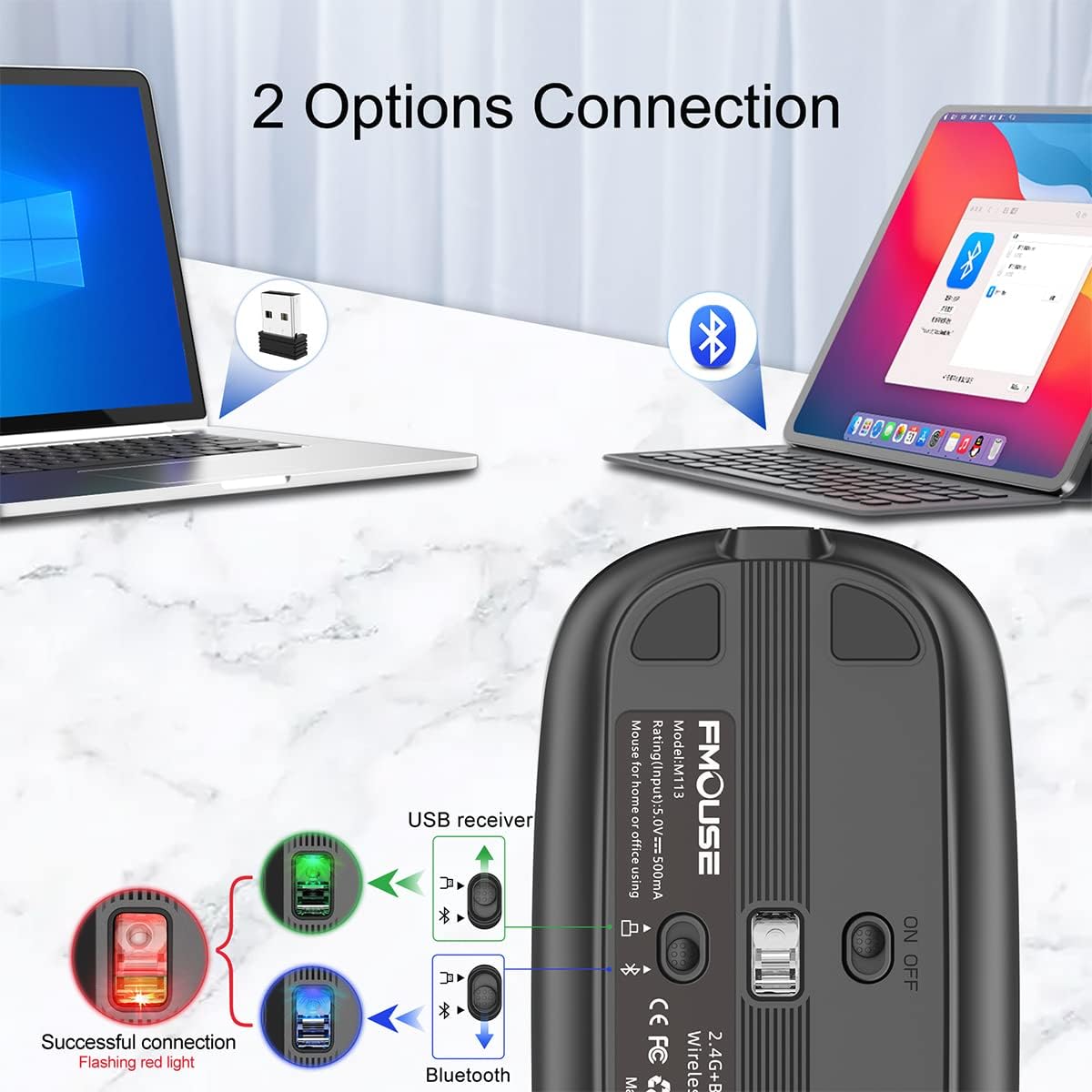
This diagram illustrates the two connection options: 2.4G wireless via a USB receiver for one laptop and Bluetooth for another. The underside of the mouse shows the power switch and the USB receiver storage slot.
2.1. 2.4G וויירלעס קאנעקשאן (USB ריסיווער)
- Locate the USB receiver stored in the magnetic slot on the underside of the mouse.
- צאַפּן די וסב ופנעמער אין אַ בנימצא וסב פּאָרט אויף דיין קאָמפּיוטער.
- צינדט אָן די מויז מיטן אָן/אויס קנעפּל וואָס געפינט זיך אויף דער אונטערשטער זייט.
- די מויז זאָל זיך אויטאָמאַטיש פֿאַרבינדן צו דיין קאָמפּיוטער.
2.2. בלועטוט 5.1 פֿאַרבינדונג
- צינדט אָן די מויז מיטן אָן/אויס קנעפּל וואָס געפינט זיך אויף דער אונטערשטער זייט.
- On your device (MacBook, iPad, PC, etc.), go to Bluetooth settings.
- זוכן פֿאַר new devices. The mouse should appear as "FMOUSE" or similar.
- Select the mouse to pair. Once paired, the mouse is ready for use.
אַפּערייטינג ינסטראַקשאַנז
1. Silent Click Operation
The FMOUSE is designed for silent clicks, making it suitable for quiet environments like libraries or offices.

This image highlights the silent click feature of the mouse, indicating that it produces minimal sound when clicked, ideal for quiet environments.
2. Desktop Return Button
Press the dedicated Desktop Return button (often marked with a computer monitor icon) to instantly minimize all open windows and return to your desktop.

The image shows the mouse positioned next to a computer screen, with an arrow pointing from the mouse's desktop button to the desktop, illustrating its function to quickly return to the home screen.
3. Mute / Volume Adjustment Button
The mute button (often marked with a speaker icon) provides quick audio control.
- Instant Mute: Press the mute button once to instantly set your computer's volume to zero.
- באַנד אַדזשאַסטמאַנט: Press and hold the mute button for 2 seconds, then scroll the mouse wheel up or down to adjust the volume level.

This image demonstrates the mute and volume adjustment features. The top panel shows pressing the mute button to silence audio. The bottom panel shows pressing the mute button for 2 seconds and then using the scroll wheel to adjust volume.
4. דפּי אַדזשאַסטמאַנט
Press the DPI button (often marked "DPI") to cycle through the four adjustable DPI settings: 800, 1200, 1600, and 2400. The color of the scroll wheel light will change to indicate the current DPI level.

This image illustrates the four adjustable DPI settings (800, 1200, 1600, 2400) and how the scroll wheel's RGB light changes color to indicate the selected DPI level.
Turning Off Roller Light:
If you prefer to turn off the RGB roller light, long press the DPI button for 2 seconds.
וישאַלט
- רייניקונג: ניצט אַ ווייכע, טרוקענע שטאָף צו רייניקן די מויז. פֿאַר שווערע שמוץ, אַ ביסל ווייכער מאַכןampווישט דעם שטאָף מיט וואַסער אָדער אַ מילדער רייניקונג לייזונג. פֿאַרמייַדט שטרענגע כעמיקאַלן אָדער אַברייסיוו מאַטעריאַלן.
- סטאָרידזש: When not in use, store the mouse in a cool, dry place. If traveling, utilize its slim design and consider storing the USB receiver in its magnetic slot to prevent loss.
- באַטערי זאָרגן: To prolong battery life, avoid fully discharging the mouse frequently. Charge it when the low battery indicator flashes.
טראָובלעשאָאָטינג
| פּראָבלעם | מעגלעך סיבה | לייזונג |
|---|---|---|
| מויז ניט ריספּאַנדינג | Low battery; Mouse is off; Incorrect connection mode; USB receiver not plugged in (2.4G); Bluetooth not paired. | Charge the mouse; Turn on the mouse; Ensure correct mode is selected (2.4G or BT); Re-insert USB receiver; Re-pair Bluetooth. |
| קורסאָר באַוועגונג איז נישט סטאַביל אָדער פּאַמעלעך | Low DPI setting; Dirty optical sensor; Unsuitable surface. | Increase DPI using the DPI button; Clean the optical sensor; Use on a smooth, non-reflective surface or mouse pad. |
| בלועטוט פֿאַרבינדונג פֿאַלט אָפֿט אַראָפּ | Interference; Distance from device; Low mouse battery. | Move closer to the device; Ensure no strong interference sources; Charge the mouse. |
| Roller light is off | Light has been turned off; Low battery. | Long press the DPI button for 2 seconds to turn it back on; Charge the mouse. |
ספּעסאַפאַקיישאַנז
- מאָדעל: B09K4248DB_CA NARF
- סאָרט: FMOUSE
- קאַנעקטיוויטי טעכנאָלאָגיע: Bluetooth 5.1, 2.4G Wireless (USB)
- באַוועגונג דעטעקשאַן טעכנאָלאָגיע: אָפּטיש
- דפּי לעוועלס: 800 / 1200 / 1600 / 2400
- ספּעציעלע פֿעיִקייטן: One-click muting, One-click access to desktop, One-click DPI adjustment, Three shortcut keys, Silent Click, RGB Roller Light
- מאַכט מקור: Rechargeable Lithium Ion Battery (1 included)
- פּראָדוקט דימענשאַנז: 4.45 X 2.24 X 0.98 אינטשעס (113 מם X 57 מם X 25 מם)
- נומער וואָג: 2.4 אונסעס (בעערעך 68 ג)
- קאָליר: גרוי
- פאַבריקאַנט: FMOUSE
- לאַנד פון אָריגין: כינע

This image provides a visual representation of the mouse's dimensions, highlighting its slim and portable design with measurements of 113mm (4.45 inches) in length and 25mm (0.98 inches) in height.
וואָראַנטי און שטיצן
For warranty information or technical support, please refer to the official FMOUSE webזייטל אדער קאנטאקט זייער קאסטומער סערוויס. האלט אייער קויף קוויטל פאר גאראנטיע טענות.
You can also find additional information and support resources on the FMOUSE Store on Amazon.
פֿאַרבונדענע דאָקומענטן - B09K4248DB_CA NARF
 |
FMOUSE M333 ווירעלעס מויז אינסטרוקציע מאַנואַל באַניצער גייד פֿאַר די FMOUSE M333 וויירלעס מויז, מיט RGB לייטינג, שטילע קליקן, טראַנספּאַרענטן פּלאַן, און צווייפאַכע קאָנעקטיוויטי (בלוטעט 5.1, 2.4GHz USB/טיפּ-C). לערנט וועגן DPI סעטטינגס, פּראָדוקט פֿעיִקייטן, און באַניץ. |
 |
FMOUSE M501 וויירלעס גיימינג מויז אינסטרוקציע מאַנואַל א פולשטענדיגע אינסטרוקציע מאנואל פאר די FMOUSE M501 וויירלעס גיימינג מויז, מיט פרטים וועגן איר טרי-מאָד קאַנעקטיוויטי (2.4GHz, בלועטוט 3.0, בלועטוט 5.0), ערגאָנאָמישן דיזיין, אַדזשאַסטאַבאַל DPI, און ריטשאַרדזשאַבאַל פֿעיִקייטן. |
 |
FMOUSE Wireless Mouse User Manual User manual for the FMOUSE 2.4G Dual-Mode Wireless Bluetooth Mouse, covering setup, charging, connection instructions, and product specifications. |
 |
FMOUSE M303 ווירעלעס מויז אינסטרוקציע מאַנואַל User manual for the FMOUSE M303 wireless mouse, detailing specifications, installation, usage, and troubleshooting. Includes FCC compliance information. |
 |
700 מויז באַניצער מאַנואַל און פּראָדוקט אינפֿאָרמאַציע א פולשטענדיגע באַניצער מאַנואַל פֿאַר די 700 MOUSE וויירלעס מויז, וואָס דעקט פֿעיִקייטן, אָפּעראַציע אינסטרוקציעס פֿאַר 2.4G און בלועטוט מאָדעס, ינסטאַלירונג, טראָובלעשווטינג, באַטאַרייע און לאַזער זיכערהייט וואָרענונגען, וואָראַנטי אינפֿאָרמאַציע, און FCC קאַנפאָרמאַטי. |
 |
Shenzhen FMOUSE Technology Co., Ltd. Wireless Mouse+M235 Simplified EU Declaration of Conformity This document provides the Simplified EU Declaration of Conformity for the Shenzhen FMOUSE Technology Co., Ltd. Wireless Mouse+M235, confirming compliance with Directive 2014/53/EU. The full text of the declaration is available online at http://ewm.lktouch.com/fvqb. |
Ask a question about this manual
Ask about setup, troubleshooting, compatibility, parts, safety, or missing instructions. Manuals+ will review the question and use this page’s manual context to help answer it.