
1. הקדמה
די דעסview T12 is a portable and foldable teleprompter designed for use with DSLR/mirrorless cameras, smartphones, and tablets. It features a 70/30 beam splitter glass, an all-metal construction, and includes a Bluetooth remote control for convenient operation. This manual provides detailed instructions for setting up, operating, and maintaining your Desview T12 teleprompter.
2. פּראָדוקט פֿעיִקייטן
- ברייט קאַמפּאַטאַבילאַטי: Supports DSLR/mirrorless cameras and smartphones or tablets up to 28 cm (11 inches) in size.
- פּאָרטאַטיוו און פאָלדאַבאַל פּלאַן: Features a foldable screen and adjustable glass for quick and easy setup. The entire system folds down for convenient transport.
- דוראַבאַל קאַנסטראַקשאַן: Manufactured from aluminum alloy, ensuring a robust and well-engineered structure.
- High-Definition Beam Splitter Glass: Equipped with a 12.5-inch, 7H hardness, 70/30 visible light transmission beam splitter glass, allowing clear text readability without ghosting.
- Wide-Angle Lens Support: Compatible with wide-angle lenses such as 18-105mm without interference.
- בלועטאָאָטה רימאָוט קאָנטראָל: Includes a remote for controlling text scrolling, speed, and other functions via the dedicated "Desview" app.
- Included Carrying Bag: Comes with a protective and attractive carrying bag for secure transportation.
3. פּעקל אינהאַלט
ביטע באַשטעטיקן אַז אַלע זאכן זענען פאַראַן אין דעם פּעקל:
- דעסview T12 Teleprompter Unit
- בלועטאָאָטה רימאָוט קאָנטראָל
- קאַמעראַ מאָונטינג פּלאַטע
- קעריינג באַג
- Cleaning Cloth (may vary)
4. סעטאַפּ אינסטרוקציעס
4.1 אויספּאַקן און ערשטע דורכקוק
Carefully remove all components from the carrying bag. Inspect for any signs of damage during transit. If any parts are missing or damaged, contact customer support.
4.2 Assembling the Teleprompter
- Unfold the teleprompter unit. The glass panel should be positioned at an angle for reflection.
- Attach the camera mounting plate to the base of the teleprompter. Ensure it is securely fastened.
- Adjust the height of the camera mounting platform as needed using the adjustment knobs.

Image: The adjustable lifting platform of the Desview T12 teleprompter, designed to protect the unit and accommodate various camera setups. The image highlights the all-metal frame and adjustment mechanisms.
4.3 מאָנטירן דיין קאַמעראַ
Mount your DSLR or mirrorless camera onto the camera mounting plate. Ensure the lens is positioned correctly to shoot through the teleprompter's glass. Adjust the camera's position to prevent vignetting.

בילד: זייט view of the Desview T12 teleprompter, illustrating how a camera is mounted and positioned to record through the teleprompter's glass.
4.4 Inserting Your Smartphone or Tablet
Place your smartphone or tablet into the designated tray at the bottom of the teleprompter. The device should be positioned horizontally, facing upwards, so its screen content reflects onto the teleprompter glass. The teleprompter supports devices up to 11.9 inches (30 cm).

Image: A diagram detailing the dimensions of the Desview T12 teleprompter and its maximum compatibility for smartphones, tablets, and iPads, indicating support for devices up to 11.9 inches.

Image: Top-down perspective of the Desview T12 teleprompter, highlighting the camera mounting area and the adjustable tray designed to securely hold a tablet or smartphone.
4.5 App Installation and Remote Pairing
- Download the free "Desview" app from the App Store (for iOS devices) or Google Play (for Android devices).
- ינסטאַלירן די אַפּ אויף דיין סמאַרטפאָנע אָדער טאַבלעט.
- Turn on the Bluetooth remote control.
- Open the "Desview" app and follow the in-app instructions to pair the remote control via Bluetooth.
5. אַפּערייטינג ינסטרוקטיאָנס
5.1 Preparing Your Script
Input your script into the "Desview" app. You can adjust font size, color, and background color within the app for optimal readability.
5.2 Using the Teleprompter
- Ensure your camera is recording and properly focused.
- Start the script scrolling in the "Desview" app.
- Use the Bluetooth remote control to adjust the scrolling speed to match your speaking pace. The remote allows you to pause, play, and adjust speed.
- Maintain eye contact with the camera lens while reading the reflected script on the teleprompter glass.
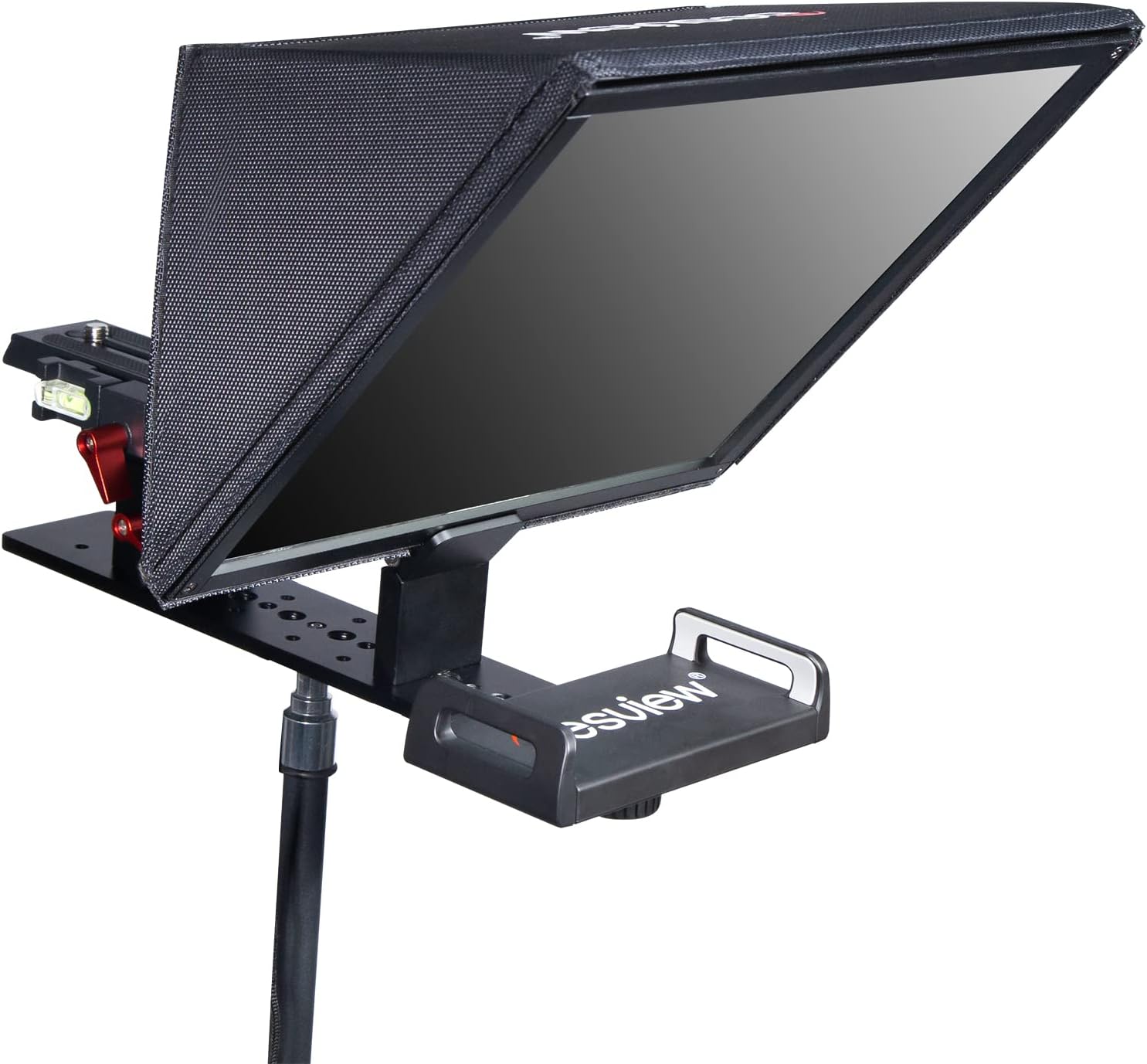
בילד: פראָנט view of the Desview T12 teleprompter, demonstrating the clarity of the 70/30 beam splitter glass and how the tablet's screen content is reflected for the presenter to read.
6. וישאַלט
6.1 רייניקן דאָס גלאָז
To clean the beam splitter glass, use a soft, lint-free microfiber cloth. For stubborn smudges, lightly dampen the cloth with a small amount of lens cleaning solution. Avoid abrasive materials or harsh chemicals, as these can damage the glass coating.
6.2 אַלגעמיינע קער
- Always store the teleprompter in its provided carrying bag when not in use to protect it from dust and physical damage.
- Avoid exposing the teleprompter to extreme temperatures or high humidity.
- Do not attempt to disassemble the teleprompter beyond the intended folding mechanism.
7. טראָובלעשאָאָטינג
7.1 Text Appears Blurry or Ghosted
- Ensure the teleprompter glass is clean. Refer to Section 6.1 for cleaning instructions.
- Verify that your smartphone/tablet screen brightness is set to an appropriate level.
- Check if the tablet/smartphone is correctly positioned in the tray, facing directly upwards.
7.2 ווײַטקאָנטראָל פֿאַרבינדט זיך נישט
- Ensure the remote control has fresh batteries and is powered on.
- קאָנטראָלירט אַז בלועטוט איז ענייבאַלד אויף אייער סמאַרטפאָון אָדער טאַבלעט.
- Restart the "Desview" app and attempt to re-pair the remote control.
- If issues persist, try restarting your smartphone/tablet.
7.3 Camera Lens Vignetting
- Adjust the camera's position on the mounting plate. Move it forward or backward to ensure the lens is centered within the teleprompter's opening.
- If using a wide-angle lens, ensure it is within the supported range (e.g., 18-105mm).
8. ספּעסאַפאַקיישאַנז
| מאָדעל נומער | T12 |
| סאָרט | דעסview |
| קאַמפּאַטאַבאַל דעוויסעס | DSLR/Mirrorless Cameras, iPad, Tablets, Smartphones |
| Max Device Size (Tablet/Smartphone) | 11.9 אינטשעס (30 סענטימעטער) |
| Screen Size (Glass) | 12.5 אינטשעס |
| Beam Splitter Ratio | 70/30 |
| גלאז כאַרדנאַס | 7H |
| מאַטעריאַל | אַלומינום צומיש |
| פּראָדוקט וואָג | 1500 גראַמז |
| קאָליר | שוואַרץ |
| UPC/GTIN | 723884578112 |
9. וואָראַנטי און שטיצן
9.1 וואָראַנטי אינפֿאָרמאַציע
די דעסview T12 Teleprompter comes with a 1 יאָר וואָראַנטי from the date of purchase. This warranty covers manufacturing defects and ensures free service for eligible issues. Please retain your proof of purchase for warranty claims.
9.2 קונה שטיצן
For technical assistance, troubleshooting, or warranty inquiries, please contact Desview customer support through the official website or your retailer. We are committed to providing good after-sales service.