
Diswoe Controller for Nintendo Switch
Diswoe Wireless Pro Controller User Manual
Model: Controller for Nintendo Switch
הקדמה
Thank you for choosing the Diswoe Wireless Pro Controller. This gamepad is designed to enhance your gaming experience on Nintendo Switch, Switch Lite, OLED, and PC. It features advanced functionalities such as a 6-axis gyro, adjustable Turbo function, dual shock vibration, and a comfortable ergonomic design for extended play sessions. This manual provides detailed instructions on setup, operation, maintenance, and troubleshooting to ensure optimal performance of your controller.

Figure 1: Diswoe Wireless Pro Controller
פּעקל אינהאַלט
- Diswoe Wireless Pro Controller
- וסב טשאַרדזשינג קאַבלע
- באַניצער מאַנואַל
קאָנטראָללער אויסלייג

Figure 2: Controller Button Layout
- Left 3D Stick: פֿאַר ריכטונגס-באַוועגונג.
- ד-פּאַד: Directional Pad for precise inputs.
- היים קנעפּל: קערט צוריק צום קאנסאל'ס היים סקרין.
- סקרינשאט קנעפל: Captures in-game screenshots.
- טורבאָ קנעפּל: Activates and adjusts Turbo function.
- +/- קנעפּלעך: System menu navigation, volume control.
- A/B/X/Y קנעפּלעך: נאָרמאַלע אַקציע קנעפּלעך.
- Right 3D Stick: For camera control or aiming.
- L1/R1 קנעפּלעך: אַקסל קנעפּלעך.
- L2/R2 קנעפּלעך: טריגער קנעפּלעך.
- TAPY-C Port: USB-C port for charging and wired connection.
סעטאַפּ
1. ערשטע אויפלאָדונג
Before first use, fully charge the controller. Connect the supplied USB charging cable to the controller's USB-C port and the other end to a USB power source (e.g., Switch dock, PC, or USB wall adapter). The charging time is approximately 2-3 hours for a full charge, providing up to 12 hours of continuous gameplay.

Figure 3: Battery and Charging Indication
2. Pairing with Nintendo Switch/Switch Lite/OLED
- פֿון די היים מעניו, אויסקלײַבן "קאָנטראָלערס" > "ענדערן גריפּ/אָרדער".
- While on the "Change Grip/Order" screen, press and hold the Home button on the Diswoe controller for 3-5 seconds until the LED indicators start flashing rapidly.
- אַמאָל פּערד, וועלן די קאָרעספּאָנדירנדיקע שפּילער LED(ס) אויף דעם קאָנטראָללער אָנצינדן שטאַרק.
- The controller supports up to 4 players simultaneously.

Figure 4: Controller in use with Nintendo Switch
3. Connecting to PC (Wired Only)
The Diswoe controller can be connected to a PC via the USB charging cable. No specific driver installation is required for basic functionality.
- Connect the USB-C end of the cable to the controller and the USB-A end to your PC.
- The PC should automatically recognize the controller as a gamepad.
אַפּערייטינג ינסטראַקשאַנז
1. גרונטלעכע קאנטראלן
Utilize the Left and Right 3D sticks for analog movement and camera control. The D-pad provides precise digital inputs. The A/B/X/Y buttons are for in-game actions. L1/R1 and L2/R2 serve as shoulder and trigger buttons respectively.
2. Gyro Axis Motion Sensors
The controller features a high-quality 6-axis centrifugal chip for precise somatosensory targeting. This allows for motion control in compatible games, enabling actions like rotation, tilt, and acceleration-based inputs.

Figure 5: 6-Axis Gyro Motion Sensors in Action
3. Adjustable TURBO Function
The Turbo function allows for rapid, automatic pressing of a button. To set up Turbo:
- דריקן און האַלטן די טורבאָ קנעפּל, then press the desired action button (A/B/X/Y/L1/R1/L2/R2) to enable Turbo for that button.
- To adjust Turbo speed, press and hold the טורבאָ קנעפּל און מאַך די Right 3D stick Up/Down. There are 3 speeds: 5 shots/s, 12 shots/s, and 20 shots/s.
- To clear Turbo for a specific button, press and hold the טורבאָ קנעפּל and press the action button again. To clear all Turbo settings, press and hold the טורבאָ קנעפּל פֿאַר 5 סעקונדעס.

פיגור 6: טורבאָ פונקציע אַקטיווירונג
4. Dual Shock Vibration Adjustment
The controller features dual motors for realistic vibration feedback. You can adjust the vibration intensity:
- דריקן און האַלטן די טורבאָ קנעפּל און מאַך די Left 3D stick Up/Down to cycle through 3 vibration intensities: Low, Medium, and Strong.
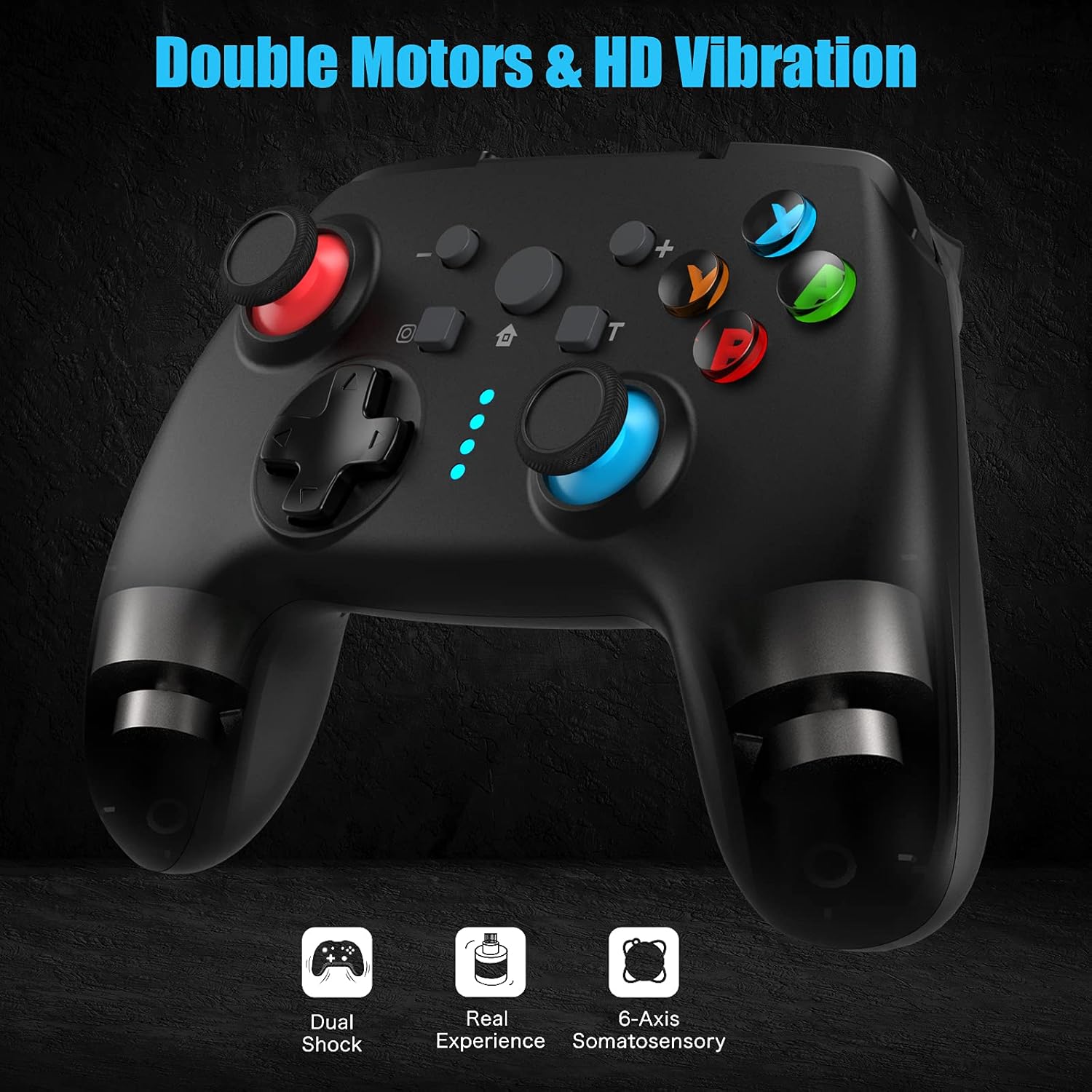
Figure 7: Dual Shock Vibration Feature
5. Screenshot Capture
דרוק די סקרעענשאָט קנעפּל (located near the Home button) to instantly capture your in-game moments.
6. Wake-up Function
When the Switch console is in sleep mode, you can press the היים קנעפּל on the controller to wake up the console and automatically reconnect the controller.
וישאַלט
1. אָפּצאָל גיידליינז
- Charge the controller when the battery indicator is low.
- פֿאַרמײַדט איבערלאָדן; דיסקאָנעקט אַמאָל פֿולשטענדיק אָנגעלאָדן.
- The controller supports charging while playing.
2. רייניקונג און סטאָרידזש
- רייניקט דעם קאָנטראָללער מיט אַ ווייכן, טרוקענעם שטאָף. ניצט נישט קיין שאַרפע כעמיקאַלן אדער שאַרפע מאַטעריאַלן.
- האַלט דעם קאָנטראָללער אין אַ קיל, טרוקן אָרט אַוועק פון דירעקט זונשייַן און עקסטרעמע טעמפּעראַטורן.
- If not used for an extended period, charge the controller at least once every three months to maintain battery health.
3. אַוטאָ סליפּ פֿונקציע
The controller will automatically enter sleep mode after 5 minutes of no input to conserve battery life. Press any button to wake it up.
טראָובלעשאָאָטינג
- קאָנטראָללער פֿאַרבינדט זיך/פֿאַרבינדט זיך נישט:
- מאַכן זיכער אַז די קאָנטראָללער איז טשאַרדזשינג.
- Make sure the Switch console is updated to the latest system version.
- Try restarting the Switch console.
- Repeat the pairing process carefully.
- If issues persist, try connecting the controller via USB cable to the Switch dock (if applicable) to force a connection, then try wireless pairing again.
- Buttons or sticks unresponsive:
- קאָנטראָלירן די באַטאַרייע מדרגה.
- Ensure the controller is within the 10m wireless range.
- Restart the controller by holding the Home button for 10 seconds until it turns off, then turn it back on.
- If connected to PC, try a different USB port.
- ווייבריישאַן אַרבעט נישט אָדער צו שוואַך/שטאַרק:
- Adjust the vibration intensity as described in the "Operating Instructions" section.
- Ensure the game supports vibration feedback.
- Turbo function not working:
- Ensure you have correctly assigned the Turbo function to the desired button.
- Check if the Turbo speed is set appropriately.
ספּעסאַפאַקיישאַנז
| שטריך | דעטאַל |
|---|---|
| סאָרט | דיסוואָע |
| מאָדעל נאָמען | קאָנטראָללער פֿאַר נינטענדאָו סוויטש |
| קאַנעקטיוויטי טעכנאָלאָגיע | Wireless (Bluetooth), USB (Wired) |
| קאָנטראָללער טיפּ | גאַמעפּאַד |
| קאַמפּאַטאַבאַל פּלאַטפאָרמס | Nintendo Switch, Switch Lite, OLED, PC |
| באַטערי טיפּ | ליטהיום-יאָן (600 מאַה) |
| טשאַרדזשינג צייט | בעערעך. 2-3 שעה |
| פּלייַינג צייט | אַרויף צו 12 שעה |
| ווירעלעסס ראַנגע | אַרויף צו 10 מעטער |
| ספּעציעלע פֿעיִקייטן | 6-Axis Gyro, Adjustable Turbo, Dual Shock Vibration, Screenshot Capture, Wake-up Function |
| נומער פון קנעפּלעך | 16 |
| קאָליר | שוואַרץ |
וואָראַנטי און שטיצן
Information regarding specific warranty terms and conditions for this product is not provided in the available data. For warranty claims, technical support, or further inquiries, please contact the manufacturer or your point of purchase. Keep your purchase receipt as proof of purchase.
Manufacturer: Diswoe
Ask a question about this manual
Ask about setup, troubleshooting, compatibility, parts, safety, or missing instructions. Manuals+ will review the question and use this page’s manual context to help answer it.