
1. הקדמה
This manual provides instructions for the Keychron K14 mechanical keyboard. The K14 is a 70% layout, 72-key keyboard designed for both Mac and Windows operating systems, offering both Bluetooth wireless and USB wired connectivity. It features an RGB backlight, an aluminum frame, and Gateron G Pro Brown mechanical switches.

בילד: איבערview of the Keychron K14 mechanical keyboard highlighting its 70% layout, wireless/wired modes, multi-device connectivity, Gateron G Pro switches, RGB lighting, Mac/Windows compatibility, and USB-C plug.
2. פּעקל אינהאַלט
Verify that all items are present in your Keychron K14 package:
- Keychron K14 Mechanical Keyboard
- וסב טיפּע- C קאַבלע
- קייקאַפּ פּולער
- Switch Puller (if hot-swappable version)
- Extra Keycaps for Windows/Mac operating systems
- באַניצער מאַנואַל
3. פּראָדוקט פֿעיִקייטן
3.1. 70% Layout and Key Cluster
The K14 features a compact 70% layout with 72 keys, providing a smaller footprint while retaining essential navigation keys such as Home, End, and Arrow keys, similar to a tenkeyless keyboard.

בילד: א נאָענטע בילד view of the Keychron K14 keyboard, illustrating its 70% layout which includes dedicated navigation keys such as Insert, Home, End, Delete, Page Up, Page Down, and arrow keys.
3.2. Gateron G Pro Brown Switches
The keyboard is equipped with Gateron G Pro Brown mechanical switches, known for their tactile feedback. These switches offer a durable lifespan of up to 50 million keystrokes.

Image: Specifications for the Gateron G Pro mechanical Brown Switch, detailing operating force (55±15gf), pre-travel (2±0.6mm), tactile behavior, gentle sound level, pre-lubed status (Yes), and a lifespan of up to 50 million keystrokes.
3.3. ערגאָנאָמיק פּלאַן
The K14 features two-level adjustable feet, allowing for typing angles of 6º and 9º. This design, combined with an inclined bottom frame, provides ergonomic support for extended typing comfort.

בילד: א זייט view of the Keychron K14 keyboard, illustrating its two-level adjustable feet that allow for typing angles of 6 and 9 degrees, enhancing ergonomic support.
4. סעטאַפּ
4.1. קאַנעקטינג די קלאַוויאַטור
The Keychron K14 supports both Bluetooth wireless and USB Type-C wired connections.
4.1.1. בלועטאָאָטה קאַנעקשאַן
- Ensure the keyboard's mode switch (located on the side) is set to "BT" (Bluetooth).
- Press and hold the "Fn" + "1" (or "2" or "3") keys for 4 seconds to enter pairing mode. The backlight will flash rapidly.
- On your device (smartphone, laptop, iPad), enable Bluetooth and search for "Keychron K14".
- Select the keyboard to pair. The backlight will stop flashing upon successful connection.
- The keyboard can connect to up to 3 devices. Use "Fn" + "1", "Fn" + "2", or "Fn" + "3" to switch between paired devices.
4.1.2. ווייערד קאַנעקשאַן
- Ensure the keyboard's mode switch is set to "Cable".
- Connect the provided USB Type-C cable from the keyboard to your computer's USB port.
- The keyboard will automatically be recognized and function as a wired keyboard.

Image: The Keychron K14 keyboard shown connecting wirelessly to a desktop computer, laptop, and smartphone, indicating compatibility with Mac and Windows operating systems.

Image: The Keychron K14 keyboard displayed with icons representing its dual connectivity options: wireless Bluetooth and wired USB-C.
4.2. אָפּערייטינג סיסטעם סוויטש
The K14 includes a switch to toggle between Mac and Windows layouts. Locate the OS switch on the side of the keyboard and set it to the appropriate operating system for optimal key functionality.
4.3. אַדזשאַסטירן קלאַוויאַטור ווינקל
The keyboard features two-level adjustable feet. Flip out the feet to select between 6º and 9º typing angles to suit your ergonomic preference.
5. אָפּעראַציע
5.1. באַקלייט קאָנטראָל
The Keychron K14 features RGB backlighting with 19 different types of lighting effects. Use the dedicated backlight key (often marked with a lightbulb icon) or function key combinations to cycle through effects, adjust brightness, and change colors.
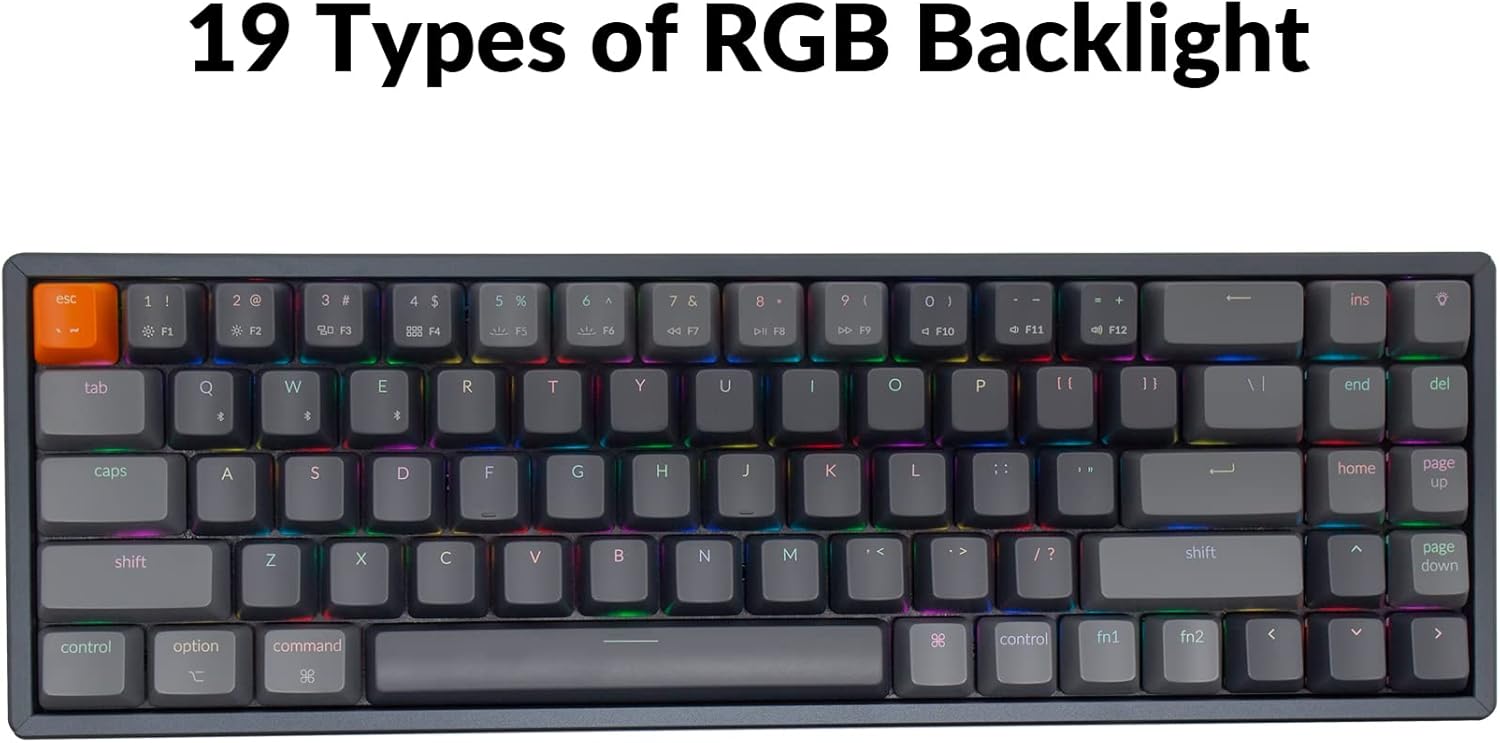
Image: The Keychron K14 keyboard illuminated with a multi-color RGB backlight, demonstrating its various lighting capabilities.
5.2. מולטימעדיאַ שליסלען
Access multimedia functions (e.g., volume control, play/pause) using the Fn key in combination with the designated function row keys. Refer to the keycap legends for specific functions.
5.3. N-Key Rollover (NKRO)
The K14 supports N-key rollover (NKRO) in wired mode, allowing all keys to be registered simultaneously. In wireless mode, it supports 6-key rollover (6KRO).
6. באַטערי מאַנאַגעמענט
The Keychron K14 is equipped with a 4000 mAh battery, providing up to 240 hours of usage with the backlight off. Connect the keyboard via the USB Type-C cable to charge the battery. The charging indicator will show the charging status.

Image: A close-up of the Keychron K14 keyboard with a prominent overlay indicating its 4000 mAh battery capacity.
7. וישאַלט
To ensure the longevity and optimal performance of your Keychron K14 keyboard, follow these maintenance guidelines:
- רייניקונג קלאַוויאַטור קאַפּס: Use a keycap puller to remove keycaps. Clean them with a mild soap solution and a soft cloth. Ensure they are completely dry before reattaching.
- רייניקונג פון די קלאַוויאַטור גוף: Use a soft, dry, lint-free cloth to wipe the aluminum frame and other surfaces. For stubborn dirt, a slightly damp שטאָף קען גענוצט ווערן, אָבער פֿאַרמייַדן איבעריקע פֿײַכטקייט.
- באַזייַטיקונג פון שטויב: ניצט קאמפרעסט לופט צו באַזײַטיקן שטויב און שמוץ פון צווישן די קלאַוויאַטורן און סוויטשעס.
- סטאָרידזש: ווען נישט אין באַנוץ פֿאַר לענגערע פּעריאָדן, האַלט די קלאַוויאַטור אין אַ טרוקן, קיל אָרט אַוועק פון דירעקט זונשייַן און עקסטרעמע טעמפּעראַטורן.
- ויסמיידן ליקווידס: The keyboard is not water-resistant. Keep liquids away to prevent damage.
8. טראָובלעשאָאָטינג
If you encounter issues with your Keychron K14 keyboard, refer to the following common solutions:
8.1. קלאַוויאַטור רעאַגירט נישט
- קוק די קשר: Ensure the USB cable is securely connected or that Bluetooth is properly paired.
- באַטערי מדרגה: If using Bluetooth, check if the battery is charged. Connect the USB cable to charge.
- מאָדע באַשטימען: Verify the keyboard's mode switch is set correctly (BT for Bluetooth, Cable for wired).
- ריסטאַרט: Try restarting your computer or device and the keyboard.
8.2. Bluetooth Disconnection Issues
- ינטערפיראַנס: ריקט די קלאַוויאַטור נענטער צו אייער דעווייס און אַוועק פון אַנדערע וויירלעס דעווייסעס וואָס קענען פאַרשאַפן שטערונג.
- ריפּער: Unpair the keyboard from your device's Bluetooth settings and then re-pair it.
- פירמוואַרע: Check the official Keychron website for any available firmware updates for your K14 model.
8.3. Keys Not Registering or Double Typing
- ריינע סוויטשעס: Dust or debris under the keycap or switch can cause issues. Use compressed air.
- סוויטש פאַרבייַט: If you have a hot-swappable version, try replacing the problematic switch with a spare one.
8.4. באַקלייט ניט ארבעטן
- ברייטקייט: Ensure the backlight brightness is not set to the lowest level.
- פֿונקציע קיז: Try cycling through backlight modes and brightness levels using the designated function key combinations.
9. ספּעסאַפאַקיישאַנז
| שטריך | דעטאַל |
|---|---|
| סאָרט | Keychron |
| מאָדעל נומער | K14C3 |
| אויסלייג | 70% (72 שליסלען) |
| קאַנעקטיוויטי | בלועטוט 5.1 און USB טיפ-C מיט ווייערס |
| סוויטשיז | Gateron G Pro Brown Mechanical |
| באַקלייט | RGB (19 types) |
| ראַם מאַטעריאַל | אַלומינום |
| באַטאַרייע קאַפּאַציטעט | 4000 מאַה |
| באַטערי לעבן | ביז 240 שעה (באַקלייַכטונג אויסגעלאָשן) |
| Adjustable Feet | Yes (6º and 9º) |
| N-Key ראָולאָוווער | NKRO (Wired), 6KRO (Wireless) |
| קאַמפּאַטאַבאַל דעוויסעס | לאַפּטאָפּ, סמאַרטפאָון, טאַבלעט |
| אַפּערייטינג סיסטעמס | מעק, ווינדאָוז |
10. וואָראַנטי און שטיצן
Keychron products are covered by a limited warranty. For specific warranty terms, duration, and support inquiries, please refer to the official Keychron webזייטל אדער קאנטאקט זייער קאסטומער סערוויס גלייך. האלט אייער באווייז פון קויפן פאר גאראנטיע פארלאנגען.
באַאַמטער Webפּלאַץ: www.keychron.com