
zemismart DS-151
zemismart Wi-Fi Wall Switch for Roller Shutters Instruction Manual
מאָדעל: DS-151
הקדמה
This manual provides detailed instructions for the installation, operation, and maintenance of your zemismart Wi-Fi Wall Switch for Roller Shutters. Please read this manual thoroughly before installation and use to ensure proper function and safety.

בילד: פראָנט view of the zemismart Wi-Fi Wall Switch for Roller Shutters. The switch is white with a glass-like finish and three touch-sensitive icons: a left arrow (open), an equals sign (stop), and a right arrow (close).
זיכערקייַט אינפֿאָרמאַציע
ווארענונג: Electrical installation should only be performed by a qualified electrician. Ensure power is disconnected at the circuit breaker before beginning any installation work. Failure to follow these instructions can result in electric shock, fire, or serious injury.
- נישט אינסטאַלירן מיט נאַסע הענט.
- טאָן ניט ינסטאַלירן אין דamp ינווייראַנמאַנץ.
- Ensure the power supply matches the switch's specifications (110V-240V).
- א נייטראַל דראָט איז פארלאנגט פֿאַר ינסטאַלירונג.
ספּעסאַפאַקיישאַנז
| שטריך | דעטאַל |
|---|---|
| מאָדעל | דס-קסנומקס |
| Voltage | AC100-240V |
| אָפטקייַט | 50/60 הז |
| מאַקס. מאַסע | 1800 וו |
| ווירעלעסס טיפּ | ווי-פי |
| דימענשאַנז | 87 מם X 87 מם X 27 מם (L X W X D) |
| סערטיפיקאַטיאָנס | CE, RoHS |
| ספּעציעלע פֿעיִקייטן | UV Protection, Weather Resistant |
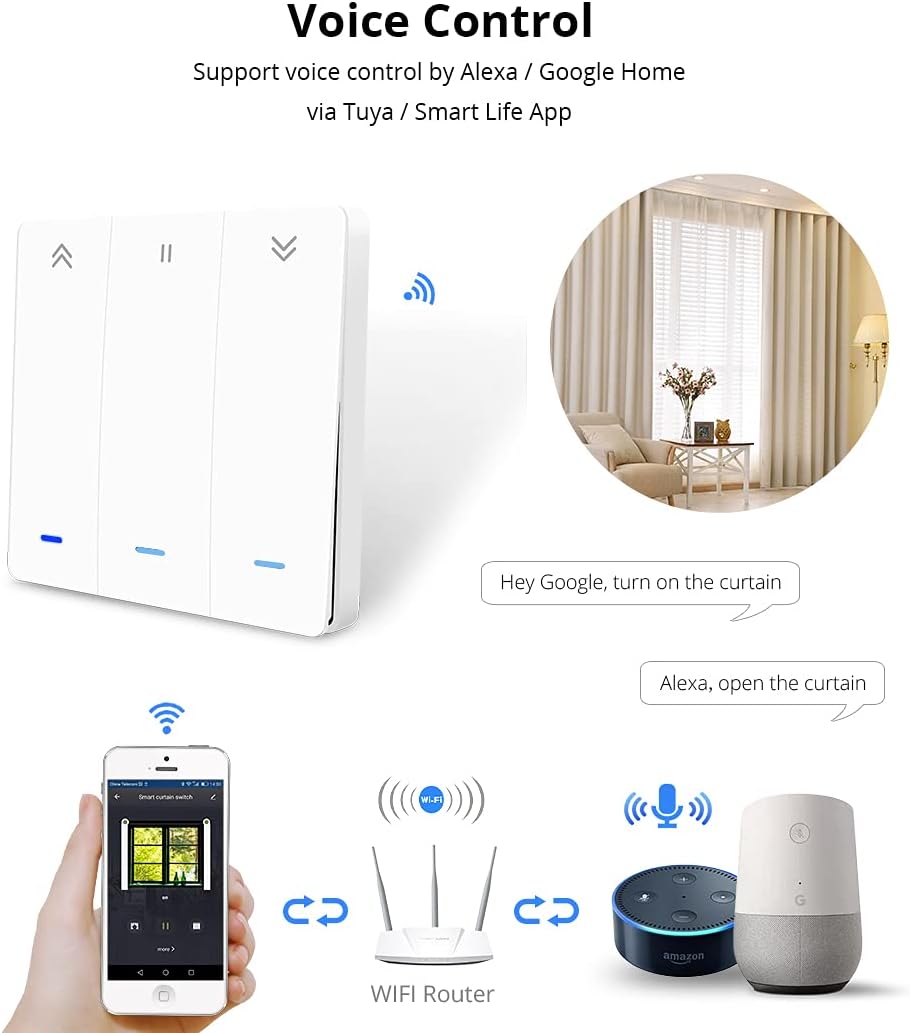
Image: Detailed diagram showing the dimensions of the switch (87mm x 87mm x 27mm) and its wiring connections. The wiring diagram indicates connections for Live (L), Neutral (N), and motor lines (L1, L2, L3, L4).
ייַנמאָנטירונג און סעטאַפּ
1. וויירינג ינסטרוקטיאָנס
- דיסקאַנעקט מאַכט: Before starting, turn off the main power supply at your circuit breaker to avoid electric shock.
- אידענטיפיצירן דראָטן: Identify the Live (L), Neutral (N), and motor control wires (L1, L2, L3, L4) from your roller shutter system. A neutral wire is required for this switch.
- פאַרבינדן ווירעס: Connect the wires to the corresponding terminals on the zemismart Wi-Fi Wall Switch as shown in the wiring diagram.
- Connect the Live wire to the 'L' terminal.
- Connect the Neutral wire to the 'N' terminal.
- Connect the motor control wires to the 'L1', 'L2', 'L3', 'L4' terminals as per your motor's requirements (typically L1/L2 for up/down, L3/L4 for limit switches if applicable). Refer to your motor's manual for specific wiring.
- שטעלן די סוויטש: זיכער מאָנטירן דעם סוויטש אין דער וואַנט קעסטל.
- ומקערן מאַכט: אַמאָל אַלע קאַנעקשאַנז זענען זיכער און דער סוויטש איז מאָונטעד, צוריקשטעלן די מאַכט בייַ די קרייַז ברעאַקער.
2. Mobile App Control Setup
The zemismart Wi-Fi Wall Switch supports control via the Smart Life or Tuya Smart app on Android and iOS devices.
- אראפקאפיע אַפּ: דאַונלאָוד און אינסטאַלירן די "Smart Life" אדער "Tuya Smart" אַפּ פֿון דיין מיטל'ס אַפּ סטאָר.
- רעגיסטרירן/אריינלאָגירן: עפֿנט די אַפּ און רעגיסטרירט זיך פֿאַר אַ נײַעם אַקאַונט אָדער לאָגט זיך אײַן אויב איר האָט שוין אײנס.
- לייג דיווייס:
- Ensure your Wi-Fi switch is powered on and in pairing mode (usually indicated by a blinking light).
- אין דער אַפּ, צאַפּן די "+" בילדל צו לייגן צו אַ נייעם מיטל.
- Select "Curtain Switch" or "Roller Shutter Switch" from the device list.
- Follow the in-app instructions to connect the switch to your 2.4GHz Wi-Fi network.
- Control and Schedule: Once connected, you can control your roller shutters (Open, Stop, Close) and set schedules or timers directly from the app.

Image: Three mobile phone screens displaying the Smart Life/Tuya app interface. The first shows the home screen with various smart devices, the second shows the curtain switch control interface with Open, Stop, and Close buttons, and the third shows the timer scheduling interface.
אָפּעראַציע
1. מאַנואַל קאָנטראָל
The touch-sensitive buttons on the switch allow for direct control of your roller shutters:
- לינקס פייַל («): Tap to open the roller shutter.
- Equals Sign (=): Tap to stop the roller shutter at its current position.
- רעכט פייַל (»): Tap to close the roller shutter.
2. קול קאָנטראָל
The switch supports voice control through Amazon Alexa and Google Home when integrated with the Smart Life/Tuya app.
- פֿאַרבינדן אַקאַונטס: In your Alexa or Google Home app, link your Smart Life/Tuya account.
- אַנטדעקן דעוויסעס: Discover new devices in your smart home app. Your zemismart switch should appear.
- קול קאַמאַנדז: ניצט קאמאנדעס ווי למשל:
- "Alexa, open the curtain."
- "Hey Google, turn on the curtain." (Note: "turn on" might be interpreted as "open" for curtains/shutters)
- "Alexa, close the curtain."
- "Hey Google, stop the curtain."

Image: A diagram showing a smartphone, a Wi-Fi router, an Amazon Echo device, and a Google Home device, all connected to the smart curtain switch. Speech bubbles indicate voice commands like "Hey Google, turn on the curtain" and "Alexa, open the curtain."
3. Backlight Function Key
The backlight function of the switch can be activated or deactivated via the mobile app to save power or suit preference.
- Open the Smart Life/Tuya app and navigate to the curtain switch control interface.
- Look for a "Backlight" option or similar setting within the device's settings to toggle it on or off.

Image: A mobile phone screen showing the curtain switch app interface with a "Backlight" button highlighted. To the right, two sets of switch images illustrate the backlight being off (no red light) and on (red light visible).
וישאַלט
- רייניקונג: Disconnect power before cleaning. Use a soft, dry cloth to wipe the surface of the switch. Do not use abrasive cleaners or solvents.
- Firmware דערהייַנטיקונגען: Periodically check the Smart Life/Tuya app for available firmware updates for your switch to ensure optimal performance and security.
- ינווייראַנמענאַל טנאָים: Ensure the switch is not exposed to extreme temperatures or humidity, as this can affect its lifespan and functionality.
טראָובלעשאָאָטינג
| פּראָבלעם | מעגלעך סיבה | לייזונג |
|---|---|---|
| סוויטש רעאַגירט נישט / קיין מאַכט | No power supply; Incorrect wiring; Circuit breaker tripped. | Check circuit breaker. Verify wiring connections (Live, Neutral, Motor). Ensure power is restored. |
| קען נישט פאַרבינדן צו Wi-Fi / אַפּ | Incorrect Wi-Fi password; Not 2.4GHz Wi-Fi; Switch not in pairing mode; Router too far. | Ensure 2.4GHz Wi-Fi. Re-enter password. Put switch into pairing mode (refer to app instructions). Move router closer or use a Wi-Fi extender. |
| Roller shutter not moving or moving incorrectly | Incorrect motor wiring; Motor limits not set; Motor malfunction. | Verify motor wire connections (L1, L2, L3, L4). Consult your roller shutter motor manual for limit setting procedures. Contact a professional if motor malfunction is suspected. |
| קול קאָנטראָל איז נישט ארבעטן | Smart Life/Tuya account not linked; Device not discovered; Incorrect voice command. | Ensure Smart Life/Tuya account is linked in Alexa/Google Home app. Redo device discovery. Use correct voice commands. |
וואָראַנטי אינפֿאָרמאַציע
Specific warranty details for the zemismart Wi-Fi Wall Switch are typically provided at the point of purchase or on the official zemismart website. Please retain your proof of purchase for warranty claims. The product is certified CE and RoHS, indicating compliance with European safety and environmental standards.
קונה שטיצן
For further assistance, technical support, or inquiries regarding your zemismart Wi-Fi Wall Switch, please visit the official zemismart website or contact their customer service department. You can often find support contact information on the product packaging or through the Smart Life/Tuya app's help section.
Visit the zemismart store: zemismart Official Store
Ask a question about this manual
Ask about setup, troubleshooting, compatibility, parts, safety, or missing instructions. Manuals+ will review the question and use this page’s manual context to help answer it.