
הקדמה
This manual provides essential instructions for setting up, operating, maintaining, and troubleshooting your Nyko 86158 Core Wireless Controller for Xbox One. Please read this manual thoroughly before use to ensure optimal performance and longevity of your device.
פּעקל אינהאַלט
באַשטעטיקט אַז אַלע זאכן וואָס זענען אויסגערעכנט אונטן זענען אַרייַנגערעכנט אין אייער פּעקל:
- Nyko 86158 Core Wireless Controller
- USB Wireless Receiver Dongle
- וסב טשאַרדזשינג קאַבלע
- באַניצער מאַנואַל (דעם דאָקומענט)
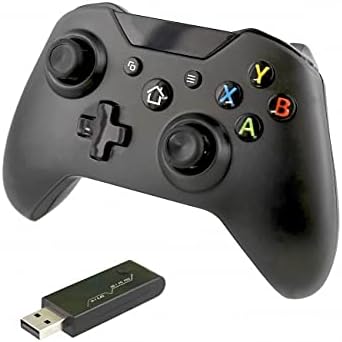
Image: Nyko 86158 Core Wireless Controller shown alongside its USB wireless receiver dongle. This illustrates the main components included in the package.

בילד: נאָענט-אַרויף view of the USB wireless receiver dongle. This dongle is essential for establishing a wireless connection between the controller and the Xbox One console or PC.

Image: The USB charging cable provided with the controller. This cable is used to recharge the controller's internal battery.
קאָנטראָללער אויסלייג
Familiarize yourself with the buttons and features of your Nyko Core Wireless Controller.
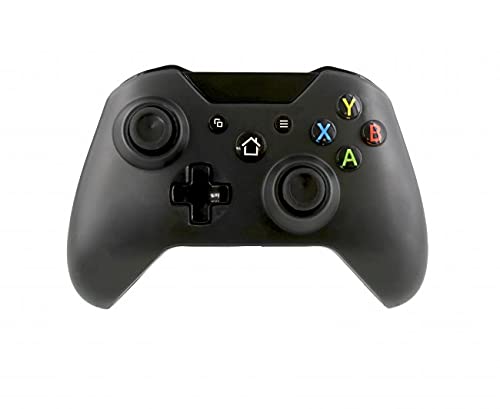
בילד: פראָנט view of the Nyko 86158 Core Wireless Controller, showing the two analog sticks, D-pad, A/B/X/Y buttons, View button, Menu button, Xbox button, and Share button.
- לינקער אנאלאג שטעקן: פֿאַר באַוועגונג און קאַמעראַ קאָנטראָל.
- רעכטער אנאלאג שטעקן: For camera control and aiming.
- ד-פּאַד: Directional input for menu navigation and specific game actions.
- A/B/X/Y קנעפּלעך: הויפּט קאַמף קנעפּלעך.
- View קנעפּל: Accesses additional in-game information or menus.
- מעניו קנעפּל: Opens game menus or system options.
- Xbox קנעפּל: Powers on the controller, accesses the Xbox Guide, or returns to the home screen.
- ייַנטיילן קנעפּל: Captures screenshots or video clips (functionality may vary by console/game).

בילד: אויבן view of the Nyko 86158 Core Wireless Controller, highlighting the Left and Right Bumpers (LB, RB), Left and Right Triggers (LT, RT), and the micro-USB charging port located at the front.
- Left Bumper (LB) / Right Bumper (RB): Shoulder buttons for various in-game actions.
- Left Trigger (LT) / Right Trigger (RT): Analog triggers for precise input, often used for acceleration or aiming.
- מיקראָ-וסב פּאָרט: Used for charging the controller.

בילד: צוריק view of the Nyko 86158 Core Wireless Controller, showing the battery compartment cover. This is where the batteries are inserted or the rechargeable battery pack is housed.
סעטאַפּ אינסטרוקציעס
1. מאַכט די קאָנטראָללער
The Nyko 86158 Core Wireless Controller requires batteries to operate wirelessly. It is compatible with standard AA batteries or a rechargeable battery pack (sold separately).
- געפינט די באַטאַרייע אָפּטייל אויף דער צוריק פון דעם קאָנטראָללער.
- Press down on the tab and slide the battery cover off.
- Insert two (2) AA batteries, ensuring correct polarity (+/-). If using a rechargeable pack, insert it as directed by the pack's instructions.
- פאַרבייַטן די באַטאַרייע דעקן.
2. Connecting to Xbox One
To connect your wireless controller to an Xbox One console:
- Insert the USB Wireless Receiver Dongle into an available USB port on your Xbox One console.
- Turn on your Xbox One console.
- דריקן און האַלטן די קסבאָקס קנעפּל on the controller until it powers on. The Xbox button will flash.
- The controller will automatically attempt to pair with the USB receiver. Once connected, the Xbox button on the controller will glow solid.
- If the controller does not connect automatically, press the small pairing button on the USB receiver dongle, then press and hold the קסבאָקס קנעפּל on the controller until it pairs.
3. Connecting to PC (Optional)
The controller can also be used with a PC. Ensure your PC has an available USB port for the wireless receiver.
- Insert the USB Wireless Receiver Dongle into an available USB port on your PC.
- The PC should automatically install the necessary drivers. This may take a few moments.
- דריקן און האַלטן די קסבאָקס קנעפּל on the controller until it powers on.
- The controller will connect to the receiver. The Xbox button will glow solid once connected.
אַפּערייטינג ינסטראַקשאַנז
קערן אויף / אַוועק
- צו אָנהייבן: דריקן און האַלטן די קסבאָקס קנעפּל until the controller vibrates and the light turns on.
- צו קער אַוועק: דריקן און האַלטן די קסבאָקס קנעפּל for 5-10 seconds until the controller powers down. The controller will also automatically turn off after a period of inactivity to conserve battery life.
טשאַרדזשינג די קאָנטראָללער
If using a rechargeable battery pack (not included) or if the controller has a built-in rechargeable battery:
- Connect the small end of the USB Charging Cable to the micro-USB port on the front of the controller.
- Connect the larger end of the USB Charging Cable to an available USB port on your Xbox One console or a USB wall adapter (5V, 1A recommended).
- The indicator light on the controller (usually the Xbox button) will show charging status (e.g., flashing while charging, solid when fully charged).
- דיסקאַנעקט די קאַבלע אַמאָל די טשאַרדזשינג איז גאַנץ.
וישאַלט
- רייניקונג: ניצט אַ ווייכע, טרוקענע שטאָף צו רייניקן דעם קאָנטראָללער. ניצט נישט קיין שאַרפע כעמיקאַלן אָדער אַברייסיוו מאַטעריאַלן.
- סטאָרידזש: האַלט דעם קאָנטראָללער אין אַ קיל, טרוקן אָרט אַוועק פון דירעקט זונשייַן און עקסטרעמע טעמפּעראַטורן.
- באַטערי זאָרגן: If not using the controller for an extended period, remove the AA batteries to prevent leakage.
- ויסמיידן טראפנס: באַשיצן דעם קאָנטראָללער פֿון פֿאַלן און קלאַפּן, וואָס קענען שעדיקן אינעווייניקסטע קאָמפּאָנענטן.
טראָובלעשאָאָטינג
Controller Not Turning On
- זיכער מאַכן אַז די באַטעריעס זענען ריכטיק אַרײַנגעשטעלט מיט דער ריכטיקער פּאָלאַריטעט.
- Replace old batteries with new ones, or fully charge the rechargeable battery pack.
Controller Not Connecting to Xbox One/PC
- Ensure the USB Wireless Receiver Dongle is securely plugged into an active USB port.
- פּרוּווט אַ אַנדערש וסב פּאָרט.
- זייט זיכער אז דער קאנטראלער איז אנגעצונדן.
- Re-attempt the pairing process: press the pairing button on the dongle, then press and hold the Xbox button on the controller.
- ריסטאַרט דיין Xbox One קאַנסאָול אָדער פּיסי.
Input Lag or Disconnections
- Ensure the controller is within range of the USB receiver (typically up to 30 feet/9 meters).
- מינימיזירן אריינמישונג פון אנדערע וויירלעס דעוויסעס (למשל, Wi-Fi ראָוטערס, שנורלאָזע טעלעפאָנען).
- זיכער מאַכן אַז דער קאָנטראָללער האט גענוג באַטאַרייע אָפּצאָל.
ספּעסאַפאַקיישאַנז
| סאָרט | ניקאָ |
| מאָדעל נומער | 86158 |
| קאַמפּאַטאַבאַל דעוויסעס | Xbox One, PC |
| קאָנטראָללער טיפּ | ווירעלעסס שפּיל קאָנטראָללער |
| קאַנעקטיוויטי טעכנאָלאָגיע | Wireless (2.4GHz via USB dongle) |
| מאַכט מקור | Batteries (AA or rechargeable pack) |
| דימענסיעס (L X W X H) | 8.3 x 18.4 x 15.2 ס״מ (אומגעפער 3.27 x 7.24 x 5.98 אינטשעס) |
| UPC | 743840861584 |
| ASIN | B09BD8813T |
וואָראַנטי און שטיצן
For warranty information or technical support, please refer to the documentation included with your purchase or visit the official Nyko webזייטל. האַלט דיין קויפן באַווייַז פֿאַר וואָראַנטי קליימז.