
GBF PL963PMPOE
GBF Smart Video Door Phone & Doorbell
Model: PL963PMPOE
ינסטראַקשאַנז מאַנואַל

אייער גייד צו אינסטאַלאַציע, אָפּעראַציע און וישאַלט.
1. הקדמה
The GBF Smart Video Door Phone & Doorbell (Model: PL963PMPOE) is an advanced intercom system designed to enhance your home security and convenience. It allows you to remotely view and communicate with visitors at your door via your mobile device, whether you are at home or away. Featuring a 1080P camera, built-in Power over Ethernet (PoE) capability, and a smart keypad, this system offers versatile access control and monitoring functionalities.

Figure 1.1: GBF Smart Video Door Phone & Doorbell with Mobile App Interface
This image shows the main outdoor unit of the GBF Smart Video Door Phone, featuring a camera, speaker, and a numeric keypad. A smartphone is positioned next to it, displaying the mobile application interface for remote communication and door control.
2. פּעקל אינהאַלט
ביטע באַשטעטיקן אַז אַלע קאָמפּאָנענטן זענען פאַראַן אין אייער פּעקל:
- GBF outdoor station PL963PMPOE
- 12 וו דק מאַכט אַדאַפּטער
- Wiring harness and the Bell Connector Wire Set
- WiFi אַנטענע
- מאַונטינג סקרוז און אַנגקערז
- באַניצער מאַנואַל (דעם דאָקומענט)
3. ינסטאַלירונג
3.1 פיזישע מאָנטירונג
The PL963PMPOE unit features a premium brushed aluminum faceplate and an all-metal back box, designed for durability and weatherproof IP65 rated construction. Choose a suitable location near your door or gate, ensuring it is within reach of power and network connections.

Figure 3.1: Installed Outdoor Unit
This image displays the GBF Smart Video Door Phone unit securely mounted on a textured stone wall, adjacent to a metal gate, demonstrating a typical outdoor installation scenario.
3.2 Wiring and Power
The unit can be powered via the included 12V DC 1A power adapter or through a wired Ethernet connection using integrated Power over Ethernet (PoE). Ensure proper wiring for power and any connected locks or existing chimes.

פיגורע 3.2: עקספּלאָדעד View און וויירינג דיאַגראַמע
This diagram illustrates the internal components of the GBF Smart Video Door Phone, including the front panel, back case, screws, and system wiring, providing a visual guide for assembly and connection.
3.3 נעטוואָרק קאַנעקשאַן
The system supports both WiFi and wired Ethernet connections. For optimal performance and stability, a wired Ethernet connection with PoE is recommended. Connect the unit to your local network to enable remote access via the mobile application.

Figure 3.3: System Connectivity Overview
This diagram illustrates the network connectivity of the GBF Smart Video Door Phone, showing how the outdoor unit connects to a router via Ethernet or WiFi, which then communicates with a cloud server, allowing access from mobile devices (smartphones and tablets) via 3G/4G or WiFi.
4. Initial Setup & App Configuration
4.1 אַפּ דאַונלאָוד און פּערינג
Download the official GBF mobile application from your device's app store (available for iOS and Android). Follow the in-app instructions to pair your smart device with the PL963PMPOE unit. This process typically involves scanning a QR code or entering a device ID.
4.2 יקערדיק סעטטינגס
Once paired, you can configure basic settings such as device name and initial PIN codes for the keypad. Ensure your device's firmware is up to date for optimal performance and access to all features.
5. אָפּעראַציע
5.1 Answering Calls & Remote Viewing
When a visitor presses the doorbell button, you will receive a push notification on your paired mobile device. You can then answer the call, view the live video feed, and communicate with the visitor.
5.2 Keypad Access & PIN Management
The integrated smart keypad allows for coded entry. You can remotely change your personal keypad PIN or generate temporary or permanent PIN codes for guests through the app. The app also allows you to define the length of visitor doorcodes.

Figure 5.1: Visitor Doorcode Length Setting
This app screenshot displays the configuration option for setting the length of visitor doorcodes, allowing users to specify a range (e.g., 4-8 digits) for enhanced security.
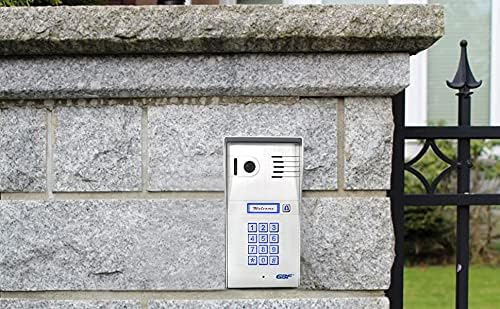
Figure 5.2: Resetting Keypad PIN
This app screenshot shows the interface for resetting the keypad PIN, with a field to enter the new PIN (e.g., '1234') and an 'OK' button to confirm the change.

Figure 5.3: Adding Visitor PIN Code
This app screenshot illustrates the process of adding a visitor PIN code, including options to name the visitor, select which lock relay to activate (e.g., Front Door, Side Gate), customize the doorcode generation, and set the access duration.
5.3 Remote Lock Control
The system features two integrated SPDT relays that can trigger two different remote door locks or gates. These can be activated directly from your mobile device during a call or independently.

Figure 5.4: Remote Lock Control Interface
This app screenshot displays the interface for controlling two separate locks, labeled 'Front Door' and 'Side Gate', with a central unlock icon, allowing users to remotely open either access point.

Figure 5.5: Door Unlock Confirmation
This app screenshot shows a confirmation message 'Door unlocked.' displayed on the screen after a successful remote unlock action, indicating the status of the controlled access point.
5.4 Motion Detection Configuration
Advanced motion detection can be programmed from the app. You can define the area of interest, sensitivity, and active time of day/days of the week for motion alerts.

Figure 5.6: Motion Detection Settings
This app screenshot displays the motion detection configuration options, including enabling/disabling the feature, setting detection areas, adjusting sensitivity, and defining a specific detection schedule for active monitoring.
5.5 Missed Call Messages
Configure the system to play a custom message if a call is not answered. This feature ensures visitors receive information even when you are unavailable.
5.6 Timed Unlock Feature
Set your gate or door to open automatically during specified time periods and days of the week. This is useful for scheduled deliveries or regular access for certain individuals.

Figure 5.7: Timed Unlock Configuration
This app screenshot shows the settings for the 'Timed Unlock' feature, allowing users to enable it and configure specific time periods and days of the week for automatic lock activation for 'lock1' and 'lock2'.
5.7 Event Log Access
The app allows you to retrieve an event log of up to one week, with a timeline and video clips tracking all events occurring at the outdoor station (Ring-in, App unlock, Keypad unlock, Motion Detection).
6. וישאַלט
To ensure the longevity and optimal performance of your GBF Smart Video Door Phone, follow these maintenance guidelines:
- רייניקונג: Regularly wipe the brushed aluminum faceplate with a soft, damp שטאָף. פֿאַרמײַדט אַברייסיוו רייניגער אָדער סאָלווענטן וואָס קענען שאַטן די ענדיקונג.
- Lens Care: Gently clean the camera lens with a microfiber cloth to ensure clear video quality.
- Firmware דערהייַנטיקונגען: Periodically check the mobile application for available firmware updates. Keeping the device's firmware current ensures access to the latest features and security enhancements.
- ענוויראָנמענטאַל שוץ: While the unit is IP65 rated for weather resistance, avoid direct, prolonged exposure to extreme weather conditions if possible. Ensure proper sealing during installation to prevent water ingress.
7. טראָובלעשאָאָטינג
If you encounter issues with your GBF Smart Video Door Phone, refer to the following common problems and solutions:
| פּראָבלעם | מעגלעך סיבה | לייזונג |
|---|---|---|
| No power/Unit unresponsive | Power adapter disconnected; PoE issue; faulty wiring. | Check power adapter connection. If using PoE, verify PoE switch/injector is active. Inspect wiring for damage. |
| Cannot connect to Wi-Fi/App offline | Incorrect Wi-Fi password; weak signal; network configuration issues. | Ensure correct Wi-Fi password. Move router closer or use a Wi-Fi extender. Consider using a wired Ethernet connection for stability. Restart router and doorbell unit. |
| Poor video quality/Laggy video | Insufficient network bandwidth; weak Wi-Fi signal; camera lens obstruction. | Ensure stable internet connection. Use wired Ethernet if Wi-Fi is unstable. Clean camera lens. |
| Audio echo or distortion | Environmental acoustics; software issue. | Ensure microphone and speaker are clear of obstructions. Check for firmware updates. |
| קיפּאַד ריספּאַנד נישט | Incorrect PIN; keypad malfunction. | Verify PIN code. Try resetting PIN via app. Contact support if issue persists. |
| Remote unlock not working | Incorrect wiring to lock; lock mechanism issue; app relay setting. | Check wiring to the lock. Ensure the correct relay is selected in the app. Test the lock mechanism independently. |
| קיין פּוש נאָוטאַפאַקיישאַנז | App notification settings disabled; phone's notification settings; network issues. | Enable notifications within the GBF app and your phone's system settings. Ensure stable network connection. |
If the problem persists after attempting these solutions, please refer to the support section.
8. טעכניש ספּעסאַפאַקיישאַנז
| שטריך | באַשרייַבונג |
|---|---|
| מאָדעל נומער | PL963PMPOE |
| דימענסיעס (L X W X H) | 8 X 4 X 2 אינטשעס |
| פּונקט וואָג | 2 פונט |
| מאַטעריאַל | אַלומינום, מעטאַל |
| קאָליר | זילבער |
| מאַכט מקור | 12V DC 1A (adapter included) or PoE |
| Voltage | 12 וואלטס |
| וואָסtage | 24 וואטס |
| קאַנעקטיוויטי טעכנאָלאָגיע | ווייערד (עטהערנעט), Wi-Fi |
| קאַנעקטיוויטי פּראָטאָקאָל | ווי-פי |
| ווידעא קאַפּטורע רעסאָלוטיאָן | 1080 פּ |
| עפעקטיוו ווידעא האַכלאָטע | 1080 פּיקסעלס |
| Viewינג אַנגלע | 160 דיגריז |
| נידעריק ליכט טעכנאָלאָגיע | נאַכט קאָליר |
| אינטערנאַציאָנאַלע פּראַטעקשאַן שאַץ | IP65 |
| נומער פון טשאַנאַלז | 2 (for lock control) |
| קאָנטראָל מעטאָד | אַפּ |
| ספּעציעלע שטריך | באַוועגונג סענסאָר |
| דרינענדיק / דרויסנדיק באַניץ | דרינענדיק, דרויסנדיק |
| קאַמפּאַטאַבאַל דעוויסעס | סמאַרטפאָון (iOS, אַנדרויד) |
| UPC | 661706307963 |
9. וואָראַנטי & שטיצן
The GBF Smart Video Door Phone & Doorbell (PL963PMPOE) comes with a 1-יאָר פאַבריקאַנט ס וואָראַנטי. די וואָראַנטי קאָווערס חסרונות אין מאַטעריאַלס און ווערקמאַנשיפּ אונטער נאָרמאַל נוצן.
For technical assistance, troubleshooting beyond this manual, or warranty claims, please contact GBF customer support. Refer to the product packaging or the official GBF webזייטל פֿאַר די מערסט אַקטועלע קאָנטאַקט אינפֿאָרמאַציע.
Please note that subscription fees may apply for optional features such as extended event log storage, temporary visitor codes, and timed unlock functionalities.
פֿאַרבונדענע דאָקומענטן - PL963PMPOE
 |
GBF WiFi IP Doorbell (3rd Gen) User Manual and Installation Guide Comprehensive user manual for the GBF PL963 Series WiFi IP Doorbell (3rd Gen), covering installation, package contents, configuration using the Doordeer app, settings, temporary access codes, sharing, manual keypad programming, and troubleshooting tips. |
 |
GBF Multi-Unit Apartment Intercom System User Manual & Installation Guide Comprehensive user manual and installation guide for the GBF 4-wire smart intercom system for apartment buildings. Learn about system overview, installation steps, wiring diagrams, and SkyBox configuration. |
 |
GBF PL960 Series IP Doorbell: Installation, Configuration, and Operation Guide This guide provides comprehensive instructions for installing, configuring, and operating the GBF PL960 Series IP Doorbell. It covers Wi-Fi and wired setup, connecting mobile devices via the ControlCam app, and programming the PL960PM model keypad. Includes troubleshooting tips and advanced feature explanations. |
 |
GBF Smart Four Wire Intercom System User Manual - Installation and Operation Guide Comprehensive user manual for the GBF Smart Four Wire Intercom System (models PL270C4, MR263C4). Includes installation instructions, setup guide, operating procedures, and troubleshooting tips for your home security and communication needs. |
 |
GBF WiFi IP Doorbell (3rd Gen) User Manual - Installation, Configuration, and Features Comprehensive user manual for the GBF PL963 Series WiFi IP Doorbell (3rd Gen). Covers installation, configuration via Doordeer app, settings, temporary access codes, sharing, and keypad programming. |
 |
GBF SentryLink Smart Video Intercom Property Management Manual Guide for property managers on using the GBF SentryLink Smart Video Intercom system for building and tenant management, access control, and system monitoring. |
Ask a question about this manual
Ask about setup, troubleshooting, compatibility, parts, safety, or missing instructions. Manuals+ will review the question and use this page’s manual context to help answer it.