
הקדמה
This manual provides essential information for setting up, operating, maintaining, and troubleshooting your CyberpowerPC Gamer Xtreme Gaming PC. This system is designed for high-performance gaming and multitasking, featuring an AMD Ryzen 7 3700X processor, NVIDIA GeForce RTX 3060 graphics, 16GB DDR4 RAM, and a combination of SSD and HDD storage, running on Windows 10 Home 64-Bit.
1. סעטאַפּ
1.1 אַנפּאַקינג
Carefully remove the PC from its packaging. Ensure all accessories, including the power cable, keyboard, and mouse, are present. Retain the original packaging for future transport or service needs.

פיגורע 1: פראָנט view of the CyberpowerPC Gamer Xtreme, highlighting its design and RGB lighting.
1.2 קאַנעקטינג פּעריפעראַלס
Connect your monitor, keyboard, mouse, and other peripherals to the appropriate ports on the rear and top of the PC. Ensure all connections are secure.
- מאָניטאָר: Connect your monitor to the graphics card's HDMI or DisplayPort output.
- קלאַוויאַטור און מויז: Connect to any available USB ports (USB 2.0 or USB 3.0).
- מאַכט: Connect the power cable to the PC's power supply unit (PSU) and then to a grounded electrical outlet.
- נעץ: For wired internet, connect an Ethernet cable to the LAN port. For wireless, ensure the Wi-Fi antenna (if included) is attached.

פיגור 2: ווינקלדיק view of the CyberpowerPC Gamer Xtreme, highlighting the front panel design and side ventilation.

פיגורע 3: שפּיץ view of the PC, illustrating the accessible front I/O ports and top ventilation.
1.3 ערשטע איינשטראָם און ווינדאָוס סעטאַפּ
Press the power button located on the top panel of the PC. The system will boot up. Follow the on-screen instructions to complete the Windows 10 Home setup, including language selection, network connection, and user account creation.
2. אַפּערייטינג ינסטרוקטיאָנס
2.1 מאַכט אויף / אַוועק
- צו מאַכט אויף: Press the power button on the top panel.
- צו פאַרמאַכן אַראָפּ: דריקט דעם סטאַרט קנעפּל אין ווינדאָוס, און דערנאָך סעלעקטירט מאַכט > שאַט דאַון.
- צו ריסטאַרט: דריקט דעם אָנהייב קנעפּל, און דערנאָך אויסקלײַבן מאַכט > ריסטאַרט.
- צו שלאפן: דריקט דעם אָנהייב קנעפּל, און דערנאָך אויסקלײַבן מאַכט > שלאָף.
2.2 קאַנעקטינג צו אַ נעץ
Your PC supports both wired (Ethernet) and wireless (Wi-Fi) network connections.
- ווייערד: Connect an Ethernet cable from your router/modem to the LAN port on the rear of the PC.
- ווירעלעסס: In Windows, click the network icon in the taskbar, select your Wi-Fi network, enter the password, and click Connect.
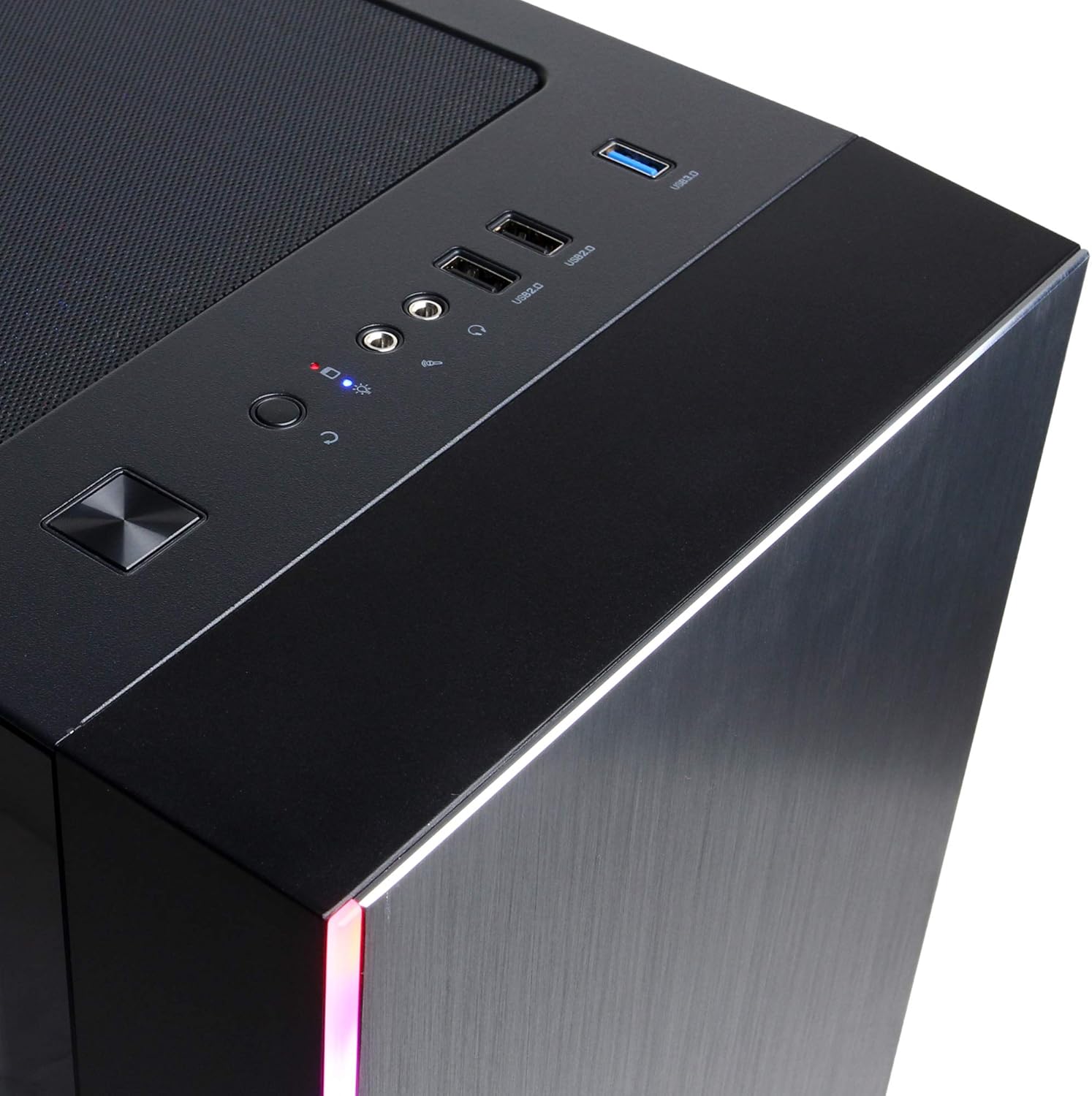
Figure 4: Detail of the top I/O panel, providing easy access to USB and audio connections.
3. וישאַלט
3.1 רייניקונג
רעגולערע רייניקונג העלפט אויפהאלטן די אָפּטימאַלע פאָרשטעלונג און פאַרלענגערט די לעבנסדויער פון דיין פּיסי.
- עקסטעריע: ניצן אַ ווייך, דamp cloth to wipe down the exterior. Avoid harsh chemicals.
- שטויב: ניצט פּעריִאָדיש קאָמפּרעסירטע לופט צו רייניקן שטויב פֿון ווענטילאַציע גרילן און אינעווייניקסטע קאָמפּאָנענטן. מאַכט זיכער אַז דער קאָמפּיוטער איז אויסגעלאָשן און נישט אַרויסגעטראָגן פֿון דער פּלאַטע איידער איר רייניקט.
3.2 ווייכווארג דערהייַנטיקונגען
Keep your operating system, drivers, and applications updated to ensure security, stability, and performance.
- ווינדאָוס דערהייַנטיקונגען: גיין צו סעטטינגס> דערהייַנטיקן און זיכערהייט> Windows Update.
- גראַפיקס דרייווערס: Download the latest drivers directly from NVIDIA's official webפּלאַץ.
4. טראָובלעשאָאָטינג
4.1 קיין מאַכט
- זיכער מאַכן אַז דער מאַכט קאַבל איז זיכער פארבונדן צו ביידע דעם פּיסי און די וואַנט ווענטיל.
- באַשטעטיקן אַז די וואַנט אַוטלעט אַרבעט דורך אַרײַנשטעקן אַן אַנדער דעוויס.
- Check the power switch on the PSU (if present) is in the 'On' position.
4.2 קיין ווייַז
- Confirm the monitor is powered on and connected to the graphics card's output, not the motherboard's integrated graphics ports (if applicable).
- פרובירט אן אנדערן דיספּלעי קאַבל אדער מאָניטאָר אויב פֿאַראַן.
- Ensure the monitor's input source is correctly selected.
4.3 System Slowdown or Freezing
- Check Task Manager (Ctrl+Shift+Esc) for high CPU, RAM, or disk usage by specific applications.
- זייט זיכער אז ווינדאָוס און דרייווערס זענען אַרויף צו דאַטע.
- לויפט א ווירוס און מאַלוואַרע סקען.
- Ensure adequate ventilation and check for excessive dust buildup.
5. ספּעסאַפאַקיישאַנז
| שטריך | דעטאַל |
|---|---|
| סאָרט | CyberpowerPC |
| מאָדעל נאָמען | Gamer Xtreme |
| אָפּערייטינג סיסטעם | Windows 10 היים |
| קפּו מאָדעל | AMD Ryzen 7 3700X |
| קפּו ספּיד | 3.6 גיגאהערץ (באַזע) |
| גראַפיקס קאָופּראַסעסער | NVIDIA GeForce RTX 3060 |
| Graphics Card RAM | 12 גיגאבייט GDDR6 |
| ראַם זכּרון אינסטאַלירט | 16 גיגאבייט דדר4 |
| סטאָרידזש | 240 GB SSD, 1 TB HDD |
| קאַנעקטיוויטי | HDMI, Wi-Fi (802.11ab), USB 2.0, USB 3.0 |
| נומער דימענשאַנז (LxWxH) | 18.6 X 17.4 X 8.9 אינטשעס |
| קאָאָלינג אופֿן | לופט |
| UPC | 811842073769 |
6. וואָראַנטי אינפֿאָרמאַציע
Your CyberpowerPC Gamer Xtreme Gaming PC is covered by a manufacturer's limited warranty. Specific terms and conditions, including warranty duration and coverage details, are typically provided with your purchase documentation or can be found on the official CyberpowerPC webזייטל. ביטע באַהאַלטן אייער קויפן באַווייַז פֿאַר וואָראַנטי קליימז.
7. שטיצן
For technical assistance, troubleshooting, or further inquiries, please visit the official CyberpowerPC support website or contact their customer service. You may need your product model number (GMA3088W) and serial number for support.
- באַאַמטער Webפּלאַץ: www.cyberpowerpc.com
- שטיצע סעקציע: Look for a "Support" or "Contact Us" link on their webפּלאַץ.


