
1. הקדמה
This manual provides detailed instructions for the proper installation, operation, and maintenance of your Xprinter XP-N160II thermal receipt printer. Please read this manual thoroughly before using the printer to ensure optimal performance and to prevent damage.
2. פּראָדוקט איבערview
2.1 שליסל פֿעיִקייטן
- בראַנד: Xprinter
- קאָליר: שוואַרץ
- Printer Type: Receipt Thermal Printer
- מאָדעל נומער: N160
- קאַנעקטיוויטי טעכנאָלאָגיע: וסב
- Printer Output: Monochrome
- Print Media: Labels
- Maximum Black and White Print Resolution: 203 dpi
2.2 דרוקער קאָמפּאָנענטן
Familiarize yourself with the various parts of your Xprinter XP-N160II printer:
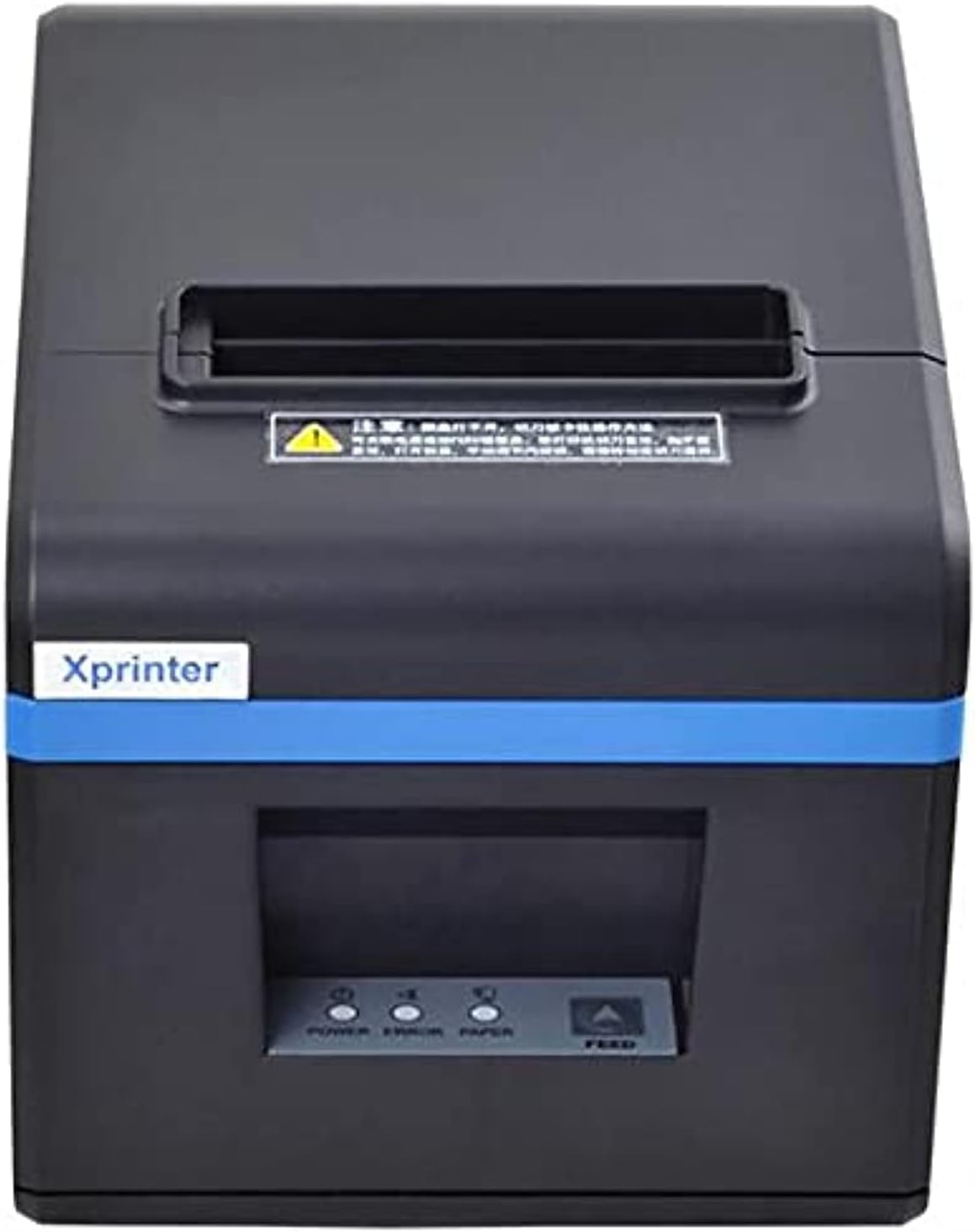
פיגורע 1: פראָנט view of the Xprinter XP-N160II thermal receipt printer, showing the paper output slot, control panel with indicator lights (POWER, ERROR, PAPER), and FEED button.
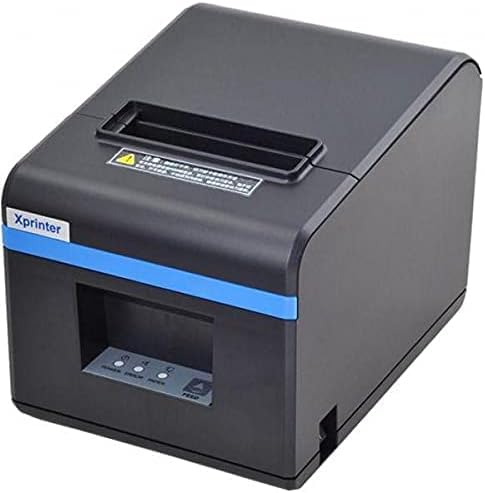
פיגורע 2: געווינקלטע פראָנט view of the Xprinter XP-N160II, highlighting its compact design and the Xprinter branding on the front.
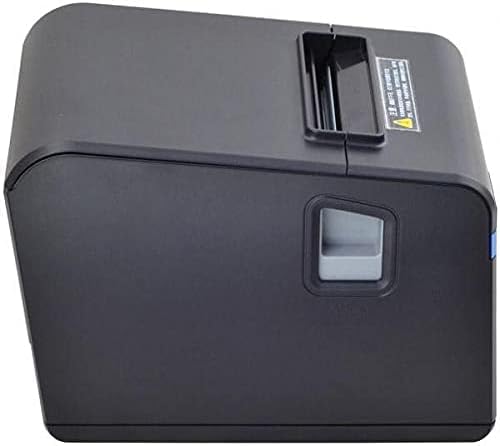
פיגורע 3: זייַט view of the Xprinter XP-N160II, illustrating the paper cover release lever for easy paper roll replacement.

פיגורע 4: דערציען view of the Xprinter XP-N160II, displaying the power input port, USB port, and an additional port (likely for cash drawer connection).
3. סעטאַפּ אינסטרוקציעס
- אויספּאַקן: Carefully remove the printer from its packaging. Retain all packaging materials for future transport or storage.
- פאַרבינדן מאַכט: Connect the power adapter to the printer's power input port (refer to Figure 4) and then plug the power cord into a suitable electrical outlet.
- פאַרבינדן דאַטן קאַבל: Connect the USB cable from the printer's USB port (refer to Figure 4) to your computer or point-of-sale system.
- לאָדן פּאַפּיר זעמל:
- Press the paper cover release lever (refer to Figure 3) to open the printer cover.
- Insert a new thermal paper roll into the compartment, ensuring the paper feeds from the bottom and the leading edge extends slightly out of the printer.
- פֿאַרמאַכט דעם דרוקער דעקל פֿעסט ביז עס קליקט אַרײַן אין פּלאַץ.
- ינסטאַלירן דריווערס: Insert the driver CD (if included) into your computer or download the latest drivers from the official Xprinter webזייטל. גיי נאך די אינסטרוקציעס אויפן עקראַן צו ענדיגן די דרייווער אינסטאַלאַציע.
- מאַכט אויף: Press the power button on the printer. The POWER indicator light should illuminate.
4. אַפּערייטינג ינסטרוקטיאָנס
- Self-Test Print: To perform a self-test, turn off the printer. While holding down the FEED button, turn the printer back on. Release the FEED button once the printer starts printing. This will print a configuration page, confirming basic functionality.
- Printing from Application: Ensure the printer is connected and drivers are installed. In your application (e.g., POS software, word processor), select the Xprinter XP-N160II as your default printer and initiate the print command.
- Feeding Paper Manually: Press the FEED button on the front panel to advance the paper by a small amount. Hold the FEED button down to continuously feed paper.
5. וישאַלט
- רייניקונג די פּרינט קאָפּ: Regularly clean the thermal print head with an alcohol swab or a specialized print head cleaning pen. Ensure the printer is turned off and cooled down before cleaning.
- רייניקונג פון די פּלאַטען ראָללער: ניצן אַ ווייך, דamp cloth to wipe the platen roller (the rubber roller that feeds the paper) to remove any paper dust or debris.
- פּאַפּיר זעמל פאַרבייַט: Replace the paper roll when the PAPER indicator light illuminates or when the red line appears on the paper, indicating the end of the roll is near. Follow the steps outlined in Section 3.4.
- אַלגעמיינע רייניקונג: Keep the printer exterior clean by wiping it with a soft, dry cloth. Avoid using harsh chemicals or abrasive cleaners.
6. טראָובלעשאָאָטינג
| פּראָבלעם | מעגלעך סיבה | לייזונג |
|---|---|---|
| דרוקער גייט נישט אן | No power supply; faulty power adapter | Check power cable connection; ensure outlet is functional; try a different power adapter if available. |
| No paper feeding / PAPER light on | Paper roll empty or incorrectly loaded | Replace paper roll or re-load correctly (refer to Section 3.4). |
| Print output is blank or faded | Paper loaded incorrectly (upside down); print head dirty or damaged | Ensure thermal paper is loaded with the thermal side facing the print head; clean the print head (refer to Section 5). |
| דרוקער נישט דערקענט דורך קאָמפּיוטער | USB cable disconnected; drivers not installed or corrupted | Check USB cable connection; re-install printer drivers (refer to Section 3.5). |
| ERROR light is on | Paper jam; print head overheating; cover open | Clear any paper jams; allow printer to cool down; ensure printer cover is closed properly. |
7. ספּעסאַפאַקיישאַנז
| שטריך | דעטאַל |
|---|---|
| סאָרט נאָמען | Xprinter |
| מאָדעל נאָמען | N160 |
| קאָליר | שוואַרץ |
| דרוקער טעכנאָלאָגיע | טערמאַל |
| קאַנעקטיוויטי טעכנאָלאָגיע | וסב |
| דרוקער רעזולטאַט | מאָנאָטשראָמע |
| דרוק מידיאַ | לאַבעלס |
| מאַקסימום שוואַרץ און ווייַס פּרינט האַכלאָטע | 203 דפּי |
| Maximum Sheet Capacity | 50 (referring to individual labels or a roll capacity equivalent) |
| פּעקל דימענשאַנז | 33 X 21.4 X 18.3 סענטימעטער |
| פּונקט וואָג | 1.62 קג |
| פאַבריקאַנט | Xprinter |
| ערשטער דאַטע בנימצא | 1 יוני 2021 |
8. זיכערקייַט אינפֿאָרמאַציע
- Do not expose the printer to water or high humidity.
- פֿאַרמײַדט צו שטעלן דעם דרוקער אין דירעקטער זון אָדער לעבן היץ־קוואַלן.
- ניצט נאָר דעם מאַכט אַדאַפּטער וואָס ווערט צוגעשטעלט מיטן דרוקער.
- פּרוּווט נישט צו צענעמען אָדער פאַרריכטן דעם דרוקער אַליין. ווענדט זיך צו קוואַליפֿיצירטע סערוויס פּערסאָנעל.
- האַלטן אויס פון דערגרייכן פון קינדער.
- זיכער מאַכן אַז די ווענטילאַציע אַרום דעם דרוקער איז ריכטיק בעתן באַנוץ.
9. וואָראַנטי און שטיצן
The Xprinter XP-N160II thermal receipt printer comes with a standard manufacturer's warranty. For specific warranty terms and conditions, please refer to the documentation included with your purchase or contact Xprinter customer support directly. For technical assistance or service inquiries, please visit the official Xprinter webזייטל אדער קאָנטאַקט זייערע אָטערייזד סערוויס צענטערס.